

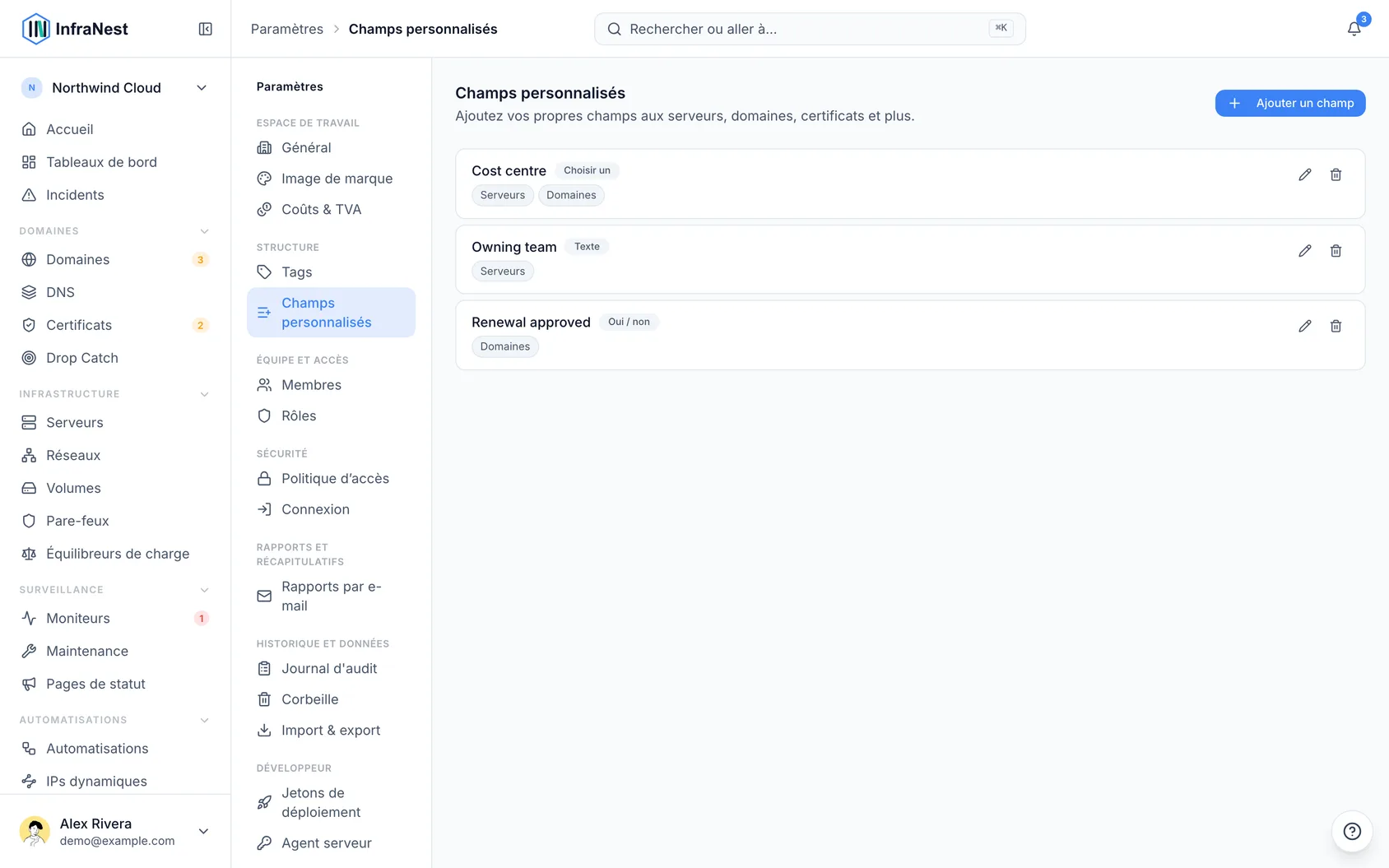
Les champs personnalisés vous permettent d'ajouter vos propres informations — comme un nom de client, un centre de coûts ou une date de fin de contrat — aux serveurs, domaines, certificats et autres éléments dans InfraNest. Ils sont utiles pour quiconque souhaite suivre des détails qu'InfraNest ne capture pas par défaut.
#Vue d'ensemble
- Un champ personnalisé est le vôtre : vous le définissez et le nommez.
- Exemples courants : Client ou Centre de coûts pour voir ce qui appartient à qui, Fin de contrat pour une date qui n'est pas la date de renouvellement, ou Environnement pour marquer la production, la préproduction ou les tests.
- Un champ partagé entre plusieurs modules peut regrouper des éléments dans les rapports — par exemple, un champ Client présent à la fois sur les serveurs et les domaines permet de totaliser les dépenses par client.
#Créer un champ
- Allez dans Paramètres, puis sélectionnez Custom fields.
- Sélectionnez Ajouter.
- Donnez-lui un libellé — par exemple Client, Centre de coûts ou Fin de contrat.
- Choisissez un type : texte, nombre, oui/non, date, lien, choix, choix multiple ou devise.
- Pour un champ à choix, listez les options, une par ligne.
- Sous Applies to, sélectionnez les modules sur lesquels le champ doit apparaître.
- Choisissez de l'afficher ou non comme colonne dans les vues en liste.
- Sélectionnez Enregistrer.
#Renseigner un champ
- Ouvrez un élément auquel le champ s'applique — un serveur, un domaine, une zone DNS ou un certificat.
- Repérez le panneau Custom fields sur cet élément.
- Saisissez une valeur — elle est enregistrée au fur et à mesure.
Si vous avez choisi d'afficher le champ comme colonne, il apparaît aussi comme colonne optionnelle sur la page de liste de ce module, où vous pouvez trier et filtrer dessus.
#Modifier ou supprimer un champ
- Allez dans Paramètres, puis sélectionnez Custom fields.
- Sélectionnez le champ que vous souhaitez modifier.
- Utilisez Modifier pour le mettre à jour, ou Supprimer pour le retirer.
WarningSupprimer un champ retire aussi ses valeurs de tous les éléments concernés, et cette action est irréversible. Si vous souhaitez simplement le mettre de côté, décochez plutôt les modules auxquels il s'applique.
#Astuces
NoteLes champs personnalisés sont configurés par espace de travail — chaque espace de travail définit les siens, et les valeurs sont incluses à chaque export de vos données.
- Les champs personnalisés font partie d'une offre payante ; si l'option n'apparaît pas, vérifiez votre offre.
Cet article vous a-t-il été utile ?
Merci pour votre retour !
Merci, cela va directement à l’équipe docs.
Articles similaires
 PagerDutyAutomatiser avec PagerDutyAlertez votre astreinte pour n’importe quelle situation, pas seulement la panne d’un moniteur, et réagissez dans InfraNest quand les intervenants agissent dans PagerDuty.