

DNS templates let you apply a ready-made set of DNS records to any zone, so you are not adding the same records by hand every time. This is for anyone managing more than one domain, or who wants a consistent baseline for new domains.
#Overview
- A template is a reusable set of DNS records — for example, an email provider's full MX/SPF/DKIM/DMARC setup, or your workspace's standard records for every new domain.
- Templates can use your domain name automatically, so the same template works correctly across different zones.
- You can use the Built-in templates InfraNest provides, or create your own from scratch or from an existing zone.
#Use a template
- Open a zone from the DNS page.
- Open Actions and choose Apply template, pick one, and preview exactly which records it will add before you commit.
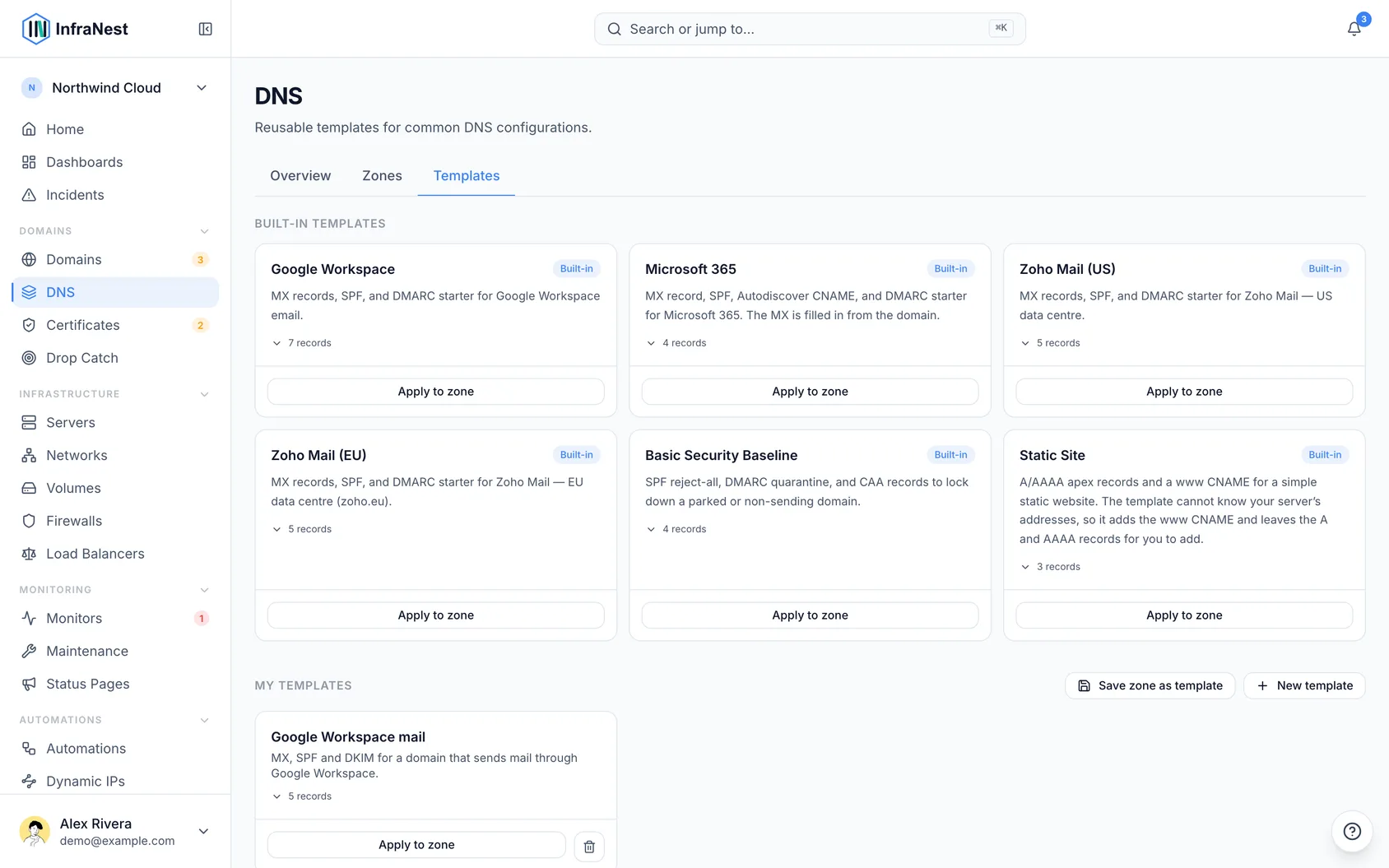
- Apply it. The records are added to the zone (and pushed to the provider where supported).
If your DNS provider refuses one of the records — a rate limit, an expired key, a record type it does not accept — InfraNest stops there and tells you how many were added and how many were not, with the provider's reason. The ones it could not add are not kept: a record that only exists in InfraNest would look live here while nothing had changed at your provider. Fix what the message says and apply the template again — records already added are skipped, so it is safe to re-run.
#Values that depend on your domain
Some records name your own domain. Microsoft 365's mail server, for example, is acme-com.mail.protection.outlook.com for acme.com. The template fills those in for the zone you apply it to, and the preview shows the finished value.
A value the template cannot know, such as your web server's address in Static Site, is never guessed. The preview marks that record as not added and says why; add it yourself once you know the address.
The email templates start DMARC at p=none without a report address. To receive DMARC reports, set them up from the domain's email protection.
#Make your own template
- Use your domain in a value — write
{zone}for the domain the template is applied to (acme.com), or{zone_dashed}for it with dashes instead of dots (acme-com). - Create from a zone — turn an existing, working zone's records into a template. This is the quickest way to capture a setup you already have.
- A record whose TTL shows as 0s — OVHcloud's way of saying "use the zone's default" — is saved with 5 minutes, because a template is not tied to any zone to take a default from. A TTL longer than a day is saved as a day, the longest a template holds.
- Route 53 alias records are left out. An alias is an AWS feature that points a name at an AWS resource, and a template cannot recreate one at another zone. InfraNest tells you when it left one out; add it by hand at each zone you apply the template to.
- Manage templates — create, edit and delete your own templates (name, description, records). Built-in templates are read-only.
- Values are checked when you save — each record's value has to fit its type, the same as when you add a record by hand: an A record needs an IPv4 address, an AAAA record an IPv6 address, and a CNAME, MX or NS record a hostname. To point a record at the domain the template is applied to, write
@.
If a template you already have holds a value that does not fit — saved before this check, or copied from a zone — applying it adds everything else and leaves that one record out. The preview marks it as skipped and says what the value should be, so you can fix the template and apply it again.
#Good to know
NoteDNS templates come with paid plans. On a plan without them you can still browse the built-in templates and see their records, but the buttons to apply, save, create and delete show a lock. Click one to see which plan includes templates.
- Templates are great for an email provider's MX/SPF/DKIM/DMARC set, a SaaS tool's verification records, or your workspace's standard records for every new domain.
- You can also apply a template while creating a zone (see Add a DNS zone).
- TTL — each record in a template has a TTL (how long resolvers may cache it).
TipPick Auto to let Cloudflare decide, which is what Cloudflare uses for proxied records anyway. A template works at every provider, so when you apply it, each TTL is fitted to the zone's provider: Auto becomes 5 minutes at a provider that has no Auto (or that provider's shortest TTL, if 5 minutes is too short for it), and a TTL shorter or longer than the provider allows becomes its shortest or longest. The preview shows the TTL each record will get.
Was this article helpful?
Thanks for your feedback!
Thanks, this goes straight to the docs team.