

If InfraNest asks you to set a new password before letting you continue, don't worry — nothing is wrong with your account. This happens when your workspace's security policy requires it.
#Overview
- Your password may have expired based on your workspace's rotation schedule.
- An administrator may have required a reset, often after a security review or a possible exposure.
- You may have been given a temporary password that needs to be replaced now.
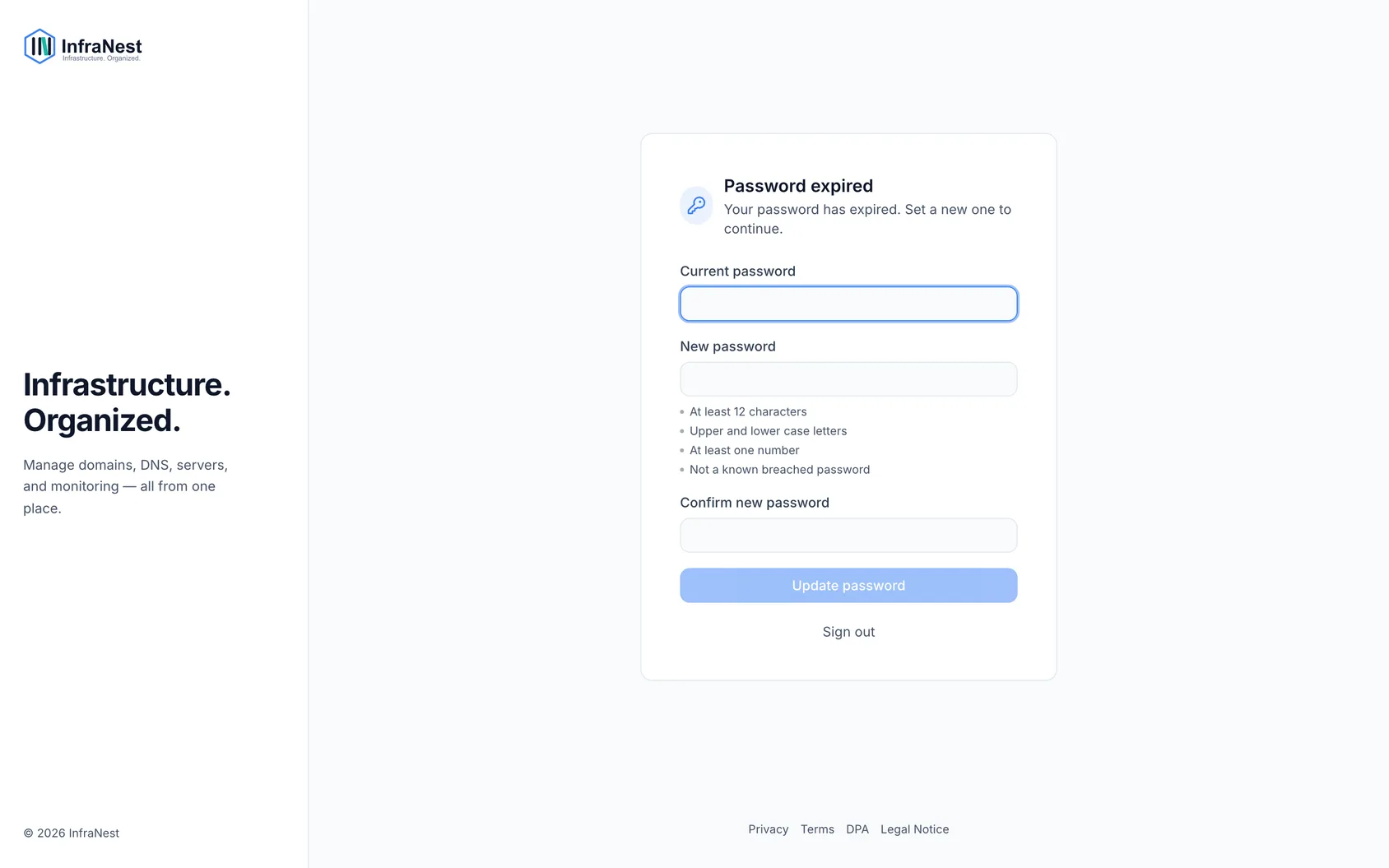
#Change your password
- Enter your current password.
- Choose a new password that meets the rules shown on screen — these cover length and whether a mix of characters is required.
- Select Save. You'll continue straight into InfraNest — there's no separate sign-in step.
#Tips
- Longer is better than complicated. A passphrase made of a few unrelated words is stronger and easier to type than a short, scrambled one.
- Don't reuse a password from another service.
- Consider a password manager, especially if your workspace rotates passwords often.
TipA password manager makes it easy to generate and store a strong, unique password without having to remember it yourself.
#Troubleshooting
- "Must be different" — this means you've used this password before. Policies usually block reusing a recent password, so choose a new one.
- It doesn't meet the rules — check the requirements listed on the screen. The most commonly missed one is minimum length.
- You've tried too many times — sign-in attempts are rate-limited for security. Wait a few minutes and try again.
NoteIf you don't know your current password, sign out and use Forgot password instead. This sends a reset link to your verified email address.
Was this article helpful?
Thanks for your feedback!
Thanks, this goes straight to the docs team.
Still stuck? Contact support
Related articles
TroubleshootingA certificate check fails although the certificate is validThe padlock in your browser looks fine, but InfraNest flags the certificate, or an SSL monitor says it's down.TroubleshootingMy DNS change isn't showing up yetYou changed a DNS record and saved it, but your site, email or another service still behaves as if nothing changed.TroubleshootingA domain transfer is stuckYou started moving a domain to a new registrar and it still isn't finished, or it says Failed.TroubleshootingTroubleshootingCommon "it's not working" situations and how to resolve them.