

If you changed a DNS record and your site, email or another service still seems unchanged, this article helps you work out whether the change is really live yet — and what to do if it isn't. It's for anyone who manages DNS zones in InfraNest.
#Overview
- Most of the time, the change already reached your provider — something is just remembering the old answer for a little while longer.
- This article walks through how to confirm the change was saved, watch it spread across the internet, and spot the less common cases where something is actually wrong.
#Check whether the change reached your provider
- When you select Save in the record's window, InfraNest sends the change to your DNS provider right away, before the window closes.
- If the provider refuses the change, the window stays open and shows the provider's reason — nothing changes on either side.
- If the window closes without an error, your provider already has the new value.
#Watch the change spread
- Right after you save, a panel above the records shows the change travelling. You don't need a separate lookup tool.
- It opens with a plain-language summary, such as "www.example.com now points to web-02" (showing your server's name if the new address belongs to one of your servers, or the new value otherwise), along with when and where you made the change.
- Check Your provider's nameservers, shown as one row. New address means every nameserver has the change. 1 of 2 still old means it's still publishing — usually fixed by waiting a minute.
- Check Public resolvers (Cloudflare, Google and others), shown one row each: New address, or Old address, for up to N more minutes. That countdown is based on the record's TTL before your change.
- If a monitor watches that name, check its row too — it shows the first check after the change, confirming the new address works, and whether its certificate is valid. Select Check now to run it immediately.
- The panel keeps checking on its own, more slowly over time, and stops once everyone has the new value (or the old one has expired). Close it whenever you like.
- Changed your mind? Select Undo in the same panel. It works the same way after deleting a record.
TipPlanning a change ahead of time? Lower the TTL a day in advance, make the change, then raise the TTL again afterwards — this shortens how long the old answer can be remembered.
#Wait for the old answer to expire
- Every DNS record has a TTL ("time to live"), shown in its own column in the records table and in the Edit record window — this controls how long computers and networks remember the old answer.
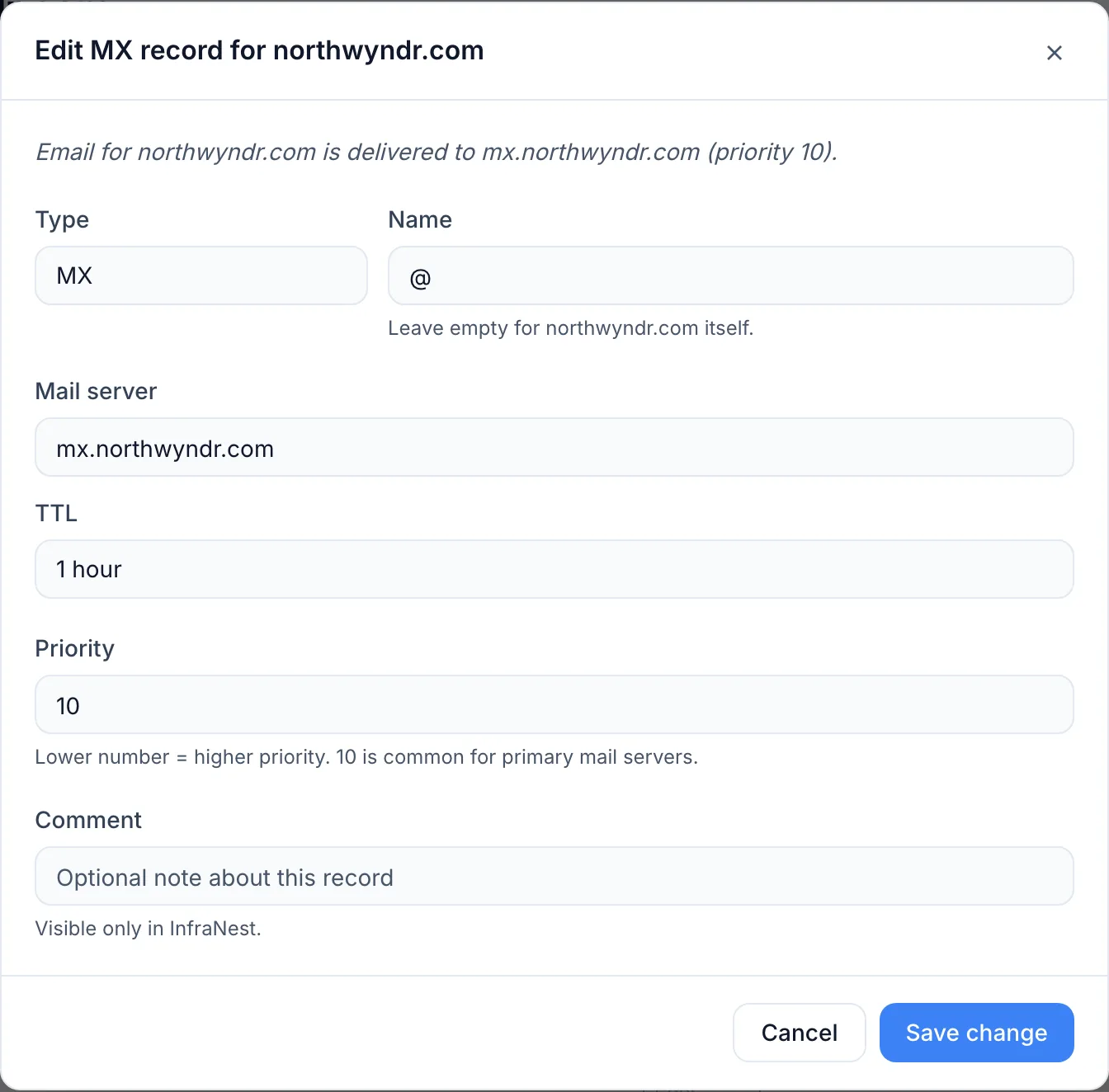
- A record with a TTL of 5 min can take up to five minutes to update everywhere; one with 1 hour can take up to an hour. The clock restarts each time someone looks the name up.
- Your own computer and browser also remember answers. If others already see the change but you don't, try another network (like your phone's mobile data) or restart your browser.
#Check what the internet is answering
- Open the zone under DNS. InfraNest regularly asks public DNS servers what they're answering for your zone, including shortly after you make a change.
- If everything matches, there's nothing to fix — the old answer is just taking time to expire.
- If you see a banner saying … record(s) don't match what the internet answers, select See the difference. This opens Stored here vs answered live, record by record, along with the likely reason:
- Changed at the provider, or still spreading — the old answer hasn't expired yet, or someone edited the record directly at the provider. Wait out the TTL and check again.
- Never reached the provider — the record only exists in InfraNest. Select Send mine to the provider to push it live.
- Nameservers point elsewhere — see the next section.
- If you see We can't say whether these records are live, the check hasn't run yet, or no public DNS server responded. Give it a minute and check again.
#Fix nameservers pointing elsewhere
- If a banner says The internet isn't asking this provider for …, your domain's nameservers (set at the company where you bought the domain) point somewhere else.
- In this case, the records you edit in InfraNest aren't the ones visitors actually get — so changes here won't show up until this is fixed.
- Either update the nameservers at your registrar to point at this provider, or edit the zone directly at the provider it currently uses. See Add a DNS zone for details.
NoteNameserver changes spread more slowly than record changes — often a few hours, and sometimes up to two days.
#Check for changes made outside InfraNest
- InfraNest reads every zone from your provider about once an hour. If someone edits a record directly in the provider's own dashboard, InfraNest picks it up on the next read — until then, it shows the old value.
- To read the latest values right away, open the zone and select Sync from its actions menu.
- If a zone hasn't been read in more than a day, the DNS page marks it Not synced and lists it near the top. Select Sync now there to refresh every zone at once.
- If zones stay listed as Not synced, the connection to your provider may need attention. See When a connection stops working.
#Troubleshooting
- Not synced vs Out of sync — these mean different things. Not synced means InfraNest hasn't read the zone from your provider recently. Out of sync means the internet is answering differently from what InfraNest holds, either because a record differs or because the domain's nameservers point elsewhere. The DNS page lists both kinds separately; open a zone marked Out of sync to see exactly which records differ.
Was this article helpful?
Thanks for your feedback!
Thanks, this goes straight to the docs team.
Still stuck? Contact support
Related articles
TroubleshootingTroubleshootingCommon "it's not working" situations and how to resolve them.TroubleshootingWhen a connection stops workingIf InfraNest can't reach one of your provider accounts, it tells you once, keeps trying in the background, and tells you again when it's fixed — it will not…DNSAdd a DNS zoneCreate a DNS zone with a short wizard that does the cross-provider work for you — including pointing your domain at the new provider.DNSAdd and edit DNS recordsAdd, edit and delete DNS records in one editor — InfraNest pushes each change to your provider.