A block storage volume is a virtual disk that attaches to a cloud server over the network, independent of the server's own lifecycle — you can detach it, snapshot it, resize it, or move it to a different instance without touching the operating system disk. Reach for one whenever data needs to outlive, outgrow, or move between servers; resize the server's own disk only when the whole machine is permanently undersized.
What a block storage volume actually is
Block storage splits data into fixed-size blocks, each with its own address, and leaves the filesystem (ext4, XFS, NTFS, whatever your OS uses) to organise those blocks into files. That's the same model your laptop's SSD uses — the difference with cloud block storage is that the disk lives on separate hardware, reachable over the network, and can be unplugged from one virtual machine and plugged into another in seconds.
Under the hood this is usually carried over iSCSI (block storage over TCP/IP, standardised in IETF RFC 7143, which obsoletes the older RFC 3720), or over NVMe over Fabrics for newer high-performance offerings. You never see the protocol — the provider just hands your server a device like /dev/sdf or /dev/nvme1n1.
Block storage vs. object storage vs. resizing the server's disk
These three get mixed up constantly, and the choice matters:
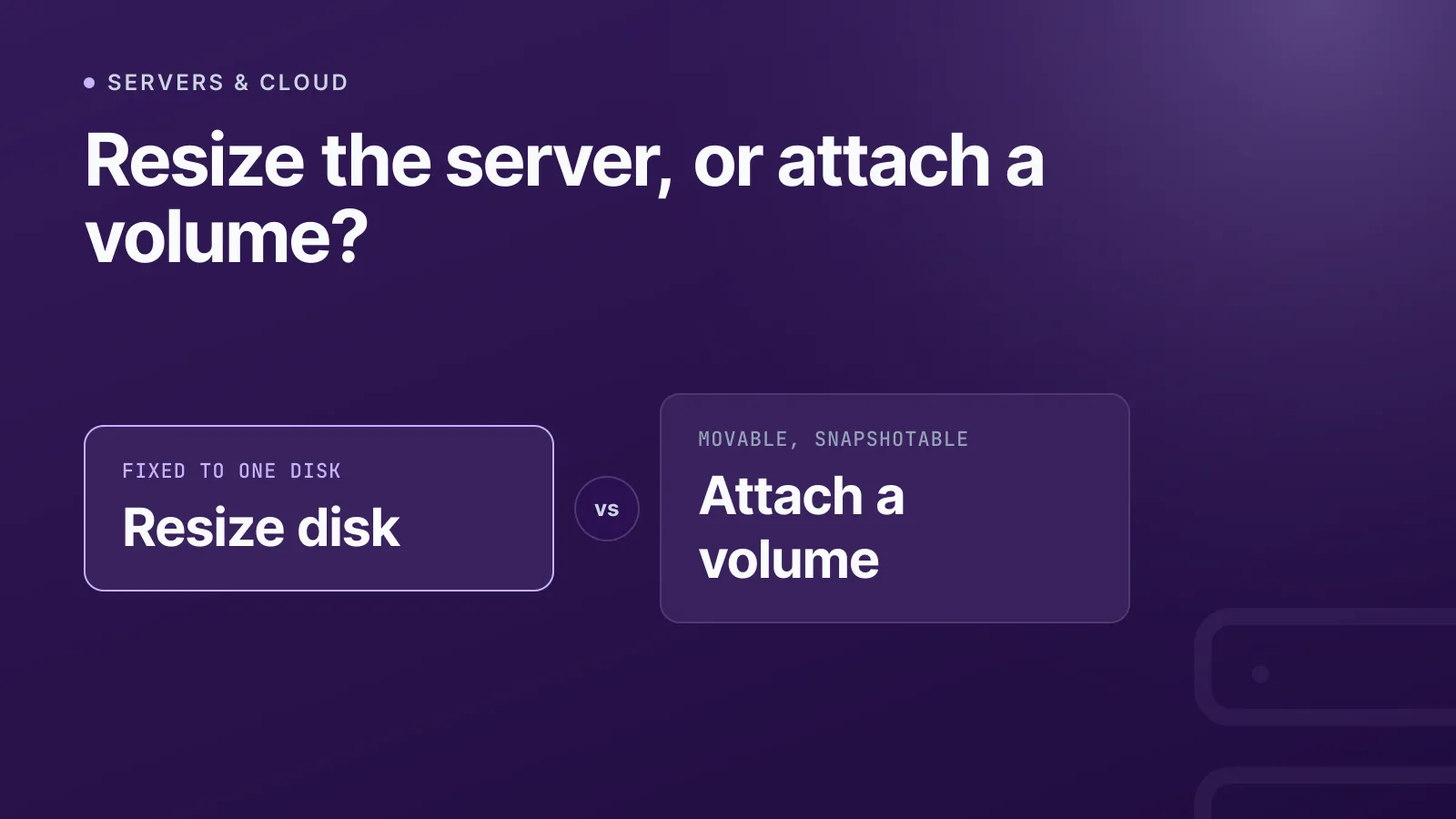
- Resizing the server's boot disk grows the one volume the OS already boots from. Fast to do, but that disk usually can't be detached or moved to another server without a rebuild.
- A block storage volume is a separate, attachable disk. It behaves like a second hard drive you can unplug, snapshot, and reattach elsewhere.
- Object storage (S3-style buckets) has a flat namespace of whole objects accessed over HTTP — no partial writes, no filesystem, no mounting. It's built for durability and scale, not for running a database or application binaries on top.
When to attach a volume instead of resizing the server
Resize the server's own disk when you simply need more room on a single, static machine and you don't care about moving that data independently. Attach a separate block volume when any of these apply:
- The data needs to outlive the server. If you rebuild, replace, or scale down the instance, the volume detaches cleanly and reattaches to the replacement — no re-copying terabytes of data.
- You want to move data between servers. Detach from a crashed or undersized instance, attach to a bigger one, done. Resizing a boot disk doesn't give you that portability.
- You need independent snapshots of just the data. Snapshotting a whole boot disk captures the OS too; a dedicated data volume lets you snapshot only what changes often (a database's data directory, for example).
- You're separating growth rates. Logs and user uploads tend to grow faster than the OS ever will — a growing dataset shouldn't force you to keep resizing (and paying for) the boot disk.
- You run a database or queue that expects a dedicated, fast disk. Pinning performance to one volume keeps noisy neighbours (log writes, temp files) off the disk your database cares about most.
TipIf you're not sure which path to take, ask: "would I ever want this data on a different server than it's on right now?" If yes, it belongs on a separate volume, not the boot disk.
How snapshots work (and why they're not backups by themselves)
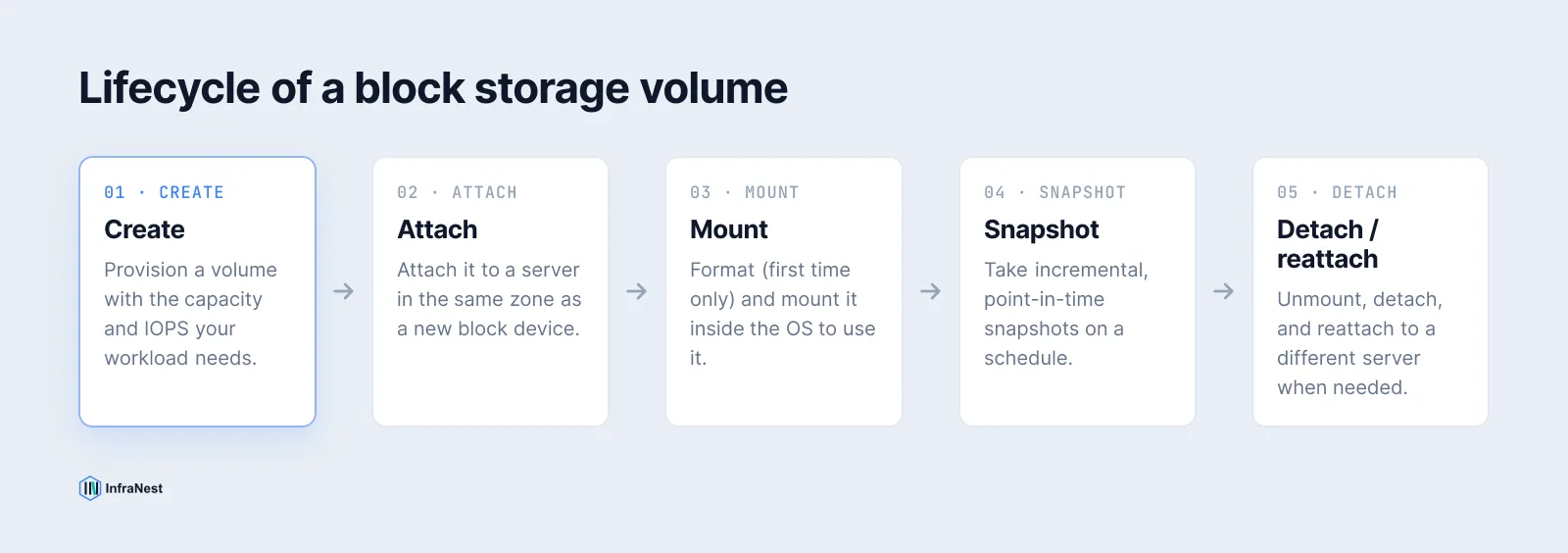
A snapshot is a point-in-time copy of a volume's blocks, and across every major provider it's stored incrementally — only the blocks that changed since the last snapshot are actually written, which keeps both the time and the storage cost down after the first snapshot. Restoring a snapshot creates a brand-new volume from that point-in-time state, which you can then attach to any compatible server.
Snapshots are extremely good at:
- Taking a fast, consistent copy before a risky change (a schema migration, an OS upgrade).
- Cloning a volume to spin up a staging copy of production data.
- Moving a volume to a different availability zone or region — because volumes are typically zone-bound, a snapshot-and-restore is usually the only way to relocate one.
What they don't replace on their own: a tested, scheduled, retained backup strategy. A snapshot still lives in the same provider account, and a single manual snapshot taken once isn't a backup policy — it's a point of recovery for one moment in time. Pair snapshots with retention rules and, ideally, a copy outside the originating account.
Detaching and attaching a volume
The cloud-side steps are nearly identical everywhere: detach from the old instance (cleanly unmount it first), attach to the new one, then bring it online inside the OS. On a Linux server that last part looks like this:
# find the new device
lsblk

# format it — only the first time you ever use this volume
sudo mkfs.ext4 /dev/sdf

# mount it
sudo mkdir -p /mnt/data
sudo mount /dev/sdf /mnt/data

# persist the mount across reboots
echo '/dev/disk/by-uuid/<uuid> /mnt/data ext4 defaults,nofail 0 2' | sudo tee -a /etc/fstab
WarningVolumes are almost always bound to one availability zone and attach to exactly one instance at a time, unless you explicitly enable a multi-attach or shared-disk mode. Moving a volume to a different zone or region means snapshot-and-restore, not a live move — plan for that downtime window in advance.
Picking a volume tier: capacity vs IOPS
On baseline SSD tiers, performance (IOPS and throughput) is usually tied to how much capacity you provision, up to a cap. Top-tier volumes let you set IOPS and throughput independently of size, which matters once a small, high-traffic database outgrows what its capacity-linked performance allows.
| Provider | Baseline SSD tier | Independent IOPS/throughput tier |
|---|---|---|
| AWS | gp3 | io2 Block Express |
| Google Cloud | pd-ssd / pd-balanced | pd-extreme / Hyperdisk |
| Azure | Premium SSD | Premium SSD v2 / Ultra Disk |
If a workload is latency-sensitive (a transactional database, a message queue) and you're seeing throttling under load, that's usually the signal to move up to the independent-IOPS tier rather than simply buying more capacity you don't need. How to read server metrics: rising trends vs one-time jumps is a useful next read if you're trying to tell a genuine capacity problem from a one-off spike before you resize anything.
Keep volumes out of the places they shouldn't be
Oversized or orphaned volumes are a quiet, recurring line item — a snapshot kept forever, a volume left attached to a terminated instance, a data disk sized for peak traffic that never arrived. If you're auditing spend across providers, where cloud server bills quietly grow covers the usual culprits.
Managing volumes, snapshots, and the servers they attach to across multiple clouds from one place removes a lot of this guesswork — InfraNest's cloud server management gives you that single view instead of five provider consoles.
Frequently asked questions
#Can I attach the same block storage volume to two servers at once?
By default, no — a volume attaches to exactly one instance at a time. Multi-attach or shared-disk modes exist on some providers for clustered workloads, but they require explicit setup and the filesystem on top must support concurrent writers.
#Do I need to unmount a volume before detaching it?
Yes. Unmount it cleanly from the OS first so pending writes flush to disk; detaching a still-mounted volume risks filesystem corruption, especially under active writes.
#Is a snapshot the same thing as a backup?
Not on its own. A snapshot is a point-in-time copy stored in the same provider account; a real backup strategy adds a retention schedule and, ideally, a copy outside that account so a single account-level incident can't take out both.
#Can I move a volume between regions?
Volumes are generally bound to one zone or region, so moving one means taking a snapshot and restoring it as a new volume in the target location rather than a live migration.
Try it with a free tool
Was this article helpful?