A good status page during an incident says four things, in order: what's affected, how bad it is, what you know right now, and when you'll say more. It does not say who's on call, which server is misbehaving, or link to your internal runbook — that information belongs somewhere else, and putting it on the public page either confuses customers or leaks detail you didn't mean to share.
Most teams get the public half right and never solve the second half: where does the responder's information go instead? This post covers both.
What customers actually need to read
A status page update earns its keep if a stressed, non-technical reader can answer "is this affecting me, and when will it be fixed" in five seconds. That means:
- Which services are affected — named the way customers know them ("Checkout", not "payments-worker-3").
- Current severity, expressed plainly — degraded performance, partial outage, or major outage, not an internal ticket priority.
- What you know so far, in plain language, without internal jargon or blame.
- A time for the next update, even if the next update is "still investigating."
Most status pages (including the big ones — GitHub's and Cloudflare's status pages both follow this pattern) move an incident through a small set of states as it progresses:
| State | What it tells the reader |
|---|---|
| Investigating | Something is wrong; we're confirming scope |
| Identified | We know the cause |
| Monitoring | A fix is in place; we're watching it hold |
| Resolved | It's over |
This isn't a formal standard — there's no RFC for status page wording — but it's a convention worth following anyway, because your customers have already learned to read it from every other SaaS tool they use. Reinventing the vocabulary only adds friction at the exact moment people want clarity.
TipPost an update on a fixed interval — even "no change, still investigating" — rather than going quiet between milestones. Silence reads as abandonment, even when work is actively happening behind it.
Why the customer-facing version is wrong for your team
Here's the problem: the page written for customers is deliberately incomplete, and that's correct for them and useless for whoever is actually fixing it. A responder paged at 3am doesn't want "we're investigating a checkout issue" — they want to know which regions are reporting it, how stale the last check is, who else is already on it, and where the runbook for that exact service lives.
Teams solve this today by keeping that information somewhere else entirely — a wiki page, a pinned Slack message, a spreadsheet of on-call names — and hoping whoever's paged can find it fast enough. That's the gap a status page has never closed: it tells customers something is broken, but it was never built to tell your own team how to fix it.
What a status page should show your team instead
A status page already has the raw signal: it's built on top of your monitoring checks, so it knows exactly which service is down, which regions are still reporting, and for how long. The missing piece isn't more monitoring — it's a second read of the same page, written for the people fixing the problem instead of the people affected by it.
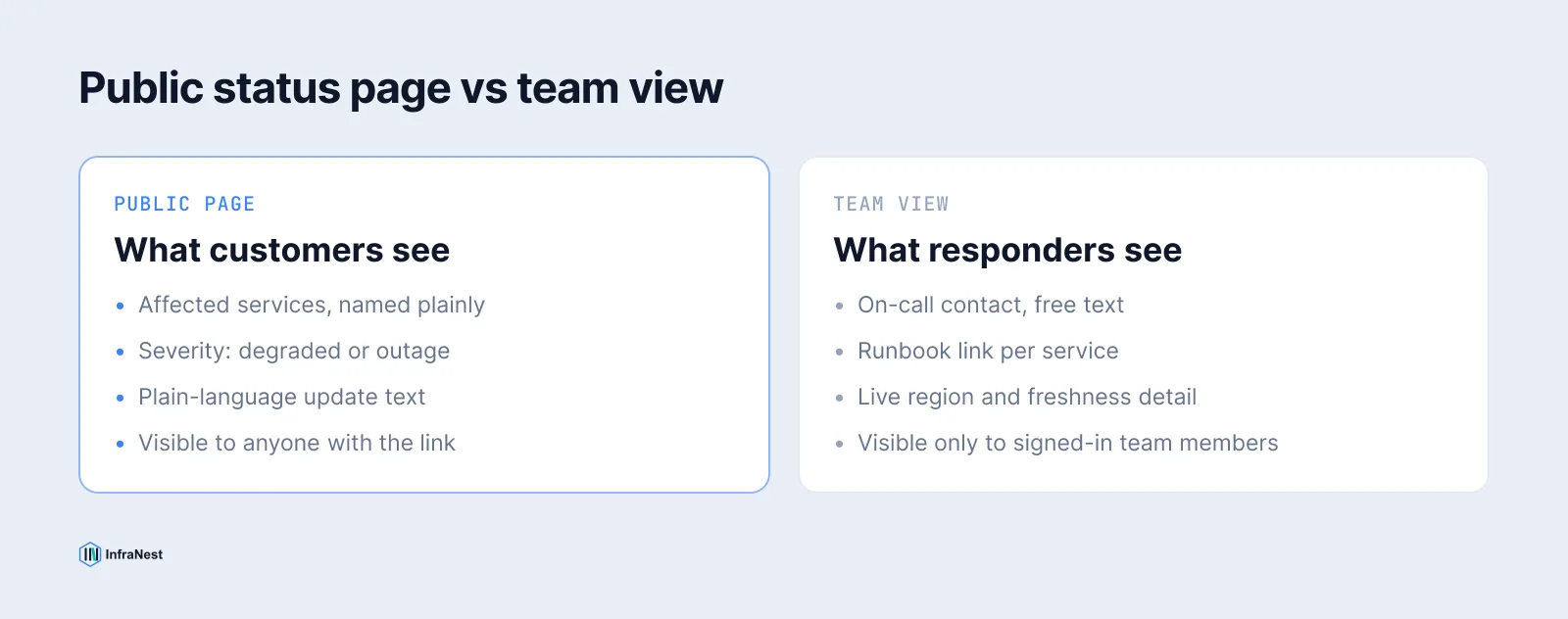
That's what InfraNest's Team view is. Open any status page and there's a second view of it, behind your normal sign-in, that shows:
- The strip at the top — overall status, how many of the page's services are up, 30-day uptime, and when the next maintenance window starts.
- On call — free text, because a rota is its own product; most teams just need a name, a number, and a channel.
- Open right now — every incident currently running, each linking to its public write-up — which is the link you actually paste into a support ticket.
- Services, last 30 days — grouped exactly as customers see them, with uptime bars, when each was last checked, how many monitoring regions are still reporting, and a Runbook button for any service that has one.
Neither the on-call contact nor the runbook links ever reach the public page. They're served only to people signed in to your organisation — so a customer who happens to know your page's password still sees the public page and nothing more. The view also refreshes itself every 30 seconds, so it's safe to leave open on a second monitor through the whole incident.
Setting it up
Both pieces live in the same place as the status page itself:
- Go to Status Pages and open the page.
- Fill in On-call contact — a name, a phone number, a link to your PagerDuty rota, or a Slack channel. Clear it when someone rotates off; a stale name here is how last quarter's on-call keeps getting paged.
- Open the Components tab, click a service, and fill in Runbook link. Point it at the document for that service, not your wiki's front page — the whole point is that whoever's paged lands on the right page, not an index they have to search.
The runbook link has to start with https://. Both are part of private status pages — if your plan doesn't include the team view, the page tells you so and everything else keeps working as before.
An example incident, told two ways
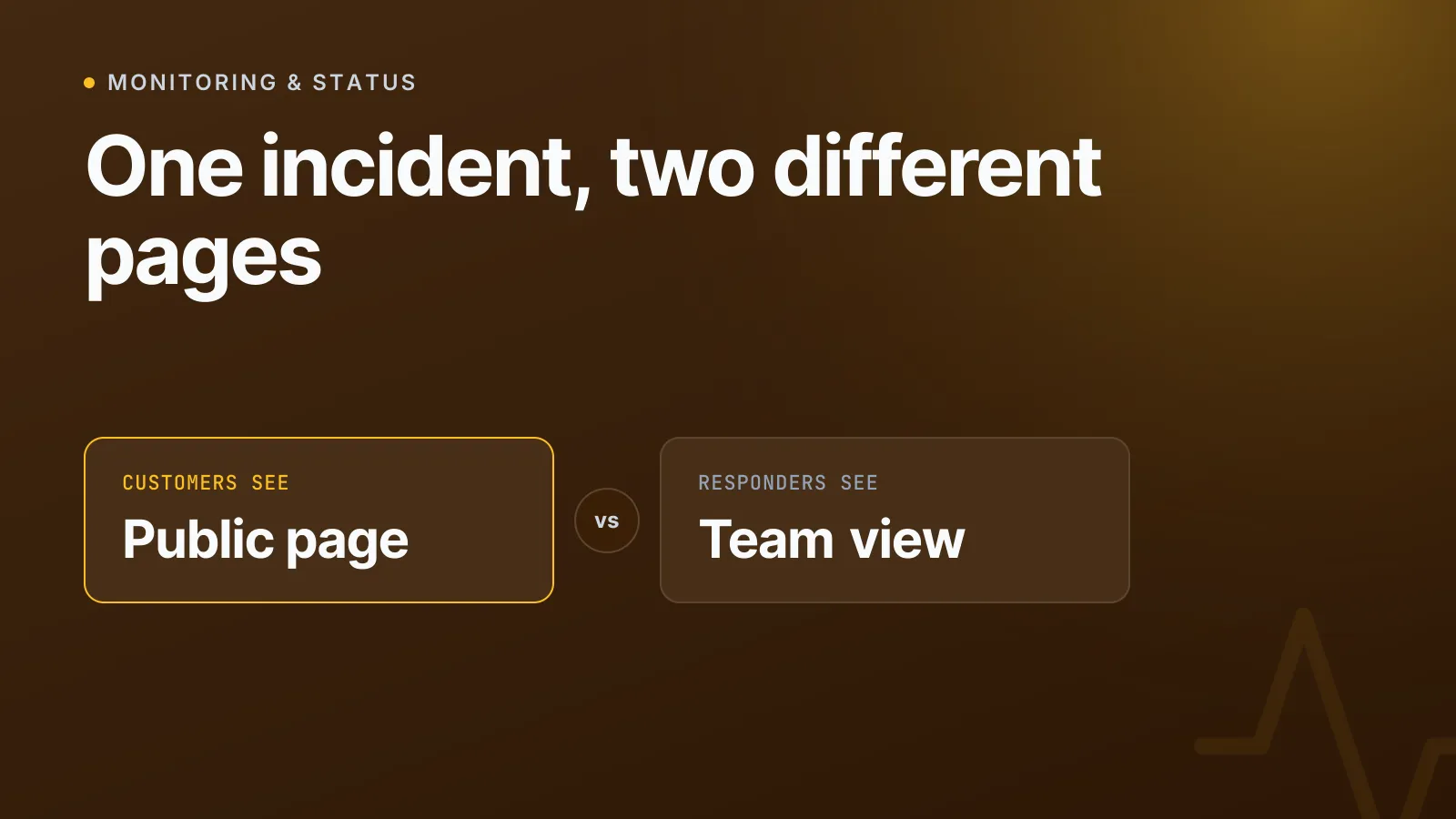
Same incident, two audiences:
Public page (customer-facing):
Investigating — We're seeing elevated error rates on Checkout. We're looking into it and will post an update within 30 minutes.
Team view (same moment):
Checkout: 2 of 3 regions reporting down, last checked 14s ago. On call: Priya, +44 7xxx, #incidents. Runbook: checkout-5xx-playbook.
The first version is calm, accurate, and tells a customer exactly as much as they need. The second is dense, specific, and gets a responder moving without a single Slack message asking "does anyone know who owns this."
WarningDon't paste internal detail — server names, region counts, on-call names — into the public incident update. It doesn't help the reader and it's one more thing you'd have to redact later if the page is ever shared externally.
Once the incident resolves, the public write-up keeps its own permanent URL — useful because support tickets referencing it often stay open long after the page itself has moved on to the next thing. If you're routing those links into your ticketing system, see linking status page incidents to support conversations.
A quick setup checklist
- Status page built from your real monitors, not typed in by hand — see creating a status page.
- An on-call contact filled in on the page, kept current.
- A runbook link on every service that has one.
- A fixed update cadence agreed with your team, even for "no change yet" updates.
FAQs
Want the full picture before you set one up? Start with status pages.
Frequently asked questions
#What is the standard status page incident lifecycle?
Most status pages, including GitHub's and Cloudflare's, move an incident through Investigating, Identified, Monitoring, and Resolved. It's a widely followed convention rather than a formal standard — there's no RFC that governs status page wording.
#How often should I post updates during an incident?
Often enough that silence never looks like abandonment — many teams aim for a fixed interval, such as every 30 minutes, even when there's nothing new to report, because "still investigating" is better than no update at all.
#What's the difference between a status page and a team view?
A status page is public and answers one question for customers: is something broken. A team view is the same page rewritten for responders, showing who's on call, open incidents, and per-service runbook links — none of which ever reaches the public page.
#Can customers see the on-call contact or runbook links?
No. In InfraNest, both are served only to people signed in to your organisation. Someone who knows a password-protected page's password still only sees the public page, never the team view.
Try it with a free tool
Was this article helpful?