

Automate with GitHub lets you build rules that react to activity in your repositories and act back on GitHub — no scripts required. It's for anyone who wants incidents, deployments, and infrastructure events to stay in sync with their GitHub workflow.
#Overview
- Trigger automations from GitHub events like workflow runs, issues, pull requests, pushes, releases and deployments.
- Have InfraNest act back on GitHub: open issues, merge pull requests, trigger workflows, set commit statuses and more.
- Use ready-made automations to connect GitHub to incidents, certificates, domains and your status page in a couple of clicks.
NoteGitHub triggers need the InfraNest Automations app to be installed. A connection made with just a token can only run GitHub actions — it can't start a rule from GitHub activity.
#Connect GitHub before you start
- Go to Integrations and connect your GitHub account (see Connect GitHub).
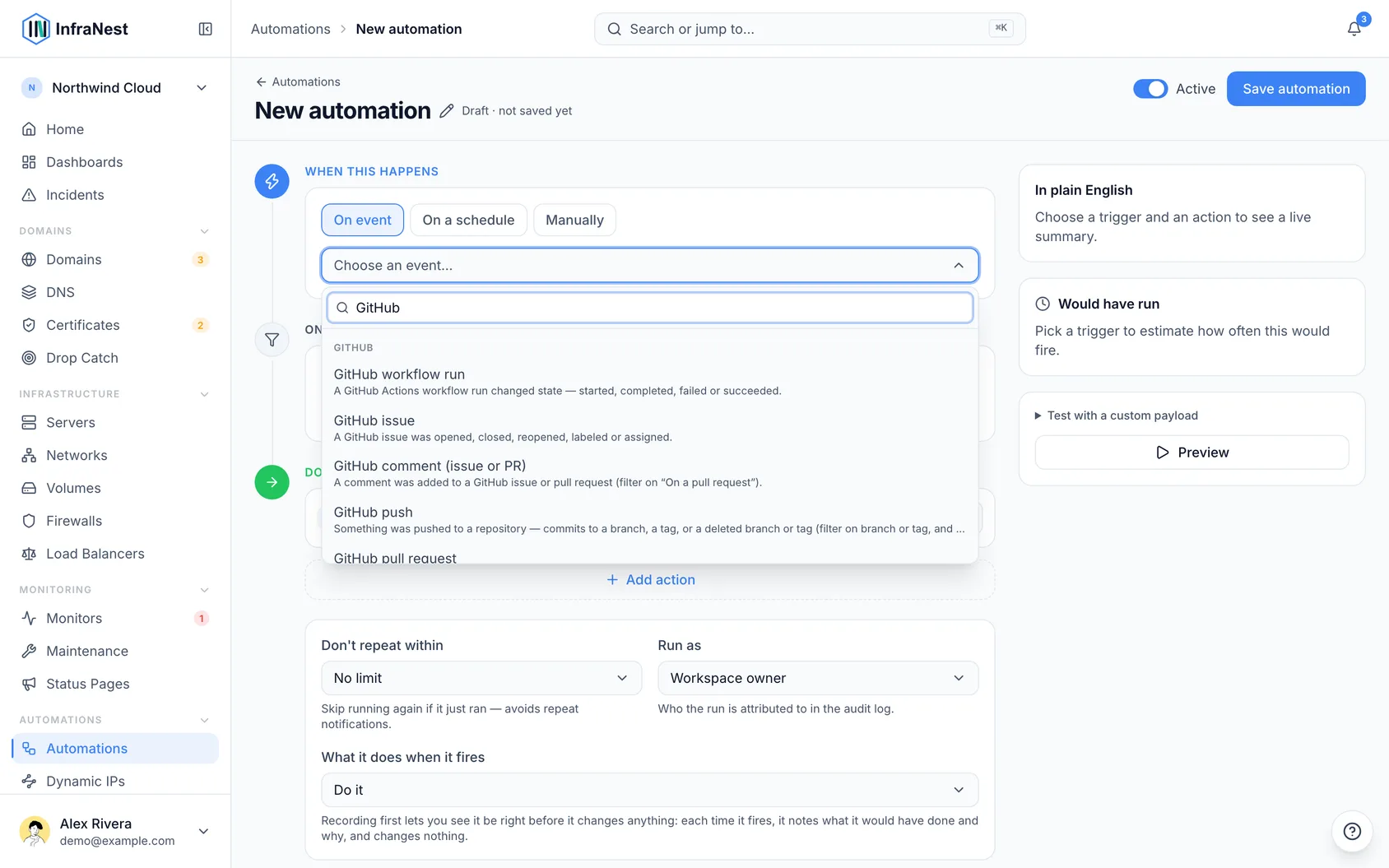
- In the automation builder, GitHub triggers and actions appear together under the GitHub group.
- If you pick a GitHub trigger before connecting, InfraNest reminds you to connect first.
#React to GitHub activity (triggers)
- Start a new automation and, under When this happens, choose a GitHub trigger — for example a workflow run, an issue, a pull request, a push, a release, a deployment, or a check completing.
- Add Only if filters to narrow things down, such as a specific branch, repository, or only failures. Repository and account fields suggest your connected repos as you type.
- For pushes, filter on Branch or tag and Deleted if you only want new commits on a branch, not deleted branches or tags.
- For comments, filter on On a pull request if you only want pull-request comments, since issue and PR comments arrive the same way.
- For releases, add Action equals published so the rule runs once per release instead of three times. The builder can add this filter for you.
- Set a cooldown if needed — it applies per issue, workflow, commit or deployment, and never holds back a different repository.
#Act on GitHub (actions)
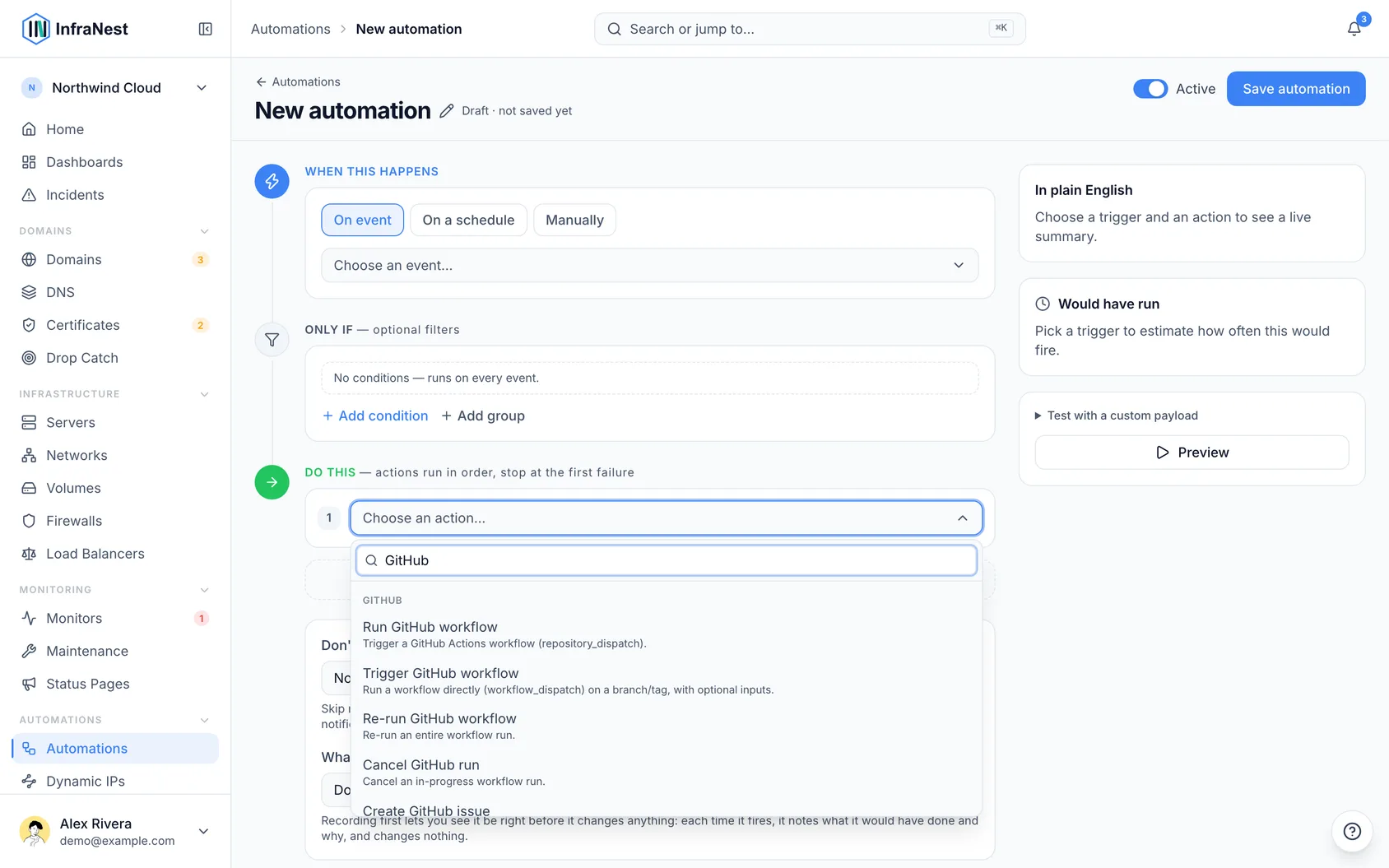
- Under Do this, select Add action and choose a GitHub action — for example Trigger GitHub workflow, Create GitHub issue, Merge pull request, Create GitHub deployment, Create GitHub release, or Set commit status.
- Choose which GitHub connection the action should use. If you only have one, it's already selected.
- Fill in fields like repository, workflow, branch, environment, labels or assignees — these offer a searchable list from your connected GitHub, or you can type a value or insert a placeholder from the trigger.
- If a field can't load its list, check the message underneath it — it will tell you whether to reconnect in Integrations, unsuspend the app on GitHub, grant a permission, or give the app access to that repository.
#Turn incidents and warnings into GitHub issues
- To open an issue automatically for every incident, go to Integrations → GitHub, open Connections & settings, switch on Issues for Incidents, and pick the Repository. Resolving the incident closes the issue; a repeat incident while the issue is still open adds a comment instead of filing a new one.
- To turn one incident or warning into an issue by hand, open its ⋯ menu (or Create issue under Follow-up on an incident's page), select Create a GitHub issue, pick the repository, check What we send, and create it. The card then shows the issue, like infra#42 · Open.
- If an issue already exists, select Link an existing issue and paste its address or
owner/repo#42. - If the dialog finds a matching open issue in the chosen repository already, it offers Link that one instead.
- If the issue is closed but the problem isn't fixed, use Reopen infra#42 from the same menu.
NoteRepositories with issues turned off, and archived repositories, aren't offered, since GitHub would refuse the issue.
#Start from a ready-made automation
- Open GitHub under Integrations and look under Ready-made automations, or go to Automations → Templates.
- Select Use on the template you want.
- Pick the repository or status page it should use.
- Select Save automation.
Useful ready-made automations include:
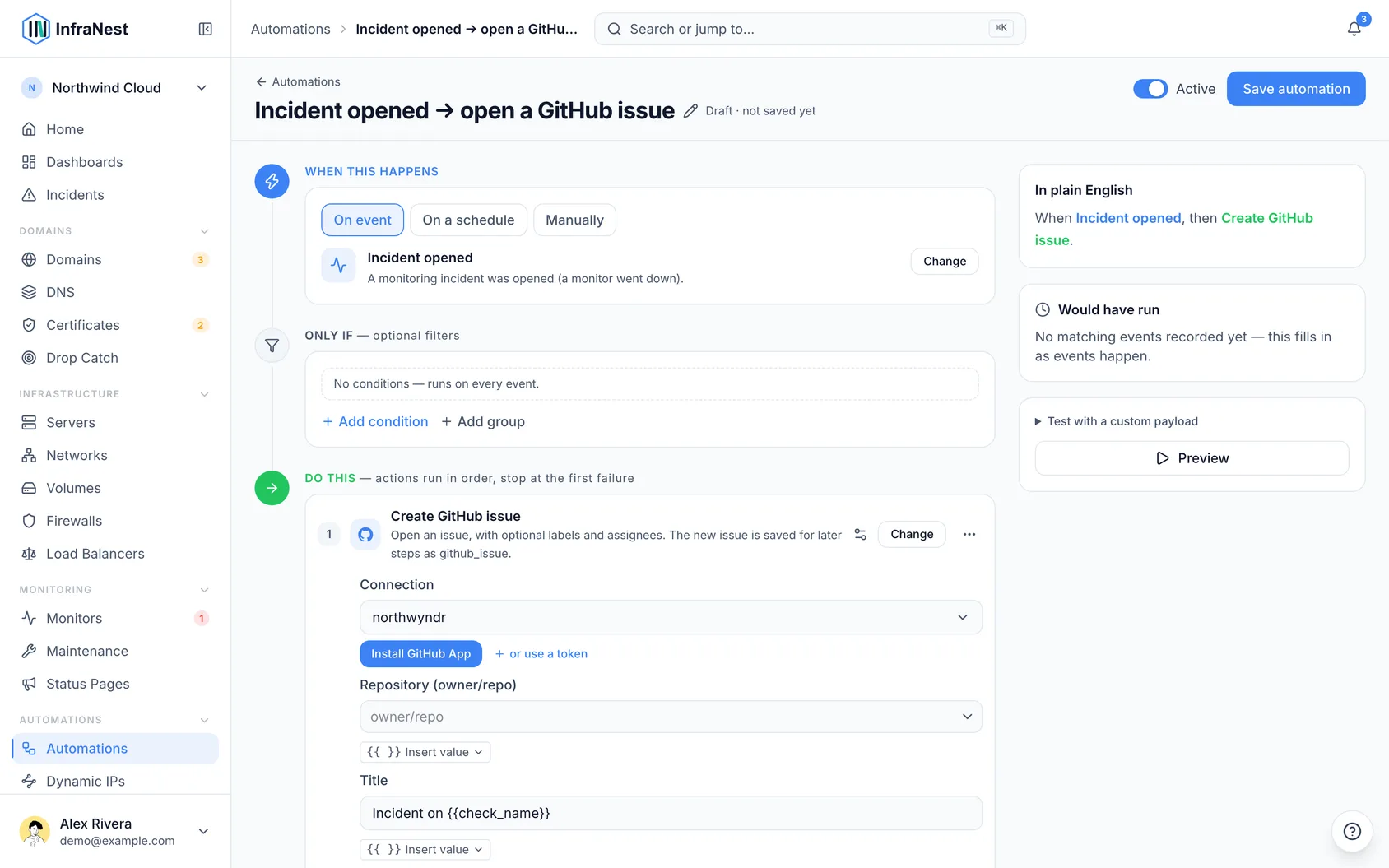
- Incident opened → open a GitHub issue, paired with Incident resolved → close its GitHub issue, so issues track and close themselves automatically.
- Certificate expiring → open a GitHub issue, sent two weeks before expiry.
- Domain expiring → open a GitHub issue, sent a month before expiry.
- Release published → announce on status page, for full releases only (not pre-releases).
- GitHub workflow failed → re-run failed jobs once, so a flaky job gets a second try without endless retries.
- Deployment succeeded → check it is up → set commit status, which checks the environment the moment GitHub reports the deployment and marks the commit green or red based on what it found.
- Deployment succeeded → purge the Cloudflare cache Pro, so visitors see the new build right away.
- Deployment succeeded → announce on status page.
- GitHub workflow failed → open an issue & alert.
- Certificate expiring → run a GitHub workflow.
Titles and messages in these templates are pre-written using placeholders (like Released: {{tag}}) filled in automatically when the automation runs. You can edit the wording before saving.
TipThe three Deployment succeeded automations only act on production deploys, so preview deployments (for example from Vercel) won't trigger status-page posts or cache purges.
#Examples
- SSL renewal failed → create a GitHub issue, label it
infrastructure, and assign it to your DevOps team. - An incident resolved → comment on its linked issue, then close it, using Linked records for the issue number and repository. If no issue was opened, the step is skipped.
- A pull request merged into
main→ run your deploy workflow, then set the deployment status. - Your production health check passed → set the commit status to success.
- A release was published → post a status-page announcement.
#Good to know
- A GitHub trigger only fires once GitHub is connected and the app is subscribed to that event type. If a trigger never runs, ask your administrator to check the app's event subscriptions.
- Actions your own automations take on GitHub — a comment, a label, a started workflow — don't trigger your GitHub triggers again, so a rule can't answer its own comment forever.
- If two of your InfraNest workspaces connect the same GitHub account, automations in both will react to its events.
- When one step creates something (like an issue or deployment), later steps in the same rule can reuse it automatically.
- Requesting a review from a team needs an organisation connection, not a personal one.
- Some actions may need a higher plan — these show a Pro badge in the builder.
- Merge pull request only merges the exact commit the rule saw; if someone pushes afterward, nothing is merged, and the run explains why.
- Leave the workflow branch empty to use the repository's default branch.
- Retry on transient failure covers GitHub outages, timeouts, and rate limits; a genuine refusal shows GitHub's own reason in the run history.
- If a step points at an issue that was supposed to be created earlier in the rule and none was created, the step is skipped, not failed.
Was this article helpful?
Thanks for your feedback!
Thanks, this goes straight to the docs team.
Related articles
 GitHubConnect GitHubLink GitHub to InfraNest so your automations can react to what happens in your repositories — and act back on GitHub for you.GitHubSee your deploys next to your monitorsWhen something goes down right after a release, see that straight away, without comparing times in GitHub.CalendarProSubscribe with a calendar feed (iCal)Subscribe to a private link and your renewals, certificate expiries and maintenance windows appear in any calendar app — Apple Calendar, Outlook, Google…CalendarAbout calendar syncPut your renewals, expiries and maintenance windows in the calendar you already use, so a domain never lapses because nobody was looking at InfraNest that week.