

This article is for anyone who needs to disconnect a provider account from InfraNest — for example, if you no longer want InfraNest managing a cloud account, or you're switching to a different API key.
#Overview
- When you connect a provider account, InfraNest imports what it finds there: domains, DNS zones, servers, volumes, firewalls and certificates.
- Those items can only be kept up to date through that account, so removing the integration also removes InfraNest's copy of them.
- Your domains, servers and DNS keep running exactly as before at the provider — only InfraNest's copy goes.
- Servers with the monitoring agent installed are kept by default, as self-managed servers, so you don't lose their metrics, alerts, tags or agent.
WarningRemoving an integration is destructive to InfraNest's copy of your data. If you reconnect the same account later, everything comes back — including notes, tags, custom fields and history — but there may be a gap in the meantime.
#Remove an integration
- Open Integrations.
- Open the integration you want to remove.
- Go to Connections & settings.
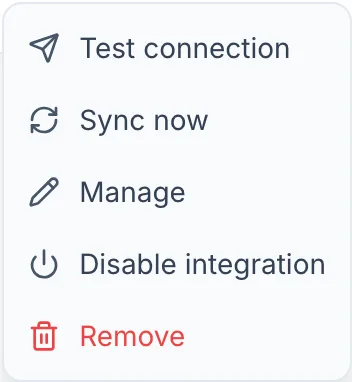
- Open the ⋯ menu on the account.
- Choose Remove.
- In the Remove integration dialog, review what will be removed (for example 3 DNS zones or 12 domains) and what else it affects.
- If the account has servers with the monitoring agent installed, decide whether to keep the box Keep servers that have the agent installed, as self-managed servers ticked (kept by default) or untick it to remove them along with everything else.
- Type the account's name to confirm.
- Choose Remove.
NoteIf your workspace requires identity confirmation on destructive actions, you'll confirm with your passkey, code or password instead of typing the account's name.
#Update the key instead
If you only need to refresh the credentials, there's no need to remove anything:
- Open Integrations, then open the integration.
- Go to Connections & settings and open the ⋯ menu on the account.
- Choose Update key (or Reconnect if the account was connected with "Connect with…").
- Follow the prompts to finish. Nothing is removed.
#Pause an integration instead
If you want to stop syncing temporarily without losing anything:
- Open Integrations, then open the integration.
- Go to Connections & settings and open the ⋯ menu on the account.
- Choose Disable integration. Syncing stops, and everything stays where it is.
- When you're ready to resume, open the same ⋯ menu and choose Enable integration.
#Disconnect from the account's own page
- Open the account — choose Manage in the ⋯ menu, or click its name.
- Go to the Account tab.
- Under Disconnect account, choose Disconnect.
- Read what it says will go — for example Removes 3 DNS zones from InfraNest. Nothing changes at the provider. Servers with the monitoring agent are kept as self-managed servers automatically.
- If you want to choose for yourself whether kept servers are removed too, use Remove in the ⋯ menu instead.
#Tips
- A server kept as self-managed moves from the Servers page to Monitoring, where it's listed with your other self-managed servers and marked Self-managed.
- A certificate that InfraNest also sees through a monitor, a certificate log, or an upload stays in your list even after the integration is removed.
- Items you added yourself, such as a server added without a cloud account, are never affected by removing an integration.
#Troubleshooting
- An automation stopped working after I removed an integration. Automations that act on a removed item are switched off automatically, and you get one notification listing them. Point them at something that still exists, then turn them back on.
- A server's agent stopped reporting. This happens if you chose to remove servers with the agent rather than keep them — reconnect the account to resume reporting.
- A server I'd hidden disappeared completely. A server you'd stopped listing in InfraNest is removed even if it has the agent installed, since it wasn't being kept as self-managed.
- Dynamic IP entries stopped updating. This is expected on firewalls or DNS records that belonged to the removed integration.
- Backorders stopped. Any backorders placed through the removed account are cancelled with it.
- Delete protection didn't stop the removal. Delete protection only protects a resource at the provider — removing an integration doesn't touch the provider, so it isn't blocked by this setting.
Was this article helpful?
Thanks for your feedback!
Thanks, this goes straight to the docs team.
Related articles
 AWSConnect Amazon Web Services (AWS)Connect AWS to manage your Route 53 DNS, Route 53 domains and ACM certificates from InfraNest.CalendarProSubscribe with a calendar feed (iCal)Subscribe to a private link and your renewals, certificate expiries and maintenance windows appear in any calendar app — Apple Calendar, Outlook, Google…CalendarAbout calendar syncPut your renewals, expiries and maintenance windows in the calendar you already use, so a domain never lapses because nobody was looking at InfraNest that week.