

Set up automations that page PagerDuty for any situation, and have InfraNest react when your responders act in PagerDuty — useful for anyone running on-call outside of simple monitor alerts.
#Overview
- Page your on-call team for anything — a failed backup, an expiring certificate, a risky domain — not just a monitor going down.
- React automatically when someone acknowledges, resolves, escalates or reassigns an incident in PagerDuty.
- Add notes, change priority or urgency, or ask for extra responders on an incident that's already open.
NoteAutomations use a PagerDuty account connected under Integrations → PagerDuty. Paging from a monitor needs no automation at all — connecting sets that up for you. If you disconnect the account, automations that use it are switched off, not deleted, and the rest of your team gets notified.
#React to PagerDuty
- Start a rule with When this happens and choose a PagerDuty trigger, such as PagerDuty incident triggered, PagerDuty incident acknowledged, PagerDuty incident resolved, PagerDuty incident escalated, PagerDuty incident reopened, PagerDuty incident reassigned, PagerDuty incident delegated, PagerDuty incident priority changed, PagerDuty responder requested, PagerDuty responder replied, PagerDuty incident note added, PagerDuty incident type changed, or PagerDuty custom fields changed.
- Use the data the trigger gives you — the incident's Incident title, Link, PagerDuty incident ID, Service, Urgency, Incident priority, Assignees and Escalation policy — in your later steps.
- For responder triggers, use Responder, Responder's answer and Request message. For the note trigger, use Note. For the custom-fields trigger, use the field values and the list of changed fields.
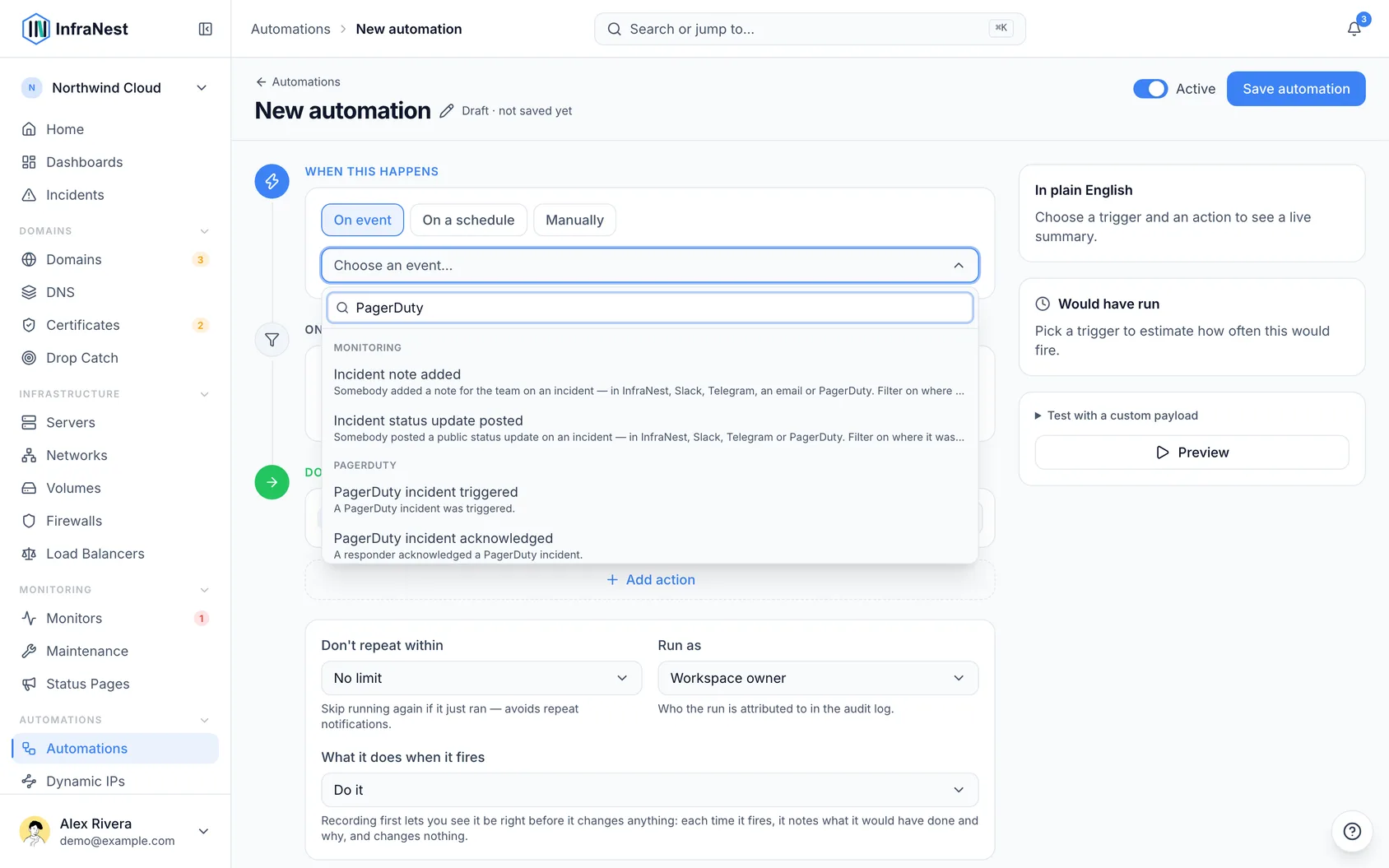
- If you connected with Connect with {provider} (one click), turn on inbound synchronization — InfraNest creates the webhook already subscribed to every event above. If you set this up before these triggers existed, run Check setup to add the missing ones.
- If you connected with an integration key, create the webhook in PagerDuty yourself and subscribe it to the events you want.
NoteOnly PagerDuty incident acknowledged and PagerDuty incident resolved change an incident back in InfraNest. The other triggers simply start your rules.
#Page PagerDuty
- Under Do this, add a PagerDuty action: Trigger PagerDuty incident, Acknowledge PagerDuty incident, or Resolve PagerDuty incident.
- For Trigger PagerDuty incident, fill in a summary, a Severity (critical, error, warning or info), an optional grouping key, and the optional routing fields below.
- Leave Service empty to use the account's default service, or choose one from the list.
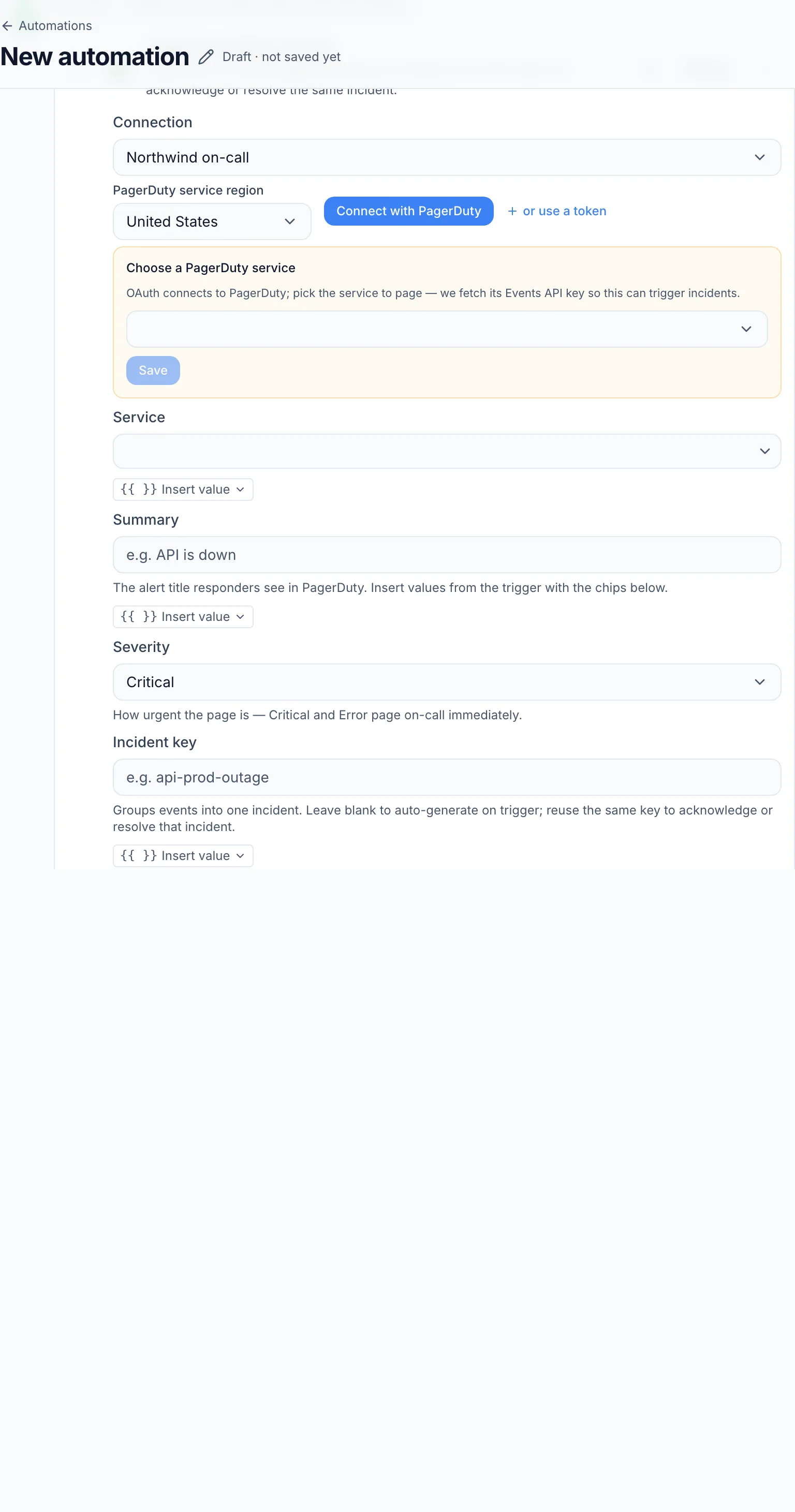
- Fill in any of the routing fields to help PagerDuty send the incident to the right people:
- Component — the part of your system it's about, such as
checkout-db. - Group — a wider grouping, such as
databaseorpayments. - Class — the kind of problem, such as
high latency. - Link — a web address shown next to View in InfraNest, such as a runbook. It must start with
https://orhttp://.
- Component — the part of your system it's about, such as
- Decide on the grouping key:
- Leave it blank when triggering and InfraNest generates one — later steps in the same rule can then acknowledge or resolve that exact incident.
- Set it yourself (a placeholder works well) when a separate, later rule needs to resolve the incident an earlier rule opened.
TipTriggering the same grouping key twice updates the open incident instead of paging again.
- To address whoever is on call, use the placeholders
{{pagerduty.oncall_name}}and{{pagerduty.oncall_email}}in a Send notification message, for example on an Incident opened, Incident acknowledged or Incident resolved trigger. Use Test to see the real names.
#Work on a PagerDuty incident
- Add one of the incident actions — Add PagerDuty incident note, Escalate PagerDuty incident, Reassign PagerDuty incident, Set PagerDuty incident priority, Set PagerDuty incident urgency, Add PagerDuty responders, or Snooze PagerDuty incident. These need an account connected with Connect with {provider} (one click); with only an integration key the builder shows Requires PagerDuty sign-in.
- Set Incident target: choose Incident from the trigger (the default) or Explicit PagerDuty incident ID, and type the ID into PagerDuty incident ID if needed.
- Fill in the rest of the fields for the action you picked:
- Add PagerDuty incident note — Note.
- Escalate PagerDuty incident — Escalation level.
- Reassign PagerDuty incident — User or Escalation policy (pick exactly one).
- Set PagerDuty incident priority — Incident priority.
- Set PagerDuty incident urgency — Incident urgency (High or Low).
- Add PagerDuty responders — Responder users and/or Responder policies, plus a Responder message.
- Snooze PagerDuty incident — Snooze duration (seconds), from 1 up to 604800 (seven days).
- Use Test to preview what the action would do without sending anything to PagerDuty.
#Examples
- A certificate expires in 3 days → Trigger PagerDuty incident at warning severity, keyed to the domain.
- A backup job failed → page on-call; when the next run succeeds, Resolve PagerDuty incident with the same key.
- A PagerDuty incident was acknowledged → Post status-page announcement saying someone is on it.
- A PagerDuty incident escalated → Send notification to your team channel.
- A note was added to a PagerDuty incident → Send notification to Slack.
#Good to know
- Automations page through the same key as the alert destination — the paging path never needs a separate PagerDuty key.
- Severity is yours to choose per action. Monitor-driven paging maps severity from the monitor's state instead.
- If a PagerDuty trigger never fires, check the webhook in PagerDuty is subscribed to that event type.
- A Cooldown on a PagerDuty rule applies per incident — a different incident still runs the rule while one is waiting.
- Some actions may need a higher plan — these show a Pro badge in the builder.
Was this article helpful?
Thanks for your feedback!
Thanks, this goes straight to the docs team.
Related articles
 PagerDutyWork on incidents in PagerDuty and InfraNest togetherResponders can work an incident from whichever tool they have open. Acknowledging, resolving and writing notes in PagerDuty shows up in InfraNest, and the…PagerDutyWhat InfraNest can see and do in PagerDutyWhat InfraNest can do in your PagerDuty account and why, what it sends and keeps, for how long, where, and how to remove it.PagerDutyConnect PagerDutyInfraNest monitors your websites, APIs, servers, domains and certificates. Connect PagerDuty and the right person is paged the moment one of them needs…
 DiscordConnect DiscordPost InfraNest alerts into a Discord channel — handy for communities and teams that live in Discord.