

Connect your SSL.com account to InfraNest so your SSL certificates show up in your certificate list alongside everything else you manage.
#Overview
- Imports your SSL.com certificates into InfraNest's certificate list
- InfraNest tracks certificate details and expiry for you automatically
- Checks SSL.com roughly every hour for new or renewed certificates
#Before you start
You'll need your SSL.com account key and secret key. See Get your SSL.com API keys for the steps.
#Connect SSL.com
- Go to Integrations and open SSL.com.
- Give the connection an Account label (optional). Leave it blank and it takes the provider's name — a second connection to the same provider becomes "… (1)", so they stay tellable apart.
- Enter your Account key and Secret key.
- Leave Email me when this integration has problems ticked if you'd like email warnings.
- Select Connect.
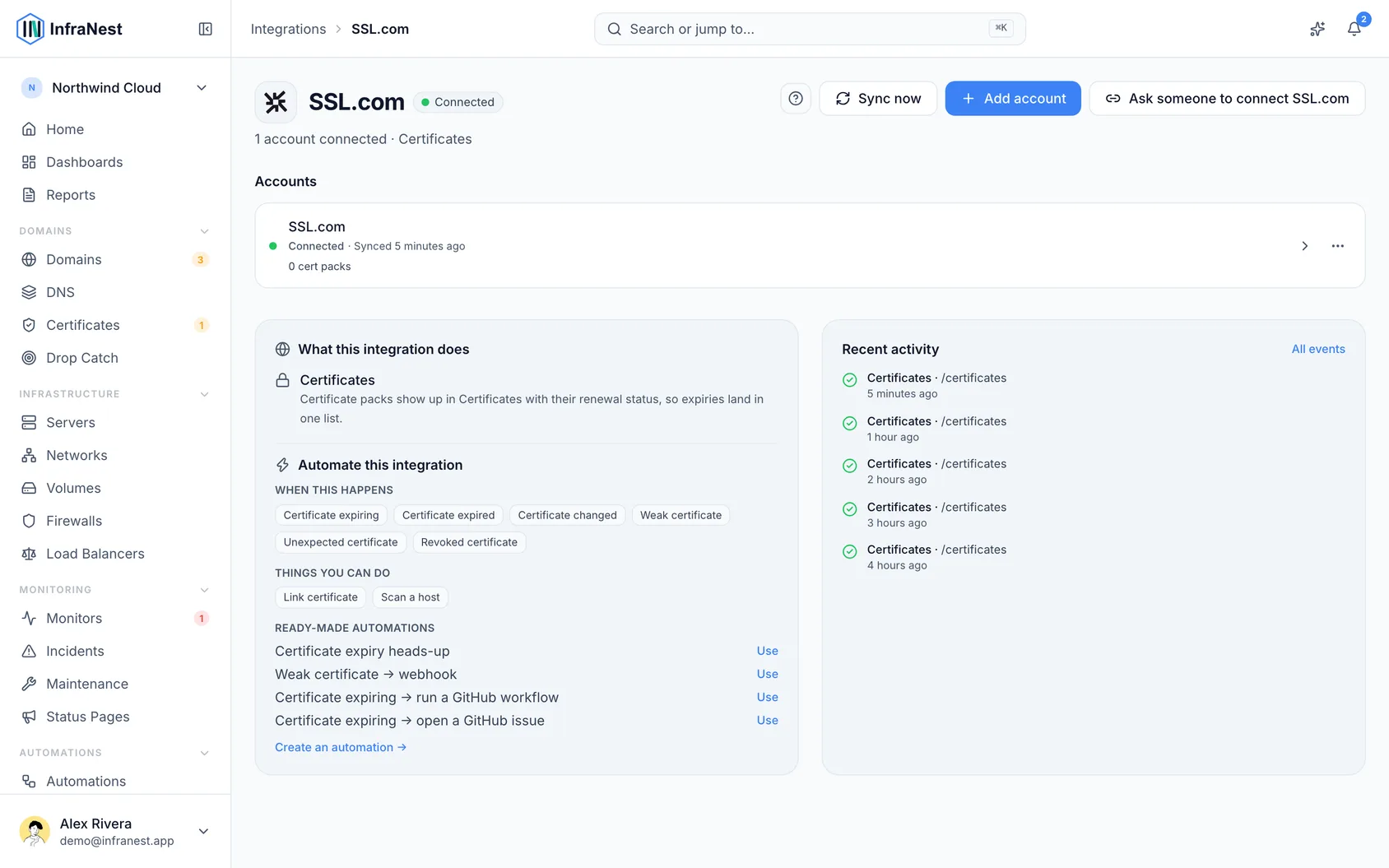
#What you get once it's connected
- SSL certificates — your SSL.com certificates are imported into your certificate list, where InfraNest tracks their details and expiry. InfraNest reads each certificate itself, not just its order, so a certificate it also sees on your website through a monitor appears once, not twice.
InfraNest checks SSL.com for new and renewed certificates about once an hour.
NoteThis connection is import only — you can't buy, renew or revoke certificates from InfraNest, and the certificate files can't be downloaded here.
#Tips
- No IP address needs to be allowed at SSL.com.
- Importing can take a moment, because InfraNest fetches each certificate one at a time.
#Troubleshooting
- "Authentication failed" — double-check your account key and secret key in the SSL.com dashboard.
- A certificate is missing — make sure the order is complete in SSL.com; unfinished orders are skipped. Choose Sync now in the account's ⋯ menu to check again straight away.
Was this article helpful?
Thanks for your feedback!
Thanks, this goes straight to the docs team.
Still stuck? Contact support
Related articles
 AWSConnect Amazon Web Services (AWS)Connect AWS to manage your Route 53 DNS, Route 53 domains and ACM certificates from InfraNest.
 CloudflareConnect CloudflareConnect Cloudflare to manage your DNS, domains and SSL certificates from InfraNest. Your Cloudflare zones and records appear automatically once it's connected.CloudflareCreate a Cloudflare API tokenTo connect Cloudflare, InfraNest needs an API token from your Cloudflare account. Here's how to create one with the right permissions.
 DigitalOceanCreate a DigitalOcean API tokenYou only need this if you'd rather not use Connect with DigitalOcean, which does the same job without a token. If you do want one, it takes about a minute.