

Setting up a Cloudflare connection in InfraNest starts with creating an API token in your Cloudflare account — this article walks you through it.
#Overview
- InfraNest needs a Cloudflare API token with the right permissions to manage your DNS, certificates and other features.
- You can create this token in seconds using a pre-filled link from InfraNest's Cloudflare connect form, or build it by hand in Cloudflare.
- Which permissions you add determines which InfraNest features will work for this connection.
#Create the token
The quickest way is to select Open the token page — permissions pre-selected on InfraNest's Cloudflare connect form. This opens Cloudflare's token editor with the permissions already chosen — if you use this link, skip ahead to step 5.
To create the token by hand instead:
Sign in to the Cloudflare dashboard.
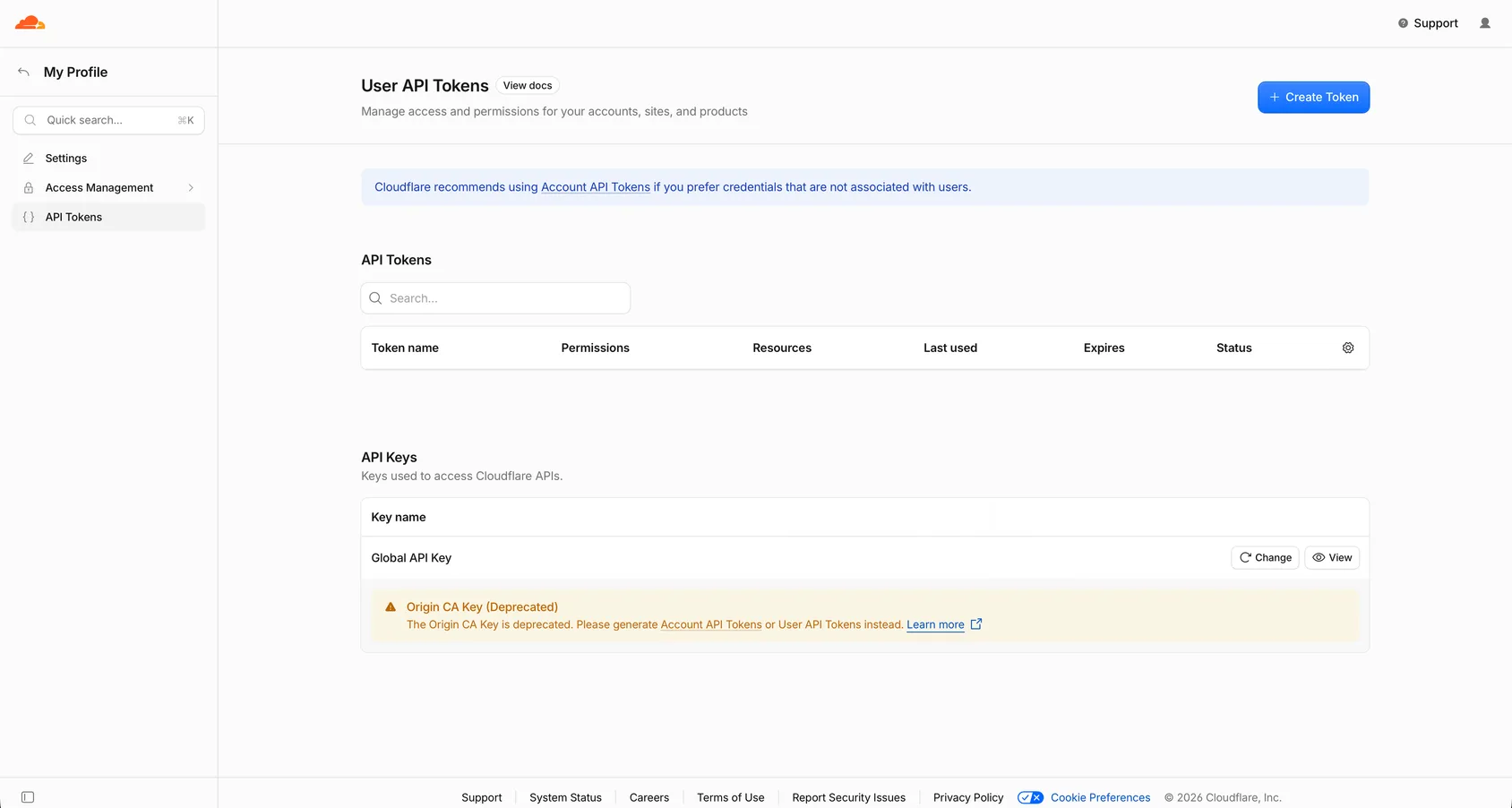
Go to My Profile → API Tokens.
Select Create Token, then Create Custom Token.
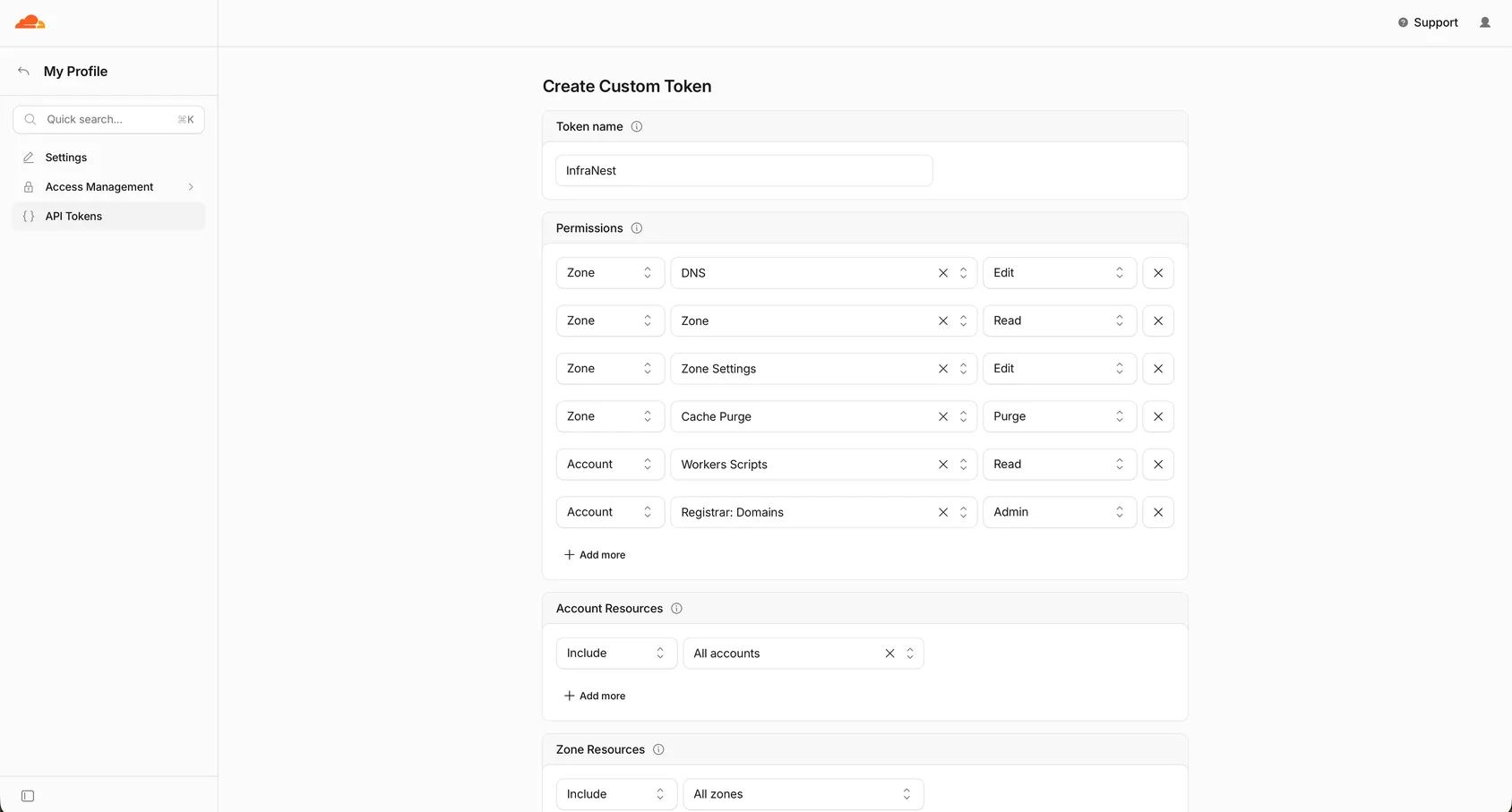
Give the token these permissions:
- Zone → Zone → Read and Zone → DNS → Edit — always needed.
- Zone → SSL and Certificates → Read — needed for the Certificates feature.
- Account → Registrar: Domains → Admin — needed for the Registrar feature, if you have domains registered at Cloudflare.
- Zone → Zone Settings → Edit and Zone → Cache Purge → Purge — needed if you want automations to change Cloudflare settings (security level, development mode, Always Online) or clear your cache.
- Account → Workers Scripts → Read — needed if you use Cloudflare Workers and want the hostnames they serve listed on the zone page. The pre-filled link doesn't include this one, so add it yourself if you need it.
Under Zone Resources, choose All zones, or just the zones you want InfraNest to manage. Zones you leave out won't be imported.
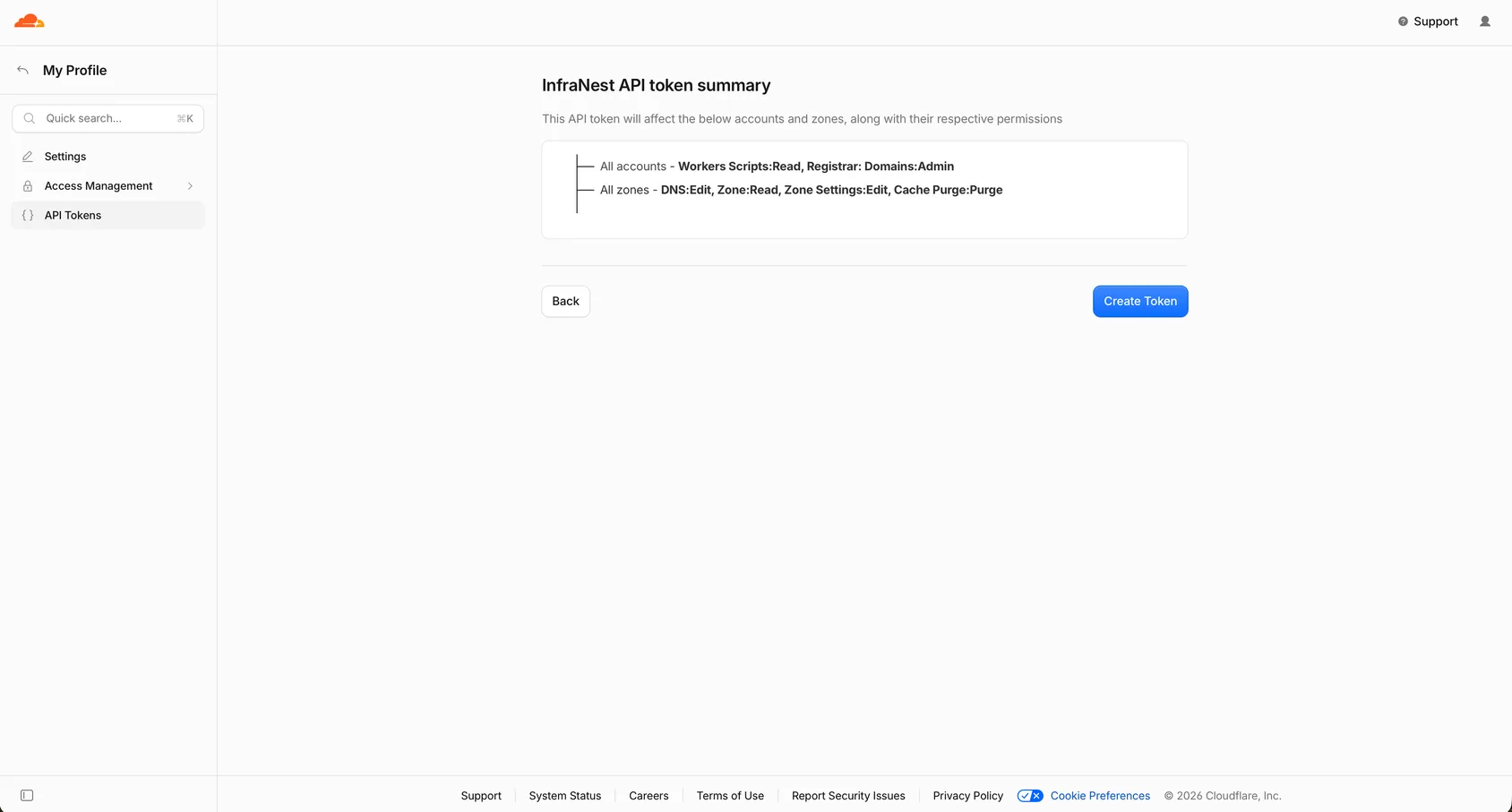
Select Continue to summary, then Create Token.
Copy the token right away — Cloudflare only shows it once.
WarningCloudflare displays the token only one time. If you navigate away before copying it, you'll need to create a new one.
#What the permissions are for
- Zone:Read + DNS:Edit let InfraNest see your zones and manage records.
- SSL and Certificates:Read lets InfraNest list the certificates on your zones.
- Workers Scripts:Read lets InfraNest list the hostnames your Workers answer for. These aren't DNS records, so without this permission they simply won't appear — nothing else is affected, and InfraNest won't treat it as a problem.
- Zone Settings:Edit + Cache Purge are only needed by four automation actions: setting a zone's security level, development mode or Always Online, and purging its cache. DNS works fine without them — those specific actions just won't run.
- Registrar: Domains lets InfraNest list, register and manage domains registered at Cloudflare — transfer lock, WHOIS privacy and auto-renew. Leave it out if you only use Cloudflare for DNS.
#Check what your token can do
- Open the Cloudflare account under Integrations.
- Look at the Permission check panel — it lists what was proven to work.
- Check Extras this key can unlock for anything missing, along with the actions it would enable.
NoteInfraNest runs this check when you connect, when you reconnect, and whenever you select Check connection. It only makes calls that change nothing — it clears one address that was never cached, and sets one setting to the value it already has.
If your token was created before August 2026, it won't have the Zone Settings and Cache Purge permissions, since they didn't exist in InfraNest yet. Cloudflare can't add a permission to an existing token, so you'll need to create a new token with them ticked and paste it in, or reconnect if you originally signed in with Cloudflare.
#Next step
Go back to InfraNest and follow Connect Cloudflare to paste the token.
Was this article helpful?
Thanks for your feedback!
Thanks, this goes straight to the docs team.
Related articles
 AWSConnect Amazon Web Services (AWS)Connect AWS to manage your Route 53 DNS, Route 53 domains and ACM certificates from InfraNest.
 DigitalOceanCreate a DigitalOcean API tokenYou only need this if you'd rather not use Connect with DigitalOcean, which does the same job without a token. If you do want one, it takes about a minute.
 DynadotCreate a Dynadot API keyInfraNest talks to Dynadot with an API key and a signing secret. Here's how to create them.
 GoDaddyCreate a GoDaddy access tokenTo connect GoDaddy, InfraNest needs a personal access token from the GoDaddy Developer portal.