

Creating a Porkbun API key only takes a minute, but one extra step trips up almost everyone — so don't stop once you've copied your key.
#Overview
- InfraNest connects to Porkbun using an API key and a Secret API key, both created on Porkbun's own site.
- Creating the key is only half the job — Porkbun also requires you to turn on API access for each domain separately.
- You can optionally lock the key down further or set spending limits, but neither is required to get started.
#Create the key
- Sign in to Porkbun.
- Go to Account → API Access (porkbun.com/account/api).
- Select Create API Key and give it a name you'll recognise, such as InfraNest.
- Porkbun shows you an API key starting
pk1_and a Secret API key startingsk1_. - Copy both and paste them into InfraNest — see Connect Porkbun.
WarningThe secret key is shown once. If you lose it, create a new key pair rather than trying to recover it.
#Turn on API access for your domains
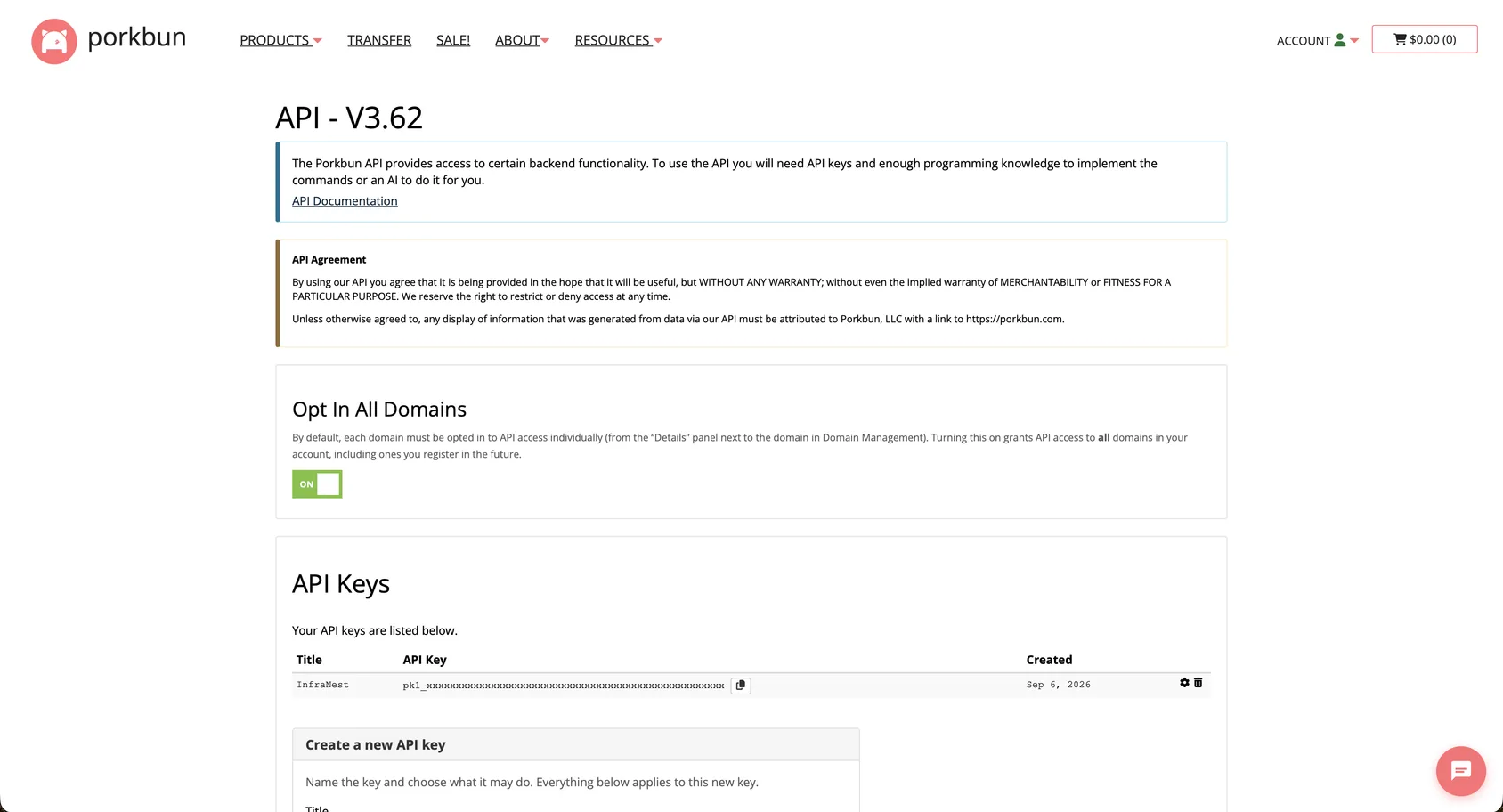
This is the step people miss. Creating a key does not, by itself, let it do anything to your domains. Porkbun controls API access per domain, and it is off by default.
The symptom is unmistakable once you know it: your domains all appear in InfraNest perfectly normally, and then every single change you try — nameservers, auto-renew, a DNS record — is refused. Nothing is wrong with your key.
You have two ways to fix it:
- All at once (recommended). On the same Account → API Access page, turn on Opt In All Domains. New domains you register later are then included automatically.
- One domain at a time. In your domain list at porkbun.com/account, open a domain and switch on its API Access toggle.
InfraNest flags any domain that is still opted out with a message explaining what's wrong and what to do, so if you only did some of them you can see which ones are left.
#Optional: restrict the key
Porkbun can lock a key down further. Both settings are optional and off unless you turn them on — find them behind the gear icon next to the key on the API Access page.
- Source IP allowlist — only accept requests from certain addresses. Leave this empty: InfraNest doesn't connect from one fixed address, so with an allowlist every request can be refused no matter how correct your key is.
- Target domain allowlist — only allow the key to touch certain domains. It is an exact match, so listing
example.comdoes not cover any other domain you own.
If you are not sure, leave both empty. That is Porkbun's default and it works.
#Optional: spending controls
Porkbun spends from your prepaid account credit, and the same API Access page can limit how much a key may spend per month and email you when the balance drops below an amount you choose. InfraNest reads both and shows them on the connection, so a monthly limit you set here will not surprise you later.
NoteA monthly spend limit refuses charges even when your balance is healthy. If a renewal fails and the balance looks fine, check this setting.
#Troubleshooting
- Every change is refused, but the key looks fine — you likely skipped the per-domain API access step above. Check Opt In All Domains or each domain's API Access toggle.
- Renewal fails even though your balance looks healthy — check whether a monthly spend limit is set on the key.
Was this article helpful?
Thanks for your feedback!
Thanks, this goes straight to the docs team.
Related articles
 AWSConnect Amazon Web Services (AWS)Connect AWS to manage your Route 53 DNS, Route 53 domains and ACM certificates from InfraNest.
 CloudflareConnect CloudflareConnect Cloudflare to manage your DNS, domains and SSL certificates from InfraNest. Your Cloudflare zones and records appear automatically once it's connected.CloudflareCreate a Cloudflare API tokenTo connect Cloudflare, InfraNest needs an API token from your Cloudflare account. Here's how to create one with the right permissions.
 DigitalOceanCreate a DigitalOcean API tokenYou only need this if you'd rather not use Connect with DigitalOcean, which does the same job without a token. If you do want one, it takes about a minute.