

Connect your Dynadot account to InfraNest to manage the domains you've registered there — renewals, nameservers, transfer lock, WHOIS privacy and contacts — and to use Dynadot as a registrar when catching a dropping domain.
#Overview
- See every Dynadot domain with its expiry, status and nameservers in one place.
- Register, transfer in, renew and manage auto-renew for your domains.
- Change nameservers, contacts, DNSSEC, transfer lock and WHOIS privacy, and get the transfer (EPP) code.
- Use Dynadot as a target registrar in Drop Catch, with its backorders and auction data.
#Before you start
You'll need a Dynadot API key and secret (API v2). See Create a Dynadot API key for the steps.
#Connect Dynadot
- Go to Integrations and open Dynadot.
- Give the connection an Account label so you can recognise it later. This is optional.
- Paste your API key and API secret.
- Optionally paste the Webhook key and Webhook secret so Dynadot can tell InfraNest about changes as they happen — see Create a Dynadot API key.
- Select Connect.
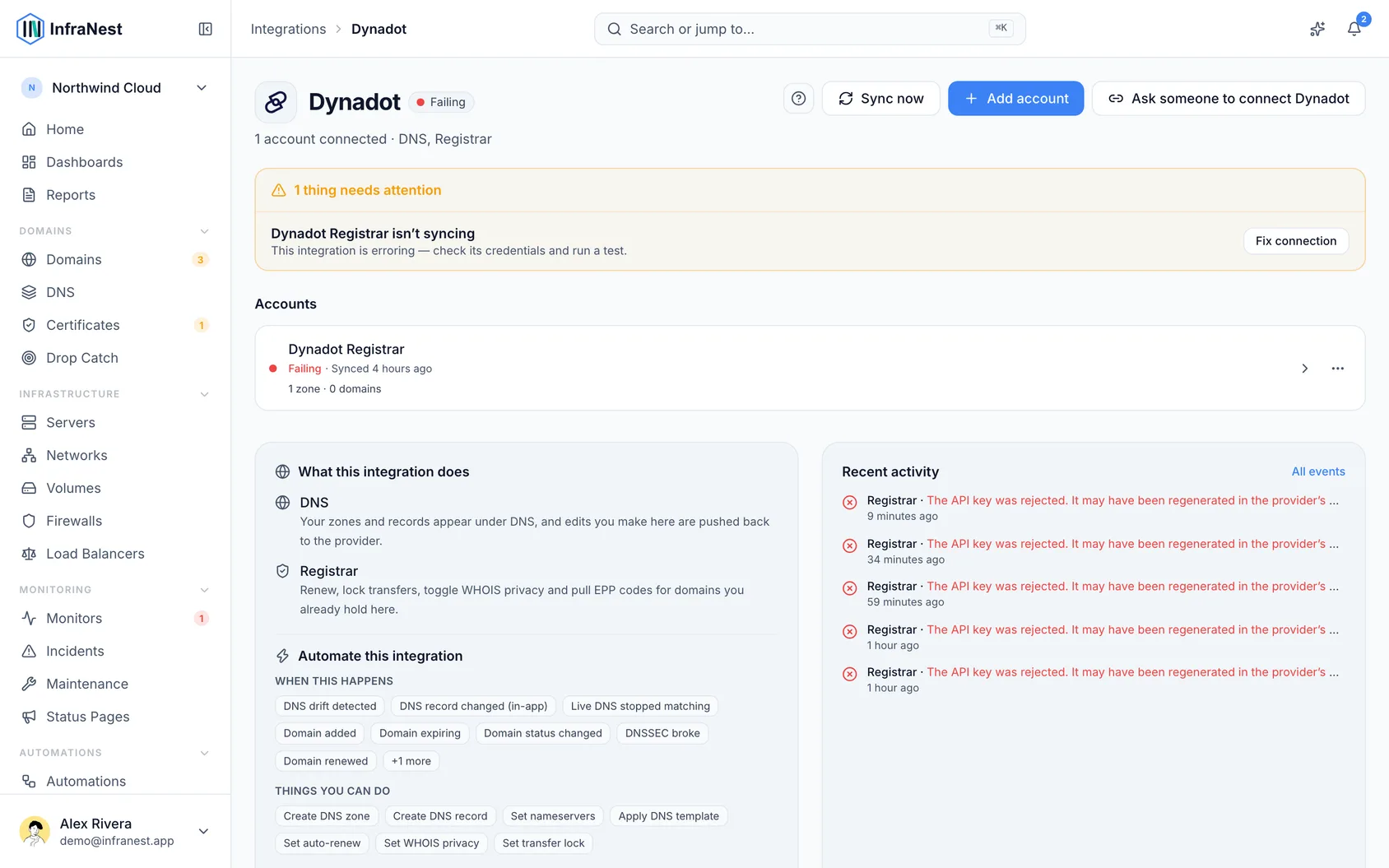
InfraNest checks the credentials and starts importing your domains.
#What you can do once it's connected
- See every Dynadot domain with its expiry, status and nameservers.
- Register a domain, transfer one in, renew one, and switch auto-renew on or off.
- Change nameservers, contacts, DNSSEC, transfer lock and WHOIS privacy, and get the transfer (EPP) code.
- Use Dynadot as a target registrar in Drop Catch, with its backorders and auction data.
- Manage DNS records for domains registered at Dynadot and using its nameservers.
- See your Dynadot account balance.
InfraNest refreshes your domains and DNS about once an hour, and each domain's details every six hours. The optional webhook tells InfraNest about changes as they happen, on top of that.
#What it can't do
- No certificates. Dynadot's API doesn't list SSL certificates.
- No DNS zones of their own. A zone exists only while the domain uses Dynadot's nameservers; it can't be created or deleted here. If your DNS is hosted elsewhere, connect that provider separately.
- Dynadot-only record types — forwarding, stealth forwarding, email forwarding and ANAME — aren't shown, and are kept as they are when you save.
- Very large portfolios — InfraNest imports up to 10,000 domains from one Dynadot account.
#Tips
TipDynadot has no way to change a single DNS record — saving one rewrites the whole zone. Avoid editing the same zone here and in the Dynadot panel at the same time, since the last save wins.
- Some actions aren't allowed for some extensions by the registry itself; InfraNest greys those out with the reason.
WarningDynadot is paid from your account balance. Keep it topped up — a renewal the balance can't cover will fail.
#Troubleshooting
- "Authentication failed" — the key or secret is wrong, or the key was removed. Create a new one in Dynadot and paste it in with Update the API key on the account's Account tab.
- Every request is refused — if you set an IP allowlist on the key at Dynadot, clear it: InfraNest doesn't connect from one fixed address.
- "Auction data" shows as paused — your Dynadot account isn't allowed to read auction data through the API. Drop Catch still works without it.
- A domain is missing — it may be in another Dynadot account; connect that account too.
Was this article helpful?
Thanks for your feedback!
Thanks, this goes straight to the docs team.
Related articles
 AWSConnect Amazon Web Services (AWS)Connect AWS to manage your Route 53 DNS, Route 53 domains and ACM certificates from InfraNest.
 CloudflareConnect CloudflareConnect Cloudflare to manage your DNS, domains and SSL certificates from InfraNest. Your Cloudflare zones and records appear automatically once it's connected.CloudflareCreate a Cloudflare API tokenTo connect Cloudflare, InfraNest needs an API token from your Cloudflare account. Here's how to create one with the right permissions.
 DigitalOceanCreate a DigitalOcean API tokenYou only need this if you'd rather not use Connect with DigitalOcean, which does the same job without a token. If you do want one, it takes about a minute.