

Connect your Cloudflare account to InfraNest so you can manage DNS, domains and SSL certificates in one place, without leaving the app.
#Overview
- Once connected, your Cloudflare zones and records appear in InfraNest automatically.
- You can manage DNS records, check zone security settings, run automations, and keep an eye on domains and certificates.
- Best for anyone who uses Cloudflare to manage domains or DNS and wants a single view across their infrastructure.
#Before you start
If InfraNest offers Connect with Cloudflare, you don't need to prepare anything — you sign in at Cloudflare, approve the access, and you're done.
Otherwise, you'll need a Cloudflare API token. See Create a Cloudflare API token for the steps and the exact permissions to give it — the connect form has a link that opens Cloudflare's token editor with them already ticked.
NoteYour Account ID is optional — InfraNest detects it from the token. Only enter it if you use the registrar feature and InfraNest says it couldn't find your account.
#Connect Cloudflare
- Go to Integrations and open Cloudflare.
- Give the connection an Account label (optional). Leave it blank and it takes the provider's name — a second connection to the same provider becomes "… (1)", so they stay tellable apart.
- Choose which features to use it for: DNS, Registrar and Certificates.
- Select Connect with Cloudflare, or paste your API token (and your Account ID if needed).
- Leave Email me when this integration has problems ticked if you'd like email warnings.
- Select Connect.
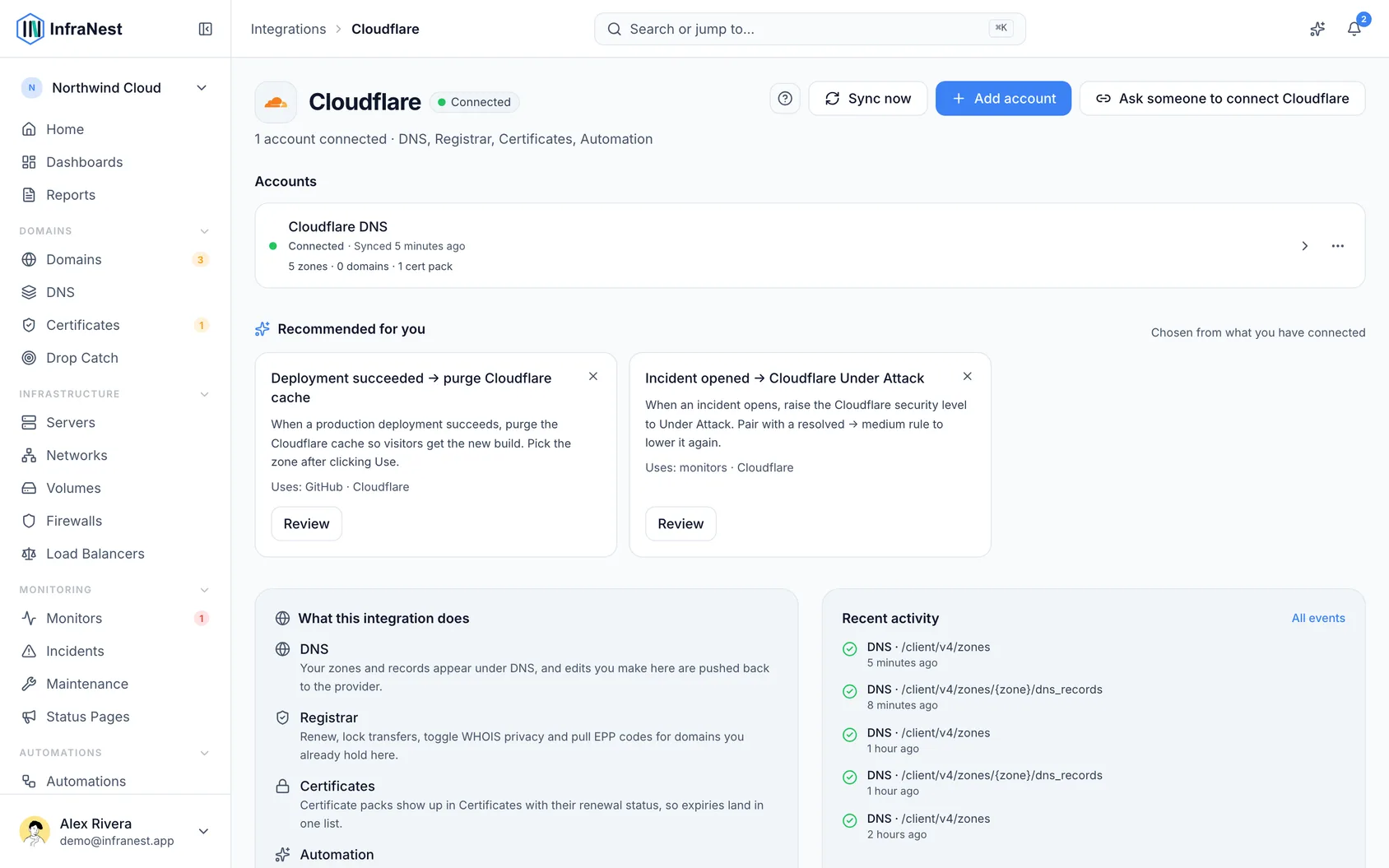
#What you get once it's connected
- DNS — your active zones and their records, including the proxied setting. Add, edit and delete records, create or delete zones, and sign a zone with DNSSEC. A token only sees the zones you chose under Zone Resources when you made it.
- Zone checks — the Security Advisor reads each zone's SSL mode, minimum TLS version, HTTPS redirect, HSTS and development mode, and tells you when one of them looks wrong.
- Automations — purge a zone's cache, and set its security level, development mode or Always Online.
- Domains — for domains registered at Cloudflare: see them with their expiry, register a new one, lock transfers, and turn WHOIS privacy and auto-renew on or off.
- SSL certificates — the certificates on your Cloudflare zones show up in your certificate list.
InfraNest refreshes zones and domains about once an hour, and each domain's details every six hours.
#What it can't do
Cloudflare's API doesn't offer these for its registrar, so they stay in the Cloudflare dashboard:
- Renewing on demand. Cloudflare renews through auto-renew, so leave it on for every domain you want to keep.
- Transferring a domain in, and getting the transfer (EPP) code to move one away.
- Changing nameservers or contacts. A Cloudflare-registered domain uses its Cloudflare zone's nameservers.
- Registering every extension. InfraNest can register about forty common ones, such as
.com,.net,.org,.devand.app. Register the rest in the dashboard; they appear here on the next sync.
#Troubleshooting
- "Authentication failed" — check the token has Zone → Zone → Read and Zone → DNS → Edit (plus Account → Registrar: Domains for domains and Zone → SSL and Certificates → Read for certificates), and that it hasn't been revoked.
- "Cloudflare could not be reached" when connecting — that message means exactly what it says: the connection was not refused, Cloudflare simply did not answer while we were checking it. Nothing is wrong with your account or your approval. Wait a minute and select Connect again.
- A zone is missing — it isn't in the token's Zone Resources, or it's still pending at Cloudflare. Only active zones are imported.
- Domain actions are greyed out — the token needs Account → Registrar: Domains → Admin. Open the account's Access & features tab: the Permission check says what's missing.
- Hostnames served by a Worker aren't listed — these aren't DNS records, so InfraNest reads them separately, and that needs Account → Workers Scripts → Read on your token. Without it nothing else changes and InfraNest doesn't raise an alert; the account's Access & features tab says the feature is off and why. Add the permission (or reconnect with Cloudflare, which asks for it), then select Re-enable now.
TipOn the Cloudflare integration page, the account's warning has one Fix button: it opens a check of the account that lists what is paused, with Reconnect and Re-enable now in one place.
Was this article helpful?
Thanks for your feedback!
Thanks, this goes straight to the docs team.
Related articles
 AWSConnect Amazon Web Services (AWS)Connect AWS to manage your Route 53 DNS, Route 53 domains and ACM certificates from InfraNest.
 DigitalOceanCreate a DigitalOcean API tokenYou only need this if you'd rather not use Connect with DigitalOcean, which does the same job without a token. If you do want one, it takes about a minute.