

Connect your Microsoft 365 or Outlook.com calendar so renewals, certificate expiries and maintenance windows show up automatically and stay up to date — this is for anyone who wants their InfraNest schedule in Outlook.
#Overview
- Keeps a calendar of upcoming renewals, certificate expiries and maintenance windows in sync with Outlook.
- The calendar is personal — anyone in the workspace can connect their own, but nobody else sees it.
- Updates itself automatically once connected, with no manual exporting or copying.
NoteOne-click connecting has to be set up by an administrator first. If it isn't available, the page will say so — use Subscribe with a calendar feed (iCal) instead, which needs no setup. Availability also depends on your plan; the page will tell you if yours doesn't include it.
#Connect it
Go to Integrations and open Outlook Calendar, under Productivity.
Under Connect your calendar, select Connect Outlook Calendar.
Sign in with your Microsoft account and accept the permission request.
You're returned to InfraNest, and the first sync starts straight away.
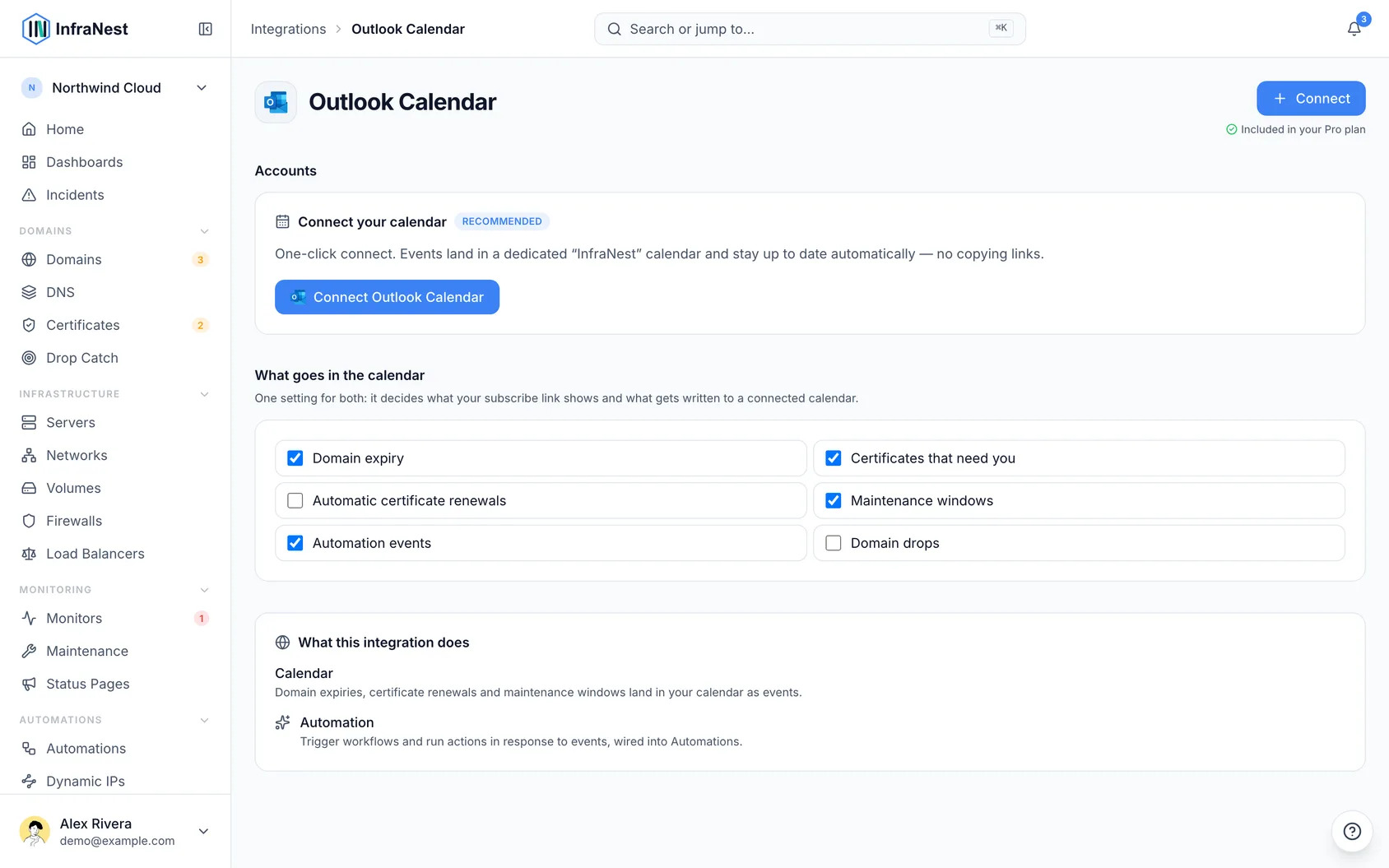
Events go into a calendar of their own, named InfraNest · your workspace's name, so nothing of yours is changed.
NoteOn a work or school account, your organisation may require an administrator to approve the permission request first. If you see a "needs admin approval" message, that's Microsoft asking, not InfraNest.
#Choose where the events go
- Find Add events to below the connected calendar — it lists the calendars in your Outlook account you can write to.
- Leave it on the dedicated InfraNest · … calendar to keep the events apart from your own, or pick another, such as Primary.
- Note that changing it makes InfraNest write every event again into the calendar you pick; events already in the old one stay there, no longer updated.
#Choose what goes in it
- Under What goes in the calendar, tick the topics you want included.
- Remember this is the same setting your calendar feed uses — see About calendar sync for details on what lands in your calendar.
#Check it's working
- Look at the connected calendar for Last synced, which shows how long ago it ran, or Not synced yet until the first sync finishes.
- Know that after the first sync, it's brought up to date every hour.
- Expect Outlook to remind you once per event, at the earliest reminder InfraNest sets (for a domain, 14 days before).
#Troubleshooting
- "Reconnect needed" — Microsoft revoked our access, so nothing syncs. Select Reconnect next to it and sign in again.
- Nothing appears — make sure the calendar you chose under Add events to is ticked in Outlook's calendar list.
#Disconnect
- Select Disconnect next to the connected calendar — this happens straight away.
- Know that InfraNest stops writing to the calendar, but it and its events stay in Outlook, no longer updated, until you delete them there.
- Alternatively, do this from My account → Devices & access → Apps with access.
Was this article helpful?
Thanks for your feedback!
Thanks, this goes straight to the docs team.
Related articles
 ConfluenceConnect ConfluenceConnect Confluence and the review your team writes after an incident can be published to a Confluence space: a page titled Postmortem: with the incident's…