

Maintenance windows let you schedule planned work in advance so it doesn't trigger false alarms. This article is for anyone who needs to take a server or check offline for upkeep without getting paged — or without worrying visitors on a status page.
#Overview
- While a window is active, alerts for the things it covers are held back, and affected checks show an "under maintenance" state instead of "down."
- Windows can be one-off or recurring, and can cover specific monitors, specific servers, or everything in your workspace.
- A window stays internal by default. You choose whether to tell visitors about it on your status pages.
#Schedule maintenance
- Go to Maintenance and create a window.
- Choose the checks it covers and set the time:
- One-off — a start and end time, in your own timezone.
- Recurring — days, time and duration, in your workspace's timezone. The window runs at that local time all year round, including across daylight saving changes. The form shows which timezone it uses.
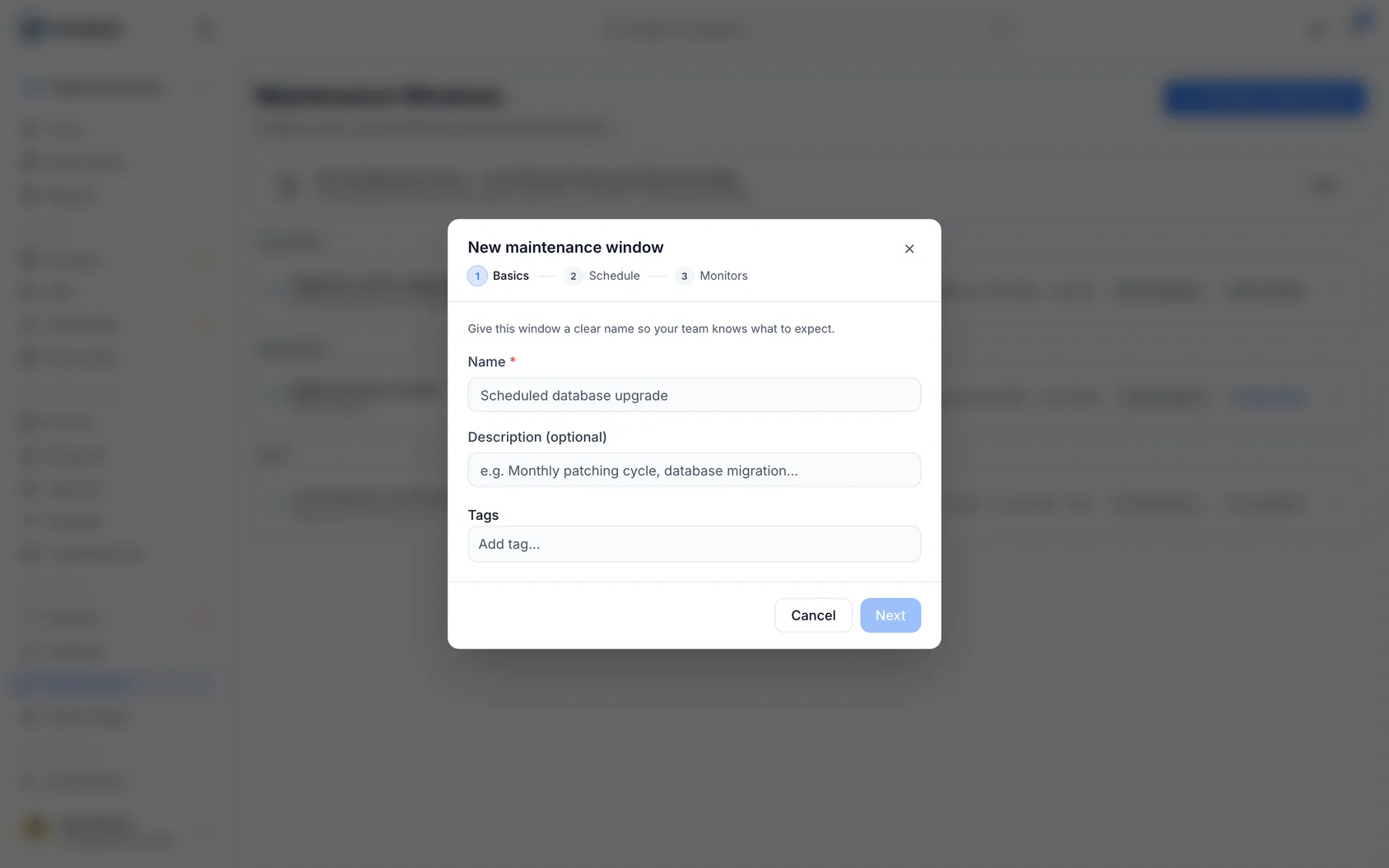
- Save.
While the window is active, alerts for those checks are suppressed, and the window shows a countdown.
#Show a window on your status pages
A window is internal unless you write a public notice for it. Its name and description are for your team and never appear on a status page.
- In the window's form, fill in Public notice: the text your visitors should read, for example Checkout upgrade — payments may be slow for ten minutes. The first line is the title.
- Save.
When the window covers a monitor on one of your status pages and has no notice yet, the last step of the form says which pages would show it and offers a notice written for you, such as Planned maintenance on App and API. Expect short interruptions during this window. Press Add this notice to use it. You can still change it in the first step. Nothing is published unless you add a notice.
The notice then appears on the status pages whose monitors the window covers, and their subscribers get it by email or webhook when the window is scheduled, starts and ends. A window that covers nothing in particular appears on every status page. To take a window off your pages again, clear the notice.
A window stays on your status pages while it runs, marked In progress, and leaves them when it ends.
Windows you scheduled before public notices existed kept what they showed: their notice was filled in from their name and description.
#Deploys, automations and AI assistants
Windows opened by a deploy hook, an automation or an AI assistant are internal too, unless they are given a public notice:
- Deploy hook: add
public_noticeto the start request your pipeline sends, for example"public_notice": "Deploying a new version — the site may be slow for a few minutes.". A deploy window covers the monitors its token is limited to, or every monitor, so it appears on the pages showing them. - Automation: fill in Public notice in the Open a maintenance window step. You can insert values from the trigger, such as a release tag. These windows cover every monitor, so the notice appears on every status page.
- AI assistant: ask it to announce the work on your status pages. It shows you the text before it starts the window.
Without a notice, no text about the window appears on your status pages. With one, the notice is on the page while the window runs, but subscribers are not emailed when a deploy or automation window opens.
NoteIf Post drafts without asking is on (under When to draft on an incident), a window opened by a deploy hook, an automation or an AI assistant without any notice gets the notice InfraNest writes for you automatically. To keep one window internal anyway, send an empty notice:
"public_notice": ""from a pipeline. The audit log shows Drafted notice added for each one. Windows InfraNest opens for a reboot, a resize or an address move never get one.
#What a window covers
- Monitors you pick: alerts for those monitors are held back.
- Servers you pick: the server's own alerts are held back, and so are alerts for the monitors attached to that server. A reboot takes the website on it down too, and that is not news.
- Nothing picked: every monitor in your workspace is covered.
While a window runs, anything about what it covers is also left out of Needs you, the counts on Home and the email summaries. Home says how many things are held back and by which window, so nothing disappears without a trace. A window that you set to keep alerts on is a note for the record: it holds nothing back.
#Where a window came from
Each window in the list says where it came from, and who started it when we know:
- Planned by hand: created on this page.
- For a reboot, For a resize or For an address move: created when you scheduled one, or used Reboot safely or Resize with a maintenance window. These are named in your workspace's language, say who started them, and are never shown on a status page. They end by themselves as soon as the work has finished, so alerts are back on straight away. If the work stops halfway, the window stays open until its planned end, because someone is about to look at that server.
- Silenced from the server: created with Silence on a server.
- Opened by a deploy: created by your CI pipeline's deploy hook, and closed again when the deploy reports that it has finished. Internal unless the pipeline sends a public notice, or your workspace posts drafts without asking.
- Opened by an automation: created by an automation's maintenance action. Internal unless the step has a public notice, or your workspace posts drafts without asking.
- For a provider's planned maintenance: created with Silence … for that window under Coming up, on a third-party monitor's page or a monitor behind it. It runs for exactly the time the provider announced, covers the third-party monitor and the monitors behind the provider, and is never shown on a status page.
#Tips
TipFinished early? Choose Mark complete from the window's ⋯ menu. Alerts come back on straight away rather than at the planned end time.
- A window is active from its start time. If you set a start time that has already passed, it is active immediately.
- A window moves through upcoming → active → completed on its own.
- A recurring window can cross midnight — for example 23:00 for two hours runs until 01:00.
#Troubleshooting
- Downtime during a window still shows up: this is expected. It's recorded as a planned incident so you can see how long the work took, but it doesn't count as unexpected downtime.
- No alert fired during a window that held alerts back: also expected — nobody is notified, by email, chat, push or PagerDuty, and status page subscribers don't get mail either. Recovery is quiet too.
- Still down when the window ends: that's now treated as an outage. If the window held alerts back, you're alerted as usual. If it kept alerts on, you get one message saying it's still down after the maintenance. Either way, the time after the window counts as downtime, not planned work.
- Monitor uptime bars show planned maintenance in its own blue colour, and the monthly uptime report lists it separately — check there if you need to confirm what happened and when.
Was this article helpful?
Thanks for your feedback!
Thanks, this goes straight to the docs team.