

Connect Confluence to automatically publish your team's incident reviews as pages in a Confluence space — useful for anyone who writes postmortems and wants them to live where the rest of the team's documentation does.
#Overview
- Publishing a review creates a page titled Postmortem: followed by the incident's title, filled in from the review and from what InfraNest recorded.
- The review in InfraNest stays the official record; publishing again updates the same Confluence page as a new version.
- Confluence works through your Atlassian connection, the same one Jira uses — if Jira is already connected, you're one step from Confluence or already there.
- You don't need Jira. If your Atlassian site has Confluence and no Jira, Connect Confluence still connects it.
#Connect Confluence
- Open Integrations in the sidebar and click Confluence.
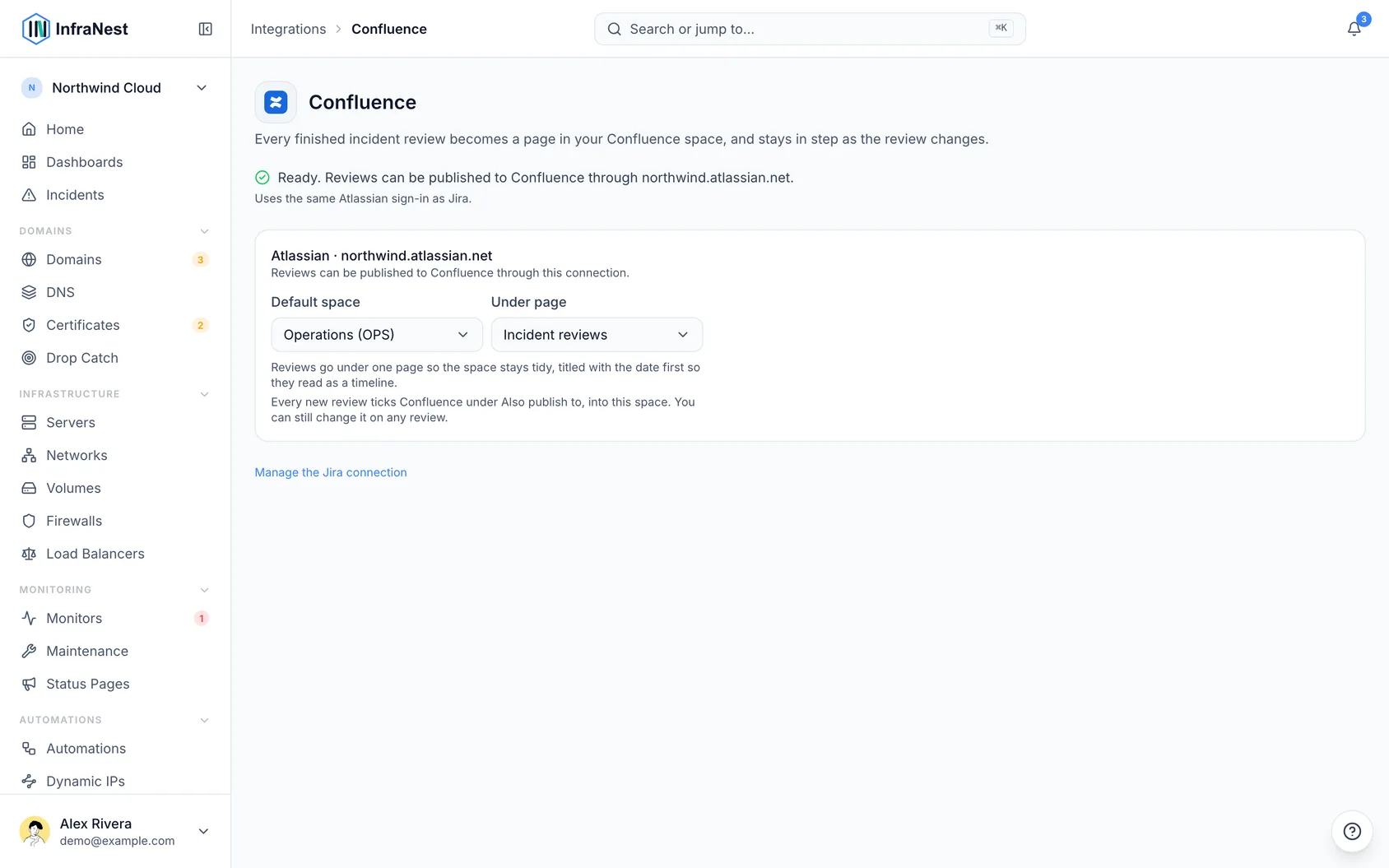
- Check the line at the top of the page to see where you stand:
- Not connected — click Connect Confluence, sign in with Atlassian once, and approve Jira and Confluence together.
- Jira is connected. Allow Confluence once… — click Allow Confluence and sign in once more. It's the same connection on the same site; nothing already set up changes.
- Ready — reviews can already be published to Confluence; move on to choosing a default space.
- If your Atlassian account can reach more than one site, pick the site that has Confluence or Jira when signing in.
NoteA Jira connection made with an API token is ready for Confluence straight away, since the token acts as the person who made it.
If Connect Confluence isn't offered, your InfraNest administrator hasn't registered the Atlassian app. Use Connect Jira with an API token instead — it opens the Jira page where you paste a token, and Confluence works from that connection. Note that the token route needs Jira on the site; a site with Confluence and no Jira can only connect with Connect Confluence.
#Right after connecting
Connecting one product offers the other once, when your site has it.
- If you connected Jira and the site also has Confluence, you'll see a prompt asking to publish incident reviews there too. Click Allow Confluence and sign in once more.
- Pick the default space in the box that appears. If the Jira connection used an API token, Confluence is already reachable and the screen just says Confluence: ready.
- If you connected Confluence and the site also has Jira, you'll see a prompt asking to file incidents as Jira issues. Click Turn on Issues for Incidents, choose the project, and save — no second sign-in needed.
Not now is remembered for that connection and the offer won't come back. You can always go to the other tile in Integrations later.
#Choose a default space
- Once Confluence is ready, find Default space on each Atlassian connection on the page.
- Pick the space your team keeps postmortems in. The list shows spaces your Atlassian account can see, team spaces first; a personal space appears as Jaspar Steenman's personal space.
- If the list is empty, ask a Confluence admin to give your account access to a space, then reload the page.
- Decide where under the space reviews should go:
- "Incident reviews" (we create it) — the default; InfraNest makes this page the first time it publishes and files every review under it.
- An existing page — search the space's pages and pick the one your team already uses.
- Directly in the space — if you'd rather have reviews at the top level.
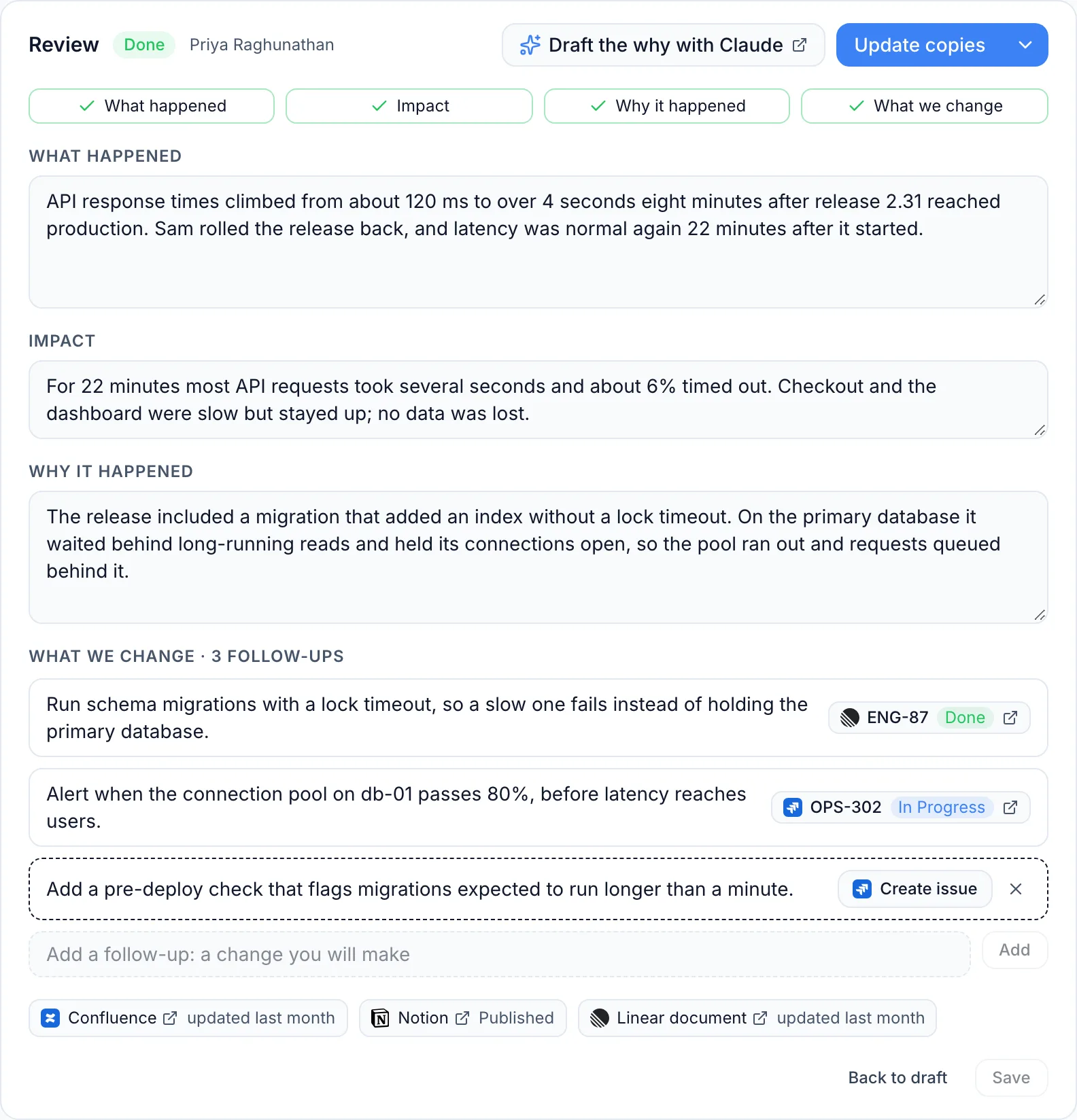
Once a default space is set, every new review ticks Confluence under Also publish to, and finishing the review publishes the page. You can still untick it or pick another space on any single review. Choose No default to stop ticking Confluence automatically — you can still publish by hand with Publish ▾ → Confluence.
Each review's page is titled with the day it started first, for example 2026-10-30 · Checkout is down (#2191), so reviews read as a timeline. If the page they're filed under is deleted or moved, InfraNest recreates it the next time it publishes, and the review says so. A review published before keeps its page where it is.
#Publish from an automation
- Add the step Publish the incident review to an automation — for example, Incident resolved → Publish the incident review.
- Choose the Atlassian connection under Confluence.
- Choose a space, or leave it empty to use the default space you chose earlier.
Running the step again updates the same page. If nobody has written the review yet, the step starts it from the incident's timeline first — the same draft Write the review starts with — and publishes that. While the connection still needs Allow Confluence, the step is skipped and the run says so.
#What the connection row says
On the Jira page, each Atlassian connection reads like Atlassian · acme.atlassian.net · Jira ✓ · Confluence ✓ — showing the account, the site, and each product it reaches. Confluence: not allowed yet links to the Confluence page, where you can allow it. A site with no Jira reads Atlassian · docs.atlassian.net · Confluence ✓, with No Jira on docs.atlassian.net underneath.
#Connect a site with Confluence and no Jira
- Click Connect Confluence and sign in. Atlassian's consent screen lists Jira and Confluence together — that's normal, approve it as it is.
- InfraNest detects that the site has no Jira and connects it for Confluence only.
Reviews publish to your Confluence spaces, and links to Confluence pages work exactly as on a site with both products. The connection row reads Atlassian · docs.atlassian.net · Confluence ✓, with no Jira listed. The Jira tile and Jira page say No Jira on docs.atlassian.net — there are no Jira issues, triggers or updates to set up, and Create issue doesn't offer Jira. Use your own tracker's integration for issues instead.
In an automation, a Jira step on this connection shows No Jira on docs.atlassian.net: this connection only reaches Confluence under its project, issue type and status fields. Connecting again won't change that; pick a connection to a site that has Jira instead.
NoteConnecting from the Jira tile on a Confluence-only site stops with a message pointing you to Integrations → Confluence instead. Connect from there.
If you add Jira to the site later, disconnect the Atlassian connection and connect it again from the Jira tile.
#Troubleshooting
- Publishing says to allow Confluence first. The connection was made for Jira only. Open Integrations → Confluence and click Allow Confluence.
- The sign-in says it reaches a different site. Allowing Confluence has to use the same Atlassian site the connection was made for. Sign in with an account on that site.
- The page doesn't change when I edit it in Confluence. That's by design — the page is rewritten from the review each time it's published. Change the review in InfraNest instead.
- I want to remove Confluence. Clear the default space, or disconnect the Atlassian connection on the Jira page. Disconnecting stops Jira too. Pages already published stay in Confluence.
Was this article helpful?
Thanks for your feedback!
Thanks, this goes straight to the docs team.
Related articles
 JiraConnect JiraConnect Jira and your automations can raise tickets for you — a certificate about to expire, a monitor that went down, a domain coming up for renewal — filed…