

Calendar sync keeps renewals, expiries and maintenance windows visible in the calendar app you already check, so nothing slips through because nobody was watching InfraNest that week.
#Overview
- Connect Google Calendar, Outlook Calendar, or subscribe to a private calendar feed — whichever fits how you already work.
- Each person connects their own calendar; what you connect is not shared with the rest of your workspace, but the events in it cover your whole workspace's domains, certificates and maintenance windows.
- You choose what shows up — domain expiry, certificate problems, maintenance windows, and more — with one setting that applies to both connection methods.
#Connect a calendar
- Go to Integrations, then open the Productivity section.
- Choose one of the three tiles:
- Google Calendar or Outlook Calendar (recommended) — one-click sign-in. Events land in a calendar of their own, named InfraNest · your workspace's name, and update automatically.
- Calendar feed (iCal) Pro — a private link you subscribe to from any calendar app, such as Apple Calendar, Outlook, or Google Calendar. Use this if you use a different calendar app, or one-click connecting isn't set up for your workspace.
- Follow the sign-in or subscribe steps on that page.
NoteOne-click connecting only appears once an administrator has set it up. If you see a message saying one-click Google Calendar isn't set up yet, use the calendar feed (iCal) instead — it works the same for you.
#Choose what lands in your calendar
- Open Integrations → Productivity and go to any of the three calendar pages.
- Find What goes in the calendar — this one setting controls both your feed link and any connected calendar.
- Turn each topic On or Off as you like:
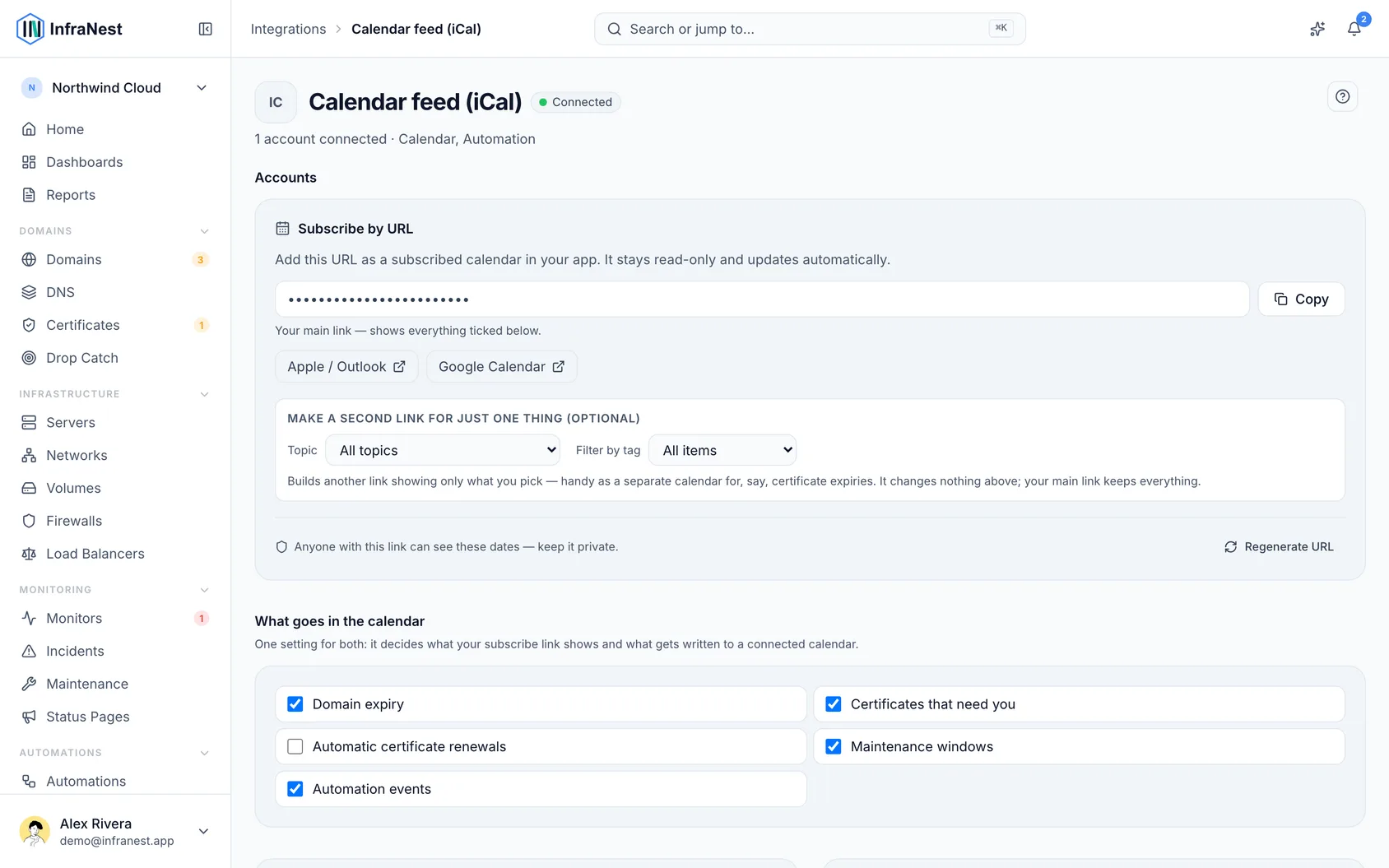
| Topic | Starts | What you get |
|---|---|---|
| Domain expiry | On | example.com renews or example.com expires, on the day, with reminders 14, 7 and 1 days before |
| Certificates that need you | On | Each certificate problem with a date, described the same way the Certificates page describes it, plus the expiry of any certificate nothing renews. A problem you snoozed on Home is left out |
| Automatic certificate renewals | Off | The expiry of certificates that renew themselves. Nobody has to act on these, so they're off by default |
| Maintenance windows | On | Each window you've scheduled, at its time. Repeating windows are shown 60 days ahead |
| Automation events | On | Whatever an automation's Add to calendar step puts there |
| Domain drops | Off | When a domain you watch in Drop Catch is due to drop |
Each event links back to the item in InfraNest. Expiries are all-day events.
#Add your own events with automations
- Build or edit an automation and add the Add to calendar action.
- Fill in a Title, a Date & time, and whether it's All-day.
- Optionally add a Description and set Remind me (days before).
- Use Add to to decide where the event goes: leave it on All calendars to send it to the feed and every connected calendar, or pick one specific calendar.
#Tips
TipA connected Google or Outlook calendar updates every hour, so renewing a domain moves its date within the hour. A subscribed feed only refreshes when your calendar app checks for updates, which can be every few hours — connect Google or Outlook directly if you want faster updates.
#Troubleshooting
- Nothing syncs, and you see "Reconnect needed": the calendar provider revoked InfraNest's access. Press Reconnect to start syncing again.
- Can't find one-click connecting: an administrator needs to set it up first in Admin Panel → Integrations. Use the calendar feed (iCal) in the meantime.
- Trying to add an event by editing the calendar directly: the calendar is read-only — you can't create InfraNest items this way.
- Feature missing on your plan: connecting Google or Outlook, and the calendar feed, depend on your plan. The relevant page will say if it isn't included.
- Want to stop syncing: use Disconnect. The InfraNest · … calendar and its existing events stay in Google or Outlook but stop updating, until you delete them.
- Checking what has access to your calendar: go to My account → Devices & access → Apps with access, where you can Revoke access for anything listed there.
Was this article helpful?
Thanks for your feedback!
Thanks, this goes straight to the docs team.
Related articles
 ConfluenceConnect ConfluenceConnect Confluence and the review your team writes after an incident can be published to a Confluence space: a page titled Postmortem: with the incident's…
 JiraConnect JiraConnect Jira and your automations can raise tickets for you — a certificate about to expire, a monitor that went down, a domain coming up for renewal — filed…