

Connect your Google Calendar so domain renewals, certificate expiries and maintenance windows show up automatically, and stay current without any manual work. This is for anyone in the workspace who wants these dates in their own calendar.
#Overview
- Creates a separate calendar in your Google account that updates itself every hour.
- Only you see your connected calendar — connecting is per person, not shared across the workspace.
- Works alongside or instead of the calendar feed option, depending on what your workspace has set up.
NoteOne-click connecting has to be turned on by an administrator first. If it isn't set up yet, the page will say so — use Subscribe with a calendar feed (iCal) instead, which needs no setup. Availability also depends on your plan.
#Connect it
Go to Integrations and open Google Calendar, under Productivity.
Under Connect your calendar, select Connect Google Calendar.
Sign in to Google and allow InfraNest to manage the calendars it creates.
You're returned to InfraNest with Connected to Google Calendar, and the first sync starts straight away.
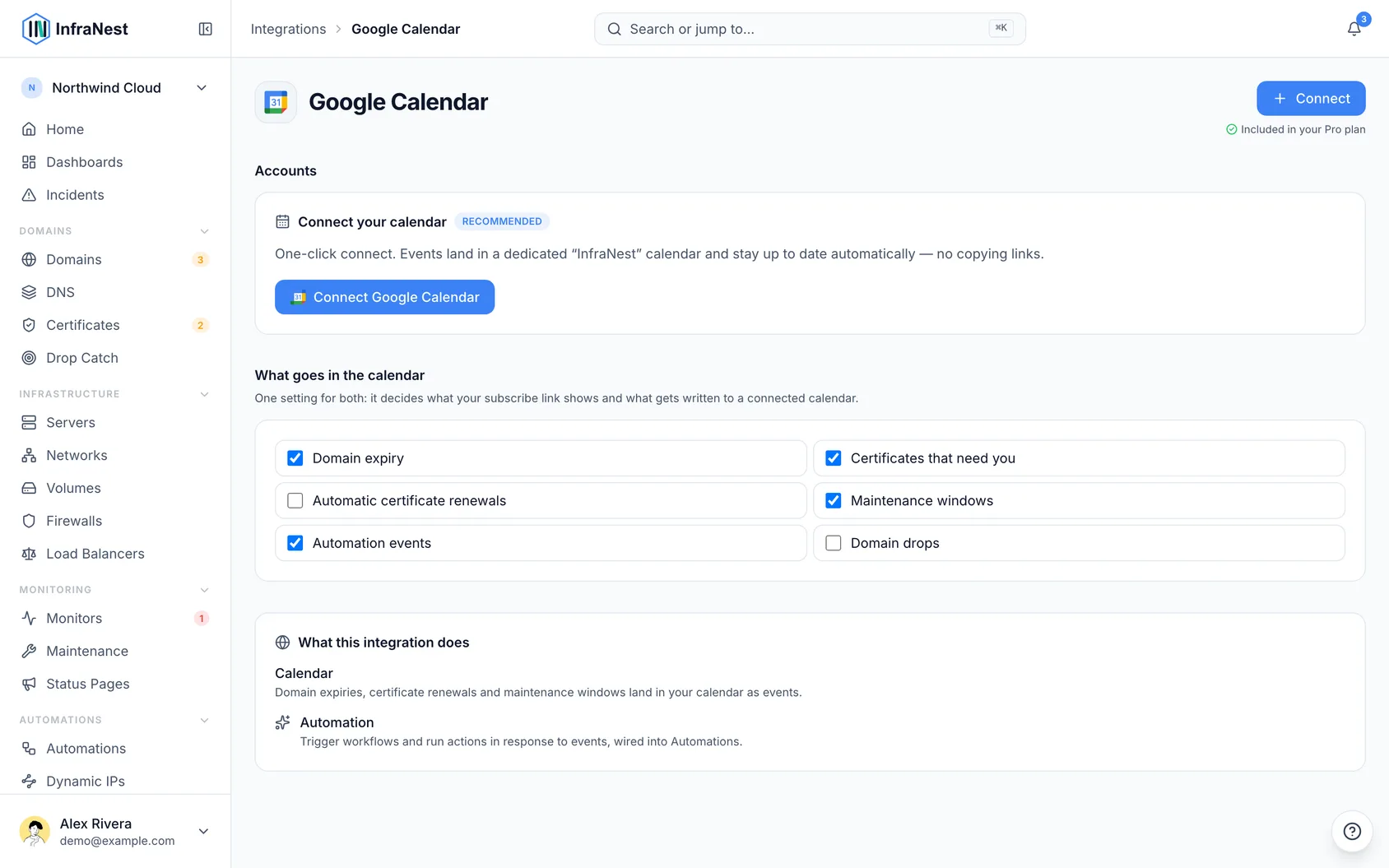
InfraNest creates a separate calendar in your Google account, named InfraNest · your workspace's name. It can only write to the calendars it creates, so your own events are never touched, and you can hide ours with one tick.
#Choose what goes in it
- Under What goes in the calendar, tick the topics you want: domain expiry, certificates that need you, maintenance windows and more.
- This is the same setting your calendar feed uses, so both stay consistent. See About calendar sync for details on what lands in your calendar.
#Check it's working
- Look at Last synced on the connected calendar to see how long ago it ran.
- If it says Not synced yet, the first sync hasn't finished — give it a few minutes.
- After the first sync, it's brought up to date every hour automatically.
#Troubleshooting
- "Reconnect needed" — Google revoked our access (a password change or a removed app can do this), so nothing syncs. Select Reconnect next to it and sign in again.
- Events aren't appearing — check the InfraNest · … calendar is ticked in Google Calendar's sidebar, and that the topic is ticked under What goes in the calendar.
- Dates look wrong — events use the date the item expires; check the item itself in InfraNest.
#Disconnect
- Select Disconnect next to the connected calendar.
- This happens straight away — InfraNest stops writing to the calendar.
- The calendar and its events stay in Google, no longer updated, until you delete them there yourself.
TipYou can also disconnect from My account → Devices & access → Apps with access.
Was this article helpful?
Thanks for your feedback!
Thanks, this goes straight to the docs team.
Related articles
 ConfluenceConnect ConfluenceConnect Confluence and the review your team writes after an incident can be published to a Confluence space: a page titled Postmortem: with the incident's…
 JiraConnect JiraConnect Jira and your automations can raise tickets for you — a certificate about to expire, a monitor that went down, a domain coming up for renewal — filed…