

Connect your DigitalOcean account to InfraNest to manage your Droplets and DNS, and to bring in the SSL certificates on your account — this is for anyone running servers or domains on DigitalOcean.
#Overview
- Manage Droplets, DNS zones and records, volumes, VPCs, firewalls and load balancers right from InfraNest.
- Your servers, zones and records appear automatically once you're connected — nothing to import by hand.
- Certificates stored on your DigitalOcean account are pulled into your certificate list, so they're covered by expiry reminders.
- DigitalOcean can host DNS for any domain no matter where you bought the name — you never have to move the registration.
NoteIf you'd rather use a token instead of signing in, you'll need a DigitalOcean API token. See Create a DigitalOcean API token for the steps and which permissions to give it.
#Connect DigitalOcean
- Go to Integrations and open DigitalOcean.
- Give the connection an Account label (Optional — useful if you connect more than one account).
- Choose which features to use it for: Cloud, DNS and Certificates.
- Either select Connect with DigitalOcean and approve it in the window that opens, or paste your API token.
- Leave Email me when this integration has problems ticked if you'd like email warnings.
- Select Connect.
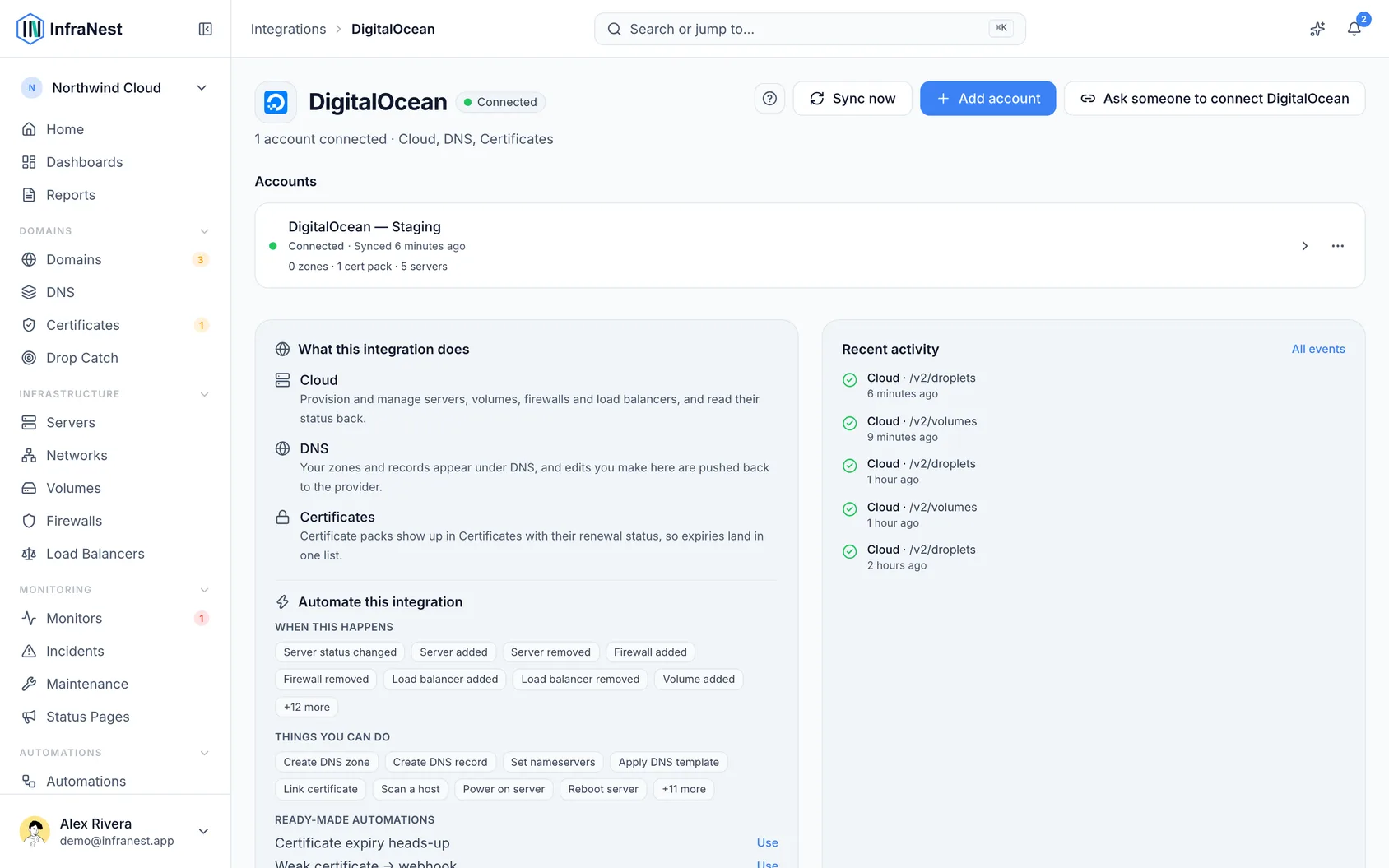
#What you get once it's connected
- Servers — create Droplets from here, and the ones you already have appear with their size, region, addresses and tags. Rename and resize them, power them on and off, reboot, rebuild, restore from a backup or snapshot, reset the root password, take snapshots, and turn DigitalOcean's weekly backups on or off.
- Graphs — CPU and bandwidth for each Droplet, plus memory and disk space where DigitalOcean's monitoring agent runs, which you can build alerts on. They refresh about every ten minutes.
- Volumes, VPCs, firewalls and load balancers — created, changed and deleted from here, not just listed. Attach a volume to a Droplet, make it bigger or take a snapshot of it, edit a firewall's rules and apply it across several Droplets at once, and give a load balancer its services and targets. Reserved IP addresses you no longer use can be released.
- DNS — see and edit your zones and records, and create or delete zones from here. Point your domain's nameservers at
ns1.digitalocean.com,ns2.digitalocean.comandns3.digitalocean.comand DigitalOcean answers for it. - SSL certificates — the certificates on your DigitalOcean account appear in your certificate list, with their names and expiry dates, so they're covered by your expiry reminders.
#Tips
- DigitalOcean doesn't sell domains. It only hosts DNS for names registered elsewhere, so there are no domain actions here — renewals, transfer locks and WHOIS privacy stay with whoever you bought the name from.
- CPU graphs need DigitalOcean's monitoring agent on the Droplet. Bandwidth always works because DigitalOcean measures it outside the machine, but CPU, memory and disk space come from an agent that's only installed if monitoring was switched on when the Droplet was made. Droplets you create from InfraNest have it on; for an older one, turn on monitoring in the DigitalOcean panel and the graph starts filling.
- There's no disk speed graph. DigitalOcean reports how full a disk is, but not how fast it reads and writes, so there's no disk-speed graph or alert for this provider.
- Some things stay in the DigitalOcean panel: recovery mode and mounting an ISO have no API, and Console opens the Droplet's access page at DigitalOcean rather than a console inside InfraNest. Backups run on DigitalOcean's own weekly schedule and can't be started on demand — take a snapshot when you want one now.
- Rules built around tags are shown but not editable. DigitalOcean can point a rule at Droplets, tags or load balancers as well as at plain addresses, and InfraNest only understands addresses. Those rules appear in the firewall marked Managed at the provider and are kept exactly as they are when you save — the rest of the firewall is yours to edit as normal. To change one, use DigitalOcean's own control panel.
- A VPC's address range is fixed once it's created, and a Droplet can't be moved to a different VPC after it's made. Renaming one works here.
- A volume can't be renamed — DigitalOcean doesn't allow it, so a volume keeps the name it was created with. Making it bigger works; making it smaller doesn't, at any provider.
- Reverse DNS isn't offered. DigitalOcean sets a Droplet's reverse DNS from its name.
- Certificate files can't be downloaded. DigitalOcean never hands the certificate itself back over its API, only the details, so InfraNest can show you what a certificate covers and when it expires but has nothing to give you to download.
- The shortest TTL InfraNest offers is 30 seconds.
- The SOA record is read-only, which is normal — DigitalOcean maintains it for you.
#Troubleshooting
- "Authentication failed" — the token was deleted, or it expired. DigitalOcean tokens can be created with an expiry date; make a new one, open the account's Account tab and paste it in with Update the API key.
- "DigitalOcean could not be reached" when connecting — that message means exactly what it says: the connection wasn't refused, DigitalOcean simply didn't answer while we were checking it. Wait a minute and select Connect again.
- Some things work and one thing is refused — your token has custom scopes and is missing one. The simplest fix is a Full Access token; otherwise see Create a DigitalOcean API token for the exact list. Rebuilding a Droplet, restoring it and resetting its root password need droplet admin, and the message names it when that's what's missing.
- Rebuild, Restore and Reset password are greyed out — you connected with the button before InfraNest asked DigitalOcean for permission to do those. Select Reconnect DigitalOcean on the server's Power tab and approve again; nothing else about the connection changes.
- You connected with the button and a certificate won't import — the approval you gave covers only the features that were ticked at the time. Disconnect, tick Certificates as well, and connect again. The same applies to Servers: a connection made for DNS alone was never given access to your Droplets.
- A Droplet's CPU graph is empty while bandwidth works — that Droplet has no monitoring agent. See the tips above; it isn't a problem with the connection.
Was this article helpful?
Thanks for your feedback!
Thanks, this goes straight to the docs team.
Still stuck? Contact support
Related articles
Load BalancersBusinessLoad balancersLoad balancers spread incoming traffic across several servers, so a service stays up and responsive. AWSConnect Amazon Web Services (AWS)Connect AWS to manage your Route 53 DNS, Route 53 domains and ACM certificates from InfraNest.
 CloudflareConnect CloudflareConnect Cloudflare to manage your DNS, domains and SSL certificates from InfraNest. Your Cloudflare zones and records appear automatically once it's connected.CloudflareCreate a Cloudflare API tokenTo connect Cloudflare, InfraNest needs an API token from your Cloudflare account. Here's how to create one with the right permissions.
AWSConnect Amazon Web Services (AWS)Connect AWS to manage your Route 53 DNS, Route 53 domains and ACM certificates from InfraNest.CloudflareConnect CloudflareConnect Cloudflare to manage your DNS, domains and SSL certificates from InfraNest. Your Cloudflare zones and records appear automatically once it's connected.CloudflareCreate a Cloudflare API tokenTo connect Cloudflare, InfraNest needs an API token from your Cloudflare account. Here's how to create one with the right permissions.