

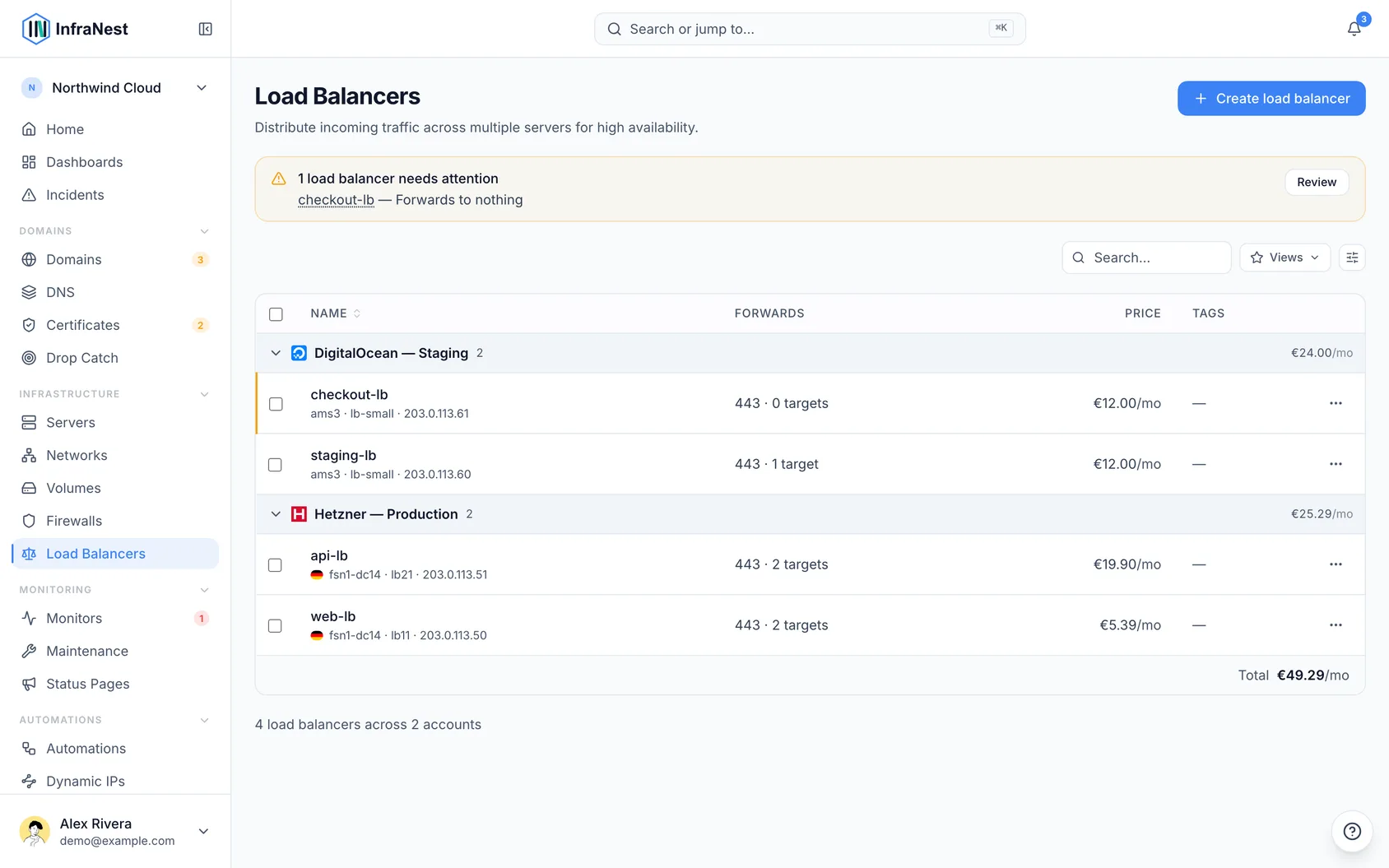
Load balancers help keep a service online by spreading incoming traffic across several servers, so no single server gets overwhelmed.
#Overview
- Spreads incoming traffic across multiple servers so your service stays up and responsive.
- Each load balancer has services (the ports it listens on and where it forwards them), targets (the servers behind it), and a balancing method that decides how traffic is shared.
#Manage load balancers
- Go to Load balancers.
- Manage a load balancer's services (which ports it listens on and forwards to), its targets (the servers behind it), and its balancing method.
#What a load balancer's page shows
Open a load balancer from the list to see its page, laid out like every other cloud page:
- The header shows its status, its type, which provider and location it is in, and what it costs a month when we know. The main action sits beside it; everything else is under Actions.
- Overview starts with anything that needs your attention, then Used by — the domains and names that point at it, the servers it sends traffic to and whether they pass its health check, the certificate it serves and who manages it, and the monitors watching it — followed by a Details card with its facts, each with the switch that changes it.
- Targets lists its services and the servers it sends traffic to, each with whether it passes the health check.
- Activity lists what was done to it, by whom and when — the audit log for just this load balancer.
#When something needs you
The top of the Overview tells you when the load balancer forwards nothing, has no servers to send traffic to, or when a server behind it fails its health check.
NoteA monitor on the load balancer tells you that something failed, not which server specifically.
#Add a monitor for each server behind it
- When the load balancer is monitored but a server behind it is not, the page suggests adding a monitor for that server.
- On the Targets tab, select Monitor this server beside the server you want to watch.
- The monitor form opens already filled in. Review it, then save it.
TipNothing is created until you save the monitor form, so it's safe to open it just to check the details.
#Its certificate
A certificate your provider serves from the load balancer (Hetzner, for an HTTPS service) is listed under Certificates like any other certificate, and each page links to the other.
#Tips
- Keep an eye on the Used by section on the Overview tab — it's the fastest way to see everything connected to this load balancer in one place.
- Check the Targets tab regularly to confirm all servers behind the load balancer are passing their health checks.
Was this article helpful?
Thanks for your feedback!
Thanks, this goes straight to the docs team.