

See exactly what your infrastructure costs — per month and per year, across every provider, in one currency — broken down however makes sense to you. This is for anyone who wants a clear answer to "what am I paying for infrastructure right now?"
#Overview
- Pulls together every priced item InfraNest knows about: servers, volumes, load balancers, domains, certificates, and anything you've priced yourself.
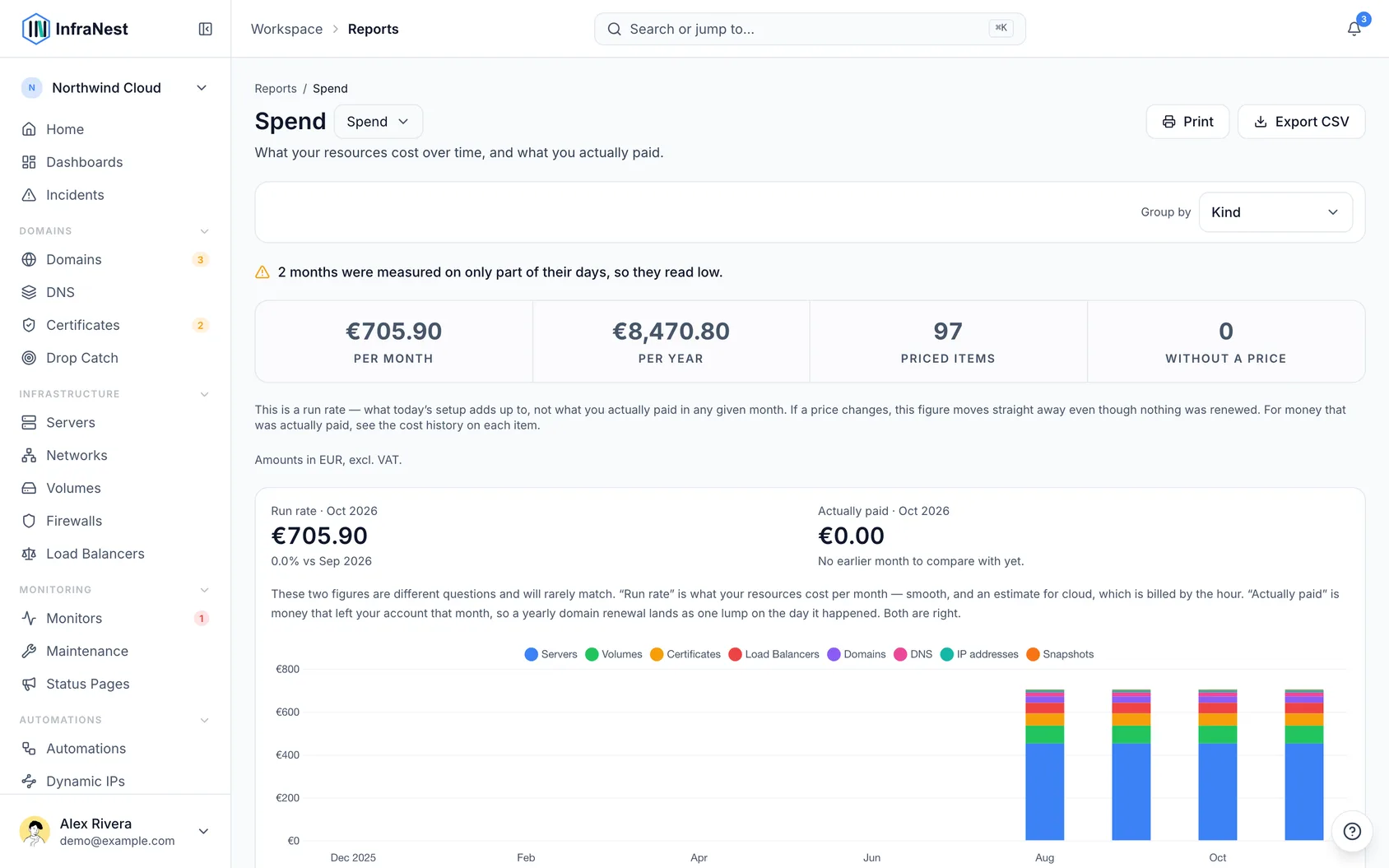
- Shows Per month and Per year totals, plus how many Priced items you have and how many are Without a price.
- Lets you break spend down By type, By provider, By tag, or by your own custom field.
- Also covers what you've actually paid, not just what things cost going forward.
#What's counted
- InfraNest reads prices from your provider wherever it can.
- For anything it can't read, open the item and add a cost yourself so it's included.
- A price of €0.00 counts as priced — zero is a real answer, not a missing one.
- A blank price is different: it means nobody has entered a cost yet, and these are what Without a price is counting.
- Certificates from an issuer that doesn't sell them are recorded as free automatically.
#Group your spend
- Find Group by in the bar above the report.
- Choose By type to compare servers, domains, certificates and so on.
- Choose By provider to see what each provider costs you.
- Choose By tag to see spend per tag — anything untagged appears under Untagged.
- If you use custom fields, you can also group by one of your own choice fields — handy for turning this into a per-client bill.
The chart and the table always follow the same Group by choice, so they never disagree.
#Understand run rate vs. actual spend
The main figures on this page are a run rate — what your current setup adds up to per month, starting now. They are not a record of what left your bank account.
This matters most with domains: if your registrar raises a price mid-term, the page shows the new figure immediately, even though you haven't paid it yet and nothing has renewed. That's correct for "what will this cost me going forward" and wrong for "what did last month cost me."
For money actually paid, open the item and check its cost history.
NoteCloud costs are always an estimate, worked out from prices on file rather than an invoice, because cloud providers bill by the hour. Domain and certificate costs come from real events and are recorded exactly.
#Look back with Over time
- In the bar above the report, choose 6 months or 12 months.
- Read the two headline figures for the most recently finished month.
- Review the stacked bar chart showing how spend was made up, grouped by whatever Group by is set to.
Only whole months are offered — InfraNest records resource costs once a day and rolls them up per month, so there's no day-by-day picker.
The headline is always last month, not the current one: the current month is still filling up with data, so comparing it to a full previous month would look like a false collapse every time the calendar turns over.
Two different figures, two different questions:
- Run rate — what your resources cost per month, smoothed out (and an estimate for cloud).
- Actually paid — real money that left your account that month, including lump sums like a yearly domain renewal.
These numbers will rarely match, and that's expected — both are correct answers to different questions.
A few things the chart tells you outright rather than hiding:
- A month only partly measured reads low, and is labelled as such.
- If there are more groups than the chart can show, the smallest are folded into Other, with a count of how many.
- If you've changed your base currency, older months stay in their original currency and are flagged as not directly comparable.
A brand-new workspace won't have history yet — the first month appears once there's something to show.
#Share or export the report
- Copy the address bar URL to share the exact window and grouping you're looking at.
- Use Print to save the current view as a PDF, with the time window and grouping restated on the page.
- Use Export CSV to download the monthly figures — one row per month per group, including how many days each month was measured over and how many items were unpriced.
Every export is recorded in your audit log.
#Set a price and pick a billing period
- Open the item you want to price.
- Enter the cost.
- Pick the billing period next to it — per hour, per month, per quarter or per year — matching how your provider actually bills you.
- Check the monthly equivalent shown underneath.
Changing the period only changes what you type — every list and total across InfraNest stays monthly, so everything adds up together.
TipRegistering or renewing a domain for two years? Choose per year and set the count to 2 rather than entering two separate yearly prices — the cost spreads correctly across the whole term.
#Check why a price changed
- Open the domain in question.
- Look under Cost history.
- Review each change: what the price was before, when it changed, and who changed it — including changes your provider made automatically.
If a registrar raises a price mid-term, InfraNest notes that the new price applies from a future date and that the term you've already paid for is unaffected. Nothing you've already paid changes retroactively.
#Review what you've actually spent
- On the same page, look under Recorded spend.
- Review each entry — registrations, renewals, transfers, and anything you've added yourself — showing the day it was paid and the period it covers.
This figure is deliberately different from the monthly run rate at the top of the report: recorded spend is money actually paid, on the day it was paid.
Some entries are marked worked out — InfraNest noticed a domain's expiry date moved forward, concluded it was renewed, and used the price on file rather than a reported one. If one of these is wrong, add a correction rather than editing it directly: the original stays visible alongside your correction.
#Record spend from outside InfraNest
- Open the relevant item, or add an account-level cost if it doesn't belong to one thing.
- Enter what you paid — a DNS plan, a support contract, an invoice settled by bank transfer, anything.
- Save it.
It will count towards your totals just like anything else.
#Add costs that cover everything
Some costs don't belong to a single item — a DNS plan covering all your zones, a support contract, a flat monthly fee on a cloud account.
- Add the cost as an account-level cost rather than attaching it to one item.
- If it relates to a specific connected account, attach it there too, so it also appears under that provider.
These are counted once and never divided across the things they cover — so adding a 41st zone to a €20 plan won't quietly change last month's figures.
#Tips
- Attached items are counted once: a volume attached to a server is counted as a volume, not folded into the server's cost, so the grand total matches what you actually pay.
- Tag totals can add up to more than the grand total — an item with several tags counts fully towards each one, because a tag answers "what does this tag cost me?", not "what share of this item belongs to it?"
#Troubleshooting
- Some items are missing from the totals. Anything priced in a currency InfraNest doesn't have an exchange rate for is listed but excluded from totals, rather than converted at a guessed rate — the report tells you how many.
- Figures look different from your invoice. All figures are shown excluding VAT unless your workspace is set up otherwise (check the heading), and this report doesn't include usage-based charges billed separately by your provider.
- The page shows an upgrade prompt. Reporting is part of a paid plan — that's why you're seeing the prompt.
Was this article helpful?
Thanks for your feedback!
Thanks, this goes straight to the docs team.