

See what's coming up for renewal in one place — this report lists every domain and certificate due soon, with dates and costs, so you can plan ahead instead of reacting.
#Overview
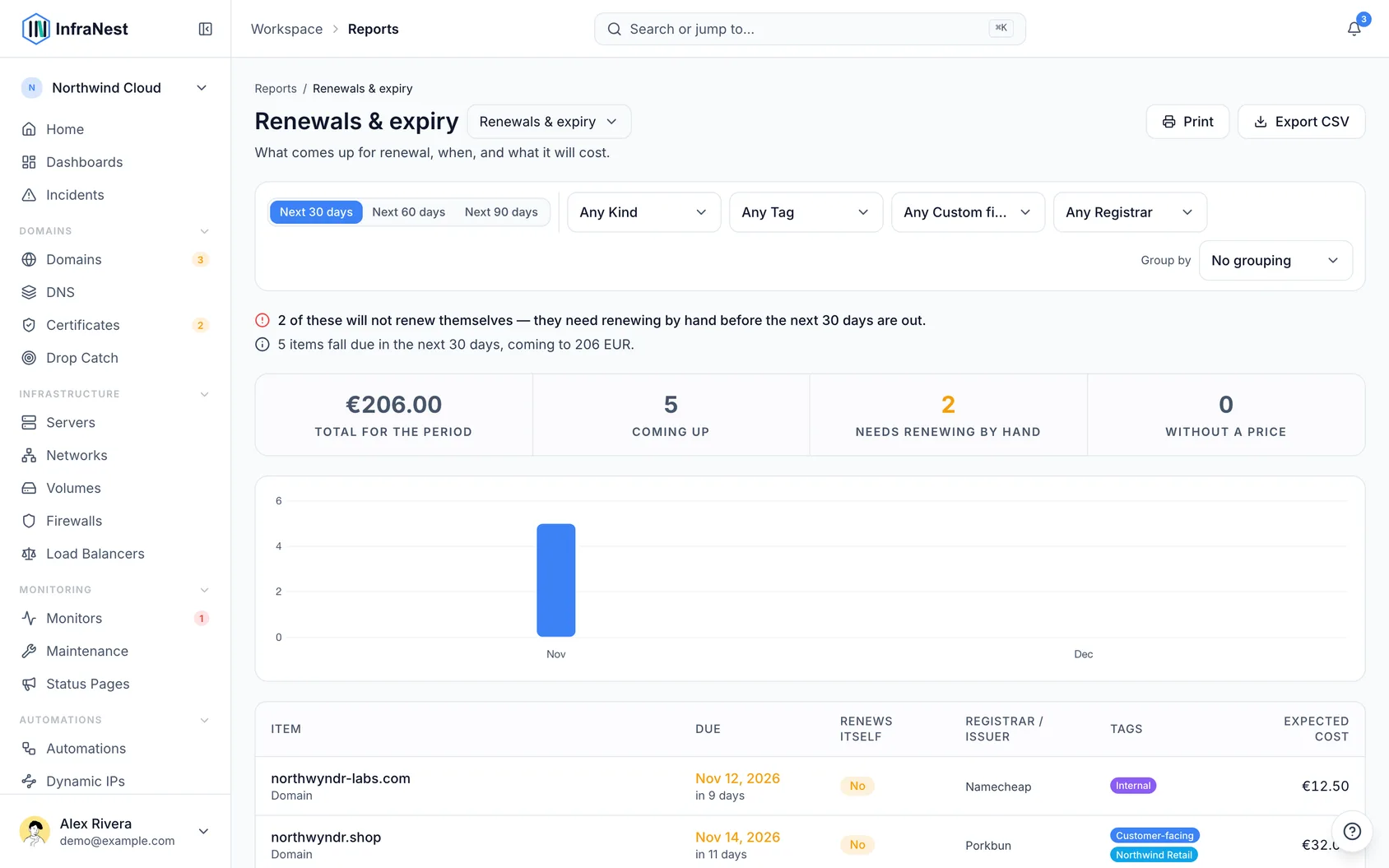
- Combines domains and certificates into a single forecast, with a total cost at the top.
- Lets you choose a 30, 60 or 90 day window.
- Different from your expiry alerts and the Domains page, which tell you what needs attention right now — this report is for planning ahead.
#View the Renewals & expiry report
- Go to Reports in the sidebar.
- Open the Renewals & expiry report.
- Choose the window you want to look at: the next 30, 60 or 90 days.
#Understand the total
- Look at the headline figure — this is the expected cost for the period, based on the prices InfraNest has on file.
- Check for anything listed without a price. These stay in the list and are counted separately rather than treated as free.
- Note how many items couldn't be priced — the report tells you this so the total doesn't look complete when it isn't.
- Remember costs are a forecast, not a quote — a registrar can change its price before the renewal date. When that happens, InfraNest records the change so you can see what moved.
#Read the renew-itself column
- Look for Yes — this means a domain is set to auto-renew.
- Look for No — this means a domain will lapse unless you act. These are counted separately at the top of the report because they're the ones most likely to catch you out.
- Look for Not tracked — this applies to certificates. InfraNest has no auto-renew setting for certificates, and many renew automatically elsewhere without reporting back, so this is shown as unknown rather than guessed.
NoteCertificates you've dismissed, and ones already replaced by a newer certificate, are left out of this report entirely — neither is going to be renewed, so neither belongs in a forecast.
#Check the monthly breakdown
- Scroll to the chart below the total.
- Use it to see costs broken down by month, so you can answer questions like "what does February cost" at a glance.
#Export the report
- Select Download to export the list as CSV, using your current filters.
- Check the renew-itself column in the file — it's written out as yes, no, or unknown.
TipEvery export is recorded in your Audit Log, so you can always trace who downloaded a renewals forecast and when.
#Troubleshooting
- The total looks low — check the count of unpriced items near the total; they're excluded from the cost but still counted, so the real spend may be higher.
- A certificate shows "No" when you expected "Yes" — certificates always show Not tracked, never Yes or No; only domains show Yes or No for auto-renew.
- A certificate you dismissed or replaced is missing — that's expected; dismissed and replaced certificates are intentionally left out of this report.
Was this article helpful?
Thanks for your feedback!
Thanks, this goes straight to the docs team.
Still stuck? Contact support
Related articles
ReportsSend a client their monthThe Account review is one client, one month, one document. Pick who it is about and which month, and you get something you can send: what you run for them…ReportsSend a client their monthly reportThe Client report is the month you would otherwise put together by hand for a client: how much their sites were up, every outage with what caused it and how…ReportsBusinessSee what your infrastructure costsSee what your infrastructure costs going forward — per month and per year, across every provider, in one currency, broken down by type, provider and tag.ReportsBusinessSee every priced resource, line by lineSpend tells you what your infrastructure costs in total. Itemised costs tells you which things make up that total — one row per resource, with what each…