

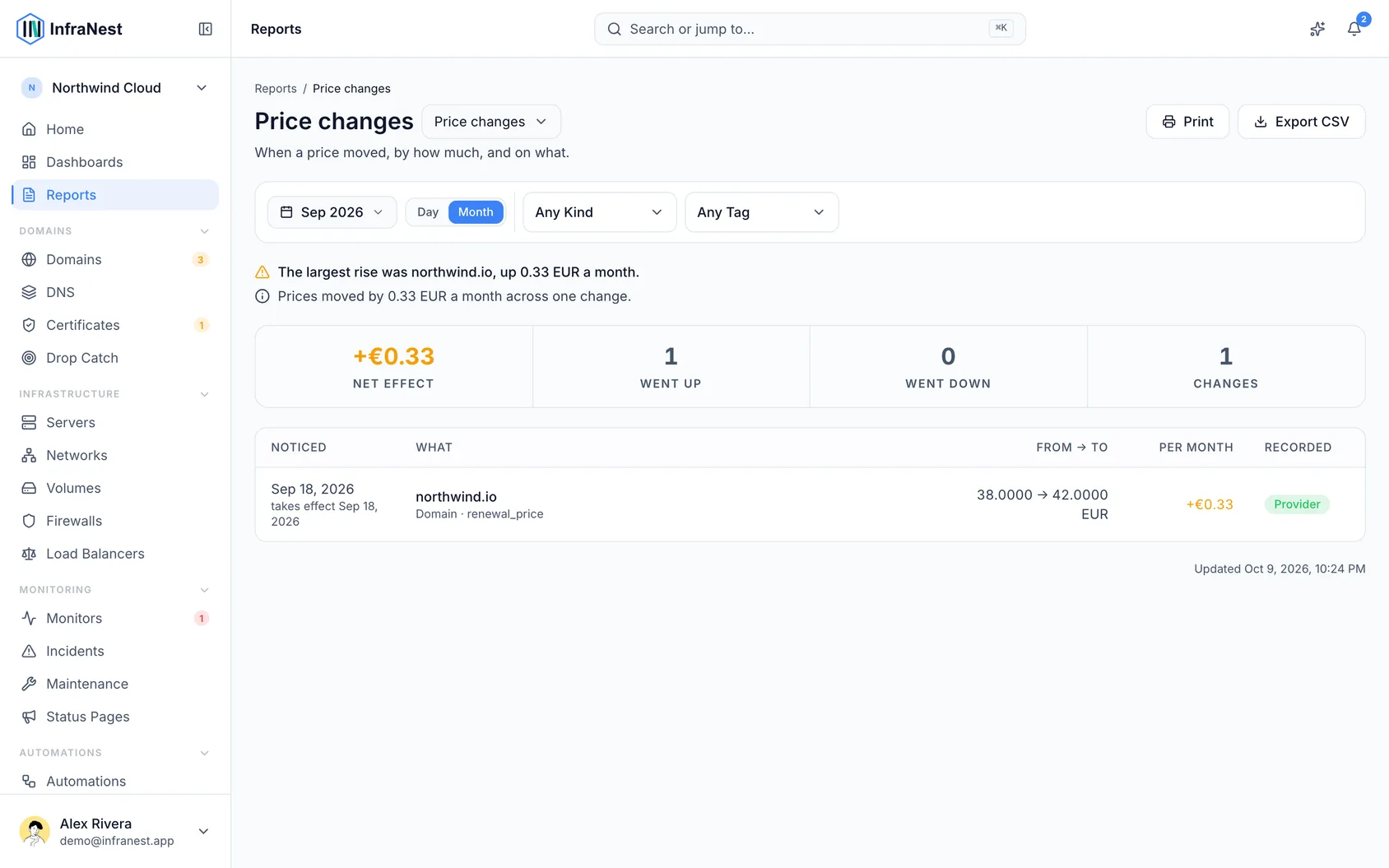
See exactly which of your prices went up (or down), by how much, and when — helpful when a bill looks different than you expected. This report is for anyone who manages billing or costs in InfraNest.
#Overview
- Pick a month, a quarter or a year and see every price that moved during it.
- Every change is recorded regardless of where it came from — something you typed, something the provider sent back, or something worked out from a renewal invoice.
- Costs on different billing schedules are converted to a common monthly figure, so a domain and a server can be compared fairly.
#Understand what counts as a price change
- A price change is logged whenever the amount held for something changes — a domain, a server, a certificate, or a shared cost.
- The report notes where the change came from, whether it was entered manually, returned by the provider, or calculated from a renewal invoice.
#Read the "per month" column
- Look at the per-month figure rather than the raw billed amount — it's the number that lets you compare items fairly.
- Remember that prices are billed on different rhythms. A domain moving from €24 a year to €36 a year, and a server moving from €2 a month to €3 a month, are both increases of €1 a month, even though the bill shows €12 for one and €1 for the other.
- Check the total at the top of the report — it shows what your monthly running cost gained or lost over the period you picked, and it's comparable across everything listed.
#Check the two key dates
- Look at Noticed to see the day the new price was first seen.
- Look at Takes effect to see the day you actually start paying it.
- Use Takes effect when reconciling a bill, since that's the date the new cost actually applies.
- Use Noticed when you want to know when the change was first discovered — these two dates can be months apart, such as a renewal quote seen in August for a price that only takes effect the following January.
#Understand "Not comparable" entries
- Look for entries marked as not comparable rather than counted in the total.
- Know that this applies to two situations: something that had no price before and does now (so there's nothing to subtract from), and something where the currency changed as well as the amount (since comparing currencies would mean picking an exchange rate and presenting it as fact).
- Read the summary at the top, which reports both halves honestly — for example, "+€4.10, and 3 changes we can't compare."
#Handle an empty list
- If nothing appears for the period you picked, take that as a real answer: no price moved during that time.
- If the period is before you started using InfraNest, check the message the report shows — it names the earliest date it can report from.
#Tips
- Copy the address bar to share the exact view you're looking at with someone else.
- Use Export CSV to download the rows as currently filtered, or Print to save them as a PDF.
TipIf a colleague adjusted a price last month, this report is a quick way to check what changed and when — manual edits show up here too.
NoteEach object also keeps its own price history on its detail page, if you want the story of just one domain, server or certificate.
Was this article helpful?
Thanks for your feedback!
Thanks, this goes straight to the docs team.
Still stuck? Contact support
Related articles
ReportsSend a client their monthThe Account review is one client, one month, one document. Pick who it is about and which month, and you get something you can send: what you run for them…ReportsSend a client their monthly reportThe Client report is the month you would otherwise put together by hand for a client: how much their sites were up, every outage with what caused it and how…ReportsBusinessSee what your infrastructure costsSee what your infrastructure costs going forward — per month and per year, across every provider, in one currency, broken down by type, provider and tag.ReportsBusinessSee what's coming up for renewalThe Renewals & expiry report answers "what's my bill for the next three months?" — domains and certificates together, with dates and costs in one list.