

Send a client a tidy, month-by-month report of what you run for them, how it performed, and what it cost — ready to hand over or have delivered automatically. This is for anyone who manages infrastructure on behalf of clients and needs to keep them informed without building a report from scratch.
#Overview
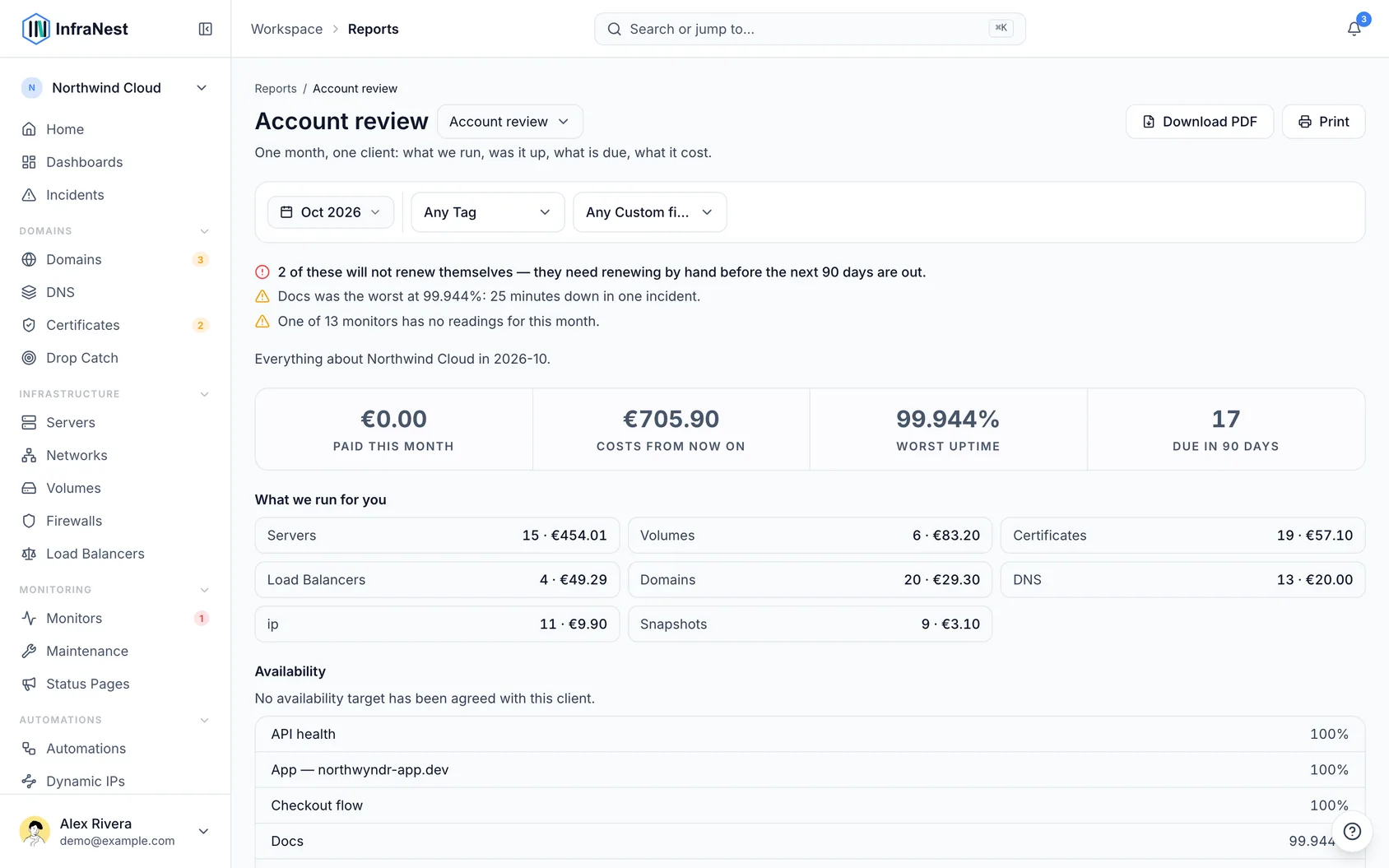
- The Account review is one client, one month, one document — built to answer "how did this client's month go?" rather than a general report about all your domains, spend, or uptime.
- It brings together what you run for the client, whether it stayed up, what is renewing soon, what it cost, and what changed, with a short summary at the top.
- You choose who it's about and which month, and InfraNest can send it automatically every month, or you can download it on demand.
#Choose who the review is about
- Open the report and use the filter bar to pick a tag or one of your own custom field values.
- If you have a Client or Cost centre custom field, use that — it's usually the right choice.
- Make sure the tag or field value is actually set on the servers, domains, or other items themselves. A server tagged Acme appears in Acme's review; an untagged one appears in nobody's.
NoteAvailability needs a tag, not a custom field. Monitoring checks can carry tags but not custom field values, so if you filter by a custom field, the Availability section is left out rather than mixing in everyone's uptime.
#Choose the month
- Pick a month from the selector — only whole, already-finished months are available.
- Wait for the review to load; a month still in progress isn't offered, since its figures would still be changing.
The report is built from these sections:
- The summary — two or three sentences on what needs attention, drawn from the same data as the sections below.
- What we run for you — the inventory and its ongoing monthly cost.
- Availability — uptime per monitored service. Set a target on the client's tag (Settings → Tags) to see whether the month met it; without one, the review says no target is set.
- Coming up — renewals and expiries in the next 90 days, with their cost. Each row notes whether it's a domain or a certificate.
- What changed — domains registered or renewed, and any price changes.
NotePayments that cover more than one item — like a support contract — can't be attributed to a single client, so they're counted separately rather than split up or dropped.
#Send it every month automatically
- Scroll to Send this every month at the bottom of the report.
- Add the email addresses that should receive it.
- Optionally choose a destination from your notification destinations to post a short version (summary plus link) there — leave it as Email only if you don't want that.
- Optionally set the language for this report — it's written in the language the recipient reads, independent of your own settings.
- Use the switch to turn sending On or Off. Turning it off keeps the saved addresses, so switching back on later is one click.
- Click Save changes to confirm.
When the month closes, each address on the list gets its own copy by email — recipients can't see who else is on the list. Every copy ends with an Unsubscribe from this report link that removes only that address (after asking once, so an automatic mail scanner opening the link doesn't unsubscribe anyone by accident). The mail app's own Unsubscribe button works too. A client with nothing running that month gets no email at all; a quiet month still sends, since "nothing needed attention" is useful to know. Every send, and every change to the recipient list, is recorded in your Audit Log.
Recipients don't need an InfraNest login — a client's accountant or bookkeeper can be on the list.
#Send it now or download it
- Click Send now to email the last closed month immediately, using the same path as the scheduled send — what you see in a test is what the client gets. This doesn't cancel the scheduled send.
- Click Download PDF to get exactly the document that would be emailed — available where your installation supports generating PDFs.
- If Download PDF isn't shown, your installation has no PDF renderer set up. Use Print instead, and choose "Save as PDF" as the destination in your browser's print dialog.
TipUse Send now before your first scheduled send to check the report looks right — it goes out the exact same way the automatic monthly send does.
#Manage all your sent reports
- Go to Settings → Emailed reports.
- Review the list of every report currently being sent across your workspace — who it's about, who receives it, and when it last went out.
- Open any entry to change recipients, language, destination, or turn sending on or off.
#Tips
- On a plan with email branding, the report carries your logo and colour, the same as your alerts — see Put your own brand on what we send.
- The email always includes the summary in its body, so it's readable on a phone even before opening the attached PDF.
- If a PDF renderer isn't available on your installation, the email still sends — nothing is delayed or skipped for the sake of an attachment.
Was this article helpful?
Thanks for your feedback!
Thanks, this goes straight to the docs team.