

Add your logo, colour and name to the alerts, summaries, reports and status-page updates InfraNest sends on your behalf, so the people you look after see your brand, not ours. This is for anyone who manages a workspace and wants a consistent, professional look in front of clients.
#Overview
- Alerts, recovery notices, weekly summaries, client reports and status pages can all carry your logo, your colour and your name.
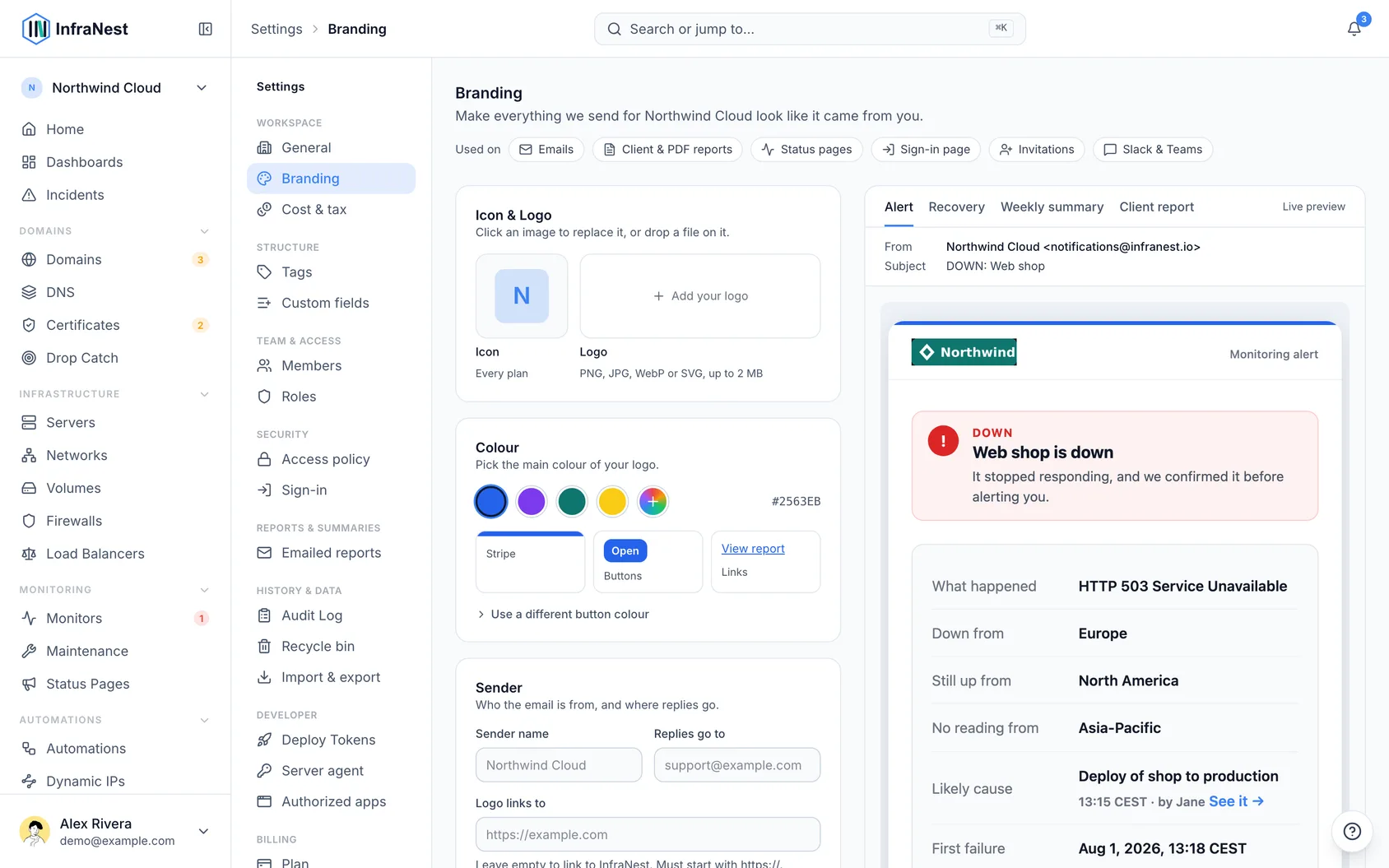
- Everything is set up in one place, with a live preview of a real email right beside your changes.
- Security and account emails always come from InfraNest, so people can still trust what they're looking at.
#Set up your branding
- Go to Settings, then Branding.
- Click the logo tile, or drop a file onto it, to Add your logo. PNG, JPG, WebP or SVG files up to 2 MB work — a wide logo made for light backgrounds looks best.
- Pick your Colour. The first swatch is taken automatically from your logo; choose it, another swatch, or Pick your own colour.
- Check the Live preview. Switch between Alert, Recovery, Weekly summary and Client report to see your brand on each one.
- Click Save changes. The save bar appears as soon as you make a change.
- Optional: click Send me a test email to see the preview land in your own inbox, even with colours you haven't saved yet.
#What happens to your logo
- InfraNest makes an email-safe copy of your logo, since Gmail and Outlook don't display SVG images — your status pages keep the original file.
- Empty space around the logo is trimmed so it fills the email header properly.
- If your logo is mostly white or see-through, InfraNest warns you, since it would disappear on the white email header. Upload the version you use on light backgrounds instead.
#Understand how your colour is used
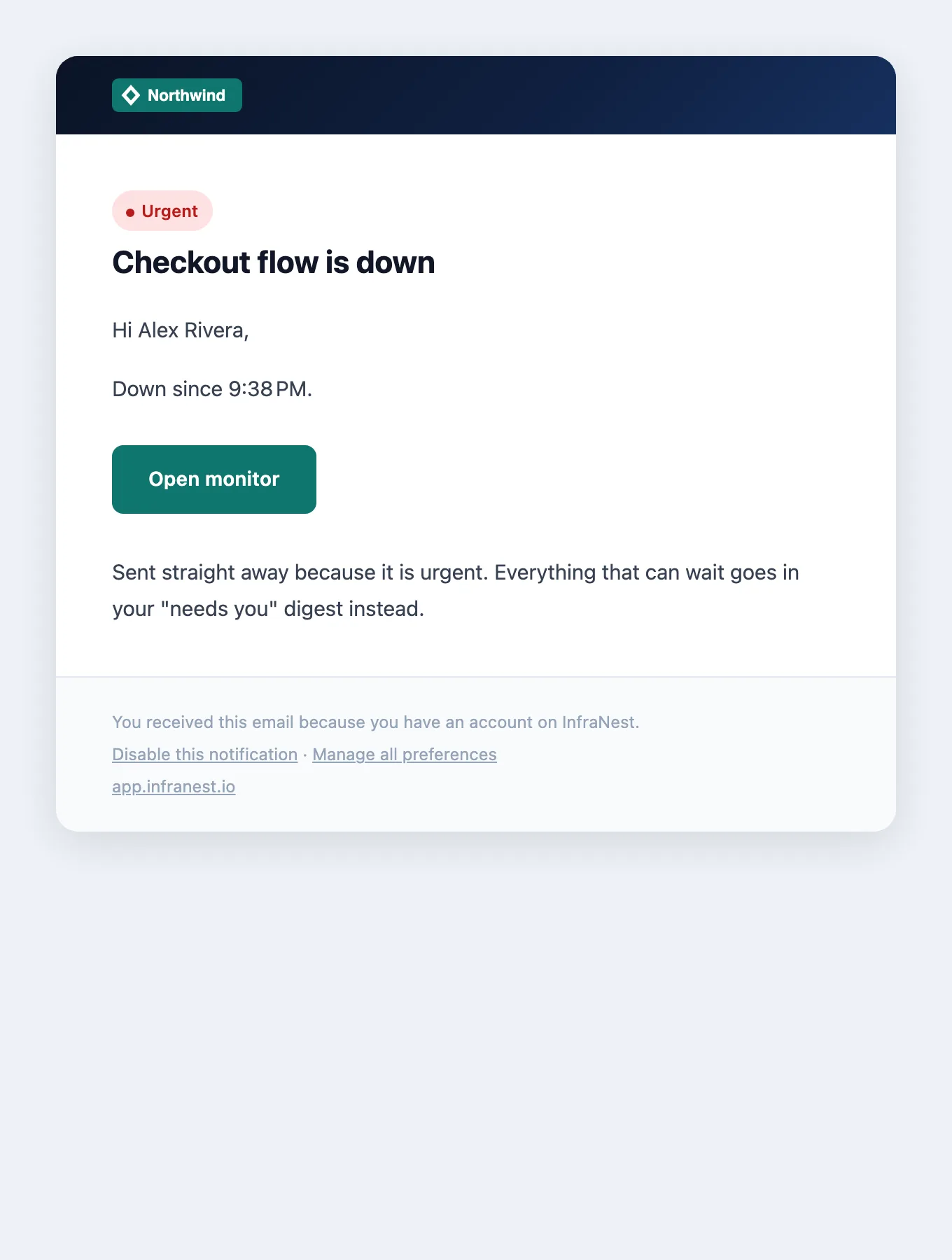
Your chosen colour appears on the stripe across the top of every email, plus its buttons and links.
- A light colour still reads well — buttons automatically get dark text instead of white, and links use a darker shade of your colour.
- Turn on Use a different button colour if your main brand colour makes a poor button colour.
- Down and warning alerts always keep their own colours, whoever sends the email, so a problem is never mistaken for good news.
#Set your icon
Next to your logo is your icon — the small square image shown in the sidebar, the workspace switcher, invitations, and Slack or Teams messages. It's free on every plan. If you signed up with a company email address, InfraNest already pulled one from your website; click it to replace it with your own.
#Set a sender name and reply address (Enterprise)
- Under Branding, find Sender.
- Enter your Sender name — the name people see in their inbox, usually your company name.
- Enter a Replies go to address — replies to alerts or reports go here instead of to InfraNest.
- Save your changes. The Powered by InfraNest line is also removed from the footer automatically.
NoteThe email address a message comes from always stays InfraNest's. Only the sender name beside it is yours — sending from your own domain would mean our mail servers send mail your domain doesn't vouch for, which inboxes treat as suspicious.
#Know what stays ours
- Security and account emails — password resets, sign-in codes, security alerts and invoices — always come from InfraNest, in InfraNest's colours, so people can always recognise them as genuine.
- The sending email address itself, as noted above.
#Check what your plan includes
- Business — your logo, your colour and a button colour on the emails and reports sent for you. Their footer still says Powered by InfraNest.
- Enterprise — everything in Business, plus your own Sender name and Replies go to address, with no Powered by InfraNest line.
- Other plans — you can try everything and see it in the Live preview. Saving and sending a test email need a plan with branding; the card under the preview tells you which plan that is.
#Tips
TipChanges only apply to the next email sent — anything already delivered keeps its old look.
#Troubleshooting
- I downgraded and my brand disappeared. It isn't deleted — emails just go back to InfraNest's look while you're on a plan without branding. Your logo and colour return automatically the moment you upgrade again. The Branding page tells you when this is happening.
- I'm on a partner's plan. Wherever you haven't set your own brand, the partner's brand is shown instead, and the Branding page will say so.
- A status page doesn't match. Status pages use your brand unless that specific page has its own logo or colour set.
Was this article helpful?
Thanks for your feedback!
Thanks, this goes straight to the docs team.