

Cost & tax settings control how InfraNest reports what your infrastructure costs — which currency figures are shown in, what VAT rate is applied, and whether prices include tax. This is for anyone who checks spend reports or invoices and needs the numbers to add up correctly.
#Overview
- InfraNest pulls together costs from different providers, often billed in different currencies, and needs to know how to combine and display them consistently.
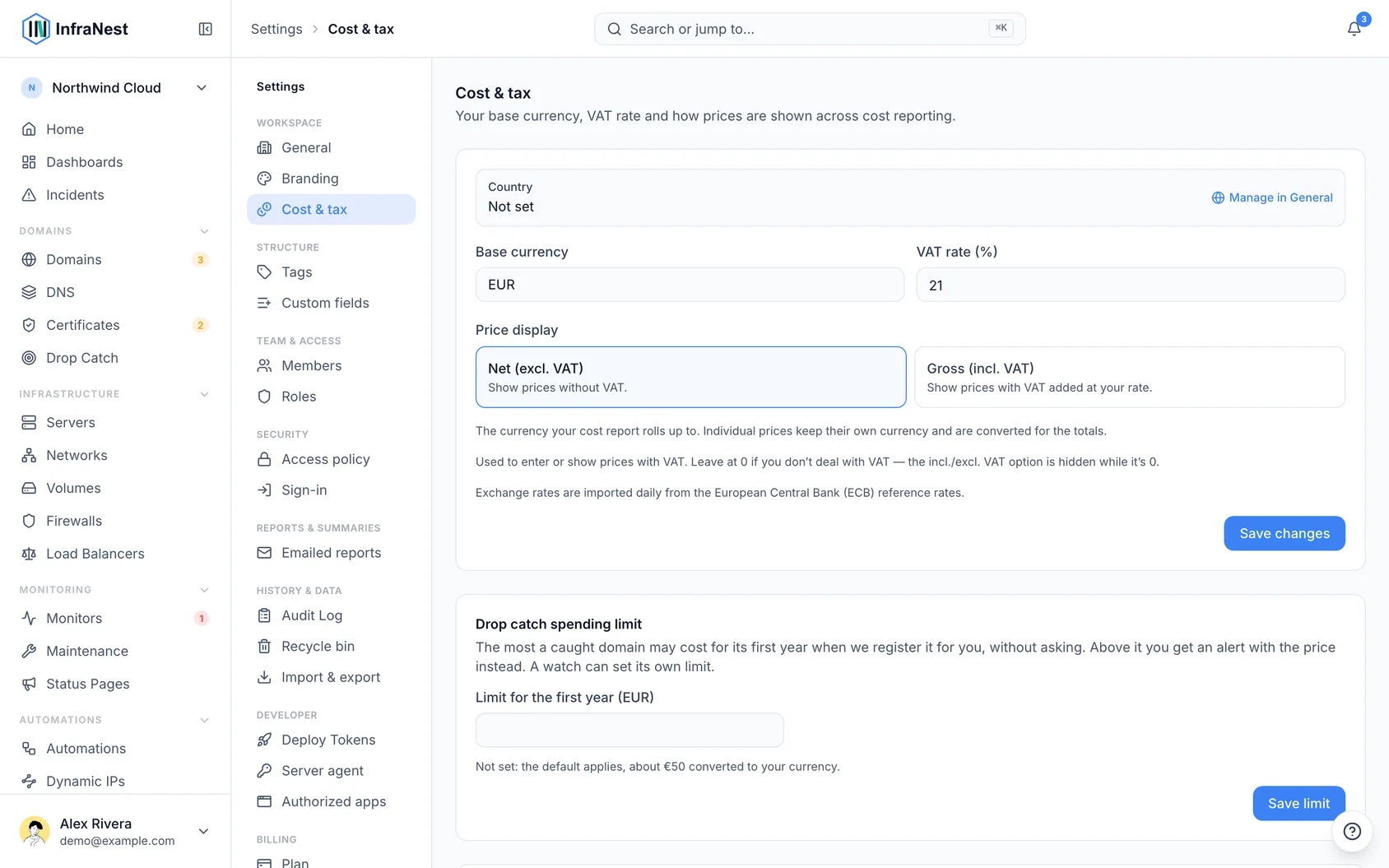
- Three settings make this possible: your base currency, your VAT rate, and whether figures are shown net (before tax) or gross (after tax).
- These settings apply everywhere money appears in InfraNest — the Spend report, itemised costs, renewals, and the cost shown on each resource.
- They live under Settings → Cost & tax.
#Set your base currency
- Go to Settings → Cost & tax.
- Find the base currency field.
- Choose the currency you want all costs converted into and reported in.
- Select Save changes.
NoteConverted totals use exchange rates, so a figure in your base currency won't match a foreign-currency invoice exactly.
#Set your VAT rate
- Go to Settings → Cost & tax.
- InfraNest suggests a standard VAT rate based on the workspace country set in Settings → General.
- Accept the suggested rate, or enter your own rate by hand.
- Select Save changes.
#Switch between net and gross
- Go to Settings → Cost & tax.
- Choose whether prices should display Net (excluding VAT) or Gross (including VAT).
- Select Save changes.
TipNet matches a supplier invoice for a VAT-registered workspace that reclaims tax. Gross matches what actually leaves your bank account — useful if you can't reclaim VAT or are budgeting against a real balance.
#Troubleshooting
- Totals changed after I edited this page — that's expected. Switching between net and gross, or changing the base currency, immediately recalculates every money figure across InfraNest. The earlier numbers weren't wrong; they were using the previous setting.
- This page doesn't file taxes for me — correct, it only controls how prices are displayed and totalled in InfraNest. It isn't tax advice and doesn't change what a provider actually charges you.
Was this article helpful?
Thanks for your feedback!
Thanks, this goes straight to the docs team.
Still stuck? Contact support
Related articles
WorkspaceYour customer numberEvery workspace has a seven-digit customer number. It is on your invoices, and quoting it when you contact us is the fastest way for us to find the right…DeveloperUse InfraNest from an AI assistantAsk an AI assistant such as Claude, Cursor or VS Code about your infrastructure, and it looks the answer up in InfraNest for you.DeveloperProAPI tokensInfraNest has a full REST API, so you can automate anything you can do in the app. You access it with an API token.History & dataAudit logThe audit log records everything that happens in your workspace, so you can always see who did what and when.