

Manage your InfraNest plan, keep track of what you're using, and stay on top of invoices and VAT — written for anyone who looks after billing, not just developers.
#Overview
- Your plan decides which features you can use, how many of each thing you can have (servers, monitors, domains, team members and more), and some rate limits.
- You can see your usage, change plans, and manage invoices and VAT details all from Settings.
- Reaching a limit never breaks what you already have — it just stops you adding more until you upgrade or free something up.
#Change your plan
- Go to Billing.
- Choose a plan and confirm.
- Your new plan applies straight away. InfraNest prorates the difference, so you only pay for what you actually use.
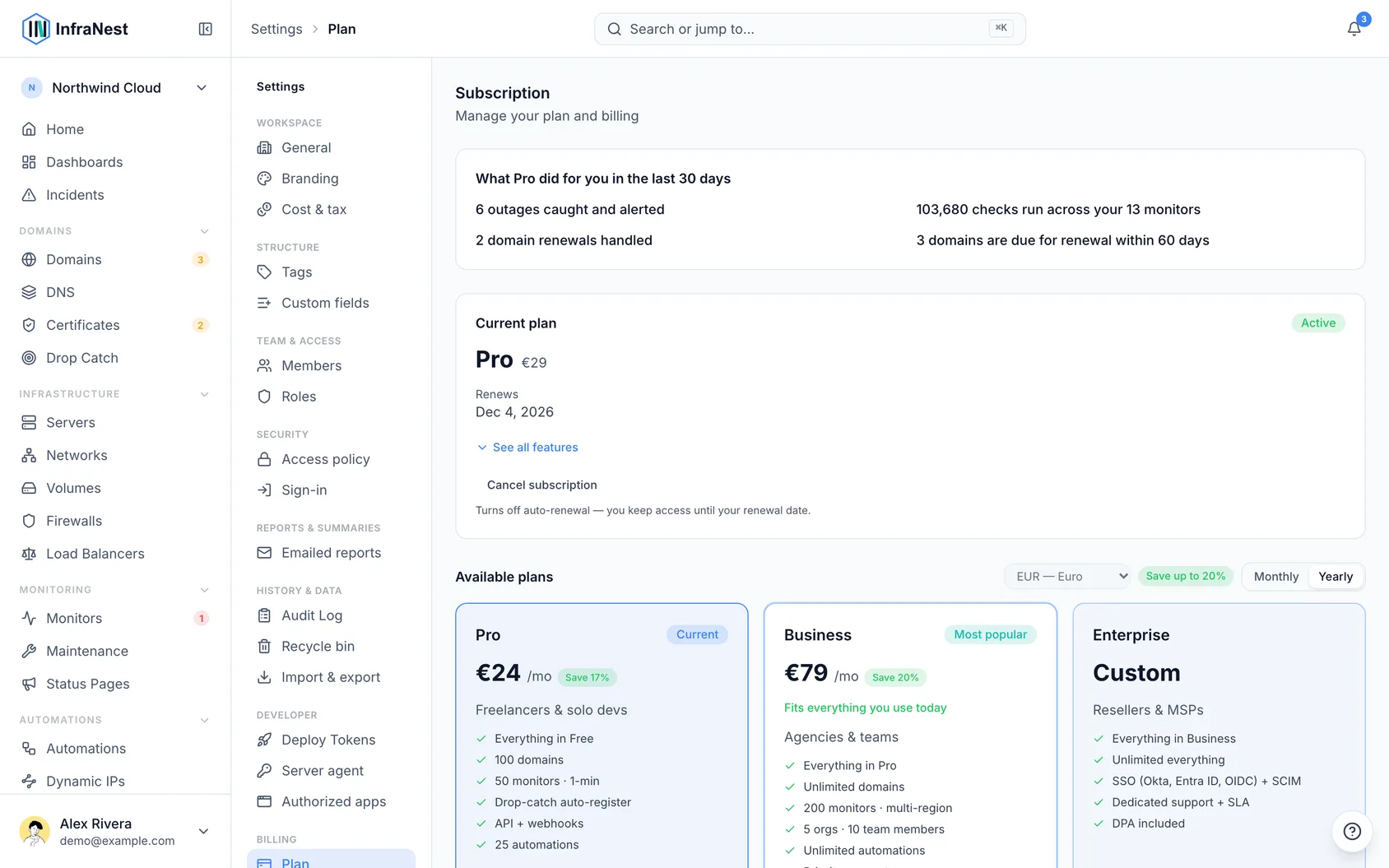
NoteIf you own several workspaces, some plans (like Business) cover more than one at no extra cost. In a workspace that's covered, Billing shows which workspace pays, with an Open billing in … link to manage it there.
#Check your usage
- Open your billing settings to see your usage meters — these show how much of each limit (domains, monitors, DNS zones, and so on) you're currently using.
- Once you've used 80% of a limit, the relevant page shows how many you have left next to its Add button, so you know before you hit the wall.
- Watch your inbox too: InfraNest emails your workspace's owners and admins at 80% usage and again when you reach the limit, with a note on what the next plan would add and its price. You get this once per limit (not daily), and again if your usage drops and climbs back up.
TipWant to stop these emails? Turn them off under Notifications, in the Billing section — the in-app notice will still appear.
#Keep your plan after a free trial
- During your trial, open Settings → Plan.
- Choose Continue after the trial.
- The first time you pay, you'll be asked Invoice to — choose Business or Individual — and then for a card.
- Confirm. Nothing is charged that day: you keep the rest of your trial, and the first payment is taken on the date your trial was due to end. That date is shown before you confirm and emailed to you afterwards.
- Changed your mind? Cancel any time before that date and nothing is charged.
You can also continue on a different plan than the one you're trialling — just pick that plan instead, and the rest of your trial still applies.
#Set up who your invoice goes to
- The first time you pay — choosing a plan, or keeping it after a trial — the confirmation asks Invoice to.
- For Business, enter your VAT number first. InfraNest looks it up and fills in your company name and address automatically; change anything that's wrong. If the lookup doesn't answer, you can still continue — VAT is added for now and you can fix the number later.
- For Individual, just choose your country. You'll see how much VAT is added to the price.
- Use More invoice options to add a billing email, extra recipients and a PO number at the same time.
- After this first time, you'll see a single Invoice to line with an Edit link whenever you want to change it.
#Update what appears on your invoice
- Find the Invoice to section and choose Edit.
- Update Company name, your address, postal code, city and country as needed.
- Add your VAT ID if you have one — for most EU businesses outside our own country this means VAT is reverse-charged, and your invoice will say so.
- Add a Reference / PO number if you need one for your own records.
- Add up to five extra email addresses under Also send invoices to — handy for a bookkeeper.
- Save your changes.
WarningChanges only apply to your next invoice. An invoice that's already been sent can never be changed — that's a legal requirement, not just ours. If one has a mistake, ask us to cancel it with a credit note and send a corrected version.
#Pay by bank transfer
- Choose a yearly Business plan.
- Under Invoice to, choose Business.
- When asked How do you want to pay?, choose Bank transfer.
- Your plan starts straight away — no card needed. You'll receive the invoice by email with 14 days to pay, including the amount, due date and bank details.
- Use the invoice number as your payment reference.
- Check Settings → Billing & invoices any time to see the IBAN and any invoice still waiting to be paid.
If a payment passes its due date, you'll get a reminder and the page marks the invoice overdue. A transfer already on its way can take a day or two to arrive, so there's nothing more to do in that case.
#Send an invoice again
- Find the invoice or credit note in your list.
- Choose the envelope icon next to it.
- Choose whether to send it to the usual invoice recipients or to one other address.
You'll get the same email it went out with the first time, PDF attached.
#Download a year of invoices
- Open Settings → Billing & invoices.
- Find the year you need — totals for excl. VAT, VAT and incl. VAT are shown above the list.
- Choose Download all (ZIP) for every invoice and credit note as a PDF, plus a spreadsheet listing them.
- Or choose Export CSV for one row per document, ready to import into your bookkeeping software.
If a PDF couldn't be included in the ZIP, look for a file named missing.txt inside it — it names the missing document, which you can then download from its own row.
#Add or fix your VAT number
- Go to Billing details.
- Add or correct your VAT number.
- Save. It will apply from your next invoice onward.
If you're a business in the EU outside Germany, adding a confirmed VAT number means your future invoices carry no VAT at all. Until it's added or confirmed, German VAT is charged.
#"We couldn't verify your VAT number"
This means the EU's checking service didn't answer — it doesn't mean your number is wrong. InfraNest keeps trying automatically, and you can choose Check again yourself. While unverified, German VAT is charged, which can be reclaimed or corrected once the check succeeds.
#"That VAT number isn't recognised"
Here the check did run, and the number wasn't recognised. Double-check:
- the country prefix is included (for example
DE123456789, not just the digits), - there are no typos, and
- the number is actually registered for EU cross-border trade.
#Understand refunds and credit notes
When money is refunded — all or part of an invoice — you receive a credit note: a numbered document that cancels that part of the original invoice. It's emailed to you with the PDF attached, and also sent to your billing address and its CCs.
WarningKeep the PDF. If you reclaimed VAT on the original invoice, this document is what your accountant needs to reverse it — a bank refund alone isn't enough.
The refund comes back one of three ways:
- Back to your card — usually visible within 5–10 days.
- As account credit — comes off your next invoice automatically, nothing to claim.
- Paid back another way — for transfers arranged outside the usual payment provider.
Both the original invoice and the credit note stay available under Settings → Billing & invoices — the credit note appears directly under the invoice it credits.
#Use account credit
If a refund was given as account credit, it's applied automatically — there's nothing to claim. You'll see a note under Settings → Billing & invoices while a balance remains, for example "You have €12.00 in account credit". Once it's used up, it disappears and your next invoice shows the reduced amount.
#Tips
TipA payment method that's about to expire is marked Expires soon in your list of payment methods — replace it before your next charge to avoid any interruption.
#Troubleshooting
- A page or feature isn't available on your plan — it will explain what it would do for your workspace and what the next plan adds, often with a free trial option.
- Don't need a feature your plan includes? Choose Hide from menu to remove it from your menu. Bring it back any time under My account → Preferences → Hidden from your menu.
- Reached a count limit? Everything you already have keeps working — you just can't add more until you upgrade or remove something.
- An action is rate-limited — if you're asked to try again shortly, just wait a moment and retry.
- Payment didn't go through — you'll see a notice with Update card to add a new card and Pay now to settle the open invoice right away. Everything keeps working while you sort it out.
Was this article helpful?
Thanks for your feedback!
Thanks, this goes straight to the docs team.