

Control how InfraNest reaches you personally — in the app, by email, in your browser, or in your own Telegram or Slack. This page is for your own notifications; where your workspace's alerts go (team Slack channel, on-call phone, PagerDuty) is set separately under Alerts.
Open it from My account → Notifications, or from the gear icon at the top of the bell.
#Overview
- Decide how much you want to hear, and where it reaches you.
- Add your own Telegram or Slack to get your personal notifications on the go.
- Fine-tune exactly which kinds of notification reach which places.
- None of this affects your quiet hours, away status or muted items.
#Set how much you want to hear
- Open My account → Notifications.
- Choose one of the three starting points:
- Only urgent — urgent problems are emailed straight away; everything else only shows in the app; your own chats get urgent problems only.
- Balanced (recommended) — urgent problems are emailed straight away; everything else arrives as one "needs you" email a day; your own chats get urgent problems only.
- Everything — urgent problems are emailed straight away; everything else is emailed as it happens; your own chats get everything, for every kind.
- Change anything afterwards — the page then shows Custom.
NoteA choice here never touches your quiet hours, away status or muted items.
Below this, In short reads your whole set-up back in four lines — Urgent problems, Everything else, Quiet, and Switched off — each with a link to where you change it.
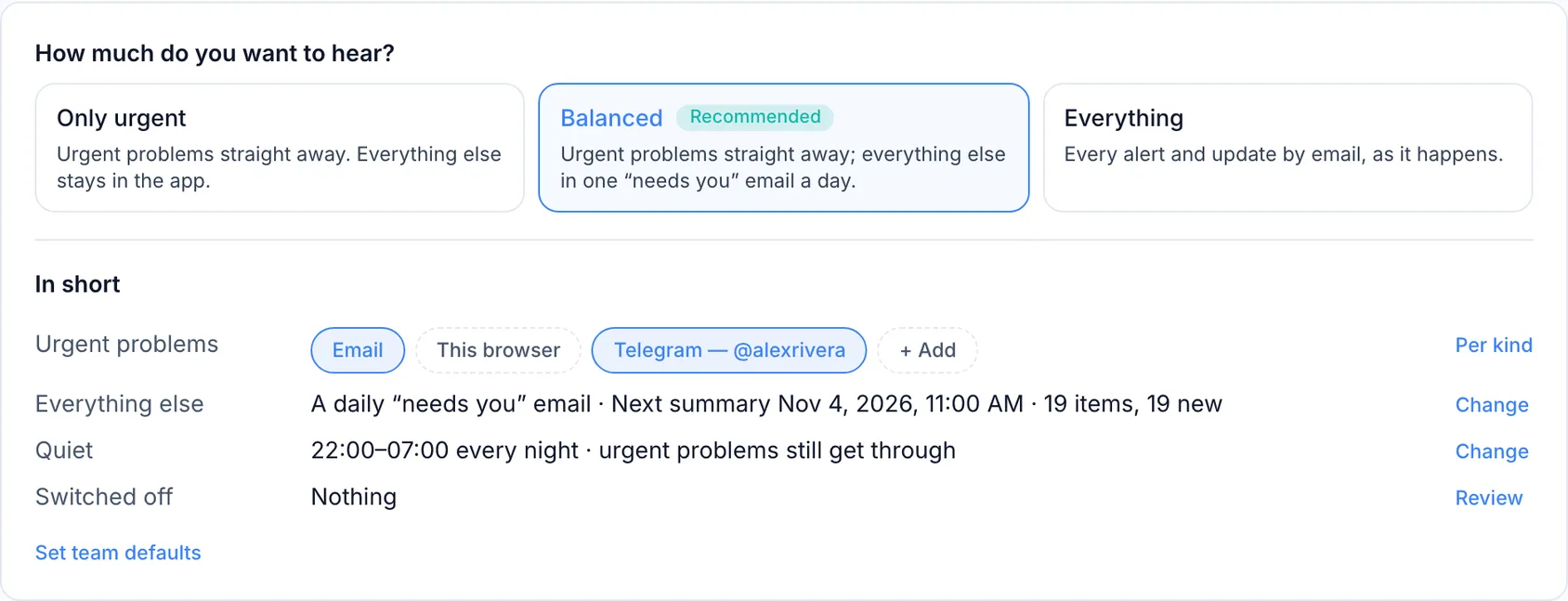
The rest of the settings follow on the same page: Urgent problems, Everything else, Quiet time, and Fine-tune, which holds the detailed table described below under Fine-tune each kind of notification.
If your workspace's admins have set team defaults, the summary says so, and anything you haven't chosen yourself will follow them.
#Fine-tune what reaches you, and where
- Scroll to Fine-tune and open Fine-tune each kind of notification.
- Find the row for the kind of notification you care about: Monitoring, Domains, DNS, Servers, Billing, Account, or System.
- For each column, choose how that kind reaches you:
- In the app — whether it appears in the bell at all.
- Pop-up — whether an urgent one pops up in the top-right corner while InfraNest is open.
- Email — whether that kind is emailed to you. A half-on switch means only some of its emails are on; click it to turn them all on, or use Advanced to set them one at a time.
- Push — Everything, Urgent only (the default), or Off, for when InfraNest is closed.
- Your own chats — each Telegram or Slack of yours gets its own column, set to Everything, Urgent only (default) or Off.
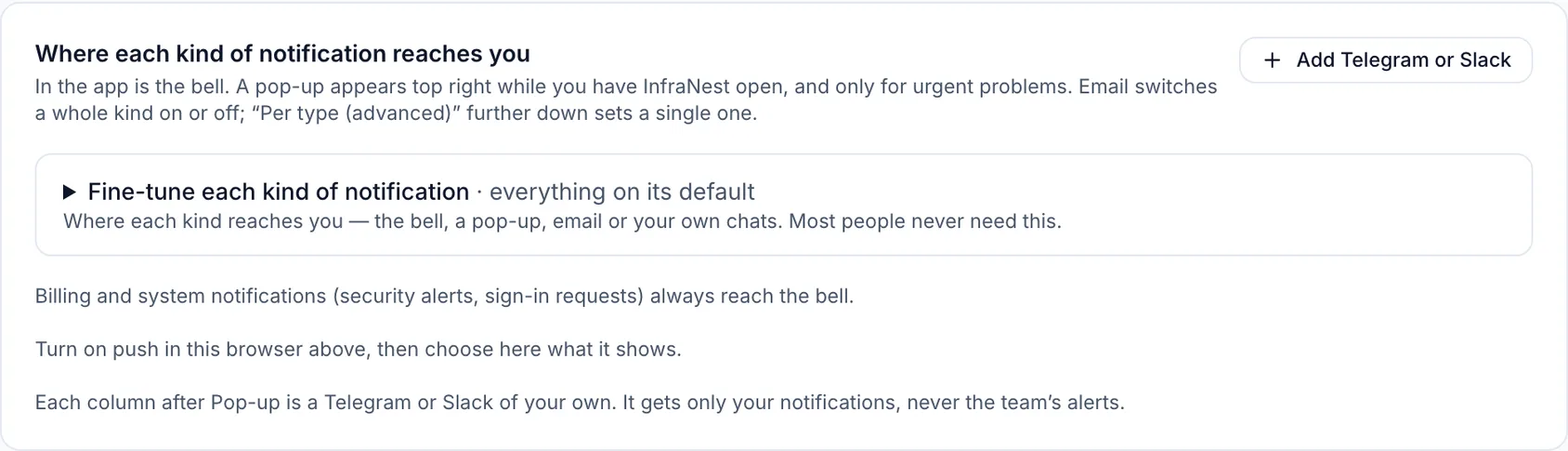
NoteBilling and System always reach the bell — they cover payment problems, security alerts and sign-in requests, so those switches are locked on.
#Add a Telegram or Slack of your own
- Under Fine-tune, click Add Telegram or Slack (or + Add in the summary).
- Choose Telegram, Slack or Microsoft Teams.
- Telegram opens the InfraNest bot — press Start and it's linked, nothing to copy.
- Slack asks for an incoming-webhook link from your Slack.
- Microsoft Teams asks for a Workflows link from your Teams.
- The chat appears as a new column in the table, set to Urgent only.
You can have up to three of your own chats per workspace. A chat of your own always gets your personal notifications, never the team's alerts.
#Use Advanced settings
- Under Fine-tune, open Advanced.
- Use Per type (advanced) to force one kind of email to Always immediately or Off, overriding the general rules. Off here means no email of that kind at all, even an urgent one.
- Use Notification types to switch individual emails on or off (for example Domain registered, Monthly recap, Product news & tips). The bell still shows them, except for workspace digests, where the switch turns off both.
- Choose your Email format — HTML or Plain text.
- Under Your own email addresses, add an extra address of yours to also receive your workspace's alerts, each with an unsubscribe link.
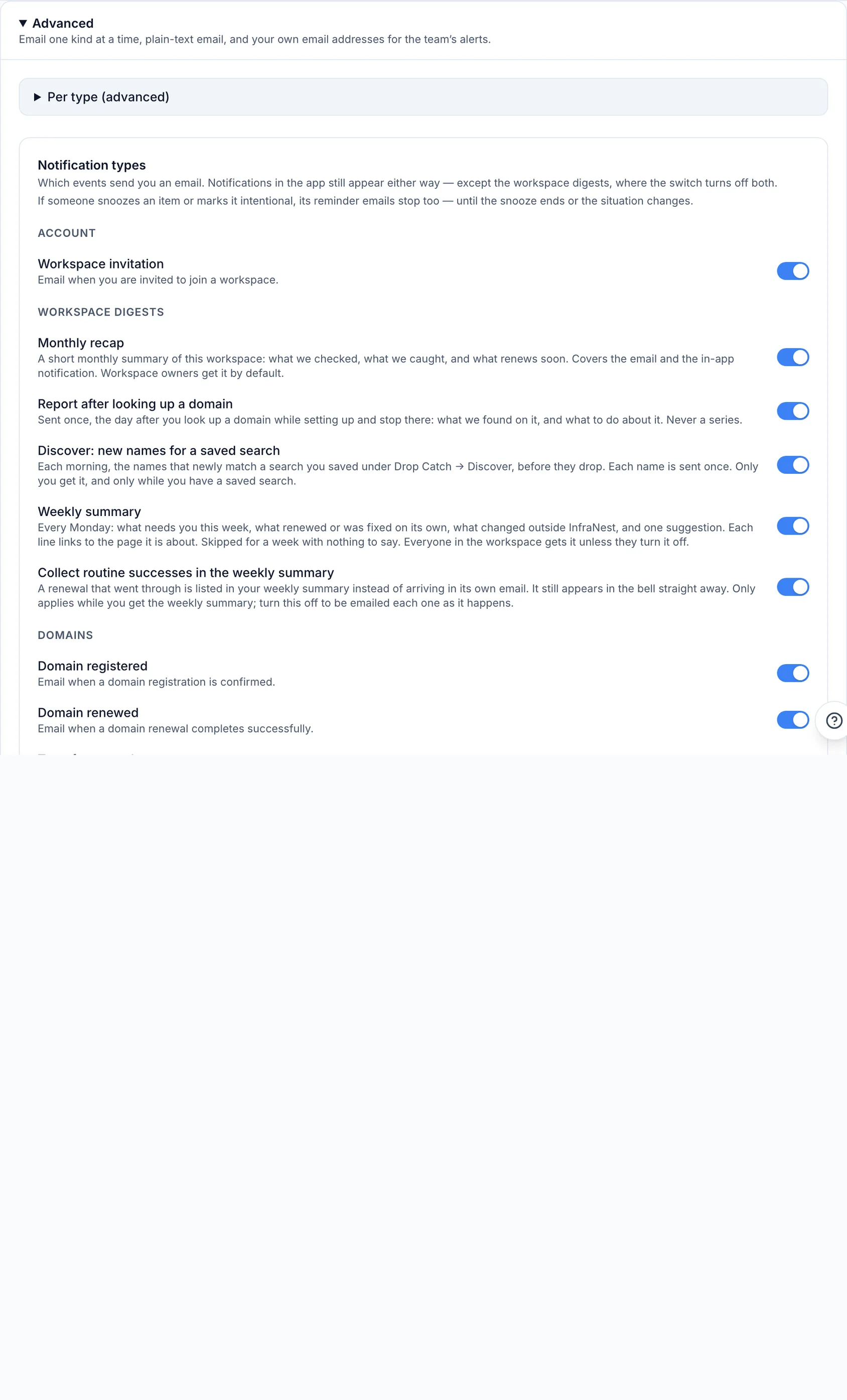
TipIf an item is snoozed or marked intentional, its reminder emails stop too, until the snooze ends or the situation changes.
#Find out why you got a notification
- Open the bell and find the notification.
- Click its ⋯ menu.
- Select Why did I get this?.
- This opens the Notifications page on the exact row that sent it, so you can change it right away.
#Tips
- Your notification choices are set per workspace. If you're in several, switch workspace in the sidebar to set each one — but your own Telegram, quiet hours and summary hour carry over everywhere.
- The bell always shows everything unless you've switched a kind off under In the app. Email, push and chats are extra places, not the only record.
- A registration or transfer you place yourself always tells you straight away how it went.
- If you're an owner or admin, summary or trial emails may occasionally end with a short plan tip. Don't show plan tips in that line (also under Billing on this page) turns them off for good.
Was this article helpful?
Thanks for your feedback!
Thanks, this goes straight to the docs team.