

The bell at the top of every page is your notifications inbox — the one place InfraNest tells you what still needs your attention, whether you've read it or not.
Overview
- Organised by what still needs doing, not by what you've already read — a broken thing doesn't stop being broken just because somebody looked at it.
- Shows problems that need you, updates on what happened, and what got fixed this week.
- Works the same from any page, and on your phone.
Open the bell
- Click the bell at the top of the page, or press Shift+N anywhere.
- It opens as a panel beside the page you're on, so you don't lose your place. On a phone it fills the screen.
- Press Esc to close it.
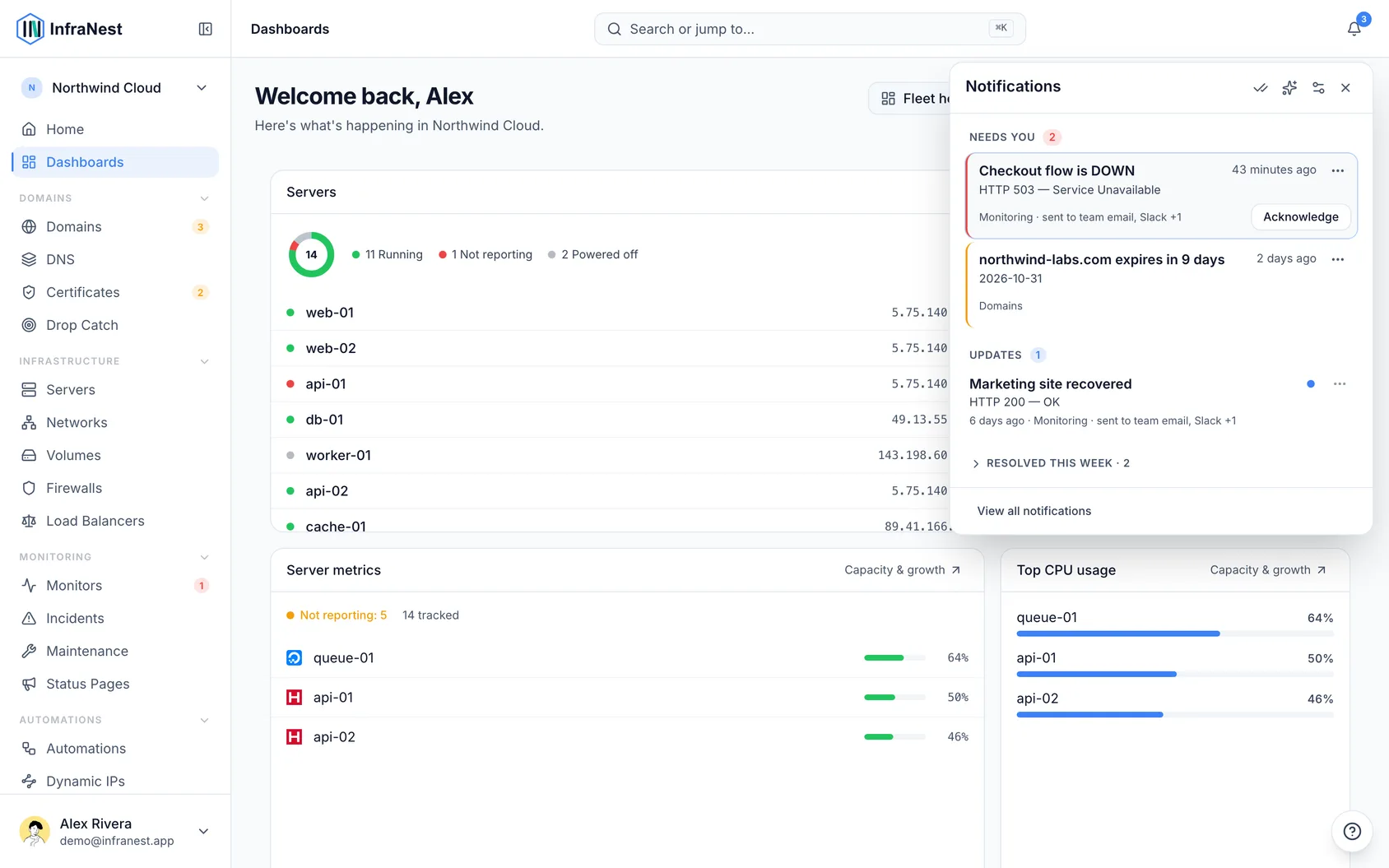
NoteThe number on the bell counts what's under Needs you, plus updates you haven't seen. Fixed, snoozed and repeated problems don't count.
Check what Needs you
This is where problems that are still happening live — a monitor that's down, an integration that stopped syncing, a domain about to lapse.
- Open the bell and look under Needs you.
- Read each card: the problem and when it started, a detail line underneath (for example HTTP 503 or expires in 6 days), and who was told.
- Point at the who was told line to see every place the alert went.
- Click the card's button to act on it, or click anywhere else on the card to go straight to the problem.
A card stays under Needs you until the problem is actually fixed — reading it doesn't clear it.
Acknowledge a problem
- On a down monitor's card, press Acknowledge.
- This marks the incident as acknowledged, so everyone's bell shows You're on it or {name} is on it.
- It stops the repeat alerts for this outage.
- If your organisation uses PagerDuty, it's acknowledged there too.
Acknowledging works on every plan.
Add a note for your team
- On an acknowledged incident's card, press Add a note.
- Type what you're doing, for example Restarting the database, back in 5.
- Press Add note.
The note shows on the card for everyone, appears on the incident's timeline, and is added to PagerDuty as a note. Press Add another note to add more.
WarningNotes are for your team only — they never appear on your status page and are never emailed to subscribers. To tell customers, post a status update on the incident instead.
You can also add a note from an alert email right after pressing Acknowledge, or by replying to the alert in Telegram.
Handle a monitor that goes down every night
- If a monitor keeps failing around the same time, its card says so, for example Goes down around 23:00 — 4 times this week. Expected?
- Press Add a daily maintenance window.
- Check the form, which is already filled in for that monitor and time.
- Press Save — nothing changes until you do.
Review earlier outages
A monitor that failed several times this week shows one card instead of many, for example 3 outages this week · Show 2 earlier outages.
- Open the card.
- See when each outage happened and how long it lasted.
Review Updates
Updates are things that happened, like a recap being ready or someone asking to join.
- A blue dot means you haven't seen it yet.
- The double tick at the top of the panel marks all updates read.
- The same thing happening again shows as one row with a count, like 2×.
- Updates older than a week fold into Older than a week.
Check Resolved this week
What got fixed is folded away at the bottom of the panel. Fixed problems show when and how long, for example Resolved today, 09:31 · after 19 min. The recovery message is folded into the original entry, so you see one card, not two.
Use the ⋯ menu
Every notification has a ⋯ menu with everything else you can do. Only what applies to that notification is shown.
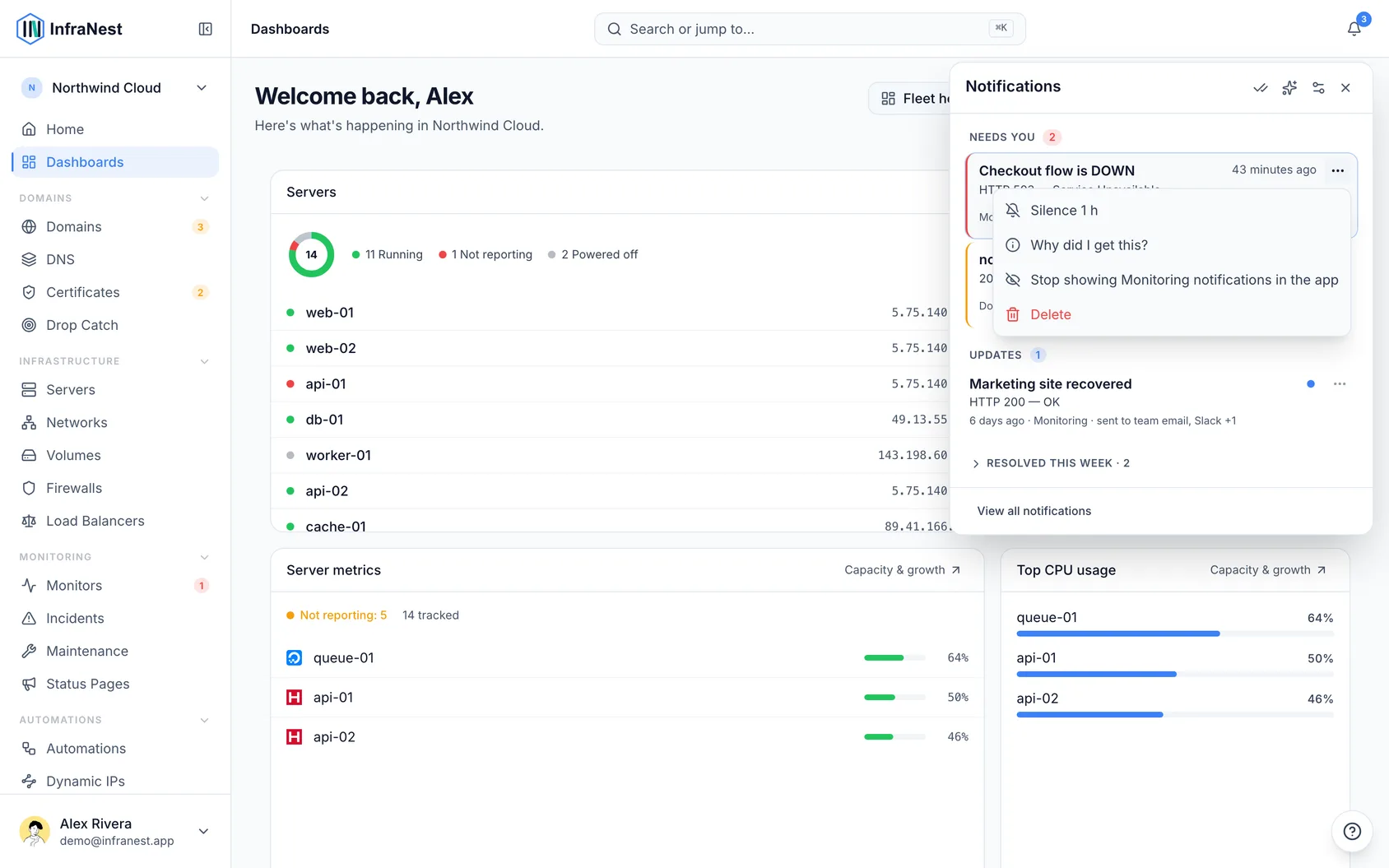
- Silence 1 h — no more alerts about this monitor for an hour.
- Snooze this server 1 h — for a server that stopped reporting.
- Remind me in 7 days — for a certificate or domain that can wait.
- Approve this person / Deny this person… — for someone asking to join.
- Approve this run / Reject this run… — for an automation waiting on a person.
- Mark as read.
- Why did I get this? — opens your notification settings on the row that sent it.
- Stop showing Monitoring notifications in the app (or Domains, DNS, and so on). Billing and System can't be stopped.
- Delete.
Anything that asks for confirmation, like denying someone, asks once more before it happens.
Understand Held back for you
Sometimes InfraNest holds a notification back on purpose, and the bell tells you, for example Held back for you: 1 email skipped — you had already read it.
- Click Show to see each one and why:
- Email skipped — read in the app first
- Blip skipped — back within minutes
- Held during quiet hours
- Held — you were off shift
- Held — you were away
- Email held — several about the same thing already this hour
Urgent problems and security alerts are never held back this way.
Respond to pop-ups for urgent problems
While you have InfraNest open, an urgent problem also pops up in the top-right corner — a monitor going down, an integration breaking, or a security alert about your account.
- Press Open to go straight to it, or Dismiss to close it.
- If several arrive at once, you see one with a count of the rest.
- A pop-up goes away by itself once it's no longer true: the monitor is back up, someone acknowledges it, or you open it in the bell.
- After 30 seconds it shrinks to a small 1 urgent problem button in the same corner. Security alerts stay full size until you dismiss them.
TipYou can turn pop-ups off per kind using the Pop-up column in your notification settings.
Use the keyboard
| Key | What it does |
|---|---|
| Shift+N | Open or close the bell |
| ↑ / ↓ (or k / j) | Move between notifications |
| Enter | Open the selected one |
| A | Acknowledge it |
| E | Mark it read |
| . | Open its ⋯ menu |
| Esc | Close the bell |
See every notification, ever
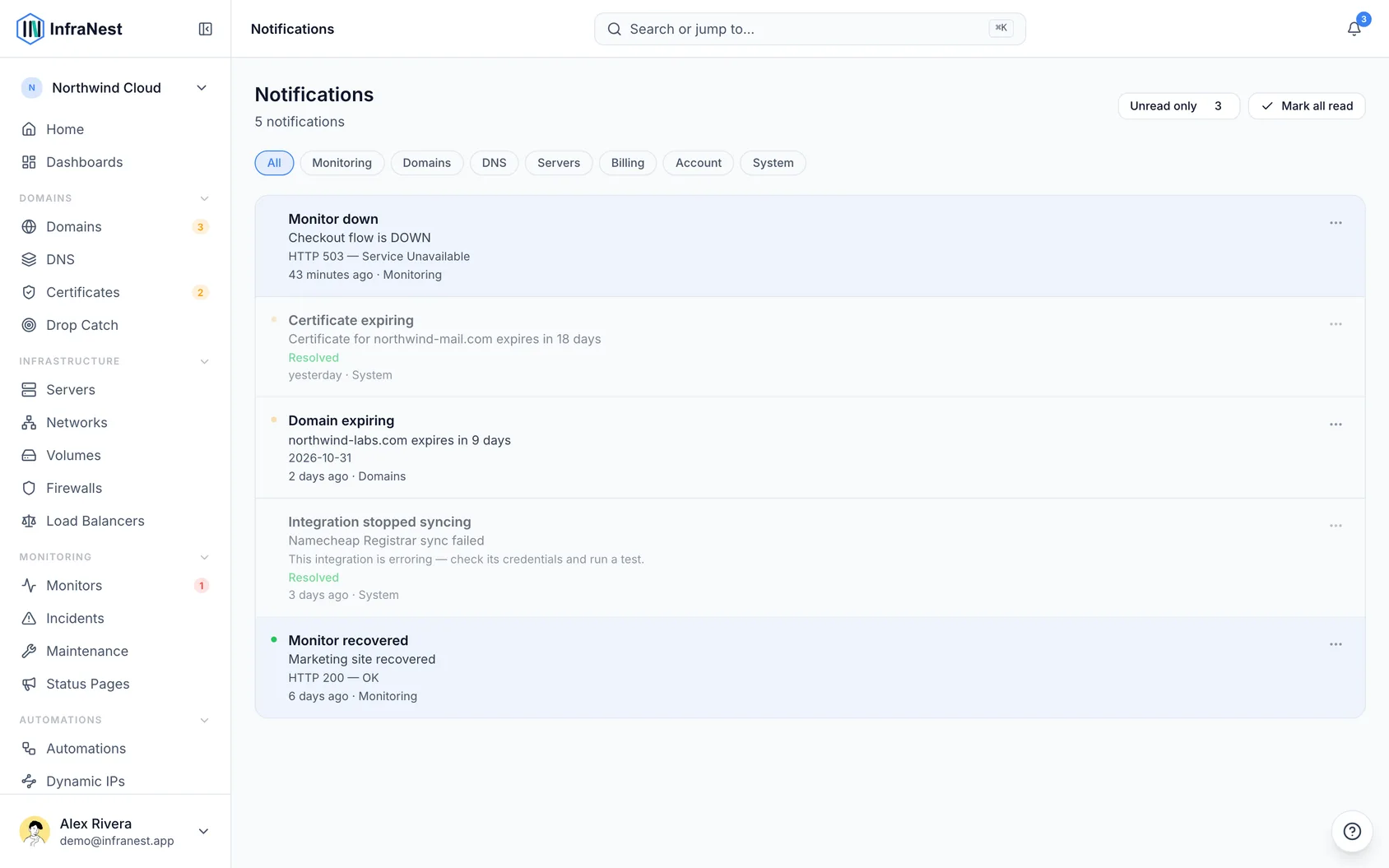
- At the bottom of the panel, click View all notifications.
- Search and filter the full history. Nothing is deleted from it when a problem is fixed.
Was this article helpful?