

Install InfraNest on your phone or computer so it opens in its own window with its own icon, just like any other app you've downloaded — no app store needed.
#Overview
- You get its own icon and window, without browser tabs or an address bar.
- Notifications show the InfraNest logo instead of your browser's icon.
- A count on the icon shows what needs your attention in the workspaces you get push notifications for. This appears on iPhone, iPad, Mac and installed Chrome or Edge apps.
- On iPhone and iPad, this is the only way to get notifications while InfraNest is closed.
- You stay signed in the same way as in your browser, and everything works the same.
#Install on iPhone and iPad
You need iOS or iPadOS 16.4 or later.
Open InfraNest in Safari and sign in.
Tap Share (the square with an arrow pointing up).
Tap Add to Home Screen. If you see Open as Web App, leave it on, then tap Add.
Open InfraNest from the new icon on your Home Screen.
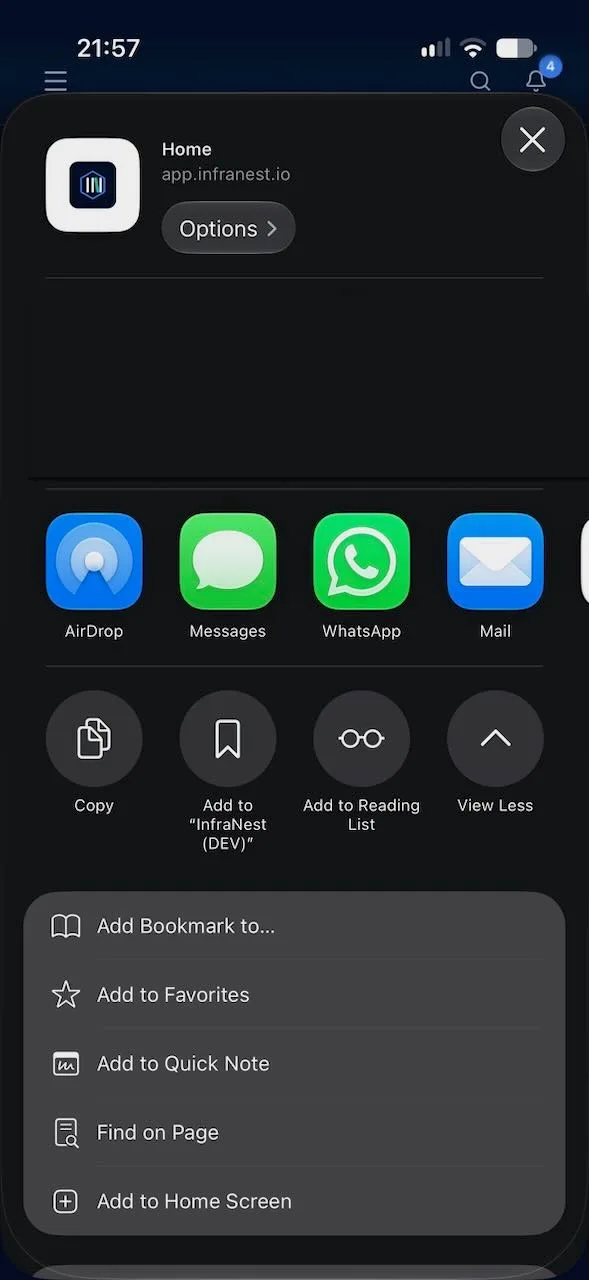
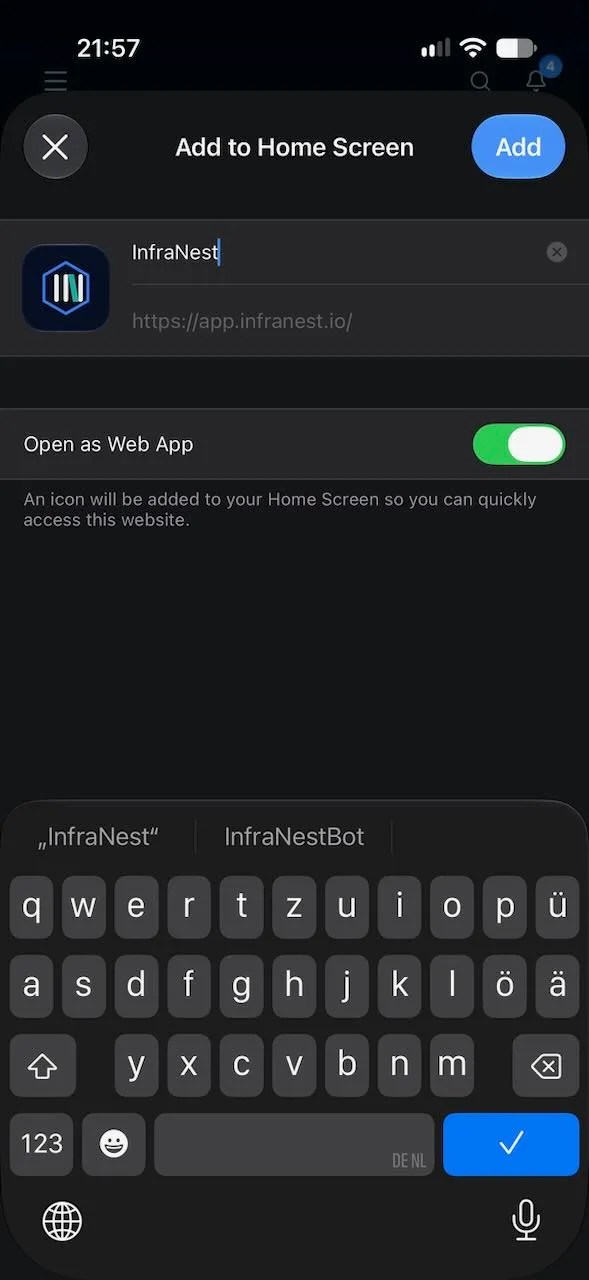
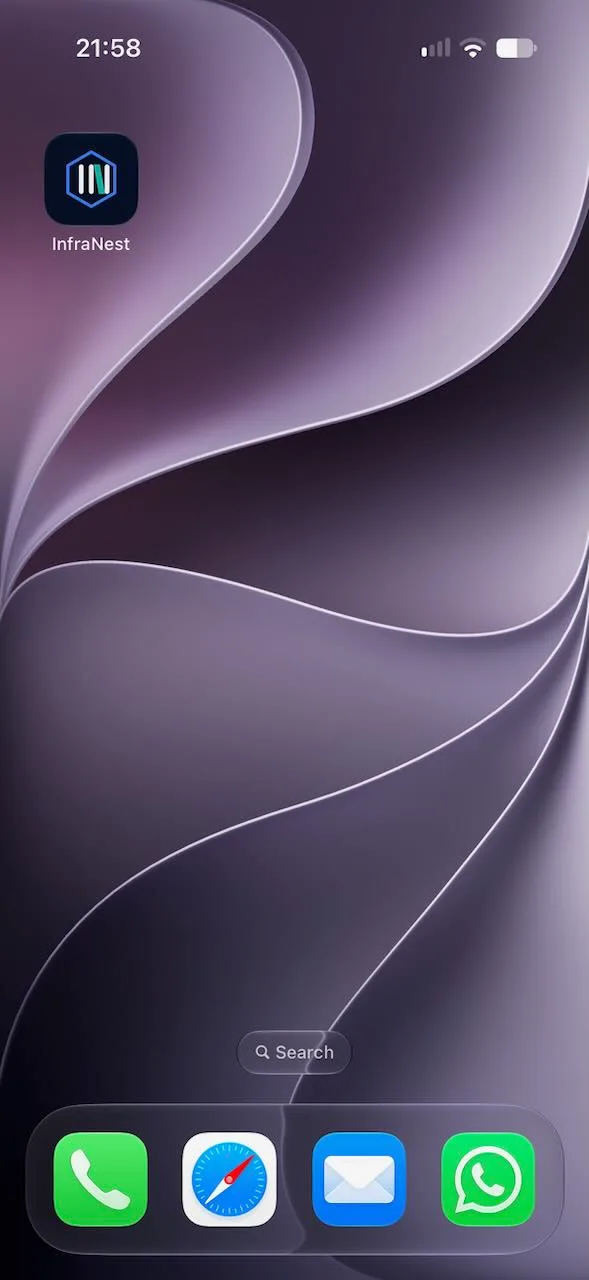
Whatever you name it here is how it's listed on your Home Screen and in Settings → Apps, where it has its own settings page with the InfraNest logo, separate from Safari.
#Install on Android
Open InfraNest in Chrome and sign in.
Tap the ⋮ menu, then Add to Home screen or Install app (the wording depends on your phone).
Tap Install.
Open InfraNest from the new icon.
#Install on Mac
With Safari (macOS Sonoma 14 or later):
Open InfraNest in Safari and sign in.
Choose File → Add to Dock, then Add.
With Chrome or Edge: click the install icon at the right of the address bar, then Install.
You can also use the browser's menu: in Chrome Cast, save and share → Install page as app, in Edge Apps → Install this site as an app.
#Install on Windows, Linux and ChromeOS
- In Chrome or Edge, click the install icon at the right of the address bar.
- Click Install.
InfraNest gets its own entry in the Start menu or app launcher, and can be pinned to the taskbar.
#Turn on notifications after installing
- Open InfraNest from the new icon.
- If notifications aren't on for that device yet, InfraNest suggests it with Get alerts on this device. Tap Turn on.
- Tap Allow when your device asks.
The count on the icon updates when a notification arrives and when you open the app.
NoteOn iPhone and iPad, installing InfraNest isn't just a convenience — it's the only way to receive notifications while the app is closed.
#Remove it
- Remove it like any other app: press and hold the icon, then Remove App (iPhone), Uninstall (Android), or right-click it in the Dock or Start menu.
- To also stop its notifications on another device you no longer have, go to My account → Apps with access and click Revoke next to it.
Was this article helpful?
Thanks for your feedback!
Thanks, this goes straight to the docs team.