

Turn on desktop notifications so InfraNest can alert you to urgent problems even when the app isn't open in your browser — helpful if you step away but still need to know when something breaks.
#Overview
- Push notifications appear on your computer from your browser, even when InfraNest is closed.
- They're meant for urgent problems, like a monitor going down.
- Push is set up per browser and per workspace, separately from phone notifications. For phones, see Get notifications on your phone.
#Turn it on
Under In short, click This browser next to Urgent problems. Or, under Where, click Turn on under Notifications when InfraNest is closed.
Your browser asks whether InfraNest may show notifications. Click Allow.
Click Send a test to check it works. A notification should appear within a few seconds.
NotePush is set per browser and per workspace. To get notifications on your laptop and your phone, turn it on in both. If you're in more than one workspace, turn it on in each one you want alerts from. Turning it off only stops that workspace's alerts in this browser.
#Choose what you get
The table under it has a Push column. For each kind of notification you can pick:
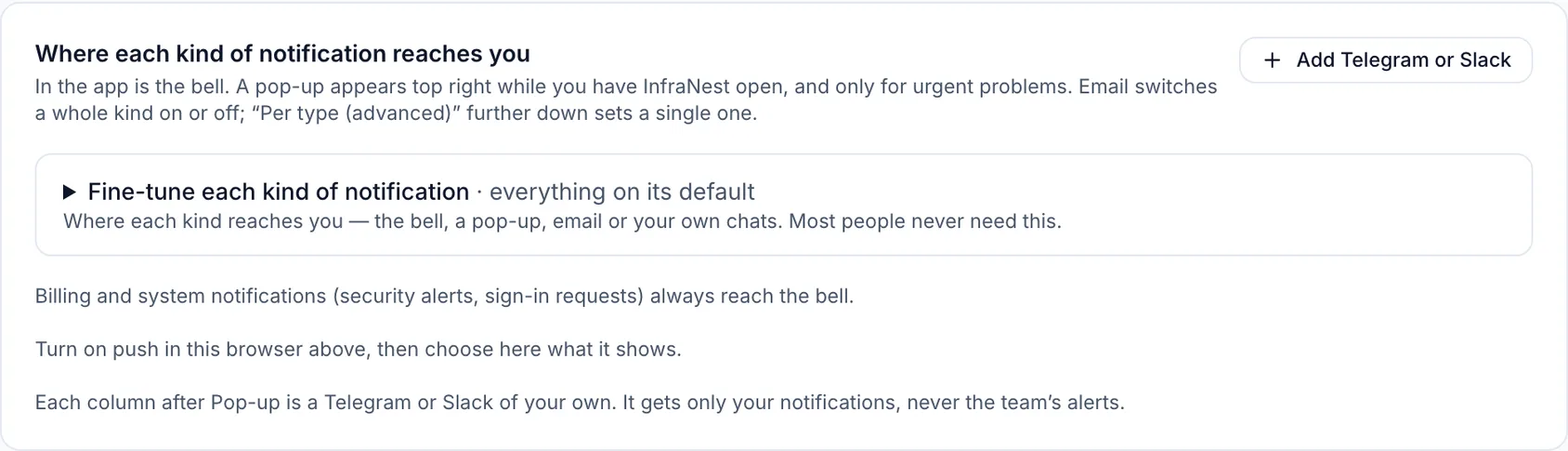
- Choose Urgent only (the default) to only get problems that need someone now, such as a monitor going down.
- Choose Everything to get every notification of that kind.
- Choose Off to get nothing of that kind.
Your choice applies to every browser where push is on. When a problem is fixed, the "down" notification on your screen is replaced by a quiet "back up" one, so your lock screen doesn't keep showing a problem that's gone.
#Get warned if nobody picks up an outage
You can ask to be warned when a monitor stays down and nobody on your team has acknowledged it, even if Push is off for monitoring.
- Under Notifications when InfraNest is closed, find If nobody picks up an outage.
- Choose After 15 minutes, After 30 minutes or After 60 minutes.
If the monitor is still down after that time and nobody has clicked Acknowledge (in the bell, on the incident or in PagerDuty), your browsers get a notification starting Nobody on it yet. You get it once per outage. It doesn't come if the monitor recovers first, or if anyone on your team acknowledges it.
It respects what you said about yourself: it waits while you're away, off shift in PagerDuty, or in quiet hours with urgent problems set to wait. The notification in the bell says what happened, including when none of your browsers had push on.
#Acknowledge an outage from the notification
When a monitor goes down and you can change your workspace's monitors, the notification has an Acknowledge button. Click it to tell your team you're on it, without opening InfraNest first.
The notification then changes to You're on it. Your team sees it in the bell just as if you'd clicked Acknowledge in InfraNest, and PagerDuty follows if it's connected.
If someone else got there first, or the monitor is already back up, the notification says so instead. If it can't reach InfraNest, InfraNest opens at the outage so you can acknowledge it there.
The button is available in Chrome, Edge and Firefox 152 or later. Safari and iPhone don't show buttons on notifications; tap the notification to open the outage instead. The button works once and stops working after 12 hours.
#Install InfraNest as an app
Installing InfraNest (Safari's File → Add to Dock on a Mac, or the install icon in Chrome or Edge) gives its notifications the InfraNest logo and puts a count of what still needs you on its icon. See Install InfraNest as an app.
#Turn it off
- In this browser: click Turn off in the same place you turned it on.
- In a browser you can't reach (a lost laptop, an old phone): go to My account → Apps with access and click Revoke next to it.
Signing out also stops push in that browser, so a shared computer doesn't keep showing your alerts.
#Tips
TipA browser that hasn't opened InfraNest in 90 days stops getting push. Opening InfraNest in it and turning push on again brings it back.
- Push follows the same rules as your email: quiet hours, do not disturb, "away", and anything you muted. Urgent problems still get through quiet hours unless you changed that.
- A notification shows a short title and one sentence, nothing more. It's safe to show on a lock screen.
- If you're in more than one workspace, the notification names the workspace.
- Browsers differ in what they show. In a Safari tab, and sometimes in Chrome on Windows, the notification shows the browser's own logo instead of InfraNest's; install InfraNest as an app to get its icon. Urgent notifications stay on screen until you deal with them in Chrome and Edge, and in Firefox only on Windows; elsewhere they disappear after a few seconds and wait in the notification centre.
- A notification that reaches you late (a laptop opened in the morning) shows when the problem happened, not when it arrived.
#Troubleshooting
"Blocks notifications from InfraNest": you clicked Block or Don't Allow at some point, and the browser won't ask again. Tap This browser under In short to see where your browser keeps the switch, change it there, and come back.
On a phone, see Get notifications on your phone.
The test was sent but nothing appeared: check your computer's own notification settings. Focus or Do Not Disturb hides notifications, and your browser must be allowed to show notifications in your system settings.
"The test could not be delivered": turn push off and on again in that browser.
You don't see the push option at all: your browser can't receive push notifications. Try a recent version of Chrome, Edge, Firefox or Safari.
Was this article helpful?
Thanks for your feedback!
Thanks, this goes straight to the docs team.