

Connect InfraNest to any identity provider that supports OpenID Connect, so your team can sign in with the credentials they already use. This covers JumpCloud, OneLogin, Keycloak, Authentik, Auth0 and other OpenID Connect providers — for Okta, Microsoft Entra ID or Google Workspace, see their dedicated guides.
NoteThis is available on Enterprise plans. You need to be an administrator at your provider and in InfraNest.
Overview
- Works with any provider offering an OpenID Connect application for a web app, an authorization code flow, and a discovery address ending in
/.well-known/openid-configuration. - InfraNest reads everything it needs — including the sign-in address — from that discovery address, so you only enter a few values yourself.
- You control who gets in: add new people automatically, require admin approval, or require invitations.
- Optionally, roles can be set automatically from the groups your provider sends.
What your provider needs to support
Most modern providers support all of this already, but check for:
- An OpenID Connect application for a web app (sometimes called a confidential client or regular web application), with a client ID and a client secret.
- A redirect URL (also called redirect URI or callback URL) where you can paste InfraNest's Redirect URL.
- The authorization code flow (sometimes called standard flow). InfraNest doesn't need implicit, refresh-token or client-credentials flows.
- A discovery URL ending in
/.well-known/openid-configuration. - Each person's email address included in what the provider sends. InfraNest asks for
openid,profileandemail. - Sign-in tokens signed with a key pair. A provider that signs with the client secret instead is refused — this matters for Authentik (see below).
Set up the connection
Step 1: Start in InfraNest
- Go to Settings → Sign-in and choose Set up single sign-on.
- Choose Another provider (OpenID Connect).
- Under Email domain, check the domain InfraNest suggests. Verifying it is recommended, so people can sign in with their work address and new people can join automatically. You can skip it — your team then uses your organization's sign-in link, and new people join by invitation. If it's not verified yet, InfraNest shows the DNS record to add. If InfraNest already manages that DNS zone, choose Add it for me; otherwise add the record where your DNS is hosted and choose Check now.
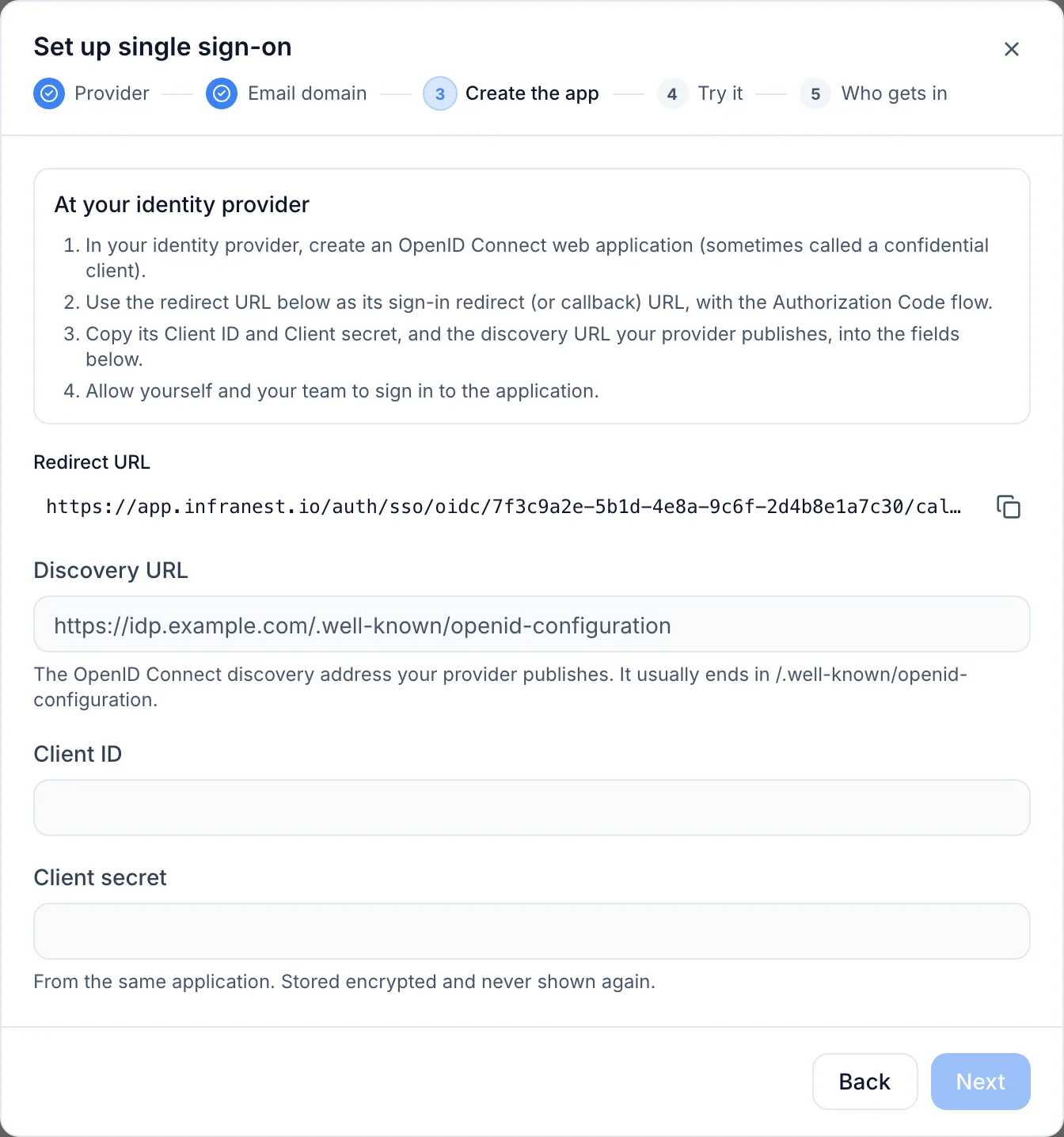
- On Create the app, copy the Redirect URL shown at the top of this step. Keep this tab open.
Step 2: Create the app at your provider
In a second tab, create the application at your provider, using InfraNest's Redirect URL as its redirect URL. The provider sections below say exactly where to find that setting. Keep the client ID, client secret and discovery URL at hand. Make sure you allow yourself to use the app too, or the test in Step 4 will stop at your provider.
Step 3: Finish the connection in InfraNest
Back in InfraNest, on the Create the app step, fill in the Discovery URL, Client ID and Client secret. InfraNest reads everything else from your provider. If it can't reach the discovery URL, nothing is saved, and the message explains what went wrong.
The connection is named after your provider, and your team sees that name on the sign-in page as Continue with …. InfraNest recognises JumpCloud, OneLogin and Auth0 by name; for any other provider it uses the provider's address, such as sso.acme.com.
Step 4: Try it, decide who gets in, and switch on
- On the Try it step, choose Sign in with your provider to test. A new tab opens at your provider — sign in with your own account. When it works, the step turns green. A successful test is required before you can switch the connection on.
- On the Who gets in step, choose what happens When somebody new signs in:
- Add them straight away is pre-selected. New people join with the role under Role for new members, which starts at Member (read-only). This is safe only if your provider lets just the right people use the InfraNest app — several providers let every user in by default, so check the section for yours.
- Ask an admin turns each newcomer's sign-in into a join request an administrator approves.
- Do nothing means people still need an invitation.
- Choose Switch on. The connection's status list should now read: Connected to your provider · Email domain verified · Test sign-in passed · Switched on.
Optional: give people roles from their groups
If your provider can send each person's groups, InfraNest can set roles from them automatically. Open the connection, then Credentials and claim names. Set Groups claim to the name of the field your provider sends the groups in (the provider section below tells you which), and add a row for each group: under Group at your provider, its name exactly as the provider sends it; under Role here, the role it should get. Roles that can change or delete things cannot be mapped.
Connect JumpCloud
- In the JumpCloud Admin Portal, go to Access → SSO Applications and choose + Add New Application.
- Choose Custom Application, then Next. Choose Manage Single Sign-On (SSO) and Configure SSO with OIDC, then Next.
- Enter a Display Label, such as
InfraNest, and continue to the SSO tab. - Under Redirect URIs, paste InfraNest's Redirect URL.
- Set Client Authentication Type to Client Secret Basic.
- For Login URL, enter the address of the InfraNest sign-in page as it appears in your browser.
- Under Attribute Mapping, tick the standard scopes Email and Profile — without them, JumpCloud won't send people's email addresses.
- On the User Groups tab, choose the groups that may use InfraNest. Only their members can sign in.
- Choose Activate. JumpCloud shows the Client ID and Client Secret once — copy both now.
Discovery URL: https://oauth.id.jumpcloud.com/.well-known/openid-configuration. Use the EU region address https://oauth.id.eu.jumpcloud.com/.well-known/openid-configuration, or the India region address https://oauth.id.in.jumpcloud.com/.well-known/openid-configuration, if applicable.
Groups: under Attribute Mapping, tick include group attribute and name it groups. Set Groups claim to groups in InfraNest.
NoteLaunching InfraNest from the JumpCloud User Portal isn't supported — people sign in from the InfraNest sign-in page.
Connect OneLogin
- In OneLogin, go to Applications → Applications and choose Add App.
- Search for OpenId Connect, choose OpenId Connect (OIDC), enter a Display Name such as
InfraNest, and choose Save. - On the Configuration tab, paste InfraNest's Redirect URL under Redirect URI's. Leave Login Url empty — InfraNest doesn't support starting sign-in from OneLogin's portal. Choose Save.
- On the SSO tab, set Application Type to Web and the token endpoint's authentication method to Basic. Choose Show client secret and copy the Client ID and Client Secret.
- Give people access to the app, usually through a role that includes it. Only people with the app can sign in.
Discovery URL: https://<your subdomain>.onelogin.com/oidc/2/.well-known/openid-configuration, using the first part of your OneLogin address as the subdomain.
Groups: on the app's Parameters tab, open Groups. Set Default if no value to User Roles and choose Semicolon Delimited input (Multi-value output). Set Groups claim to groups in InfraNest, and map role names.
Connect Keycloak
- In the Keycloak Admin Console, pick the realm your people are in, go to Clients and choose Create client.
- Leave Client type at OpenID Connect, enter a Client ID such as
infranest, and continue. - Switch Client authentication on, and keep Standard flow ticked.
- Under Valid redirect URIs, paste InfraNest's Redirect URL exactly, without a wildcard. Save.
- On the client's Credentials tab, copy the Client Secret.
Discovery URL: https://<your Keycloak address>/realms/<realm name>/.well-known/openid-configuration. Older Keycloak versions have /auth in front of /realms.
Groups: on the client's Client scopes tab, open the scope ending in -dedicated, and choose Configure a new mapper → Group Membership. Give it a name, set Token Claim Name to groups, switch Full group path off, and make sure Add to ID token is on. Set Groups claim to groups in InfraNest.
WarningKeycloak lets every user in the realm sign in to every client unless you add a restriction yourself. Unless you have one, choose Ask an admin rather than Add them straight away on the Who gets in step.
Connect Authentik
- In the Authentik Admin interface, go to Applications → Applications and choose New Application.
- Under Application, enter a name such as
InfraNest, and note the Slug. - Under Choose a Provider type, choose OAuth2/OpenID Connect.
- Under Configure the Provider, choose an authorization flow, and copy the Client ID and Client Secret. Add a Redirect URI of type
Strict,Authorization, with InfraNest's Redirect URL (on Authentik versions before 2026.5 there's no type to choose). Under Signing Key, choose a key — this is required, or Authentik signs with the client secret and InfraNest refuses it. - Under Configure Bindings, bind the groups or people who may use InfraNest. With no bindings, every Authentik user can sign in.
- Choose Submit.
Discovery URL: https://<your Authentik address>/application/o/<slug>/.well-known/openid-configuration, using the slug from step 2.
Groups: Authentik's standard profile information includes the person's groups, in a field named groups. Set Groups claim to groups in InfraNest and map group names.
Connect Auth0
- In the Auth0 Dashboard, go to Applications → Applications and choose Create Application.
- Enter a name such as
InfraNest, choose Regular Web Applications, and choose Create. - On the Settings tab, paste InfraNest's Redirect URL under Allowed Callback URLs, and choose Save Changes. Copy the Domain, Client ID and Client Secret from the same tab.
- On the Credentials tab, set the authentication method to Client Secret (Basic).
Discovery URL: https://<your Auth0 domain>/.well-known/openid-configuration, using the Domain from step 3 (or your custom domain, if you use one).
Groups: Auth0 doesn't send roles or groups by default. Whoever manages your Auth0 tenant can add them with a small post-login Action that adds the person's roles as a custom claim. Set Groups claim in InfraNest to that claim's name exactly as written in the Action — often a full address, such as https://example.com/roles.
Who can sign in: anyone who can sign in through the Auth0 connections enabled for this application can sign in to InfraNest. Limit the connections on the application, or choose Ask an admin on the Who gets in step.
Tips
- Start from InfraNest. Launching InfraNest from your provider's portal or dashboard isn't supported. People sign in from the InfraNest sign-in page with their work address.
- No sign-out address. InfraNest doesn't use a sign-out (post-logout) redirect URL — leave it empty.
- Rotating the client secret: paste the new one into the connection under Credentials and claim names and choose Replace. Until you do, nobody can sign in through your provider.
- Moving to another provider or tenant needs a new connection, since the connection is tied to the provider it was set up with.
- Non-standard field names: if your provider sends the email address or name under an unusual name, fill it in under Credentials and claim names → Claim names.
Troubleshooting
- Nothing is saved when you enter the discovery URL: InfraNest couldn't read it. Open the address in your browser — it should show a page of text that includes
"issuer"and your provider's address. If not, the address is wrong. - The provider shows a redirect or callback error: the redirect URL at your provider doesn't match InfraNest's Redirect URL. Copy it again — it must match exactly.
- The test fails after signing in at your provider: check that the client secret is current, and for JumpCloud, OneLogin and Auth0, that the app sends the secret the Basic way. For Authentik, check that a Signing Key is chosen.
- Someone signs in at the provider but InfraNest doesn't let them in: their email address is missing from what the provider sends, or it's not on a domain you verified in InfraNest.
- Everyone lands on the default role, although you mapped groups: check that Groups claim is the exact field name your provider uses, and that group names are spelled exactly as the provider sends them.
- Administrators can see every failed attempt, with the reason, in Settings → Audit Log.
Was this article helpful?