

Export your InfraNest data for backup or reporting, or import your contacts and SSL certificates from a spreadsheet. This is for anyone who wants to move data in or out of InfraNest.
#Overview
- Export almost any resource — domains, contacts, DNS zones and records, servers, firewalls, monitors, incidents, status pages and more.
- Download a single bundle with everything at once.
- Import contacts or SSL certificates from a CSV file, with a preview before anything is saved.
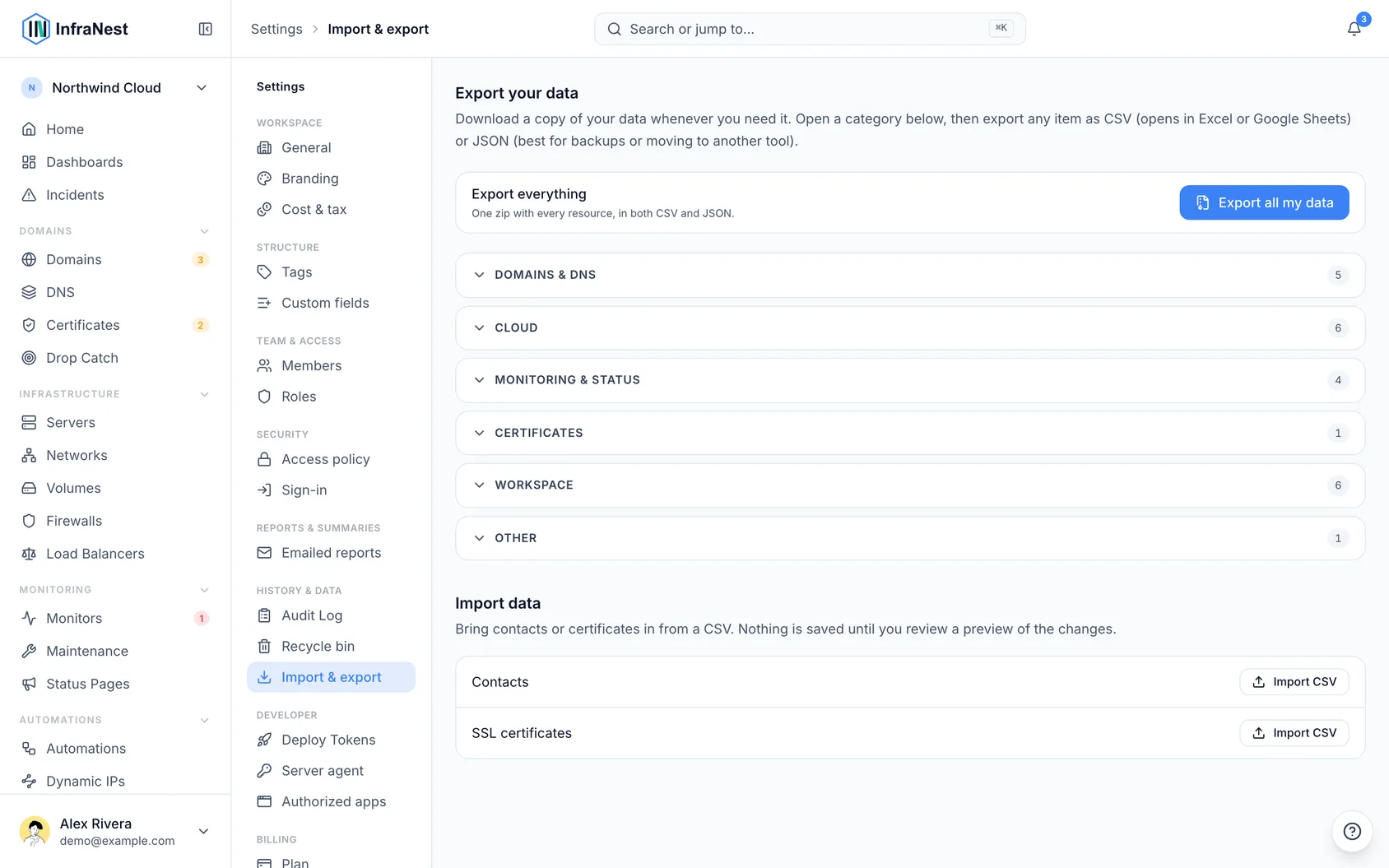
#Export your data
- Go to Settings, then open Data export & import.
- Find the resource you want in the list.
- Choose CSV for a format that works everywhere, or JSON Business for a more detailed format.
- Select Download to save the file.
To get everything at once instead of one resource at a time:
- Go to Settings, then open Data export & import.
- Select Export all my data.
- InfraNest prepares a single ZIP file containing all your exportable data. Select Download once it's ready.
#Import contacts or certificates Pro
- Go to Settings, then open Data export & import.
- Select Import data.
- Select Import CSV and upload your file (CSV files up to 5 MB).
- InfraNest checks your file and shows a validated preview with a status for each row.
- Review the preview, then select Import {n} rows to confirm.
NoteOnly Contacts and Certificates can be imported this way. Domains and servers can't — they always come in through a connected provider instead. Importing never blanks out columns you didn't include in your file.
TipNot sure how to format your file? Select Download template before you start, so your columns line up with what InfraNest expects.
#Troubleshooting
- Nothing to import: your file didn't contain any new or matching rows — double-check it against the expected columns or the downloaded template.
- Checking your file takes a while: large files take a moment to validate; wait for the preview before confirming the import.
- A row fails: InfraNest flags the problem row in the preview so you can fix it and re-upload, without affecting the rows that passed.
Was this article helpful?
Thanks for your feedback!
Thanks, this goes straight to the docs team.
Still stuck? Contact support
Related articles
DeveloperUse InfraNest from an AI assistantAsk an AI assistant such as Claude, Cursor or VS Code about your infrastructure, and it looks the answer up in InfraNest for you.DeveloperProAPI tokensInfraNest has a full REST API, so you can automate anything you can do in the app. You access it with an API token.DeveloperConnect an app with "Connect with InfraNest"Let an app such as Claude or Power Automate use InfraNest for you, without creating or copying an API token, and remove it again whenever you like.BillingBilling and plansManage your plan, see how much of each limit you're using, and view invoices.