

If alerts, invoices or invitations have stopped arriving, this article explains why and how to fix it. It's for anyone who manages their own account or administers a workspace.
#Overview
- A red bar at the top of the app tells you if we can't reach your email address — that's the most common cause.
- If there's no red bar, we're sending successfully and the issue is on your side: filtering, preferences, or alert routing.
- Someone marking our email as spam is handled differently from a plain delivery failure, and the fix is different too.
#Check for the "we can't reach your email address" message
- Sign in and look at the top of any page for a red bar.
- If it says we can't reach your email address, your mail server has permanently rejected our messages and we've stopped sending — go to the next section to fix it.
- If there's no bar, skip ahead to Nothing is wrong on our side.
#Fix "we can't reach your email address"
- Go to My account, then Sign-in & security.
- Change your email address to one that works.
- Open the confirmation link sent to the new address — this confirmation email is always sent, even to an address we've stopped using.
- Once confirmed, sending resumes automatically. There's nothing else to switch back on.
NoteIf we've already had mail rejected at the address you type in, we'll say so right away and ask for a different one, rather than send a confirmation that would never arrive.
If you know the mailbox works again — it was full and has been cleared, or a domain misconfiguration has been fixed — contact support and ask us to resume sending to it. We can only do this once you're confident the mailbox is genuinely receiving mail, because another rejection puts it straight back on hold.
#Understand what happens when someone reports our email as spam
When somebody marks one of our emails as spam, their mail provider tells ours to stop delivering to that address. We treat this as a request, not just a failure:
- Delivery stops. The mail provider has blocked the address at its end, so nothing we send arrives, including invoices. The only exception is account-recovery mail, such as password resets and confirming a new address.
- We switch off the emails we send you without being asked — monitoring and domain alerts, status page updates, and anything promotional. Invoices are not switched off and resume as soon as delivery does. Support replies come through the in-app chat, which this doesn't affect.
If it was a mistake — a shared mailbox where a colleague pressed the button, or an attempted unsubscribe — contact support and ask us to lift the block. Lifting it restores your invoices and account emails.
It does not switch your alerts back on. Those are your preferences now, and only you can change them: under My account, then Notifications for your own emails, and Alerts, then Destinations for your workspace's alerts. A destination we switched off will say so in that list.
#Help a colleague who isn't getting alerts
- If you own or administer the workspace, watch for the in-app notification the first time this happens to one of your people — check the bell icon, since this doesn't arrive by email.
- Open Settings, then Members to check at any time. Anyone we can't reach shows a Not reachable label next to their address.
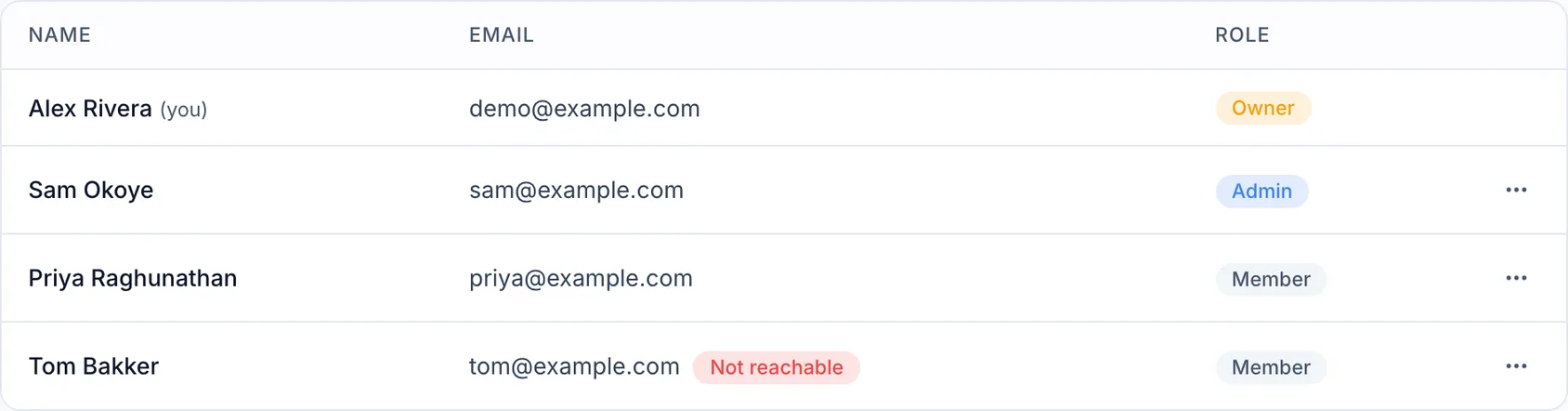
- Ask them to change their own address under My account, then Sign-in & security — you can't do this for them, because the confirmation goes to them directly.
- Reach them another way (chat, phone, etc.) to let them know, since email won't work until they fix it.
This is worth checking whenever on-call alerts seem to have gone quiet for one person and not the rest of the team.
#Troubleshoot an invitation that never arrived
- If we've already had mail rejected at that address, we refuse the invitation as you send it and tell you why, rather than letting it silently go nowhere.
- Ask your colleague for an address that works, or have them tell you which mailbox they actually read.
#Troubleshooting: nothing is wrong on our side
If there's no red bar, we're sending and your mail server is accepting. Try these:
- Check your spam or junk folder, and mark anything from us as "not spam" so future messages land correctly.
- Check your notification preferences under My account, then Notifications — a category may have been switched off, or someone used the one-click unsubscribe link in an email footer.
- Check your alert destinations under Alerts, then Destinations. Workspace alerts go where the destination says, which may not be your personal address.
- Ask your IT team about filtering — corporate mail systems sometimes quarantine automated mail silently. Ask them to allow mail from our sending domain.
NotePersonal emails and workspace alerts are two different things. If you're getting invoices but not monitoring alerts, the problem is almost certainly alert routing rather than your address.
Was this article helpful?
Thanks for your feedback!
Thanks, this goes straight to the docs team.
Related articles
 EmailConnect emailSend InfraNest alerts to an email address — the simplest destination to set up, and the one that needs nothing from another service.Your accountTwo-factor authenticationTwo-factor authentication (2FA) adds a second step to signing in, so your account is safe even if your password is stolen.Your accountYour account and sign-inMy account is where you manage yourself — separate from your workspace's settings.DeveloperUse InfraNest from an AI assistantAsk an AI assistant such as Claude, Cursor or VS Code about your infrastructure, and it looks the answer up in InfraNest for you.