

Keep your evenings, weekends and holidays quiet without missing anything that matters. This is for anyone who wants fewer interruptions from InfraNest without risking a missed outage.
Overview
- Everything still lands in the bell, no matter what quiet settings you choose.
- Urgent problems and security alerts can still reach you even during quiet times.
- What actually gets held back is email and chat messages (Telegram or Slack) for non-urgent items.
- All of these controls live on the When tab of My account → Notifications.
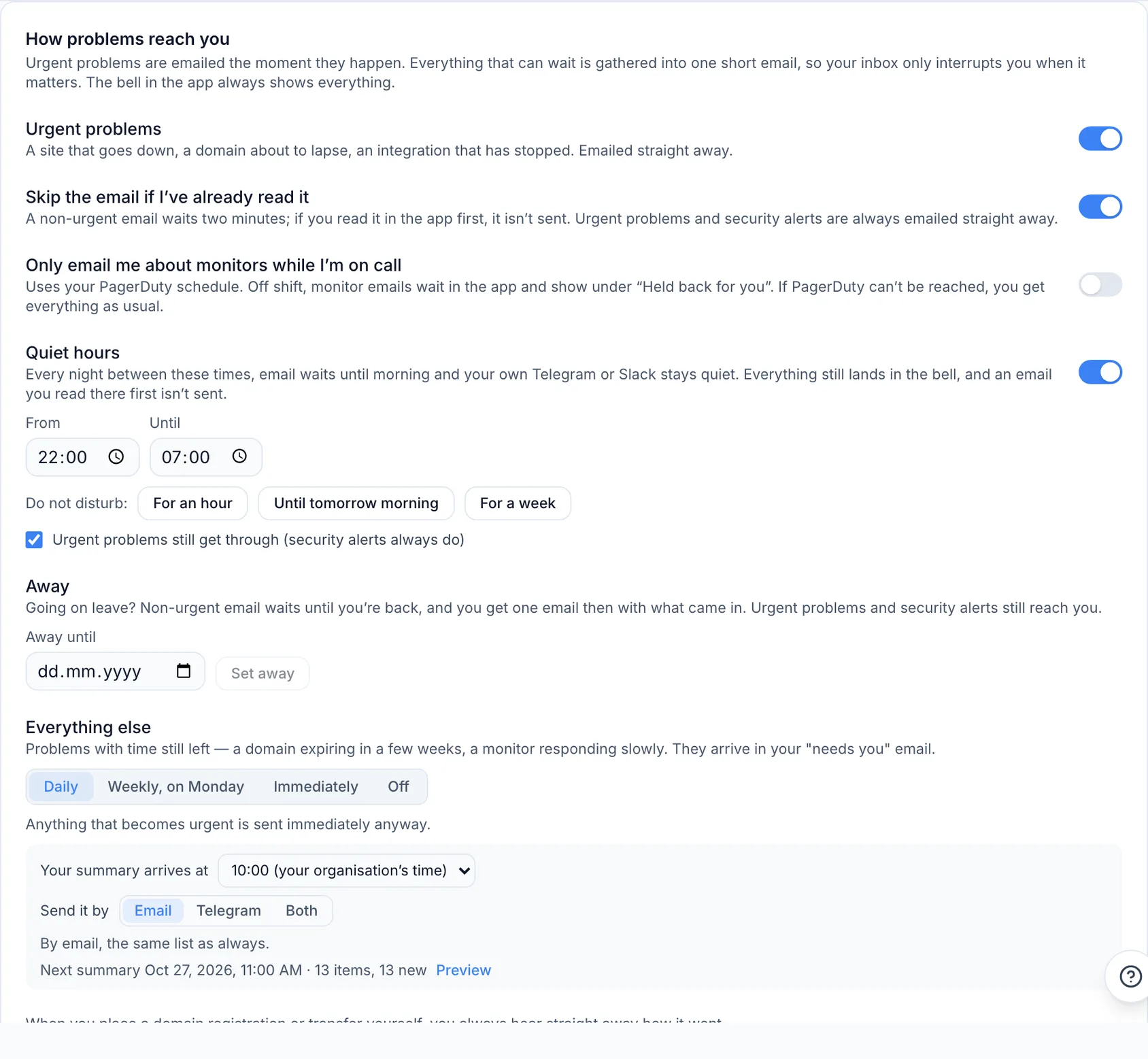
Manage urgent problems by email
- Go to the When tab under My account → Notifications.
- Find the Urgent problems setting — these are emailed the moment they happen, such as a site going down, a domain about to lapse, or an integration that has stopped.
- Switch it off if you'd rather only see urgent problems in the app, in your browser or in your own Telegram.
- Check Skip the email if I've already read it if you want to avoid duplicate emails. A non-urgent email normally waits two minutes before sending — if you read the same notification in the app within that time, the email isn't sent. Urgent problems and security alerts are always emailed straight away regardless.
Set up quiet hours for every night
- On the When tab, switch on Quiet hours.
- Set From and Until, for example 22:00 and 07:00. These times use your own time zone.
- Leave Urgent problems still get through ticked if you still want to be woken for something like a site going down. Untick it for a truly quiet night — note that security alerts about your account always get through no matter what.

During your quiet hours:
- Email waits and arrives when quiet hours end — unless you read it in the app first, in which case it's never sent.
- Your own Telegram or Slack stays quiet too.
- The bell still shows everything, and anything held back is listed under Held back for you.
The summary at the top of the page will then read something like 22:00–07:00 every night · urgent problems still get through.
Pause notifications with Do not disturb
Use this for a meeting, a flight or a lie-in — it pauses notifications temporarily without changing your regular quiet hours.
- Under quiet hours, press one of the following buttons:
- For an hour
- Until tomorrow morning — pauses until your quiet hours end, or 08:00 if you don't have quiet hours set
- For a week
- The page will confirm, for example: Do not disturb until 08:00 tomorrow. Email waits until then.
- Press Resume at any time to end it early.
The same rules as quiet hours apply: urgent problems still get through unless you've unticked that option, and security alerts always do.
TipFrom your phone, send /pause to the InfraNest bot in Telegram for an hour's pause, /pause tomorrow or /pause week for longer, and /back to resume. See Get urgent problems on your phone with Telegram.
Set yourself as away
- Under Away, pick a date in Away until.
- Click Set away.
While you're away:
- Non-urgent email waits and shows under Held back for you.
- Urgent problems and security alerts still reach you as normal.
- When you're back, you'll get one email summarising what came in while you were gone and what is still open.
Press I'm back at any time to end your away period early.
Only get monitor emails while on call
If your organisation has PagerDuty connected, switch on Only email me about monitors while I'm on call. While PagerDuty says you're off shift, monitor emails wait in the app and show under Held back for you.
- If PagerDuty can't be reached, you'll get everything as usual.
- This switch only turns on if PagerDuty knows your email address.
Choose how less urgent problems arrive
Problems with time still left to deal with — like a domain expiring in a few weeks, or a monitor responding slowly — don't need to interrupt you right away. Under Everything else, choose how they arrive:
- Pick one of the following options:
- Daily (the default) — one "needs you" summary a day.
- Weekly, on Monday.
- Immediately — one email per problem, as it happens.
- Off — no email about these; you'll still see them on Home and in the bell.
- If you chose Daily or Weekly, also set:
- Your summary arrives at: pick the hour, in your own time zone, or keep your organisation's time.
- Send it by: Email, Telegram or Both. Telegram requires your own Telegram account linked first; the line underneath tells you what to do if it isn't.
- Check the Next summary line to see when the next one goes out and how many items it holds. Press Preview to see them. A summary is only sent when something is new to you.
NoteAnything that becomes urgent is still sent immediately by email, no matter what you choose under Everything else.
For more detail, see The "needs you" email.
Troubleshooting
Too many emails about the same problem? There's a limit on email about the same thing. After 4 emails about one monitor, domain or zone within an hour, InfraNest stops emailing you about it until the hour is over, then sends one email letting you know. Everything still appears in the bell, and security alerts are never held back by this limit.
What's never held back, no matter what you set:
- Security alerts about your account.
- Something you started yourself, like a domain registration or transfer.
- Urgent problems, unless you've unticked Urgent problems still get through.
Was this article helpful?