

Connect your company's Okta accounts so your team signs in to InfraNest with the logins they already have. This is for InfraNest administrators on an Enterprise plan who also have administrator access in Okta.
Overview
- Okta controls who gets in — only people assigned to the InfraNest app in Okta can sign in, and removing someone in Okta stops their access here too.
- Setup takes about ten minutes and is split between InfraNest and Okta.
- For general background on how these connections work, see Connect your own identity provider.
NoteYou'll need your Okta domain (for example
acme.okta.com) and administrator access in both InfraNest and Okta before you start.
Before you start
- Know your Okta domain. It's the address your people use to sign in to Okta. The Okta Admin Console shows a slightly different address (with
-admin); InfraNest accepts either, but the one without-adminis the real domain. - Verify your email domain in InfraNest, if you can. This is asked for in step 1. It lets people type their work address on the InfraNest sign-in page and lets InfraNest add new people automatically. You can skip it — your team then uses your organization's sign-in link, and new people join by invitation instead.
Start the connection in InfraNest
- Go to Settings → Sign-in and choose Set up single sign-on.
- Choose Okta.
- For Email domain, check the domain InfraNest suggests. If it isn't verified yet, InfraNest shows the DNS record to add. If InfraNest already manages that DNS zone, choose Add it for me; otherwise add the record where your DNS is hosted and choose Check now.
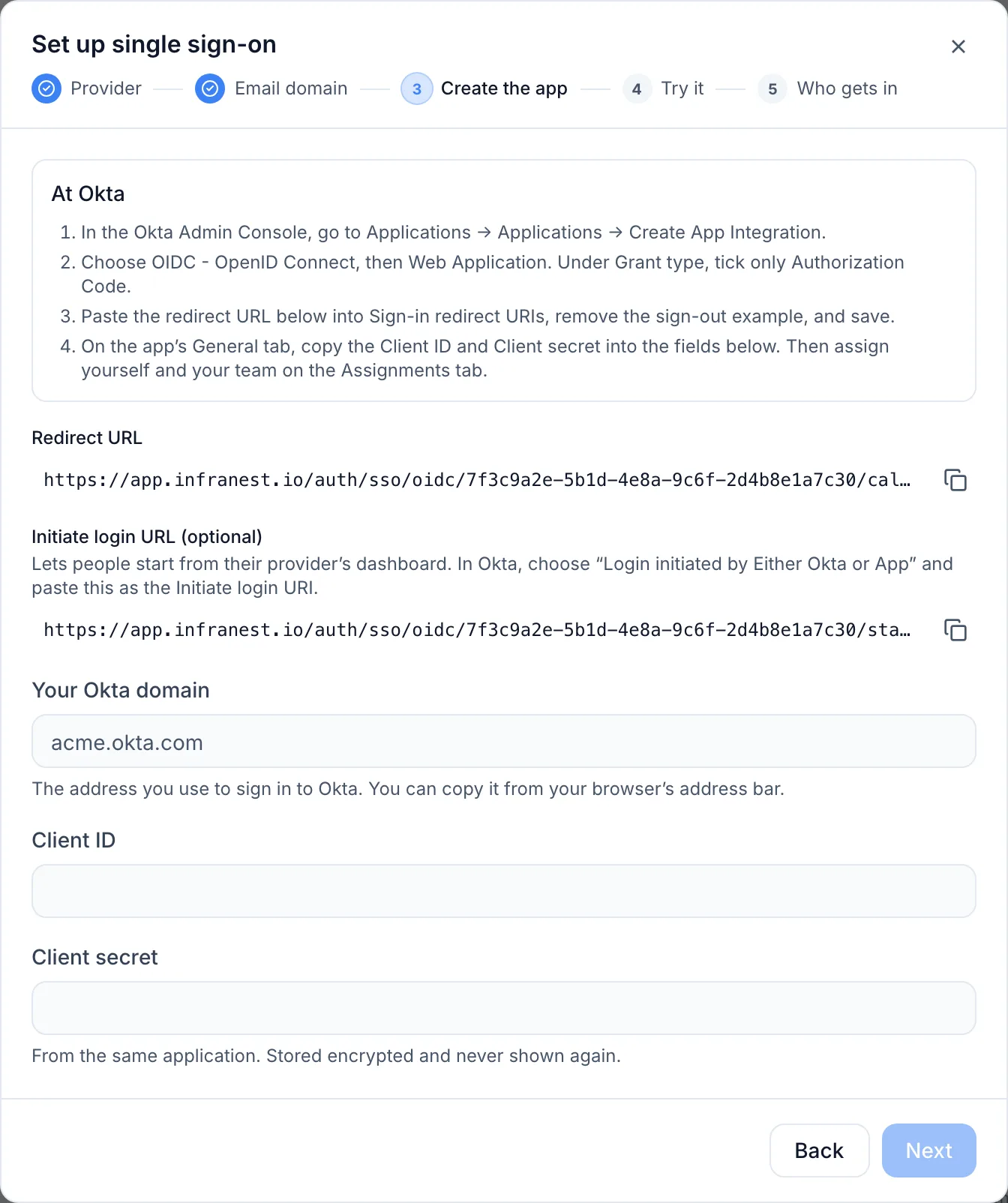
- Under Create the app, copy the Redirect URL shown at the top of this step. Keep this tab open — you'll come back to it shortly.
Create the app in Okta
In a second browser tab:
- In the Okta Admin Console, go to Applications → Applications and choose Create App Integration.
- Choose OIDC - OpenID Connect, then Web Application, then Next.
- Fill in the form:
- App integration name: enter
InfraNest. This is the name your people see in their Okta dashboard. - Proof of possession: leave unticked.
- Grant type: tick only Authorization Code. Leave Refresh Token and Client Credentials unticked.
- Sign-in redirect URIs: replace the example with the Redirect URL you copied from InfraNest.
- Sign-out redirect URIs: remove the example — InfraNest doesn't use it.
- Trusted Origins: leave empty.
- Assignments: choose Limit access to selected groups if you already have a group for InfraNest users. Otherwise choose Skip group assignment for now and assign people in the next step.
- App integration name: enter
- Choose Save.
- On the app's General tab, keep the Client ID and Client secret at hand.
Choose who may sign in
- In Okta, open the app's Assignments tab and choose Assign.
- Assign the people, or better, a group, who should be able to use InfraNest.
- Assign yourself too, or the test step later will stop at Okta.
Only assigned people can sign in — anyone else is stopped by Okta before they ever reach InfraNest. This is why InfraNest can safely add newcomers automatically for an Okta connection.
Finish the connection in InfraNest
Back in the InfraNest tab, on the Create the app step:
- Enter Your Okta domain, such as
acme.okta.com. - Paste the Client ID and Client secret.
InfraNest reads everything else from Okta itself. If it can't reach your Okta domain, nothing is saved, and the message explains what went wrong.
Test the connection
- On the Try it step, choose Sign in with Okta to test.
- A new tab opens at Okta — sign in with your own Okta account.
- When it works, the step turns green.
A test is required before you can switch the connection on. If it fails, the step explains why; see Troubleshooting below.
Decide who gets in, and switch on
- On the Who gets in step, choose what happens When somebody new signs in:
- Add them straight away is pre-selected. Since only assigned Okta users can reach this point, this is safe. New people join with the role set under Role for new members, which starts at Member (read-only).
- Ask an admin turns each newcomer's sign-in into a join request an administrator approves.
- Do nothing means people still need an invitation.
- Choose Switch on.
The connection's status list should now read: Connected to Okta · Email domain verified · Test sign-in passed · Switched on.
Your team can now sign in from the normal InfraNest sign-in page by typing their work address and choosing Continue with ….
Optional: give people roles from their Okta groups
If your Okta groups already say who does what (for example infranest-admins and infranest-viewers), InfraNest can set each person's role from them.
In Okta:
- Open the app's Sign On tab. Under OpenID Connect ID Token, choose Edit.
- Set Groups claim type to Filter.
- Set Groups claim filter to
groups, choose Starts with, and enter the prefix your InfraNest groups share, such asinfranest-. - Choose Save.
In InfraNest: open the connection, then Credentials and claim names. Set Groups claim to groups, and add a row for each group, spelled exactly as in Okta, with the role it should get.
Tips
- Starting from the Okta dashboard. To let people click an InfraNest tile in their Okta dashboard: open the app's General tab, edit Login, set Login initiated by to Either Okta or App, and paste the Initiate login URL from the InfraNest connection into Initiate login URI. The link only works for your own Okta org — if Okta names a different one, InfraNest refuses it and lists the attempt in Settings → Audit Log.
- Client secrets. If you rotate the secret in Okta, paste the new one into the connection under Credentials and claim names and choose Replace. Until you do, nobody can sign in through Okta.
WarningOnce sign-in works, you can require single sign-on for your whole organization under Settings → Sign-in. InfraNest asks for at least one owner with a passkey first, so a problem at Okta can never lock you out.
Troubleshooting
- "We couldn't sign you in with Okta…" for someone who already has an InfraNest account: Okta says that person's email address isn't verified, so InfraNest can't safely match it to their account. Either they link Okta from My account → Sign-in & security in InfraNest, or they confirm their address in Okta. Every refused sign-in appears, with the reason, in Settings → Audit Log.
- "The identity provider announced an issuer that does not match…" when connecting: the address you entered isn't your Okta org's own domain. Use the domain your people sign in at, such as
acme.okta.com. - Okta shows "User is not assigned to the client application": assign that person, or a group they're in, on the app's Assignments tab.
- The Okta tile says the link could not start a sign-in: the Initiate login URI in Okta doesn't match this connection's Initiate login URL, or the app belongs to a different Okta org. Copy it again from the connection.
- Okta shows a redirect URI error: the address under Sign-in redirect URIs doesn't match the Redirect URL on the connection. Copy it again — it must match exactly.
- Everyone lands on the default role, although you mapped groups: check that the Okta app's Groups claim filter is named
groupsand that its filter actually matches the groups you mapped. A group Okta doesn't send can't be mapped. - Administrators can see every failed attempt, with the reason, in Settings → Audit Log.
Was this article helpful?