

Roles control what each person on your team can see and do in InfraNest. This article is for anyone who manages team access, especially workspace owners and admins.
#Overview
- InfraNest comes with three built-in roles that cover most needs.
- If you need something more specific, you can create Custom roles with exactly the permissions you choose.
- Nobody can hand out more access than they themselves have — this keeps your workspace secure as it grows.
#Built-in roles
InfraNest includes three roles that are shared across every workspace and can't be deleted:
- Owner — full control of the workspace.
- Admin — manages resources and members.
- Member — day-to-day access.
#Create a custom role
- Go to Roles and select Create role (or New role).
- Give it a Role name. Note that you can't use Owner, Admin or Member, since those names are reserved for the built-in roles.
- Tick the Permissions it should have. These are organized by area — such as Cloud, DNS, domains, monitoring and certificates — plus options for managing members, billing and roles.
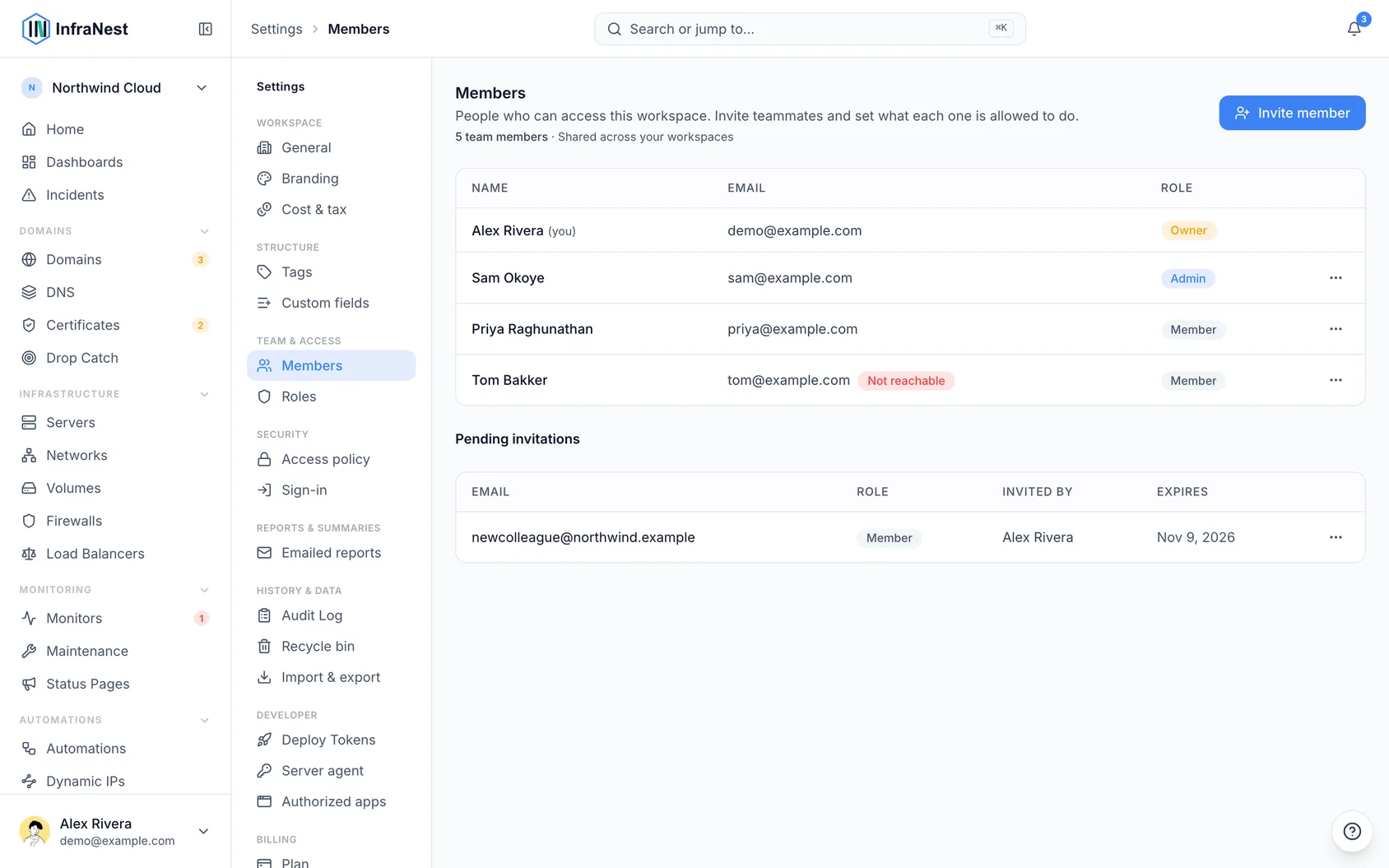
- Select Save role, then assign the new role to members from the Team section.
NoteThe full, always-up-to-date list of roles and permissions is available to admins in Settings.
#Understand access limits between roles
To keep your workspace secure, InfraNest enforces a simple rule: nobody can give out more access than they have.
- You can only assign someone a role whose permissions you also hold.
- You can only change or remove someone whose role doesn't go beyond your own.
- Owners can assign any role to anyone.
For example, an Admin who doesn't have billing or role-management permissions can't create or assign a role that includes those permissions — not even to themselves.
#What members see without a permission
InfraNest only shows what a person's role allows:
- If someone can view a section but not change it, the buttons to add, edit or delete are hidden for them.
- A short note appears at the top of the page explaining it's read-only, and naming who in the workspace can make changes (owners first, then people who manage members).
- If someone opens a create or edit page directly without the right permission, they'll see this same explanation instead of a form.
This applies to Settings too — managing members, roles and sign-in settings all require the manage members permission, while billing tabs require billing access.
#Tips
TipWhen creating a custom role, only tick the permissions a person truly needs for their day-to-day work — it's easier to add more later than to take access away.
Was this article helpful?
Thanks for your feedback!
Thanks, this goes straight to the docs team.