

This article is for anyone who needs to check who can get into your workspace, and who has actually been using it — useful for audits, offboarding, or a routine security check.
#Overview
- Access shows who can reach your workspace right now — their role, whether two-factor is turned on, and when they last signed in.
- Sign-ins shows who actually signed in over a period of time you choose, and how often.
- They're kept separate on purpose: one describes the present, the other describes history.
#Check who has access right now
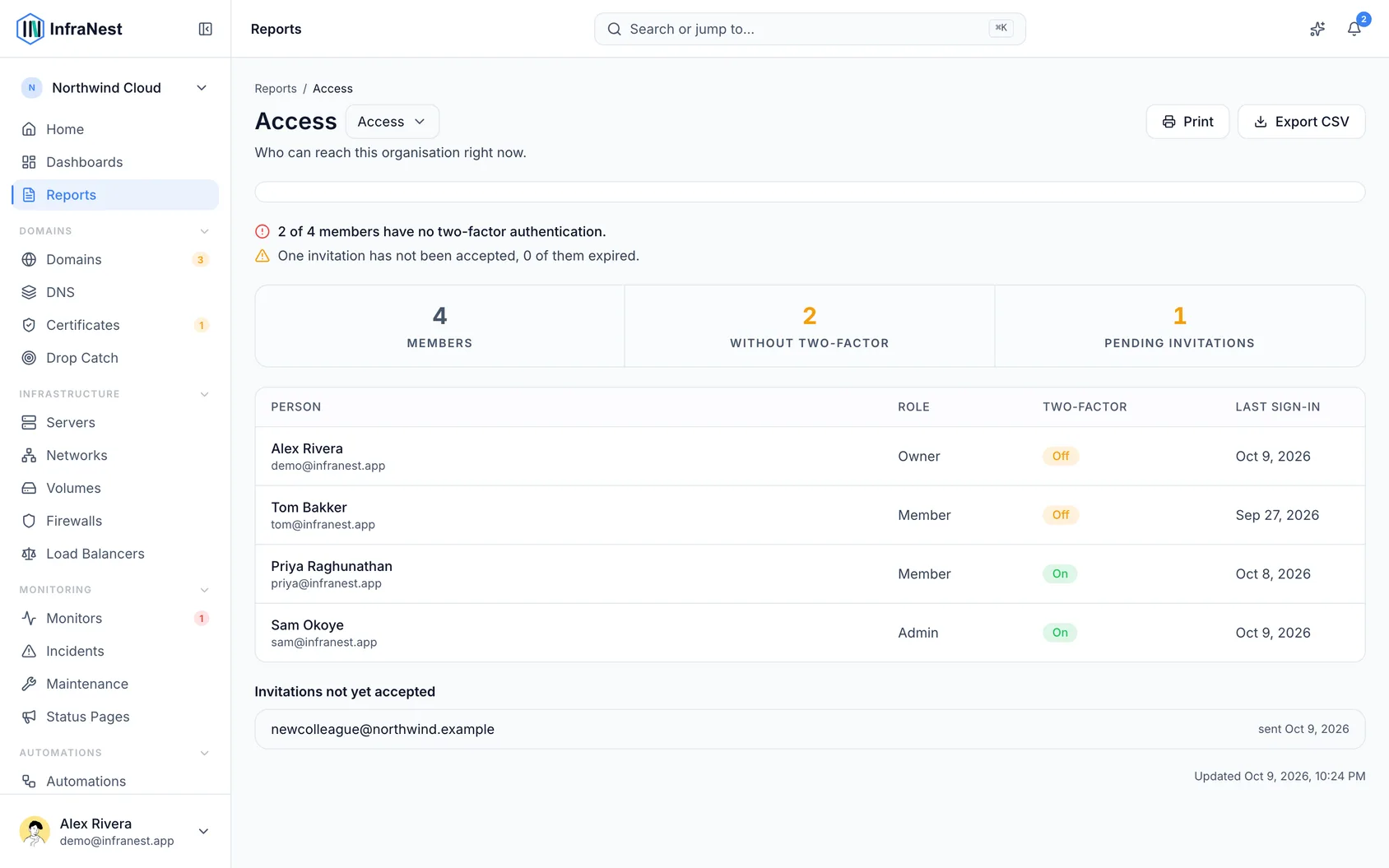
- Open Access.
- Look at the top of the list first — people without two-factor turned on are always listed there, ahead of everyone else, since that's usually what a review is looking for.
- If your company signs people in through an identity provider (like Okta, Microsoft Entra ID or Google Workspace), those people will show Signs in with and the provider's name instead of Off. This means the provider handles two-factor for them, so they're not flagged as missing it — unless they can still also sign in with a password, in which case the warning stays, with the provider named beside it.
- Scroll down to see pending invitations. Anyone who hasn't accepted yet is listed here, with expired invitations marked. Check this list if someone left the company before accepting their invite.
- If someone shows "Last signed in: never," that's accurate — it means there's no record of them ever signing in.
NoteRoles are per workspace. Someone can be an owner in one workspace and a viewer in another — each report only shows their role for the workspace you're currently in.
#Check who signed in over a period
- Open Sign-ins.
- Choose a month, a quarter or a year to review.
- Check the top of the list — people with zero sign-ins for the period are listed first. That's usually the most important thing this report tells you: an unused account for a whole quarter is either a missed offboarding or a licence you're paying for with nothing in return.
- Look at "Days active" rather than total sign-in count when judging real usage — eight sign-ins in one morning is one day of work, not eight.
TipIf you pick a period before sign-in history started being kept, the report will tell you the earliest date it can report from, instead of showing a false month of zeroes.
#Export a report for an audit
- Open either Access or Sign-ins.
- Select Export CSV to download the rows exactly as shown — useful for attaching to an ISO 27001 or SOC 2 access review ticket.
- To share the same view with a colleague, copy the address bar link — it opens the same report with the same period.
- Select Print to save the report as a PDF, with the period and any filters restated on the page.
NoteEvery export is recorded in your audit log, so there's a trail of who pulled the evidence and when.
#Good to know
- Removing someone from the workspace removes them from Access immediately, but they'll still appear in Sign-ins for any period when they did sign in — that's history, and it doesn't get rewritten.
- Sign-in records are summarised per person per day and kept separately from the security log (which clears out after a few weeks), so "last signed in" keeps working correctly even for old accounts.
Was this article helpful?
Thanks for your feedback!
Thanks, this goes straight to the docs team.
Still stuck? Contact support
Related articles
Team & accessInvite your teamInvite teammates to your workspace and give each the right level of access.Team & accessApprove requests to join your workspaceWhen somebody signs in with an email address on one of your verified domains, you can let them ask to join your workspace.DeveloperUse InfraNest from an AI assistantAsk an AI assistant such as Claude, Cursor or VS Code about your infrastructure, and it looks the answer up in InfraNest for you.DeveloperProAPI tokensInfraNest has a full REST API, so you can automate anything you can do in the app. You access it with an API token.