

Manage a server from its own page in InfraNest — this is where you control its power, size, recovery, networking and everything that depends on it. It's for anyone who needs to check on a server, fix a problem, or make a change to it.
#Overview
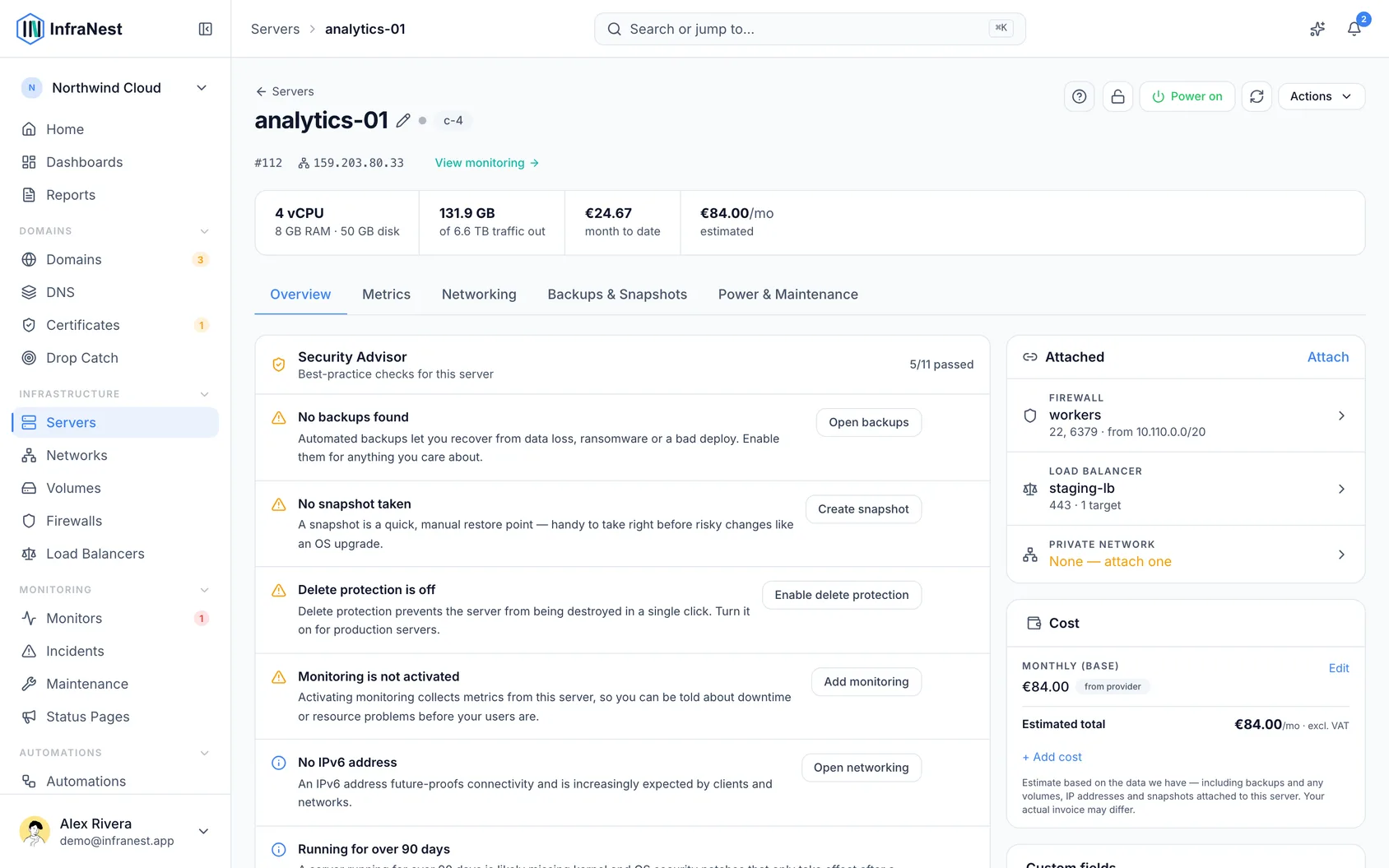
- See at a glance whether the server is running, where it's hosted, what it costs, and its public addresses.
- Act on it with reboot, shutdown, rebuild, resize, rescue mode, password reset and console access, all from Actions.
- Check what's happening right now in the status line, and what needs your attention in Needs you.
- See what runs on the server, what depends on it, and what it costs — all from the same page.
#Find your way around the server page
- Under the server's name, read the summary line: whether it's running, at which provider and location, and its monthly cost.
- Below that, find its public IPv4 and IPv6 addresses. Click an address to copy it; hover over a shortened IPv6 address to see it in full.
- Open Actions to see everything you can do: reboot safely, shut down, sync with your provider, silence alerts, delete protection, open the console, attach a firewall and more. A stopped server also shows a Start button.
- Check the status line under that for what's going on right now — all clear, something wrong, a maintenance window, or a reboot or resize in progress. When one finishes, click Details to see each step again.
- Use the tabs to dig deeper. How it's doing: Overview, Metrics, Workloads, System and Alerts. Managing it: Networking, Backups and Power. If a tab is missing information (for example, no agent installed), it says so in small text and tells you how to fix it.
#Reboot a server safely
- Open Reboot safely… from the Power tab, from the server's Actions menu, or from Reboot waiting on its Protection card.
- If an update is waiting for the reboot, review which one and since when.
- Review the five steps InfraNest will take: taking the server out of its load balancer (if any), rebooting it through your provider, waiting for it to come back, waiting for its monitors to come back up, and putting it back into its load balancer.
- Choose when to run it: Now, Recommended (the server's quietest time), or Pick a time with a time zone. A maintenance window is ticked by default so alerts stay quiet while it reboots.
- If other servers are waiting for the same update, tick them too — they'll be rebooted one after another.
- Confirm to start the reboot, then follow its progress in the status line at the top of the page.
WarningIf the reboot doesn't finish within ten minutes, the server stays out of its load balancer and everyone in the workspace is notified, so visitors aren't sent to a machine that hasn't properly come back.
#Resize a server
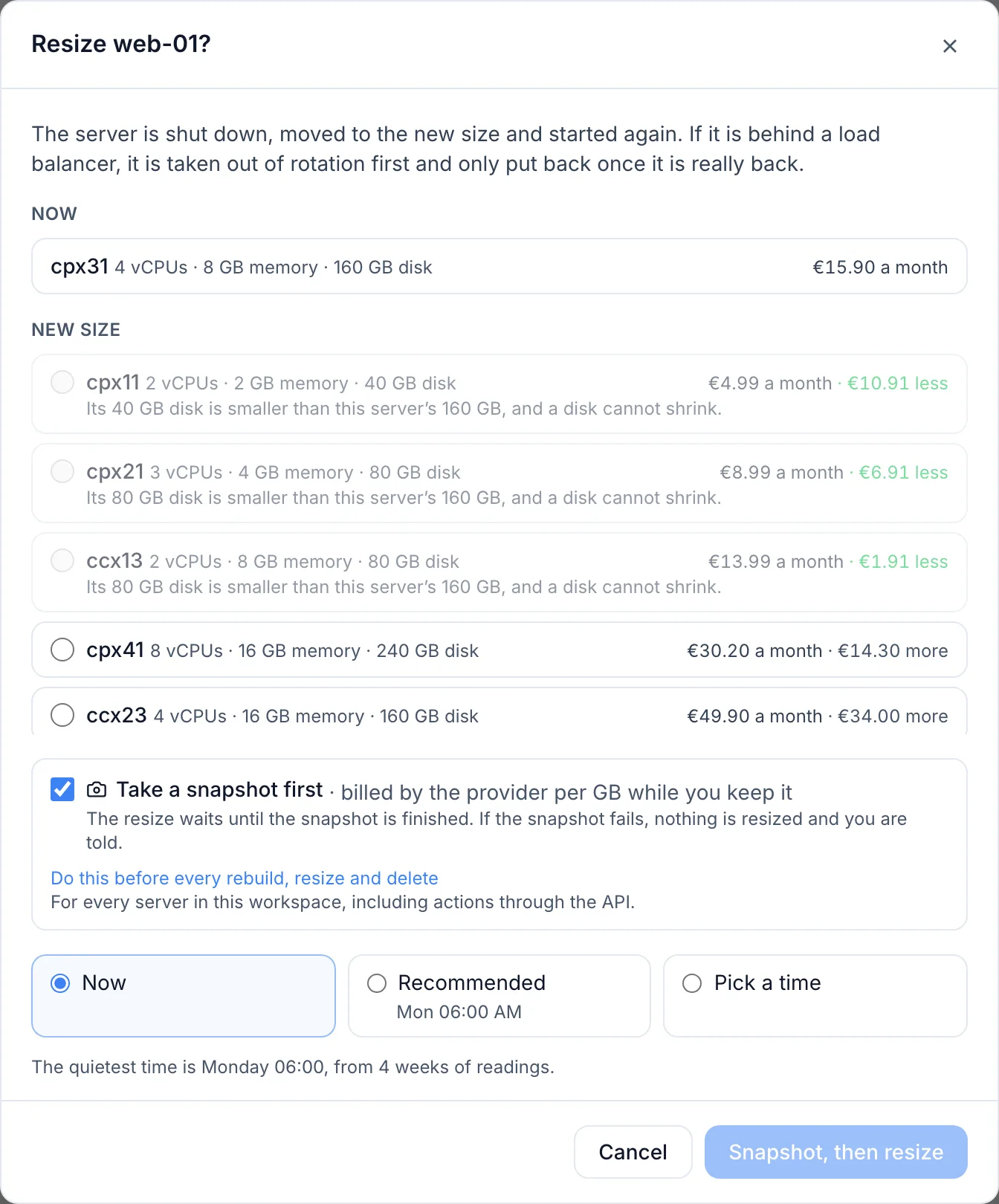
- Open Actions → Resize… on the server's page.
- Review the sizes available, each with its monthly price and how much more or less that is than today.
- If your provider allows it, choose whether to Grow the disk too — a disk can only ever grow, never shrink, so sizes with a smaller disk can't be chosen.
- Review the steps InfraNest will take: optionally taking a snapshot first, taking the server out of its load balancer, shutting it down if needed, resizing it, starting it again, waiting for its monitors, and putting it back into its load balancer.
- Choose when to run it: Now, Recommended, or Pick a time. A maintenance window is ticked by default.
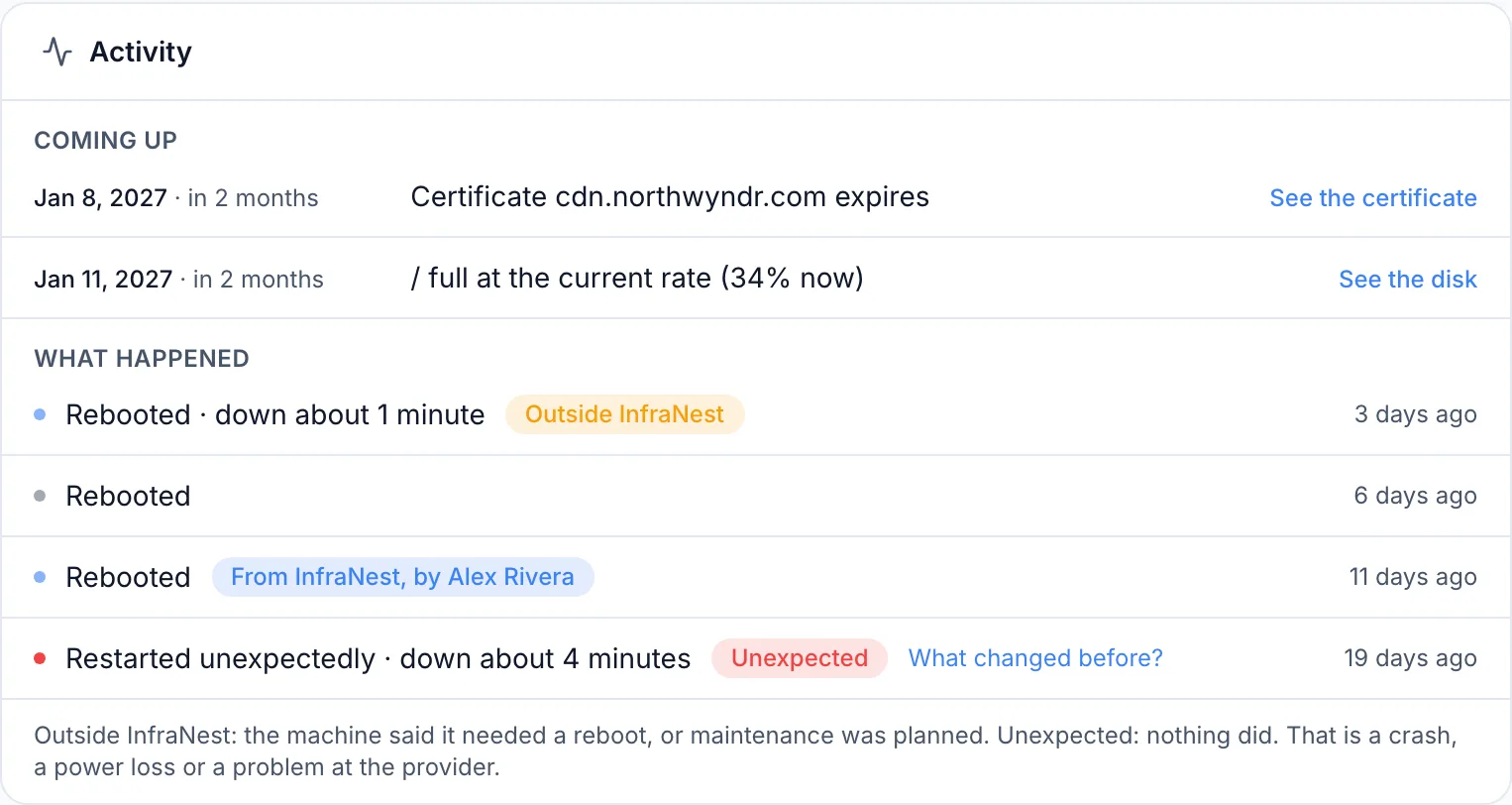
- Confirm to schedule or start the resize. A scheduled resize is listed on the Activity card until it runs, with Cancel beside it.
NoteNot every provider supports resizing from InfraNest. Where yours doesn't, Resize… is greyed out and tells you to resize the server in your provider's own panel instead.
#Protect a server from deletion
- Open the server's page.
- Turn on delete protection so it can't be removed by accident.
#Check what runs on a server and what depends on it
- Open the server's Overview tab.
- Look at What runs here to see everything in InfraNest that depends on this server — domains and load balancers it serves, other servers connecting to it, certificates installed on it, monitors and alert rules watching it, firewalls and backups protecting it, and volumes, networks and extra addresses attached to it.
- Click any item in the list to open its own page.
- Check Needs you for anything that needs your attention, with a note on where it came from — your provider, the agent, or InfraNest itself.
#See what's running inside a server
- Open the Workloads tab (needs the agent installed) to see every service, container, scheduled job and process running on the server, grouped by what it does.
- Review any problem cards at the top — something failed, is restarting in a loop, or has memory that keeps growing — each with what to do next.
- Check What changed this week for new software or newly listening ports. Mark something as Expected if you meant it to start.
- Open the System tab to see overall health, disk space, services and certificate renewal tools, with what to do for anything that needs attention.
#Check what a server costs
- Open the server's Overview tab and find the Cost panel.
- Review the monthly price, plus backups, volumes, IP addresses and snapshots attached to the server, and any cost you've added yourself.
- If the panel says the server Could be one size smaller, open See the smaller size to compare it with a smaller size and its potential savings.
- Choose Resize to … to resize right away, or Keep, it is needed / Ask me again in 30 days to dismiss the suggestion.
NotePrices are shown excluding VAT and are estimates based on what InfraNest can read. Your provider's invoice is the final word.
#Troubleshooting
- A reboot or resize didn't come back — check the status line: if the server's monitors are up but its agent is silent, the agent may have stopped and needs restarting on the server. If nothing answers, the server is likely stuck while booting — open its console to see where it stops. If your provider shows it as running but the server itself didn't start, use your provider's recovery console. If it's switched off at your provider, use Start on the server page.
- A stopped reboot or resize is still listed as needing you — if the agent is installed, InfraNest notices by itself once the server comes back. Without the agent, check it yourself, then click Mark as handled.
- A tab says it needs the agent or isn't connected — install the agent from the tab itself, or, for a server with no provider connected, check Networking instead, which shows what the agent sees listening on the server.
Was this article helpful?
Thanks for your feedback!
Thanks, this goes straight to the docs team.