

Learn the difference between permanently deleting a server and simply hiding it from InfraNest, and how to do each one safely. This is for anyone who needs to retire a server, clean up their list, or stop paying for a machine they no longer need.
#Overview
- Delete server removes the machine at your provider and stops the bill. This can't be undone from InfraNest.
- Stop tracking just removes the server from InfraNest's view. The machine keeps running and your provider keeps charging for it.
- A server you added by hand (self-managed) is the exception: deleting it only removes its record here, since there's no provider account or bill behind it.
NoteIf you want to stop paying for a machine, use Delete server. If someone else manages it, or you just want it off your list, use Stop tracking.
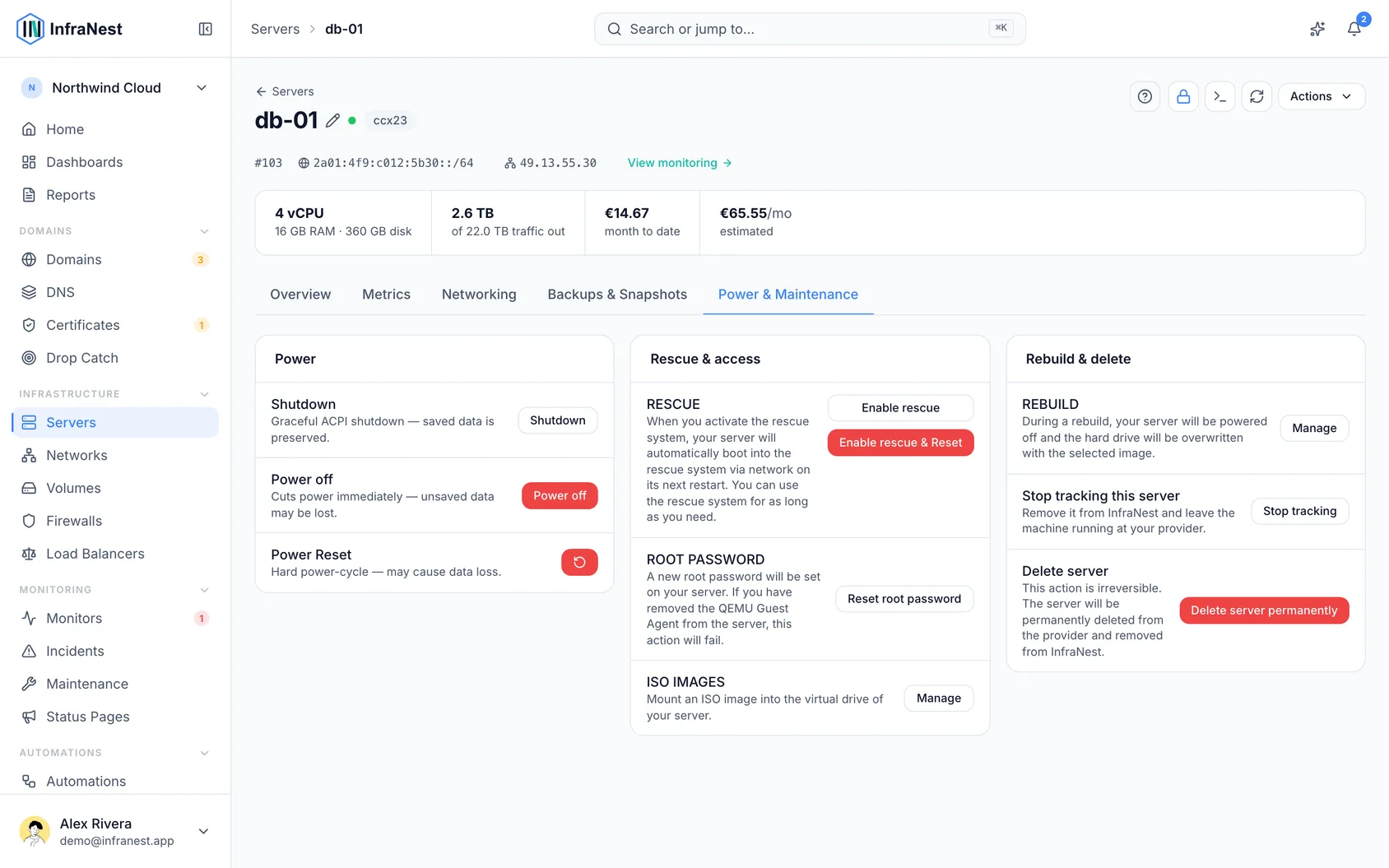
#Delete a server
- Open the server, then go to the Power tab.
- Click Delete server.
- Type the server's name to confirm.
- If your workspace requires it, confirm again with your passkey, authentication code or password.
- Read the confirmation box carefully — it tells you whether the machine is removed right away or at the end of your already-paid period.
- If your provider supports it, Take a snapshot first Pro is ticked by default. The deletion waits until the snapshot finishes, and won't happen if the snapshot fails.
- If any web addresses (DNS names) still point at this server, answer for each one: Move to another server, Remove the record, or Keep it. You must give an answer for every address before Delete becomes available.
WarningOnce a server is deleted, its IP address goes back to your provider and is usually handed to another customer within days. Anything still pointing at that address — a DNS name, firewall rule, or monitor — will then reach someone else's machine.
#Stop tracking a server
- Open the server, then go to the Power tab, and click Stop tracking — or use the ⋯ menu on its row in the server list.
- No confirmation code is needed, since nothing happens to the actual machine.
#Delete a server you added by hand
- Go to Monitoring → Servers.
- Use the ⋯ menu on the server's row, or open the server and use the ⋯ menu at the top.
- Confirm the deletion. This only removes the record from InfraNest — there's no machine to switch off and no bill to stop.
#Track a server again
- Go to Servers.
- Click the Not tracked button above the list.
- Click Track again on the row for the server you want back.
- Its history, tags, custom fields and settings all return with it.
#Tips
- Volumes, IP addresses, snapshots and backups are billed separately by your provider. Deleting a server doesn't automatically delete these — check those lists afterwards if you want everything gone.
- After a deletion, anything you didn't reassign in the moment is still flagged for you: a leftover DNS record shows up on the zone's Security tab, a firewall entry is flagged on the firewall, and a monitor says so on its own page.
#Troubleshooting
The Delete button is disabled. The server likely has delete protection switched on (set by you or your provider). Turn it off first — Stop tracking still works in the meantime, since it doesn't touch the machine.
There's no Delete button for this server. Some providers, like OVHcloud, treat a VPS as a subscription with a notice period rather than something that switches off instantly, so InfraNest doesn't offer Delete for it. Cancel the VPS in the OVHcloud panel, then use Stop tracking here.
The server is still showing up after I deleted it. At some providers, like TransIP, "delete" really means "cancel at the end of the paid period." The server keeps running and stays in your list until your provider actually removes it — that's expected, not an error. InfraNest can't cancel it sooner; do that from your provider's own control panel.
I stopped tracking a server but I'm still being billed. That's expected — stopping tracking never reaches your provider, so your invoice doesn't change. Check the Not tracked view to see what you've left behind, and use Delete instead if you want the billing to stop.
Both deleting and stopping tracking are recorded in your Audit Log, including who did it and when.
Was this article helpful?
Thanks for your feedback!
Thanks, this goes straight to the docs team.