

See at a glance what each of your servers actually does — a web server, a database, a cache, and so on — without labelling anything yourself. This is for anyone who wants to understand their infrastructure without digging through each server by hand.
#Overview
- Every server's page shows, under its name, what it is and why — for example, a web server and a database, running nginx and postgresql.
- InfraNest works this out automatically from what runs on the server and what connects to it. You don't have to set anything up.
- The same summary appears next to each server in the server list, so you can tell your machines apart at a glance.
- You can always correct it if InfraNest gets it wrong, or set it yourself before anything is running.
#What InfraNest looks at
InfraNest can recognise these roles: Web server, Database, Cache, Queue worker, Mail server, DNS server, Backup host, and Container host.
It decides based on two things:
- What runs on the server. With the InfraNest agent installed, InfraNest sees the services, programs and containers running on the machine. The server's name is never used to guess its role — a machine called
db-01running nginx is still shown as a web server. - What it's connected to. Other servers connecting to it on a database port mark it as a database, even if that database runs inside a container. A load balancer sending it traffic marks it as a web server. Domains and DNS records pointing at it show which sites it serves.

Click Recognised from what runs on it to see the evidence behind each role — every server, load balancer or domain listed is a clickable link.
NoteWithout the agent installed, InfraNest can only go by what connects to the server, so it may show less detail. Installing the agent makes the result more precise.
#Correct what a server is
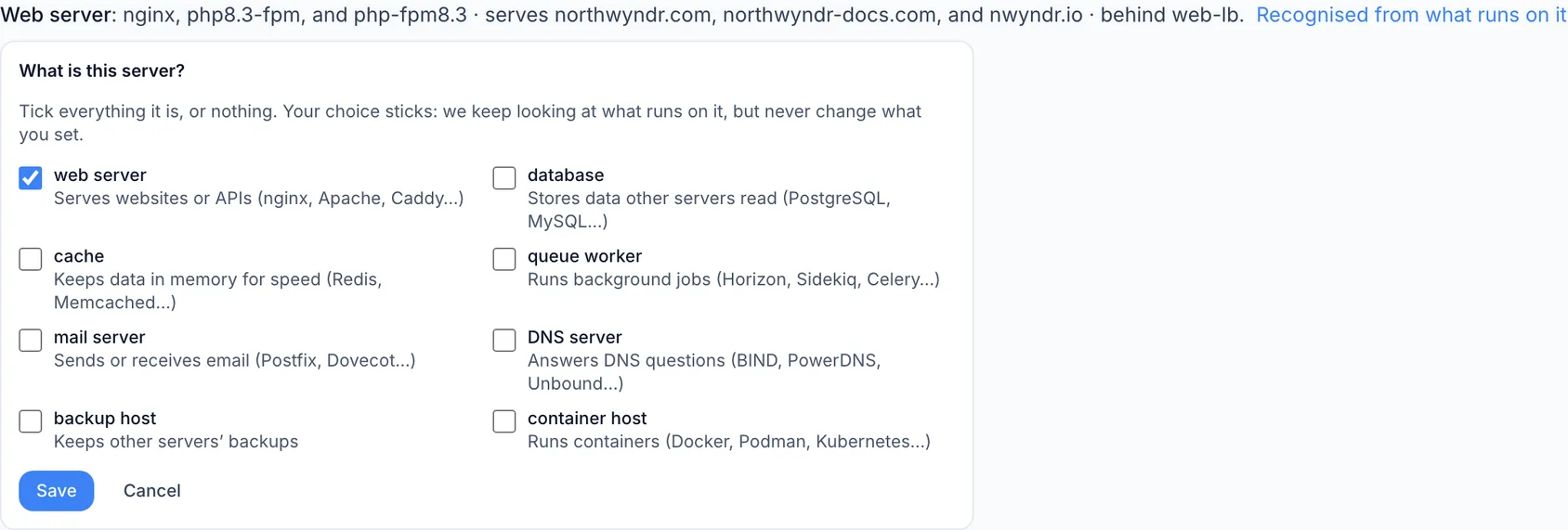
If InfraNest got it wrong, or you'd rather set a server's role yourself before anything is running on it:
- Open the server.
- Under its name, click Recognised from what runs on it, then click Correct it. If nothing has been recognised yet, click Say what this server is instead.
- Tick everything the server is, or leave everything unticked, then click Save.
Your choice sticks — InfraNest keeps watching what runs on the server, but it will never overwrite what you've set. The line will then read Set by followed by your name. To go back to automatic detection, open it again and click Use what we recognise.
Every correction is recorded in your workspace's Audit Log.
#Manage automatic reboots on databases
Rebooting a database takes down every server that depends on it until it's back up. Because of this, automations that reboot servers skip any server marked as a database, and the automation's run log explains that it was skipped and why.
- If you do want automations to reboot a particular database server, open the server.
- Click Recognised from what runs on it.
- Switch on Let automations reboot it.
A reboot you trigger yourself, right now, always goes through — the Reboot safely window will simply remind you the server runs a database, so you can pick a quiet moment.
A reboot you schedule for later runs unattended, so it's treated the same as an automation's:
- When scheduling a reboot on a database server, the Reboot safely window asks you to confirm by ticking the option to reboot it anyway at the chosen time. Without that tick, the reboot won't be scheduled.
- If a server becomes a database after you scheduled its reboot, InfraNest won't go ahead with it. The reboot is held, your Audit Log records why, and you can either schedule it again and confirm it, or allow automatic reboots on the server's page.
#Tips
TipYou need permission to change servers in order to correct a role, but anyone who can see the server can see its role too.
#Good to know
- Your role setting is saved per server, and only within your workspace.
- InfraNest re-checks what it recognises every time you open the server, at most every 15 minutes.
Was this article helpful?
Thanks for your feedback!
Thanks, this goes straight to the docs team.