

A custom webhook lets you connect InfraNest to almost any tool that speaks HTTP, even if we don't have a ready-made integration for it. It's for anyone who wants their own system notified when something happens in InfraNest, or who wants another tool to trigger actions here.
#Overview
- Send events out to a URL you own, so your own system hears about things happening in InfraNest.
- Get a URL from us that any tool can call to start an automation here.
- Both directions are independent — set up one, both, or neither.
- Incoming URLs aren't tied to a single tool, which is why the Zapier, Make, n8n and Power Automate pages point back to this one.
#Send events out
- Go to Integrations → Custom webhook and select Add endpoint. Before anything is set up it's on the Set up Custom webhook card; after that it's under Where events go on the Connections & settings tab.
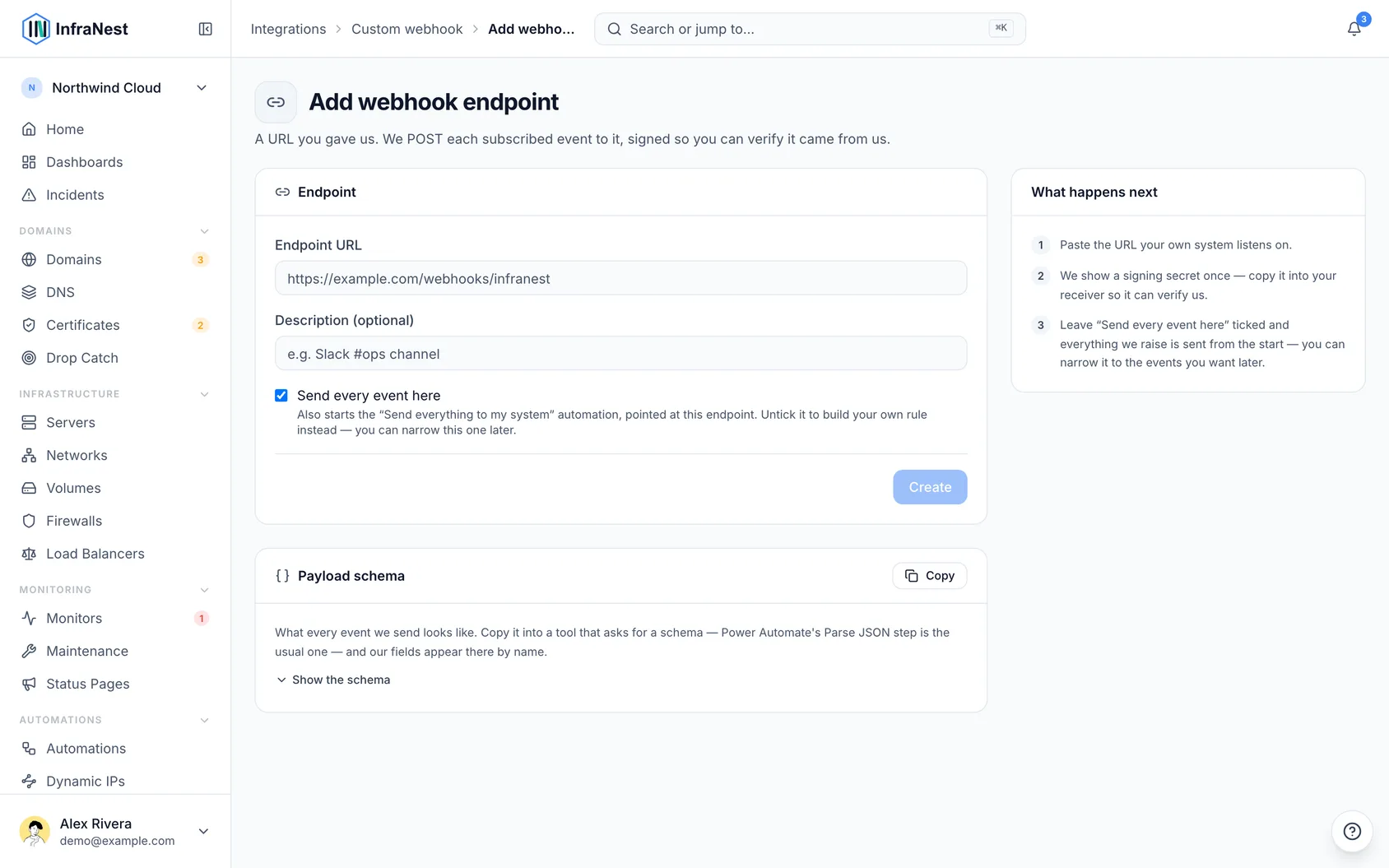
- Paste the URL your own system listens on into Endpoint URL, and optionally add a Description (optional). Leave Send every event here ticked so every event is sent from the start, then select Create.
- Copy the signing secret shown once after saving, and give it to your receiver so it can verify the request really came from us.
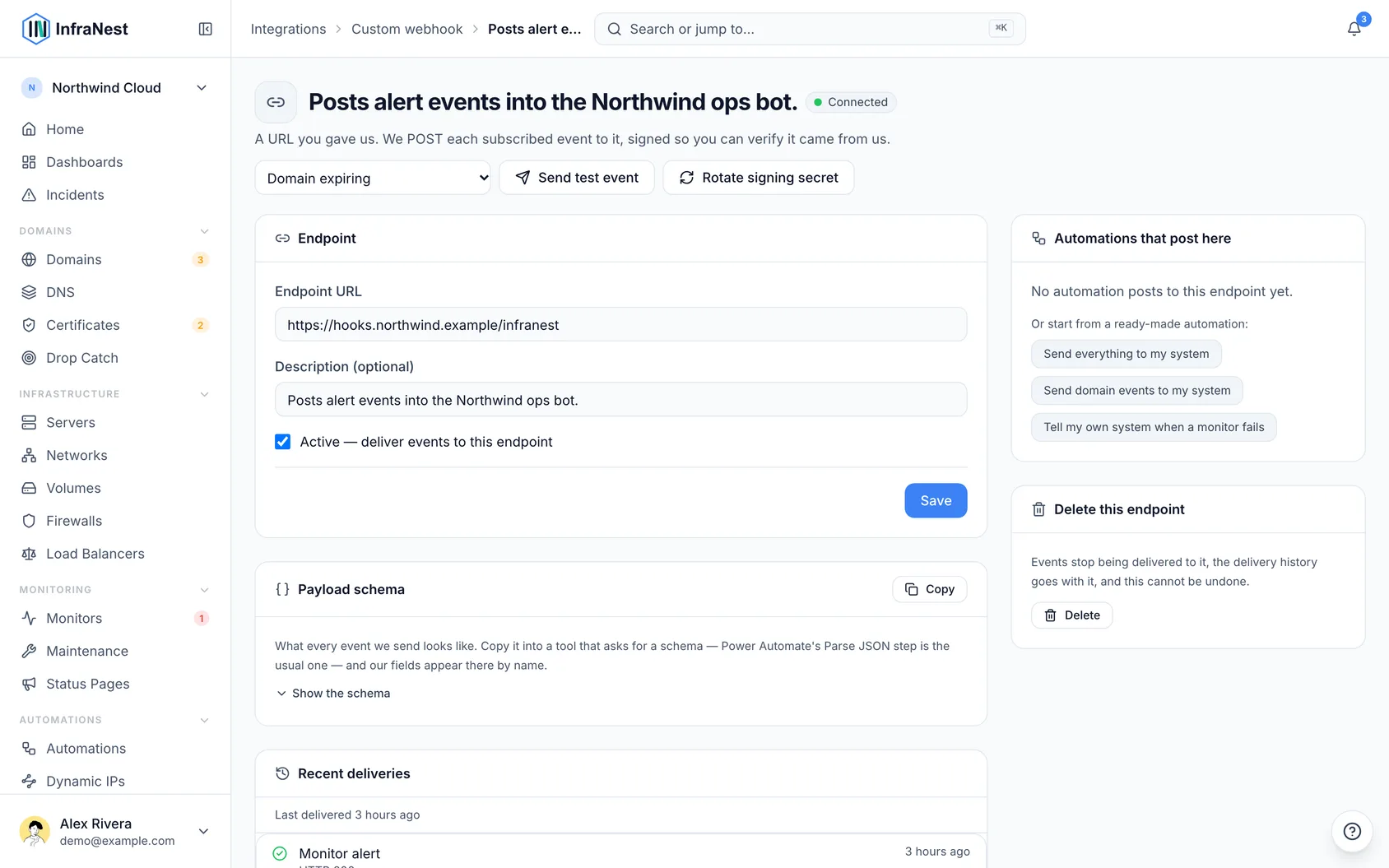
- On the endpoint's page, pick an event in the list next to Send test event, then select Send test event, to confirm your receiver accepts it before you rely on it.
- Choose what gets sent: under Automations that post here, the endpoint's page lists the Send everything to … automation it started. Open it to narrow it to the events you care about — or, if you unticked the box, pick a starting point under Or start from a ready-made automation: or build your own rule.
Every endpoint has a page of its own, opened from the endpoint's ⋯ menu with Edit. The same menu has Send test event (it sends a sample Domain expiring) and Delete, which removes the endpoint straight away along with its delivery history. To stop deliveries for a while without deleting anything, untick Active — deliver events to this endpoint on its page.
#What a delivery looks like
Each event is sent as a message with three parts: the event name (what happened, such as a domain expiring), when it was created, and the details for that event. Each event only sends its own fields, and any of them can be empty.
Each delivery also carries a few headers, including the event name, the delivery's number (as shown in Recent deliveries), when it was signed, and a signature you can use to check it really came from us.
NoteYour endpoint has 10 seconds to answer. Any success response counts as delivered; anything else, including a redirect, counts as failed. We also refuse to send to a URL that points at a private, local or internal address.
#Let something trigger InfraNest
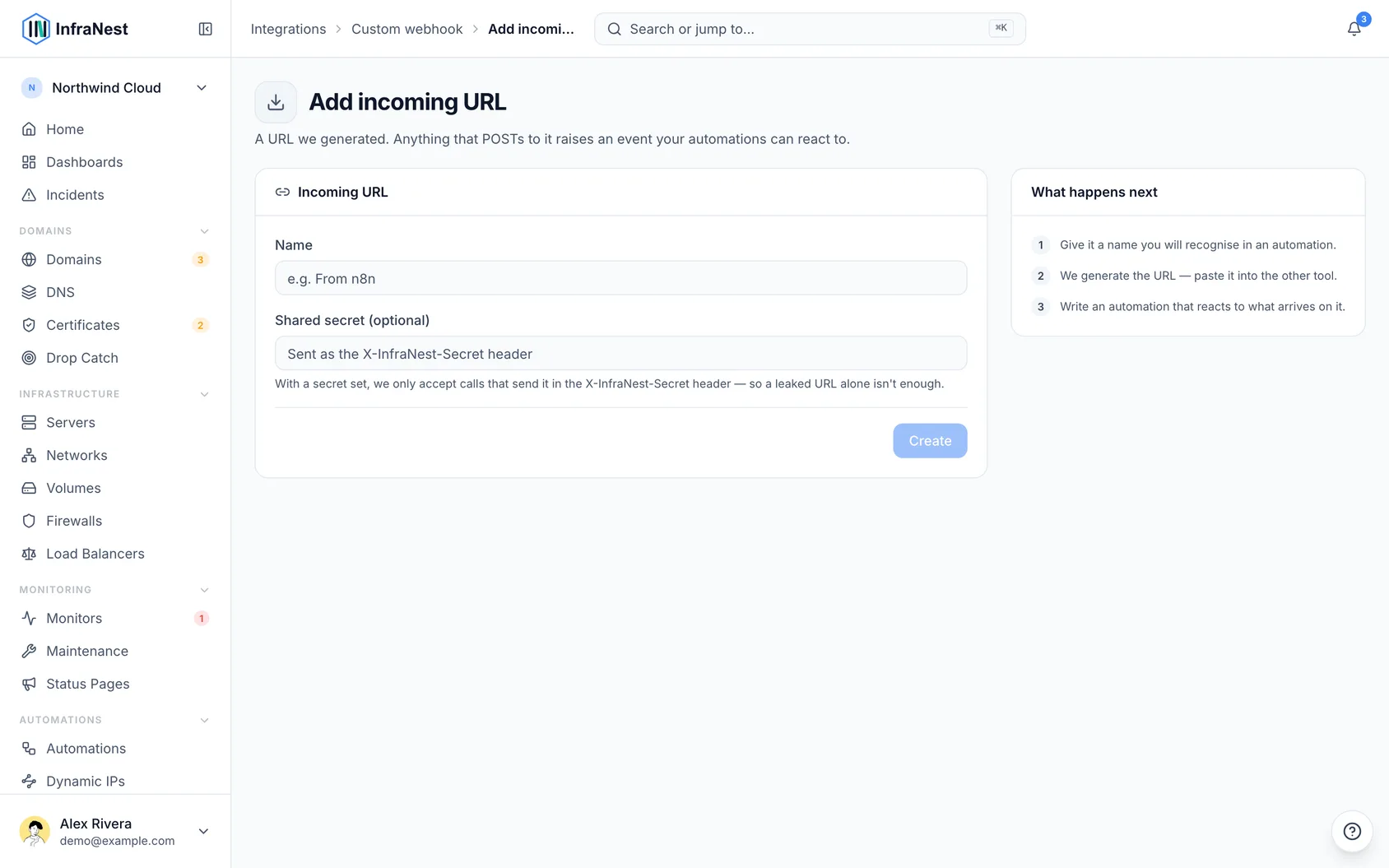
- Go to Integrations → Custom webhook and select Add incoming URL. Once anything is set up, it's under URLs we give you on the Connections & settings tab.
- Give it a Name you'll recognise later — you'll pick it by name when writing the rule.
- Optionally set a Shared secret (optional). With one set, we only accept calls that send it along with the call, so a leaked URL on its own isn't enough.
- Copy Your URL and paste it into the other tool. It must send its data as a message to that URL.
- Back in InfraNest, start an automation from Let another tool trigger an automation (or with the Incoming webhook trigger) and add what should happen — open a maintenance window, pause a monitor, resolve an incident. Whatever the other tool sent is available to use in the rule, along with the URL's name.
Each URL takes up to 120 calls a minute. If a URL has been regenerated, the old one stops working immediately and calls to it will be turned away.
#Good to know
- No credential is needed. You supply a URL for us to post to, and we generate a URL for you. There is no API key to create.
- The signing secret is shown once and never again. Rotate signing secret on the endpoint's page gives you a new one; the old one stops working immediately.
- Your incoming URL works like a password. Anyone holding it can trigger your workspace's automations — set a shared secret, and use Regenerate URL if it leaks. Only people who may change monitoring can see and copy it.
- Accept calls to this URL switches one incoming URL off without deleting it or touching the others. Calls to it are still answered, and listed under What has arrived as turned away, but nothing runs.
- What went out is listed under Recent deliveries, on the endpoint's page and on the Activity tab, with what your endpoint answered. A failed delivery has a Retry button. What came in is listed under What has arrived, including the calls we turned away and why.
TipAn endpoint is never switched off just because deliveries fail. Its row shows how many recent deliveries failed, so check there first if events stop arriving. You can also add more than one endpoint — for example one for incidents and another for domains.
This integration only moves events. It doesn't read or manage servers, DNS or domains — that stays with the provider integrations.
#Troubleshooting
Nothing arrives at my endpoint. If you unticked Send every event here, the endpoint alone is only a destination — check that an automation posts to it, then look at Recent deliveries to see whether we sent anything at all. If the endpoint is marked Paused, tick Active — deliver events to this endpoint again.
A delivery shows Failed. Its row says what your endpoint answered, or why it couldn't be reached. Fix the receiver, then select Retry.
My receiver rejects the delivery. It is likely verifying the signature with the wrong secret, or the wrong way. If you no longer have the secret, rotate it and copy the new one into your receiver.
My tool doesn't trigger InfraNest. Confirm it's sending to the exact incoming URL, and that the shared secret — if you set one — is included correctly. Open the URL's page: What has arrived shows every call, and a call we turned away says why. If the URL was regenerated, the old one stops working immediately.
Was this article helpful?
Thanks for your feedback!
Thanks, this goes straight to the docs team.
Related articles
 MakeConnect MakeStart a Make scenario when a domain is expiring, a monitor goes down or a certificate is about to lapse — and let a scenario open a maintenance window, pause…
 n8nConnect n8nStart an n8n workflow when a domain is expiring, a monitor goes down or a certificate is about to lapse — and let a workflow open a maintenance window, pause…
 Power AutomateConnect Power AutomateStart a Power Automate flow when a domain is expiring, a monitor goes down or a certificate is about to lapse — to open a ticket, add a row to a SharePoint…