

Connect Power Automate to start a flow whenever something happens in InfraNest — a domain is expiring, a monitor goes down, a certificate is about to lapse — and, the other way round, let a flow open a maintenance window, pause a monitor or resolve an incident in InfraNest. This article is for anyone setting up that connection, no scripting needed.
#Overview
- InfraNest provides a ready-made flow you import into Power Automate, so there's nothing to build by hand.
- Choose a starter flow that already creates a Planner task, sends an Outlook email or adds a SharePoint list row for each event — or start from a blank flow and add your own steps.
- A flow can also trigger InfraNest in the other direction, using a webhook-style URL you add to an automation.
#Send InfraNest events to a flow
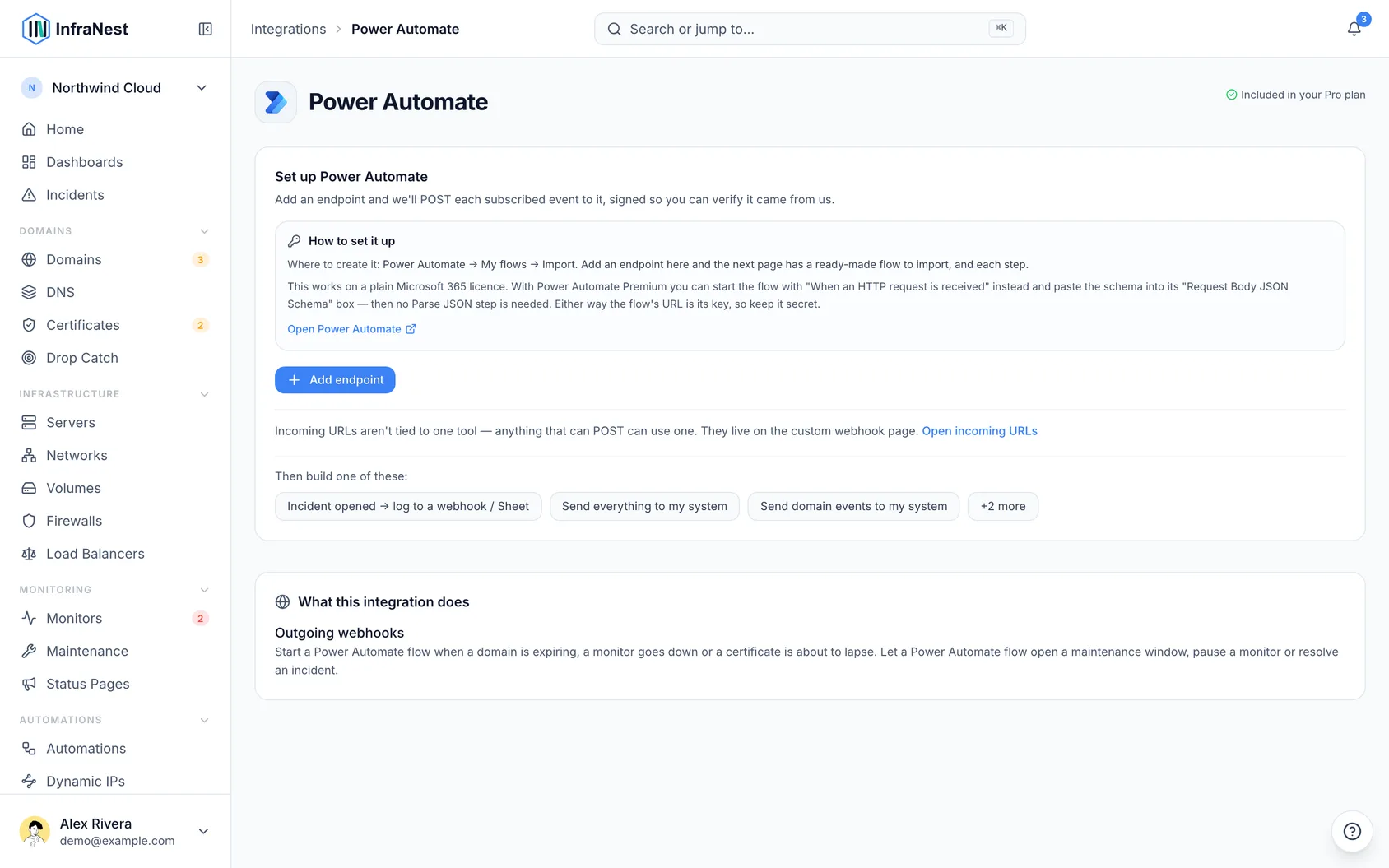
- In InfraNest, go to Integrations → Power Automate and select Add endpoint. Leave this page open — it lists these same steps beside the form.
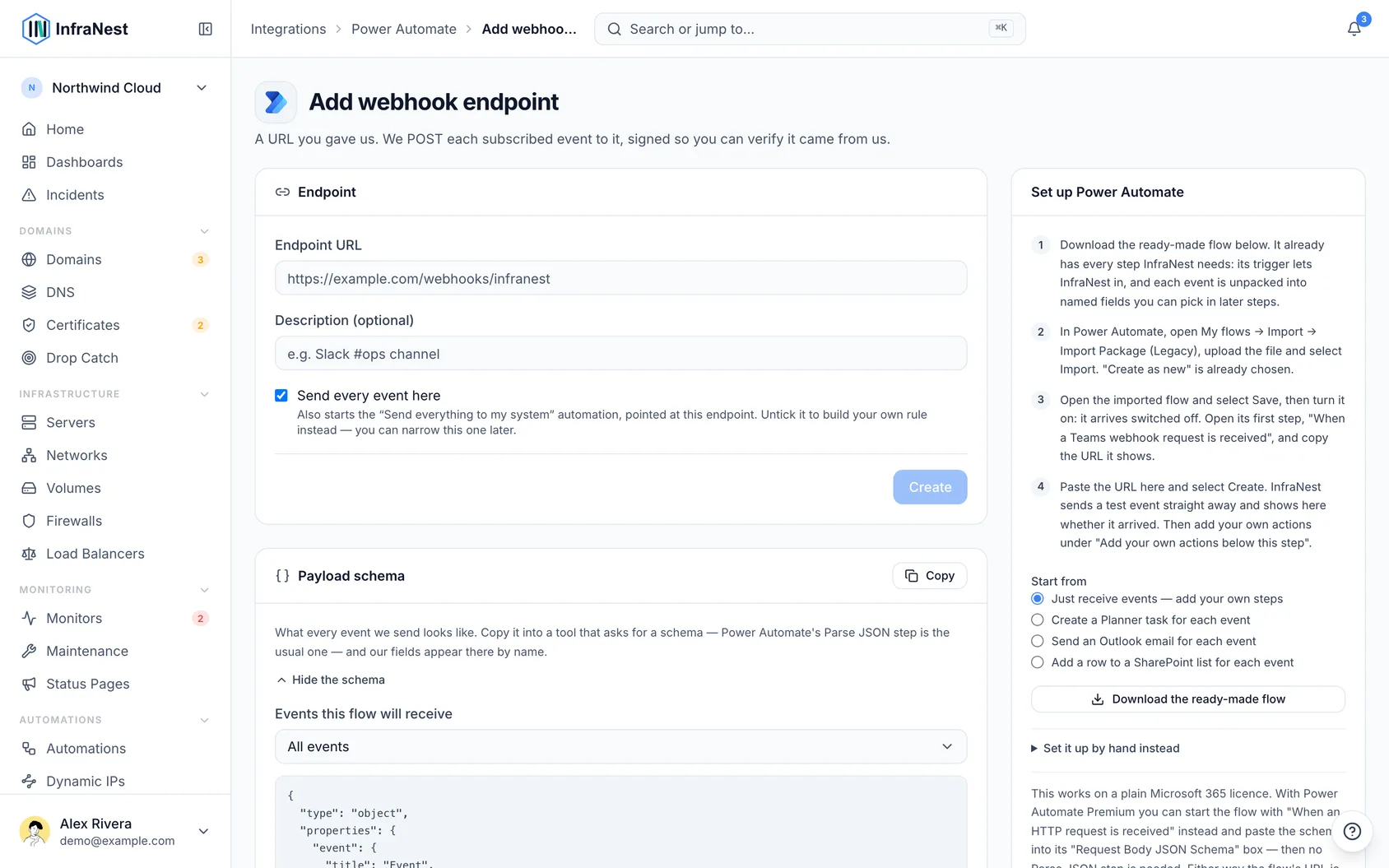
- Under Start from, choose what the flow should do with each event, then select Download the ready-made flow:
- Just receive events: a blank flow you add your own steps to.
- Create a Planner task for each event, Send an Outlook email for each event or Add a row to a SharePoint list for each event: the flow already has that step built in. See the Starter flows section below for the one or two things you need to fill in.
- In Power Automate, open My flows → Import → Import Package (Legacy), upload the file and select Import. Create as new is already chosen. For a starter flow, the import also lists a connection under Related resources: select Select during import and choose your Planner, Outlook or SharePoint connection, or create one there.
- Open the imported flow, select Save, and turn it on — it arrives switched off.
- Open its first step, When a Teams webhook request is received, and copy the URL it shows. Despite its name, this trigger accepts any event InfraNest sends, not only Teams messages.
- Back in InfraNest, paste the URL, leave Send every event here ticked so every event is sent from the start, and select Create.
- InfraNest sends a test event right away and shows on the endpoint's page whether it arrived: Test delivered, or Test refused with what to fix. In Power Automate, the flow's run history shows the test with its fields.
- Add what the flow should do under the step called Add your own actions below this step. Every InfraNest field is offered there by name, under Parse JSON. A starter flow already has its step there instead.
- Choose what gets sent: under Automations that post here, the endpoint's page lists the Send everything to … automation it started. Open it to narrow it to the events you care about, or, if you unticked the box, pick a starting point under Or start from a ready-made automation: or build your own rule.
#Starter flows
A starter flow is the same flow with one step already added. Before you save it, open that step and fill in the one thing only you can choose:
| Starter | Step | What you pick |
|---|---|---|
| Create a Planner task for each event | Create a Planner task | The Group and the Plan the tasks go to. |
| Send an Outlook email for each event | Send an email | Who it goes To. |
| Add a row to a SharePoint list for each event | Add a list row | The Site Address and the List Name. The event goes in the Title column. |
The task title, the email's subject and the row's title name the event — its title, the monitor's name or the item's name, whichever the event has. The email also carries the event's time and all its fields. All three connectors are included in Microsoft 365, so no Premium licence is needed. Change any step, or add more after it, as you would in any flow.
#If Power Automate refuses the import
If it says that importing packages is disabled, your admin has Create in Dataverse solutions switched on, and you'll need to build the same flow by hand. On the endpoint page, open Set it up by hand instead:
Create an Instant cloud flow that starts with When a Teams webhook request is received. With Power Automate Premium you can use When an HTTP request is received instead.
In the trigger, set Who can trigger the flow to Anyone. InfraNest cannot sign in to your Microsoft tenant, so any other setting refuses its deliveries.
In InfraNest, select Copy on Payload schema, then:
- Teams trigger: add a Parse JSON step. Click in its Content box, type
/, choose Insert dynamic content and pick Body under When a Teams webhook request is received. You can also choose Insert expression and entertriggerBody(), which does the same thing. Don't type text straight into Content. Then paste the schema into Schema. - HTTP trigger (Premium): paste the schema into the trigger's Request Body JSON Schema box.
If this flow only handles one kind of event, select Show the schema and pick that event under Events this flow will receive before you copy. The flow then only offers that event's fields.
- Teams trigger: add a Parse JSON step. Click in its Content box, type
If you started from a template, delete its Post card step unless you also want a message in a channel.
Select Save, copy the URL its trigger shows, and continue from step 6 above.
#Let a flow trigger InfraNest
This direction needs the HTTP action, which is part of Power Automate Premium.
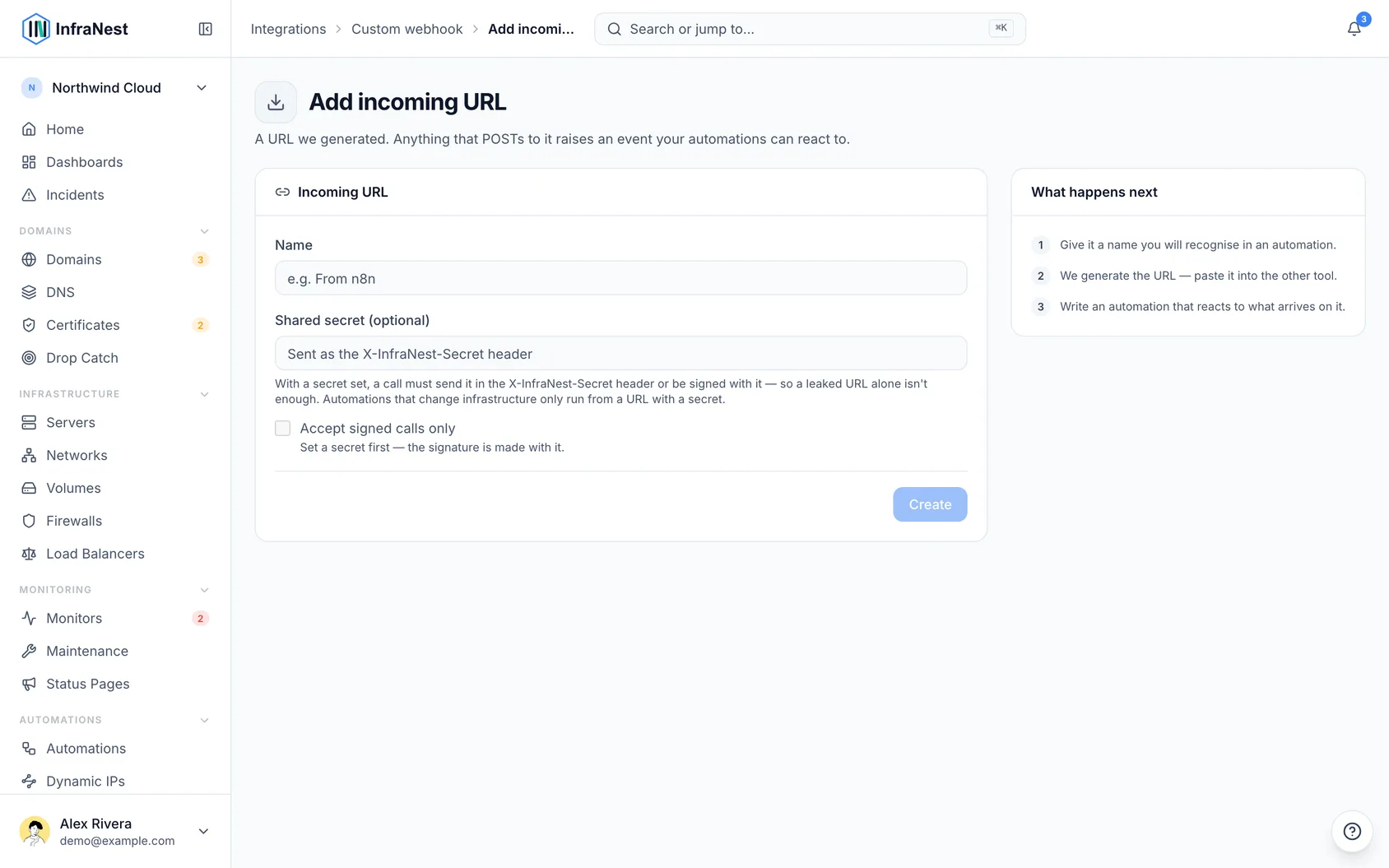
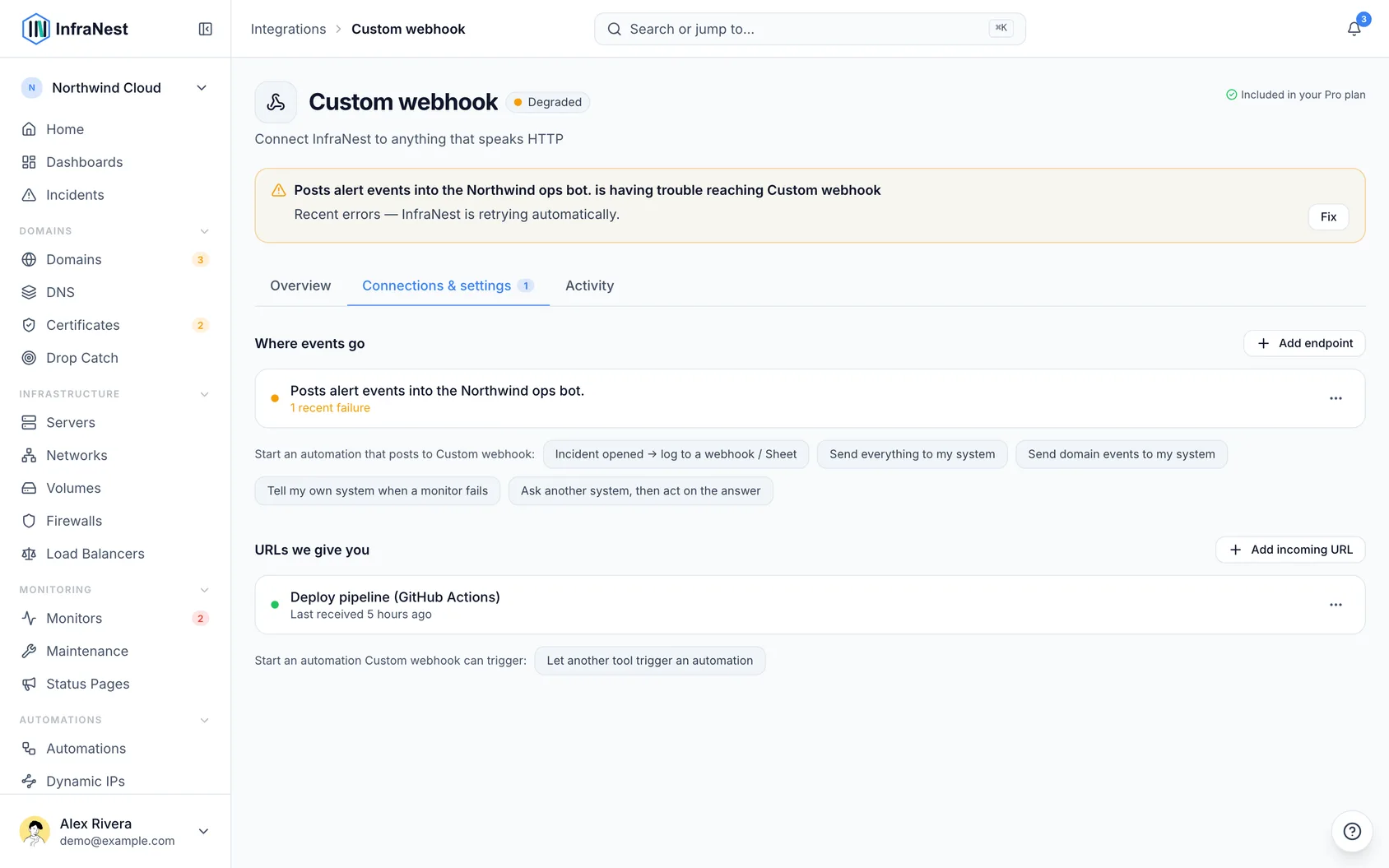
- Go to Integrations → Custom webhook and select Add incoming URL (under URLs we give you on the Connections & settings tab, once anything is set up there). On the Power Automate page, Open incoming URLs takes you there.
- Give it a Name you'll recognise later — you pick it by name when writing the rule.
- Optionally set a Shared secret (optional), so a leaked URL on its own isn't enough to trigger anything.
- In your flow, add an HTTP action with method POST, Your URL as the URI, and a JSON body with a
Content-Type: application/jsonheader. If you set a secret, add a headerX-InfraNest-Secretwith it. - Back in InfraNest, start an automation from Let another tool trigger an automation (or with the Incoming webhook trigger) and add what should happen — open a maintenance window, pause a monitor, resolve an incident. What the flow sent is available in the rule as
{{payload.your_field}}.
WarningThe flow's URL is its key. Anyone holding it can start your flow, so treat it like a password. If it leaks, delete the trigger in Power Automate to get a new URL and update the endpoint in InfraNest.
#Tips
- Every event carries the same three parts:
event(what happened, likedomain.expiring),created_at, anddatawith that event's details. - Every field in
datacan be empty, and each event only sends its own fields. In a flow that handles several events, check a field has a value before you use it. - Recent deliveries, on the endpoint's page and on the Power Automate page's Activity tab, shows every delivery and what Power Automate answered. A failed delivery has a Retry button.
NoteEach delivery is also signed with a secret we show once, but Power Automate cannot check that signature — the URL is what actually protects the flow.
#Troubleshooting
The imported flow does nothing. It arrives switched off. Open it in Power Automate, select Save and turn it on.
Deliveries fail with 401 or 403. The flow is not letting us in, and the endpoint's page says so on the test result, at the top and on the failed delivery. The trigger's Who can trigger the flow is not set to Anyone — change it and save the flow. If it already is, the URL in InfraNest no longer matches the one the trigger shows: copy it again and update the endpoint. Then select Retry on the failed delivery, or Send test event.
Deliveries fail with 404. Power Automate has no flow at that URL any more — it was deleted, or re-created with a new URL. Copy the URL from the flow's trigger and update the endpoint.
The flow runs but shows no InfraNest fields. In a flow built by hand, the schema is missing. Paste the Payload schema into the Parse JSON step (or the HTTP trigger). The ready-made flow already has it. In the Parse JSON Content box, pick the trigger's Body: type /, choose Insert dynamic content and select Body.
Parse JSON fails with "Unexpected character encountered while parsing value". The event reached your flow — the delivery log in InfraNest shows it as Delivered — but the Parse JSON Content box holds typed text instead of the trigger's Body. The character right after parsing value: in the error is the first letter of that text — a P is usually the word Payload, from the heading above the schema on the InfraNest page. Open the Parse JSON step, clear Content, type /, choose Insert dynamic content and pick Body under When a Teams webhook request is received. Save the flow, then select Send test event in InfraNest.
If the error says Error parsing boolean value instead, Content most likely holds triggerBody() typed in as words. An expression only works when you add it through Insert expression, so clear Content and fix it the same way.
Parse JSON fails on a real event. The schema was generated from a sample rather than copied from InfraNest. A generated schema marks every field as required, so the first event without one of them fails. Replace it with the schema from the endpoint's page.
The HTTP trigger is greyed out or asks you to upgrade. It needs Power Automate Premium. Use the Teams trigger with a Parse JSON step instead.
Was this article helpful?
Thanks for your feedback!
Thanks, this goes straight to the docs team.
Related articles
 MakeConnect MakeStart a Make scenario when a domain is expiring, a monitor goes down or a certificate is about to lapse — and let a scenario open a maintenance window, pause…
 n8nConnect n8nStart an n8n workflow when a domain is expiring, a monitor goes down or a certificate is about to lapse — and let a workflow open a maintenance window, pause…
 ZapierConnect ZapierStart a Zap when a domain is expiring, a monitor goes down or a certificate is about to lapse — and let a Zap open a maintenance window, pause a monitor or…