

Connect Linear so your automations can open issues for you — a certificate about to expire, a monitor that went down, a domain coming up for renewal — filed on the right team without anyone copying details across.
#Overview
- Links an incident, warning, or automation rule straight to a Linear issue, kept in step in both directions.
- Works with either a one-click sign-in or a personal API key.
- Once connected, you can open issues automatically for every incident, file one from a single card, publish an incident review as a Linear document, and build automations that create, comment on, or close issues.
#Connect your workspace
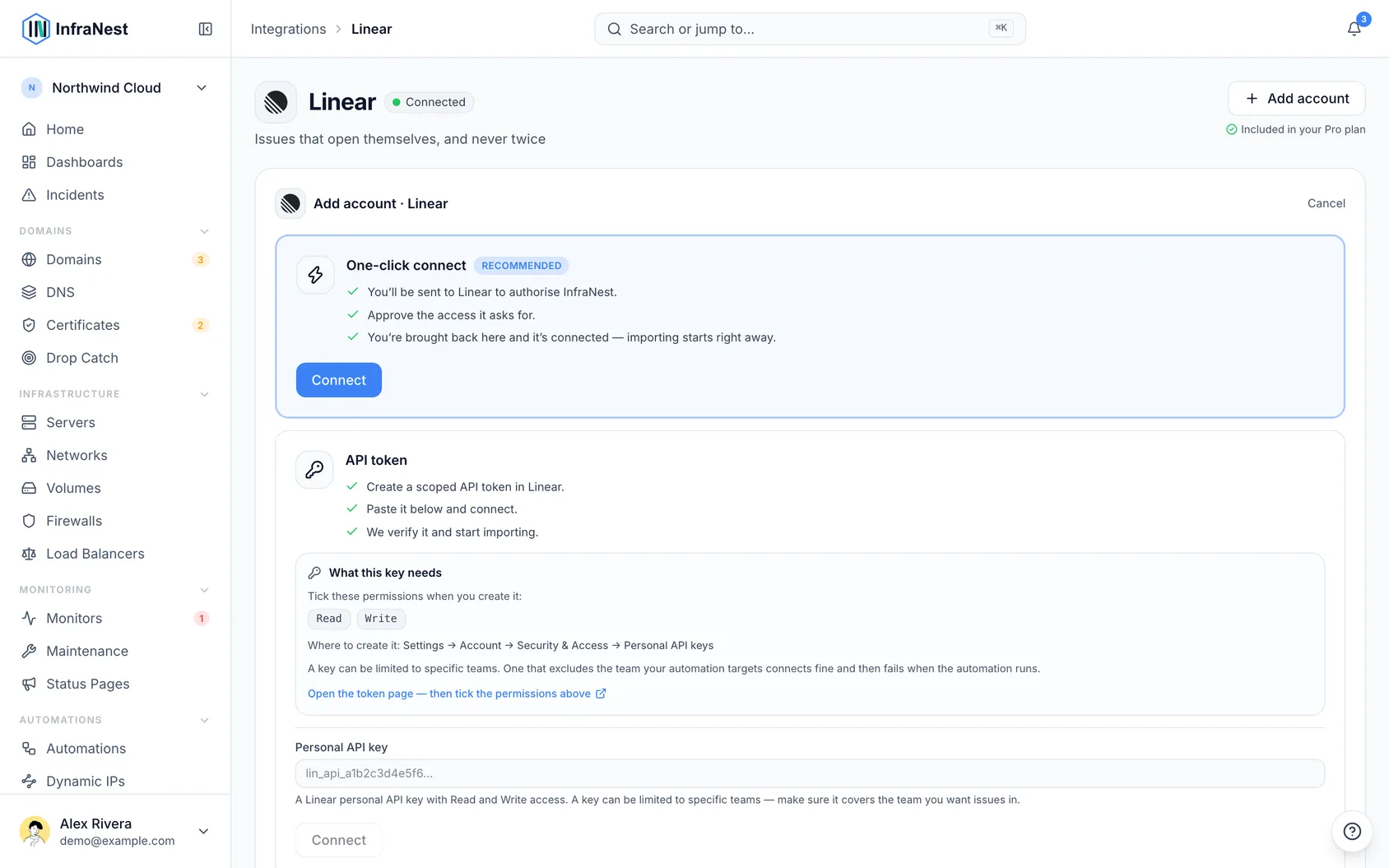
- Open Integrations in the sidebar and find Linear.
- Select Connect with Linear.
- Approve the workspace in Linear.
- You land back in InfraNest, connected — nothing to copy.
NoteIf Connect with Linear is greyed out, your InfraNest administrator hasn't registered a Linear app yet. Use an API key instead — it works the same way once connected.
#Connect with an API key
- In Linear, open Settings → Account → Security & Access.
- Under Personal API keys, create a key with Read and Write access.
- Copy the key — Linear shows it only once.
- In InfraNest, open Integrations in the sidebar, then Linear, paste the key, and select Save.
InfraNest checks the key right away and shows the workspace it belongs to, so you can confirm you connected the right one.
WarningA key can be limited to specific teams. If you restrict it, make sure it includes the team you want issues in — a key that excludes it connects fine but fails when an automation runs. The key is also tied to the person who created it; if they leave, it stops working. For a connection the whole team relies on, use an admin's key or Connect with Linear instead.
#Open an issue for every incident
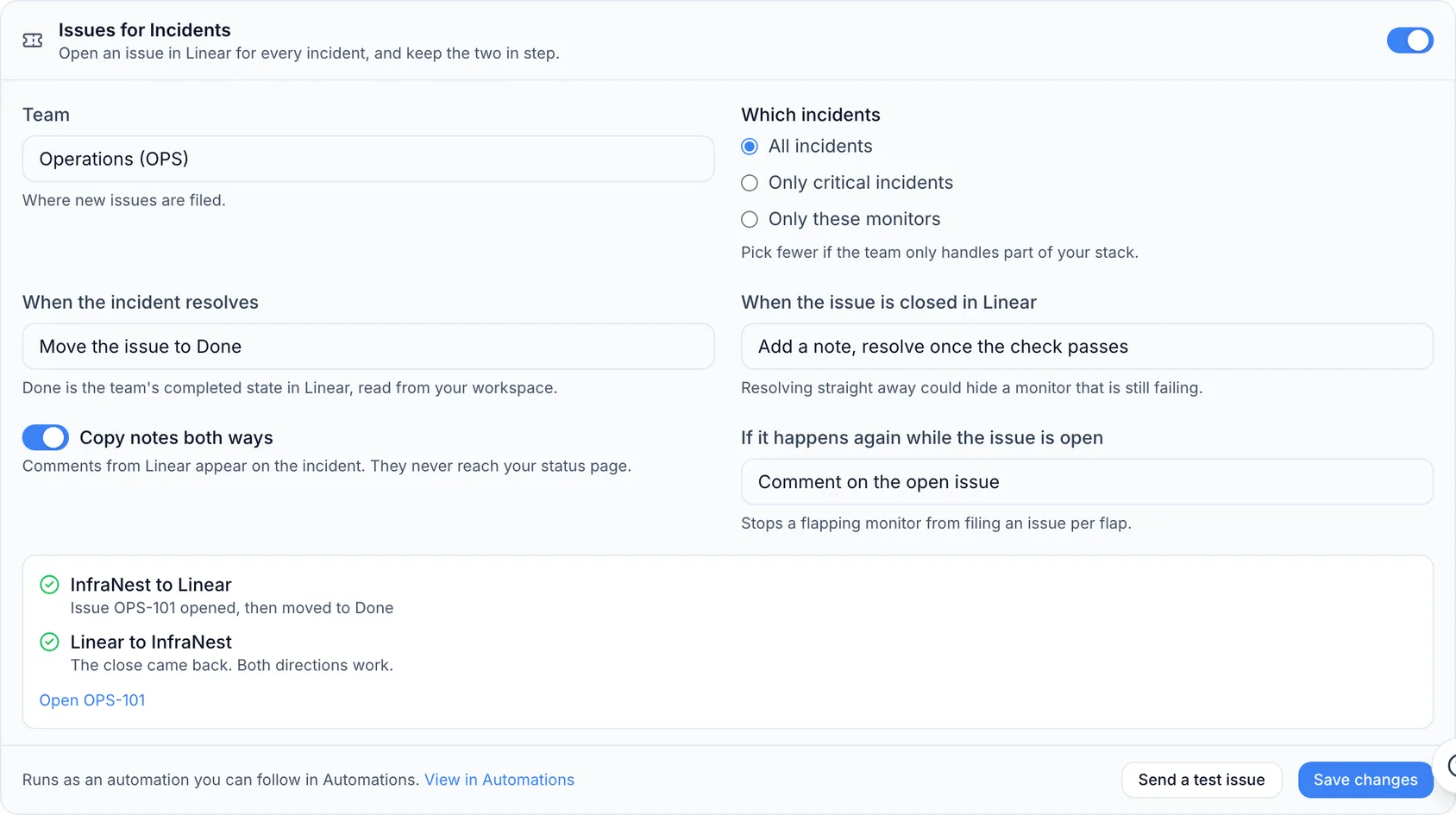
- Go to Integrations → Linear and open Connections & settings.
- Under Issues for Incidents, switch it on.
- Pick the Team that should get the issues (already picked if your workspace has only one).
- Select Save changes.
From then on:
- A new incident opens an issue in that team, titled after the incident, linking back to it. Critical incidents file as Urgent, major as High, the rest as Medium.
- Resolving the incident moves the issue to its team's Done-equivalent state.
- Closing the issue in Linear adds a note to the incident — if the monitor is still failing, the incident stays open.
- Notes copy both ways between the incident and the issue, but never reach your public status page.
- A repeat incident gets a comment on the existing issue instead of a new one.
Every one of these can be changed in the same section.
#Check that it works both ways
Select Send a test issue. InfraNest opens a real issue, closes it, then waits for Linear to report the close back, showing each direction separately. If nothing comes back, see Updates from Linear below.
#Where you see it
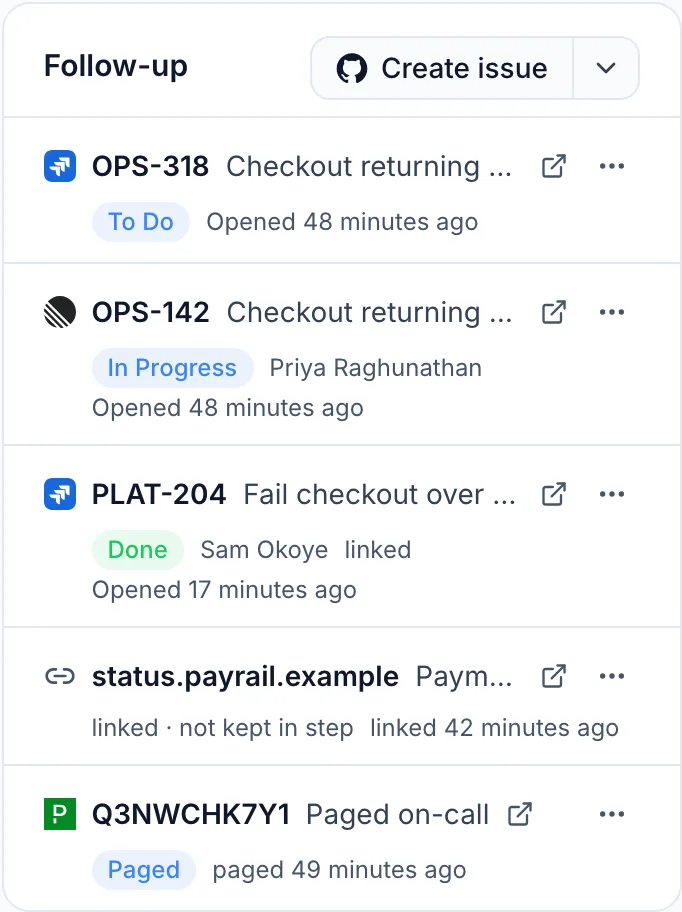
The incident page lists the issue in its Follow-up panel with its key, title and state, and the timeline shows when it was opened, commented on and finished. The switch itself runs as an automation, listed under Automations.
#If you disconnect and connect again
Disconnecting turns Issues for Incidents off too. InfraNest keeps its settings — team, which incidents, what happens on resolve — for 30 days. Reconnect the same workspace within that time and you're offered one click to restore it exactly as it was.
#Go further with an automation
Three building blocks in the automation builder find the incident's issue without typing a key: Linked ticket finished (trigger), Finish the incident's ticket, and Comment on the incident's ticket (actions). Ready-made examples live in Automations → Templates.
#File an incident or a warning as an issue
- Open the card's ⋯ menu and, under Hand it off, select Create a Linear issue. On an incident's page, use Create issue in the Follow-up panel instead.
- Pick the team (your last choice is already picked).
- Change the title or priority if you like, review What we send, and select Create issue.
What's sent is exactly what the dialog shows — the story of what failed or what's wrong, with a link back. Command lines and anything that looks like a password or key are removed first.
If InfraNest finds a matching open issue already, it offers Link that one instead. You can also use Link an existing issue and paste an address or key, or link something tracked elsewhere with any https:// address (marked linked · not kept in step).
Once an issue exists, it shows on the card with its key and state, such as OPS-142 · Open, and the menu offers Open OPS-142 instead of creating a new one.
#Publish the review as a Linear document
- On the incident review, tick Linear document under Also publish to before Finish review — or use Publish ▾ → Linear document on a finished review.
- Pick the project.
InfraNest writes the document with what happened, the impact, why, what you change, the timeline and what changed just before. Publishing again updates the same document; edit the review, not the document, since it's rewritten each time.
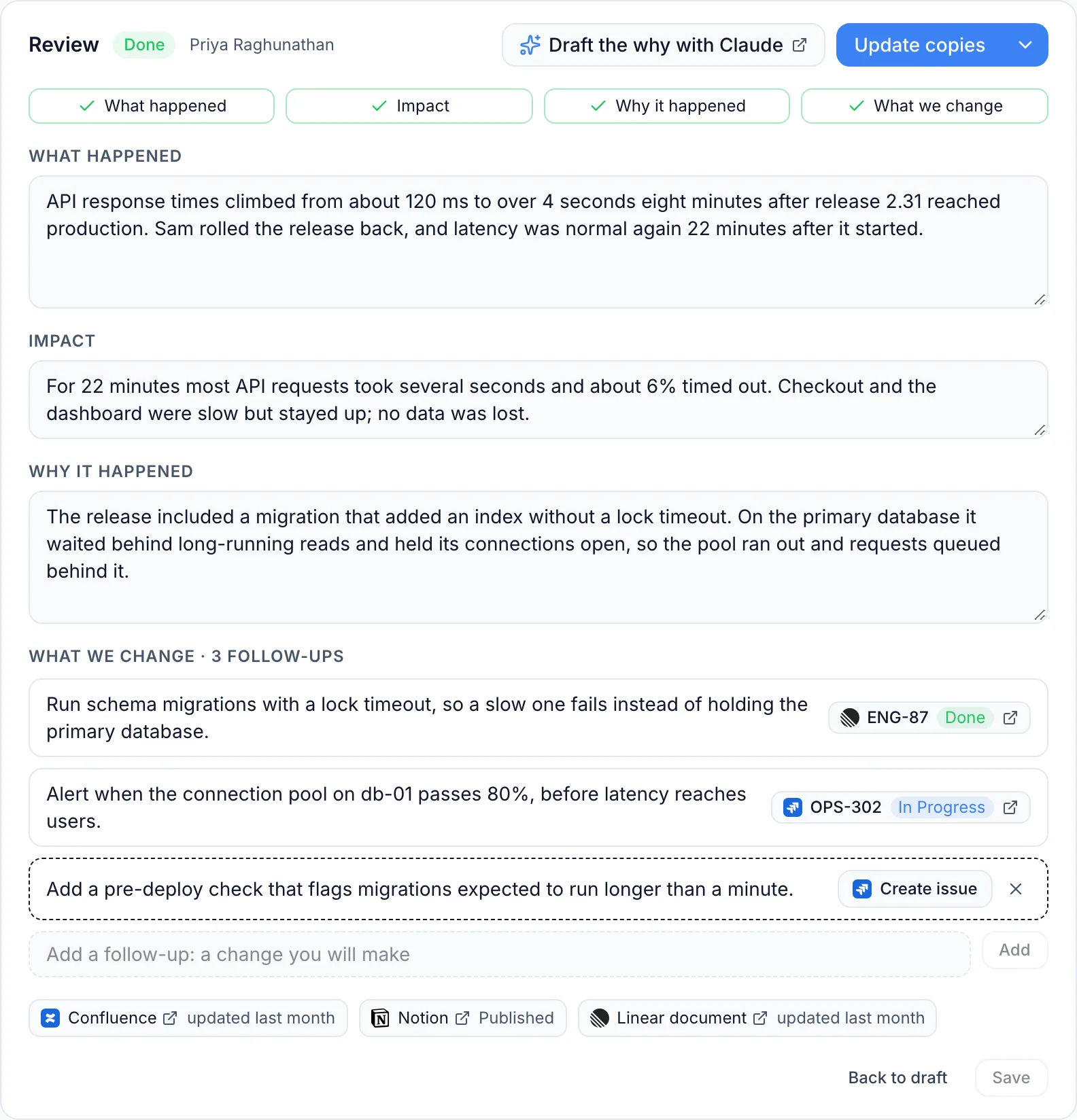
To link a postmortem written elsewhere instead, choose Publish ▾ → Link a write-up made elsewhere and paste its address.
#Create issues from an automation
- Build a rule as usual and pick Create Linear issue as the action.
- Set Team (type to search, or type a team key like
ENG). - Fill in Title and Description — you can drop in values from the trigger.
- Optionally set Status, Project, Assignee and Priority.
The created issue is available to later steps in the same rule, so you can comment on it or close it right after.
TipWhen a rule runs again for an incident that already has an open issue, InfraNest adds a comment instead of opening a duplicate — one issue per flapping monitor, not one per flap. To always open a new issue, set If this incident already has an open ticket to Open a new ticket anyway.
#Comment on an issue, or change its status
- Comment on Linear issue — adds a comment, useful alongside a rule that opens issues.
- Set Linear issue status — moves the issue to a named status (type it exactly as it appears on that team's board).
Both accept an issue identifier (like ENG-14) or the issue created by an earlier step in the same rule.
#Updates from Linear
Updates from Linear is how Linear tells InfraNest an issue changed — needed for closing issues to resolve incidents, comments to reach the timeline, and automations to start on issue changes.

If you connected with Connect with Linear, this works automatically from the moment you connect.
If you connected with an API key:
- Go to Integrations → Linear → Connections & settings and select Turn on under Updates from Linear.
- In Linear, open Settings → API → Webhooks and select New webhook (needs a Linear admin).
- Paste the URL InfraNest shows, choose teams to watch, tick Issues and Comments, and save.
- Copy the signing secret from Linear, paste it in InfraNest, and select Save.
Not a Linear admin? Select Send this to a Linear admin, enter their email address, and select Email it — or copy the link yourself. The link expires after three days.
#Start an automation from Linear
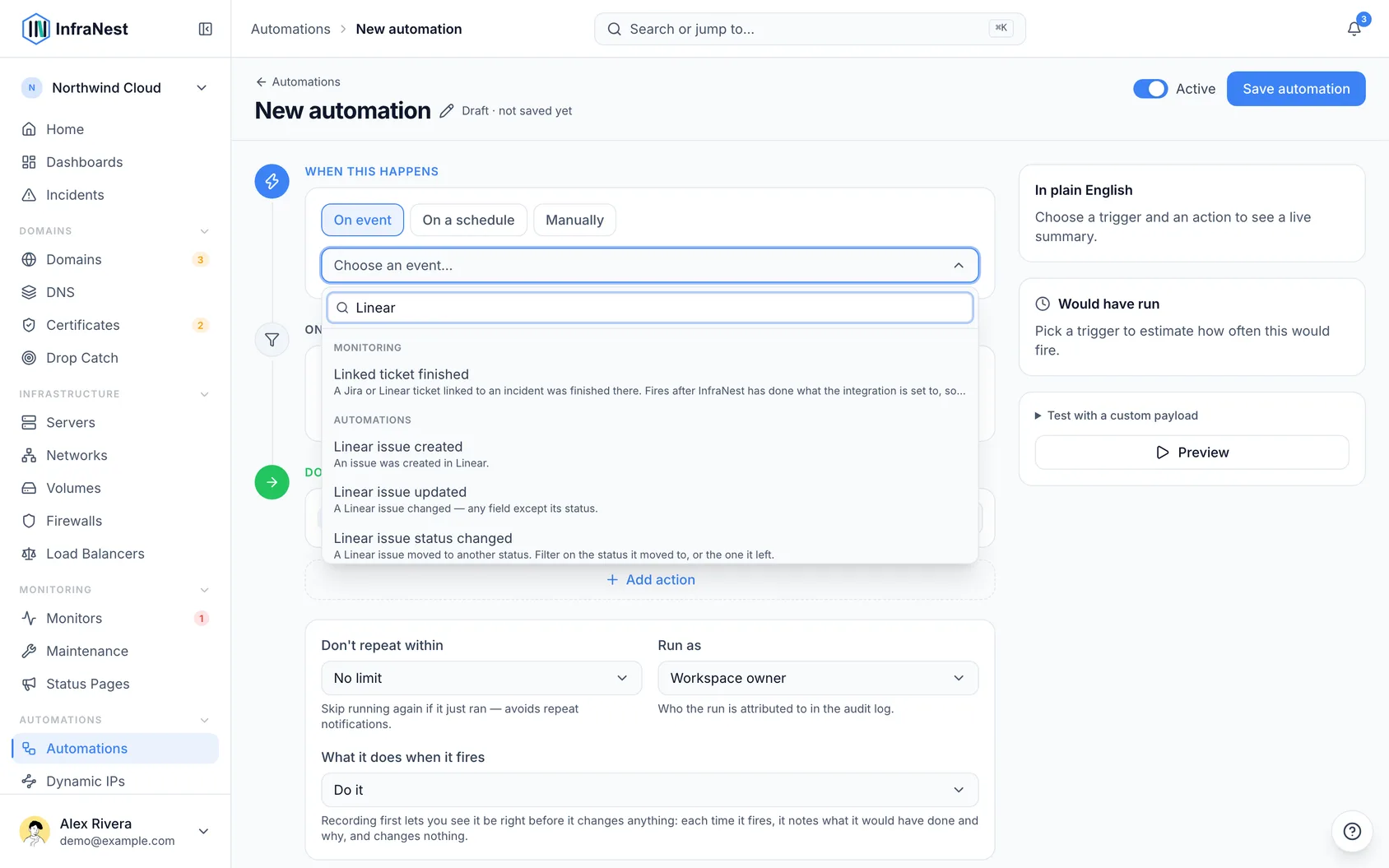
Once Updates from Linear is working, four triggers are available under When this happens:
- Linear issue created
- Linear issue updated
- Linear issue status changed — filter on State or Previous state
- Linear issue comment — doesn't fire on comments your own automations post
All support filtering by team, assignee, who did it, and Incident status; most also support priority.
#Whose name is used
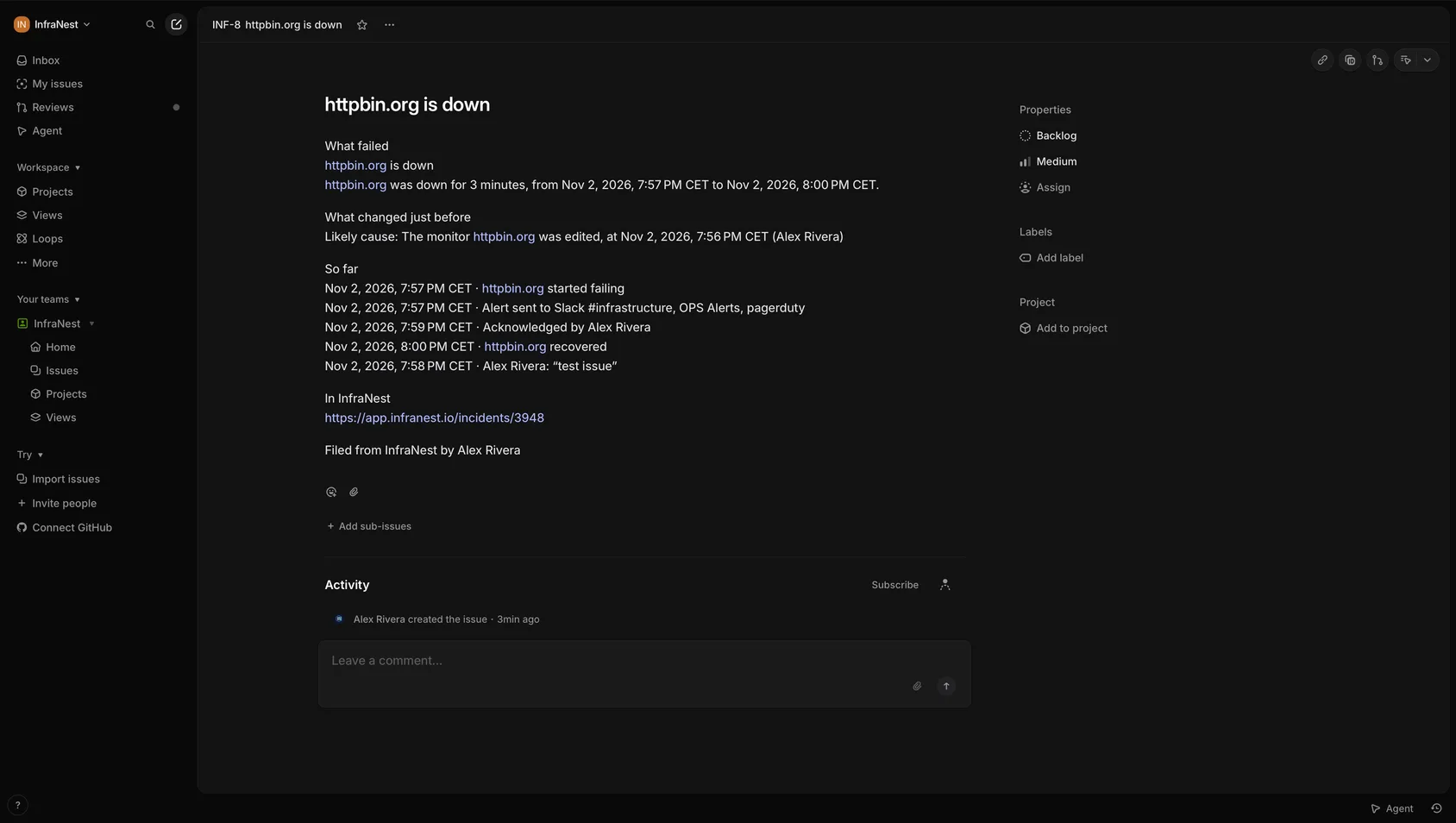
- Connect with Linear creates everything as the InfraNest app — shown as Alex Kim (via InfraNest).
- An API key creates everything as the person the key belongs to.
Every issue ends with Filed from InfraNest by and the requester's name, or Filed by InfraNest automatically for automation-filed issues.
#Reconnect instead of disconnecting
If Linear stops accepting the connection, the connection shows a red card with Reconnect (or Replace the key). Use this rather than Disconnect — it keeps your automations, linked issues and settings working. Disconnect removes the connection and switches off every automation using it. Find all of these under the connection's ⋯ menu: Test, Reconnect or Replace the key, Rename and Disconnect.
#Troubleshooting
"Linear rejected the key" — the key is wrong, expired, or lacks Write access. Create a new one and paste it again.
A list says why it has nothing to offer — rather than appearing empty, it explains: needs reconnecting, isn't allowed to read this list, or couldn't load suggestions. Follow the message or type the value directly.
The team, status, or project list is empty — pick a connection and team first; statuses and projects depend on the team being chosen.
An automation failed with "Linear rejected the request" — check the run in Automations → History for what Linear said; usually a team the key can't reach or a status name that doesn't exist on that team.
"No Linear user matches…" — two people can share a display name; use the email address to be certain.
#What InfraNest keeps
- Event history — which issue, its status, team and priority, who did it and what happened, kept for 45 days. Titles and comment text are not kept.
- Run history — the full event an automation ran on, comment text included, kept for 90 days, visible only to members who can edit automations.
- The issues on an incident — key, title, state and assignee, kept with the incident.
- Published and linked documents — address, title, and last-edited details, never the text.
Disconnecting stops new events from arriving; existing data is removed once the 45- and 90-day periods run out.
Was this article helpful?
Thanks for your feedback!
Thanks, this goes straight to the docs team.
Related articles
 ConfluenceConnect ConfluenceConnect Confluence and the review your team writes after an incident can be published to a Confluence space: a page titled Postmortem: with the incident's…CalendarConnect Google CalendarConnect Google Calendar and your domain renewals, certificate expiries and maintenance windows appear in a calendar of their own that updates itself.