

Connect your OVHcloud account to InfraNest to manage your DNS zones, domains and VPS servers all in one place. This article is for anyone who hosts services with OVHcloud and wants them visible alongside their other infrastructure.
#Overview
- Once connected, your zones, domains and servers appear in InfraNest automatically.
- You can edit DNS records, manage domain settings, and control your VPS without leaving InfraNest.
- InfraNest refreshes your zones, domains and servers about once an hour, and each domain's details every six hours.
#Before you start
Pick the right region. OVHcloud runs separate platforms, and OVHcloud US is a different company from OVHcloud Europe. An account from one won't work on the other. If you're not sure which you have, check the website you log in to:
- ovh.com / ovh.nl / ovh.de and other European sites → choose Europe
- ovh.com/ca → choose Canada / Asia-Pacific
- us.ovhcloud.com → choose United States
#Connect OVHcloud
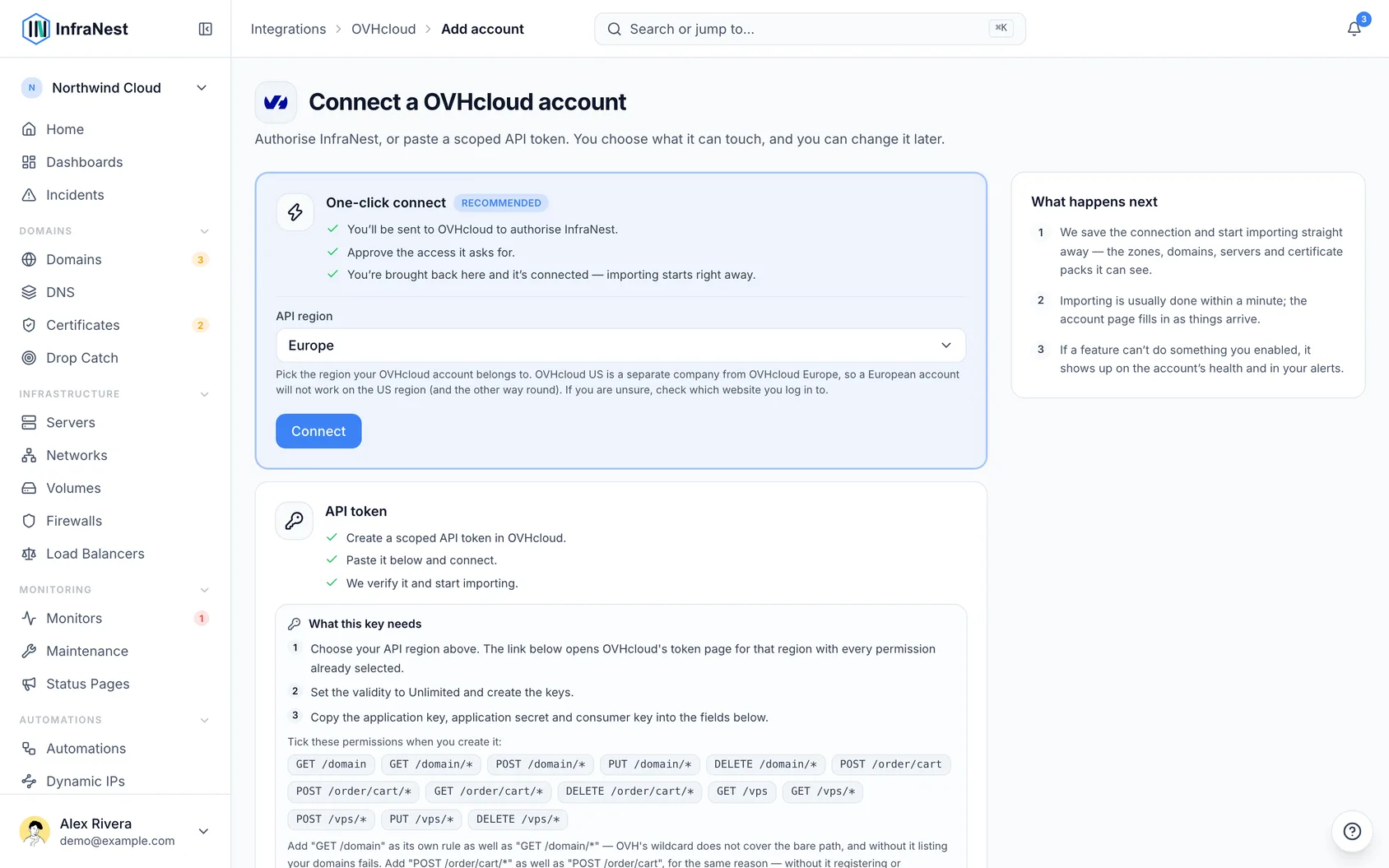
- Go to Integrations and open OVHcloud.
- Give the connection an Account label (Optional). Leave it blank and it takes the provider's name — a second connection to the same provider becomes "… (1)", so they stay tellable apart.
- Choose your API region from the list above. It's the first thing both connection methods ask for, because it decides which OVHcloud platform you're signed in to. The region is shown next to the connection's name afterwards, so with an account in two regions you can always tell which is which.
- Select Connect with OVHcloud if you see it, and approve the access OVHcloud asks for. Your region missing from the list on that button? One-click sign-in isn't set up for that platform yet — use the keys instead, which work for every region. See Create OVHcloud API keys.
- Choose which features to use it for: DNS, Registrar (your domains) and Cloud (your VPS). On the United States platform, Registrar isn't offered — OVHcloud US doesn't sell domains.
- Leave Email me when this integration has problems ticked if you'd like email warnings.
- Select Connect.
#What you get once it's connected
- DNS — view and edit your zones and records, and use them in templates and Dynamic IP.
- Domains — see expiry dates, change nameservers, update the owner's contact details, turn WHOIS privacy and auto-renew on or off, lock and unlock transfers, add DNSSEC keys, and read the transfer (EPP) code.
- Buying and transferring in — check availability and prices at OVHcloud alongside your other registrars, then register a domain or transfer one in from InfraNest. OVHcloud charges the default payment method on your OVHcloud account, and the domain's owner is the OVHcloud account holder.
- Servers (VPS) — see your VPS alongside your other providers, start, stop and reboot them, rename them, open a console, reinstall, take and restore snapshots, restore a backup, boot into rescue mode and reset the root password.
#What it can't do
- Renew a domain on demand. OVHcloud renews through auto-renew, so leave auto-renew on for every domain you want to keep. There's no Renew button for OVHcloud domains.
- Server graphs. OVHcloud has no API for a VPS's CPU, memory or network figures, so there are no graphs or graph alerts for OVHcloud servers. Install the InfraNest agent on the VPS for those.
- Reverse DNS, resizing, and creating or deleting a VPS stay at OVHcloud — see below.
NoteOVHcloud US has no domains. A United States connection gives you DNS and servers only. Domains registered with OVHcloud Europe or Canada need a connection for that region.
#Good to know
- DNSSEC can't be switched on for a US zone from here. OVHcloud's US platform doesn't offer it through its API, so the zone page says so instead of showing the switch.
- Buying a domain needs a payment method at OVHcloud. InfraNest places the order through OVHcloud's basket and pays it with your account's default payment method. Without one, the order is refused before anything is registered.
- DNS changes take a moment to go live. OVHcloud applies edits to a zone in a batch, and InfraNest asks it to do that straight after every change.
- Creating and deleting DNS zones happens at OVHcloud too. A zone appears when you register a domain there or order a zone on its own; deleting one needs a confirmation link OVHcloud emails you.
- Only the owner is a contact. OVHcloud doesn't keep separate administrative, technical and billing contacts for a domain — those roles belong to the OVHcloud account that manages it. So InfraNest shows one contact for an OVHcloud domain, and that is the whole picture rather than a missing part of it.
- Ordering and cancelling a VPS happens at OVHcloud. A VPS there is a subscription with its size fixed when you order it, so InfraNest doesn't offer "create server" or "delete server" for OVHcloud. Order one at OVHcloud and it appears here on the next sync.
- Reverse DNS is set at OVHcloud, not here. OVHcloud doesn't let a VPS change its own reverse DNS through its API, so InfraNest doesn't offer it. Set it on the IP address in the OVHcloud panel and it will show here on the next sync.
- Backups depend on which option your VPS has. OVHcloud sells two — Automated Backup and Veeam — and InfraNest shows whichever one your VPS is subscribed to. If it has neither, the backups list is simply empty: add the option to the VPS at OVHcloud and its restore points appear here.
- Correcting the owner's details — a new address, phone number or email — works from InfraNest. Handing the domain to a different owner is a separate procedure at OVHcloud that usually costs a fee, so it isn't offered here.
- Prices are shown in your billing country's currency. If prices look wrong, check the Billing subsidiary field on the connection.
WarningRestoring a backup replaces the running VPS with the restore point you pick. It keeps the machine's root password, but anything that changed since that restore point is lost.
#Troubleshooting
- "Authentication failed" right after connecting — the most common cause is the wrong region. An account from OVHcloud Europe can't sign in to the US platform, or the other way round. Edit the connection and change API region.
- "OVHcloud could not be reached" when connecting — this means the connection wasn't refused; OVHcloud simply didn't answer while we were checking it. Nothing is wrong with your account or your approval. Wait a minute and select Connect again.
- Some domain buttons are greyed out — that operation isn't available for that domain's extension, or your API keys don't cover it. If you connected with keys, check they have every rule listed in Create OVHcloud API keys.
- One feature shows as paused, with "This call has not been granted" — your keys are missing the rule for it. Create a fresh set of keys from the link on the connect form, paste them in with Update the API key on the account's Account tab, then select Re-enable now.
- A VPS has no price — InfraNest reads VPS prices from your OVHcloud services list, which the keys don't have to allow. Everything else works without it.
- A DNS change doesn't show up in a lookup — give it a minute and check again. DNS changes also take time to spread across the internet after OVHcloud has applied them.
- No prices in domain search — prices come from OVHcloud per domain, and some extensions aren't sold in every country. Check the Billing subsidiary on the connection.
Was this article helpful?
Thanks for your feedback!
Thanks, this goes straight to the docs team.
Related articles
 AWSConnect Amazon Web Services (AWS)Connect AWS to manage your Route 53 DNS, Route 53 domains and ACM certificates from InfraNest.
 CloudflareConnect CloudflareConnect Cloudflare to manage your DNS, domains and SSL certificates from InfraNest. Your Cloudflare zones and records appear automatically once it's connected.CloudflareCreate a Cloudflare API tokenTo connect Cloudflare, InfraNest needs an API token from your Cloudflare account. Here's how to create one with the right permissions.