

A client is who the work is for — a customer, a project, or a department. This article is for anyone who organizes domains, servers, or monitors by who they belong to.
#Overview
- Mark your domains, servers, and monitors with the client they belong to.
- Home then groups what needs attention per client, so you can see problems at a glance.
- Each client can also get a monthly review.
NoteNot an agency? You can use clients for your projects or departments instead — it works the same way.
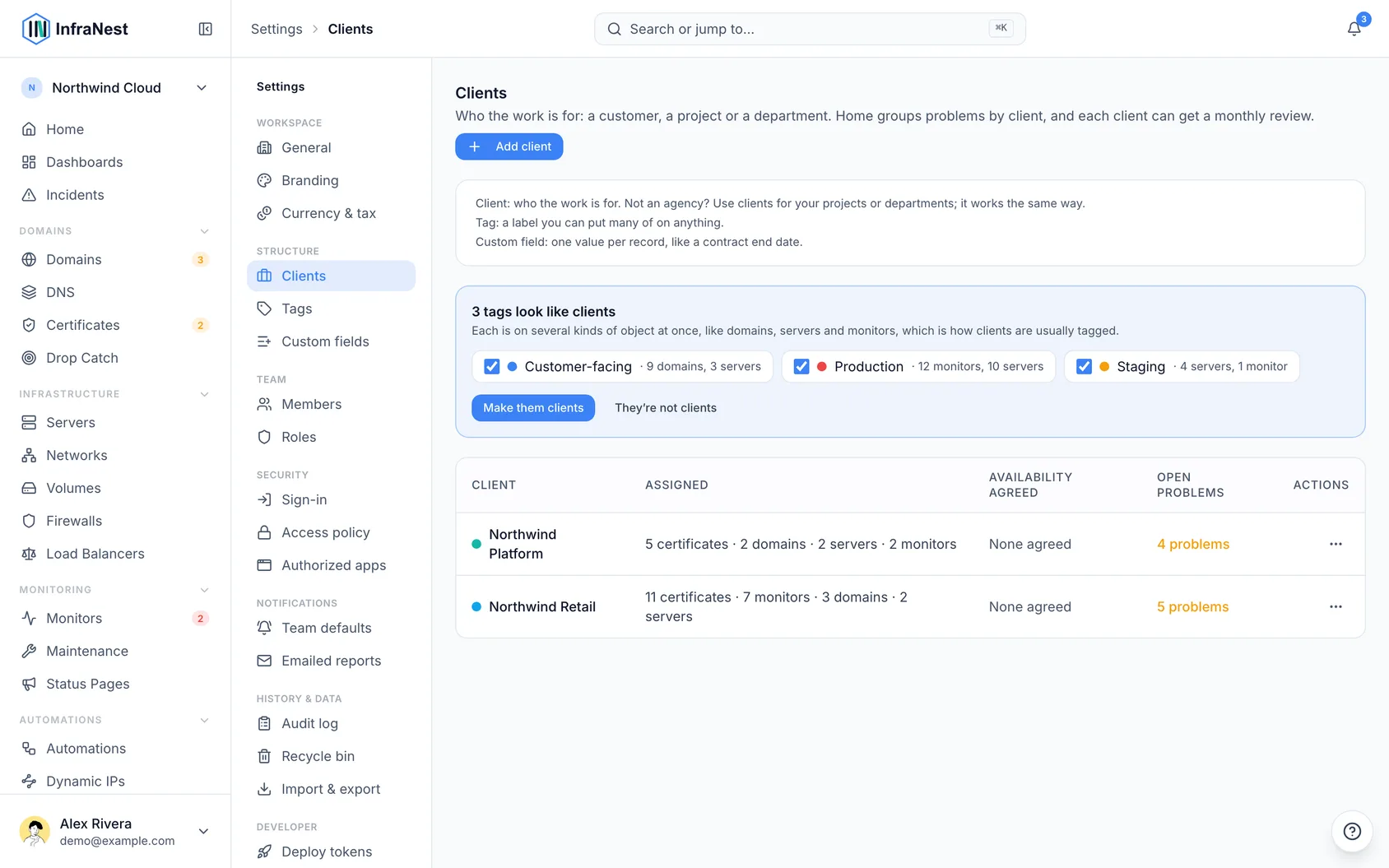
#Find the clients you already have
- Many teams already tag everything for a customer with that customer's name. Open Settings → Clients.
- When a tag is used on several kinds of thing at once — such as domains, servers, and monitors — InfraNest offers to turn it into a client.
- Choose Make them clients to accept, or They’re not clients to keep them as plain tags.
#Add a client
- Go to Settings → Clients, under Structure.
- Choose Add client, give it a name and a colour, and, if you agreed one with them, the availability you promised (for example 99.9%), then save.
#Assign things to a client
- On the client's row, choose Assign things.
- InfraNest suggests domains, DNS zones, servers, and monitors whose name matches the client's, and explains why.
- Tick what belongs to the client and choose Assign.
TipYou can also tag something to a client from its own list, the same way as any tag.
#What the list shows
For each client, you'll see:
- What is assigned to it, by kind
- The availability you agreed with them, if any
- How many problems are open right now
#Stop treating a tag as a client
- Open the row's menu.
- Choose Stop treating it as a client.
The tag stays on everything it was on — it just goes back to being a tag.
#Clients, tags and custom fields
- Client — who the work is for.
- Tag — a label you can put on many things.
- Custom field — one value per record, like a contract end date.
If your clients were named by a custom field until now, Settings → Custom fields offers to turn its values into clients, so there is one way to say who the work is for.
#Troubleshooting
- A tag isn't being offered as a client — InfraNest only offers this when a tag appears on several different kinds of thing (for example, domains and servers, not just one). Keep using it as a tag until that happens, or add it as a client manually.
- Assigned items don't appear under the client — check that the item still carries the client's tag; removing the tag from an item removes it from the client's list.
Was this article helpful?
Thanks for your feedback!
Thanks, this goes straight to the docs team.
Still stuck? Contact support
Related articles
StructureTagsOne label, applied to anything, that then works as a filter on every list, a grouping in every report, and the way a dashboard is narrowed to one part of…DeveloperUse InfraNest from an AI assistantAsk an AI assistant such as Claude, Cursor or VS Code about your infrastructure, and it looks the answer up in InfraNest for you.DeveloperProAPI tokensInfraNest has a full REST API, so you can automate anything you can do in the app. You access it with an API token.History & dataAudit logThe audit log records everything that happens in your workspace, so you can always see who did what and when.