

Home is the first page you see when you sign in to InfraNest — it's for anyone who wants a quick answer to "does anything need me?" without digging through every section.
#Overview
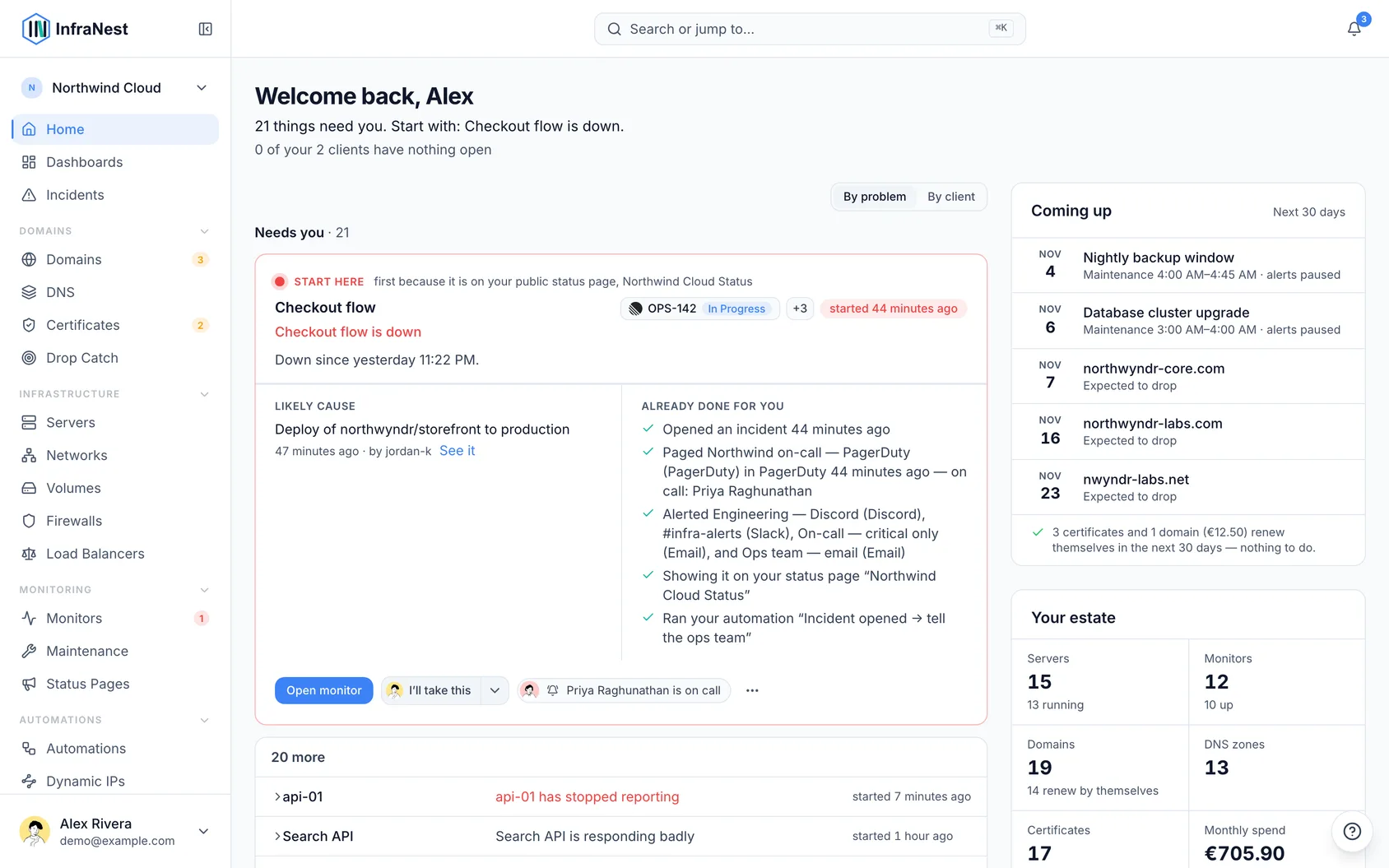
- Home shows one status line at the top telling you what's wrong and what's fine — for example, one thing is down but everything else is fine.
- Problems from every part of InfraNest show up here as cards, with the most important one marked Start here.
- You can snooze or dismiss things, tell your team you're handling something, and see what InfraNest already did for you during an outage.
- When nothing needs you, Home simply says Nothing needs you right now and gets out of your way.
#See what needs you
- Click Home in the menu, or just sign in — Home is where you land.
- Read the status line at the top for the quick answer.
- If something needs you, the most urgent card is marked Start here.
- Everything else appears as single lines below it — click one to open its card.
- During an outage, the rest of your items fold away under a line like "2 things, nothing urgent." Click Show to see them anyway.
#Deal with the most important thing
- Find the card marked Start here.
- Check What the service says, if shown, for the exact error from the service itself.
- Look at Already done for you to see what InfraNest already handled — opened incidents, pages sent, people notified — so you don't repeat it.
- If a likely cause is listed, review it before making changes.
- Use the button on the card to go straight to where you fix it.
- For problems with a known fix — like a broken alert destination or an account that needs reconnecting — Home may offer the fix directly. Read the one-sentence explanation, then click Do it.
- If the fix worked, the item moves to Fixed today. If not, click Open the page instead to look closer.
#Set something aside
- Open the card for the item you want to postpone.
- Click Snooze until tomorrow to hide it until 09:00 the next day.
- Click This is intentional to hide it until the situation actually changes — for example, a new expiry date.
- This decision applies to your whole team and stays in sync between Home and the item's own page.
- To see what's been set aside, check the summary line below the list and click Manage.
#Tell your team you're on it
- Open the item you're handling.
- Click I'll take this.
- The item leaves your teammates' lists and shows as one line, like "Sem has 2 items," so nobody duplicates your work.
- To hand it to someone else, click the arrow next to I'll take this and pick a teammate from the list — it shows their photo.
- If the person isn't in your workspace yet, click Invite someone… at the bottom of that list.
- To undo, click Give back.
- On a teammate's summary line, click Back to the list to return everything they're holding.
#See which client to call
- If you manage infrastructure for clients, switch the list from By problem to By client above the list.
- Clients are sorted with the one having the most urgent problem first.
- Click a client to see what's open for them.
- This option appears once you've defined what a client is in Settings → Tags.
#Open InfraNest on a dashboard instead
- Go to My account → Preferences → What InfraNest opens on.
- Pick a dashboard to land on instead of Home — handy for a wall screen or your own layout.
- Note that clicking Home in the menu always shows Home, regardless of this setting.
#Tips
TipIf some of what you run is only for testing — a lab server, a staging monitor — tag it and turn on For testing for that tag in Settings → Tags. Its problems still show, marked Test, but ranked below production issues of the same urgency.
NoteHome only says everything is fine once every check has actually answered. If a provider isn't responding, Home says We couldn't check … instead of assuming all is well, and keeps trying in the background.
#Troubleshooting
- A card seems to be missing context — on a wide screen, the reason for a problem and Already done for you sit side by side; on narrower screens they may stack, so scroll the card fully.
- Something keeps reappearing — if an issue resolves and recurs several times in one day, Home groups it into a single Fixed today line noting how often it happened, since that's worth investigating rather than celebrating.
- A domain or certificate shows up when you didn't expect it — things that renew by themselves appear only under Coming up, never in the needs-you list. If one shows in the list instead, it means it won't renew itself.
- You're the only person in the workspace — Home shows "Need a hand with this? Invite a teammate" instead of a list of teammates to assign to.
- The list looks frozen — Home updates itself live; a new item waits behind a "1 new item since you opened this page" button instead of jumping the list, so click it to refresh your view. Anything urgent still goes straight to Start here.
Was this article helpful?
Thanks for your feedback!
Thanks, this goes straight to the docs team.
Still stuck? Contact support
Related articles
Getting startedGetting helpHelp is built into InfraNest — you can read guidance for whatever page you're on without leaving it.Getting startedSearch and jump aroundInfraNest has a quick command menu so you can jump to any page or find help without clicking through the menus.Getting startedLet us set up your accountOnce you've connected your first provider — a cloud account, a registrar, a DNS provider — InfraNest imports what's there and offers to set the rest up for…Getting startedContact support and follow the replyAsk us a question from inside InfraNest and follow the reply in the same place — no email thread to lose.