

Private networks let your servers talk to each other over internal traffic, without going over the public internet. This article is for anyone setting up or managing servers that need to communicate privately.
#Overview
- Lets servers on the same network reach each other without using the public internet.
- Useful for things like an app server talking to a database, without exposing that traffic publicly.
- Managed from the Networks section, alongside your other infrastructure.
#Manage networks
- Go to Networks.
- Create a private network and attach servers to it.
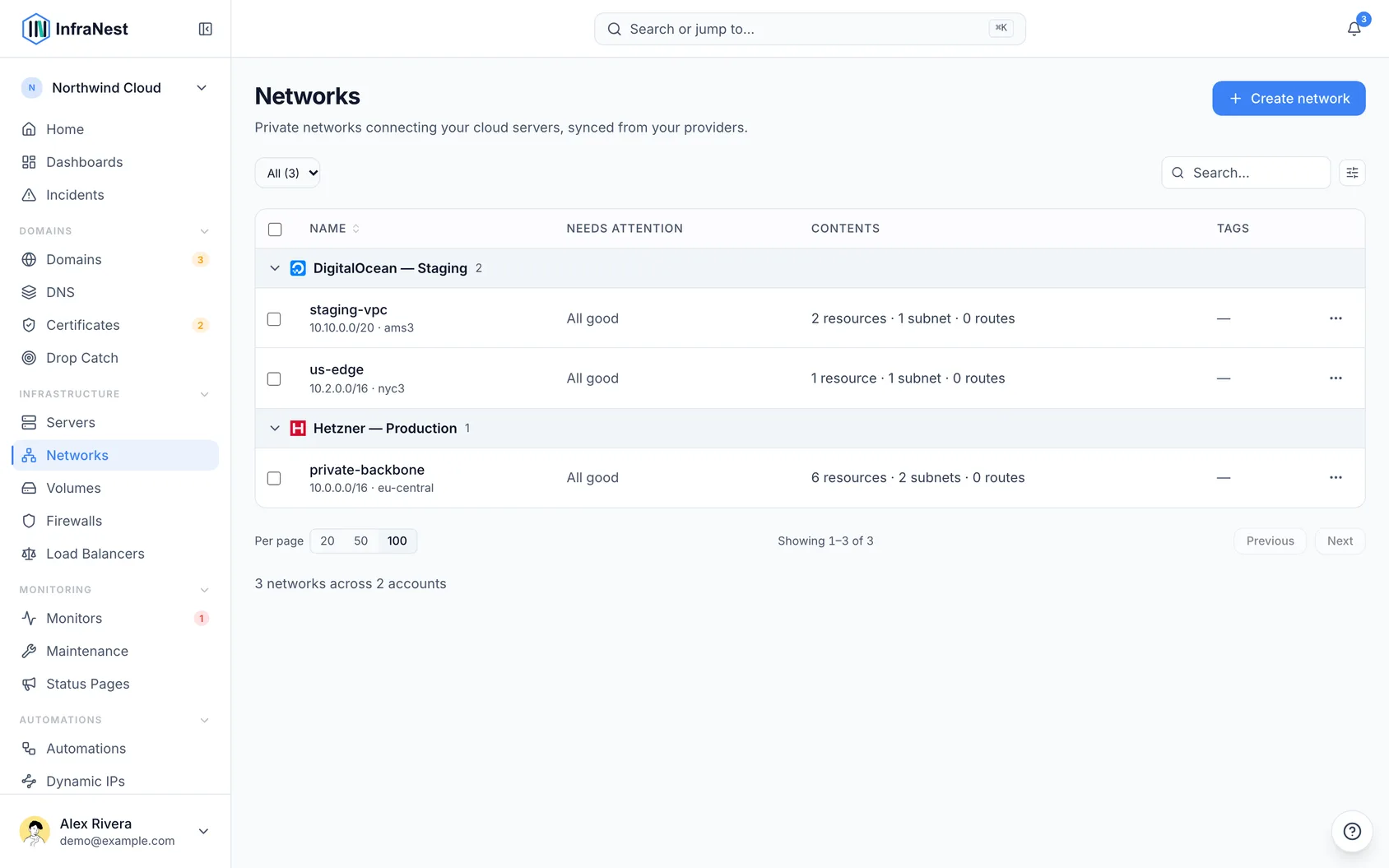
TipYou can also attach a server to a private network from the server's Networking tab.
#What a network's page shows
- Open a network from the list.
- Check the header — it shows the network's status, its address range, which provider and location it is in, and what it costs a month when known. The main action sits beside it; everything else is under Actions.
- Review Overview — it starts with anything that needs your attention, then Used by (the servers on it), and a Details card with its facts, each with the switch that changes it.
- Check Members — this is the address plan: each subnet with the servers in it and their private addresses, the free space left, and its routes.
- Check Activity — this lists what was done to the network, by whom and when.
A network with no subnet shows this in its Needs attention column — nothing can join it until it has one. To see only those networks, pick No subnet in the status filter above the list. A network with no servers on it is shown as a suggestion rather than a problem.
#What attaching a server actually means
This is the part that surprises people, so read it before you attach anything.
- Understand that every server on a private network can reach every port every other server on it exposes, on its private address. There is no "allow" step in between — if one server runs a database on the private network, every other server on that network can talk to it.
- Know that on some providers — Hetzner among them — the firewall cannot filter this traffic at all. Its rules apply only to the public interface, so a firewall rule cannot block a connection between two servers on the same private network, and the connection will not show up in the firewall's rules. On those providers, who is attached is the only control there is.
- When you attach a server, read the summary InfraNest shows you of which servers become reachable and whether the firewall applies, before you confirm.
#On some providers the network is chosen when the server is created
- Know that most providers let you attach or detach a server whenever you like.
- On DigitalOcean, know this is different: a server's private network is set when it is created, and cannot be moved afterwards. Changing it means building a new server in the other network and moving your work across.
- When creating a server on a provider that works this way, use the Join a private network option on the create form carefully — InfraNest shows the networks available in the location you picked and warns that the choice is permanent.
- If you skip this option, know the server goes into your provider's default network for that location — a real network, just not one you chose.
WarningIf you are not sure yet, pick the network you think you want. Joining the right one now costs nothing; moving later means rebuilding the server.
#Give a server a fixed private address
- When you attach a server, leave the provider to pick its private IP for most cases — this is the right choice when nothing needs to know the address in advance.
- If something does need a fixed address — a database other machines are configured to reach, or a host written into a config file — fill in Private IP address when you attach the server, instead of leaving it blank.
- If the network has more than one subnet, pick which one to land in as well. With only one subnet, there is nothing to choose and InfraNest will not ask.
- Choose the address at the moment you attach the server. On Hetzner there is no way to change a server's private address afterwards — the only way to get a different one is to detach and attach again, which takes the server's network connection down while it happens.
A few addresses are never available, and InfraNest will tell you before it tries to use them:
- the first address of the network — that is the gateway, so it is taken even though it looks free;
- the first and last address of a subnet, which are reserved by how networks work;
- any address another server on this network already holds.
If you leave the field blank, nothing changes from before: the provider assigns a free address.
#Grow a network that has run out of room
- Open the network's page.
- Use the option to grow its range. Pick one of the offered ranges — InfraNest only offers ranges your provider will accept.
NoteA range can only get bigger — there is no way to shrink it back afterwards. The first address always stays the same; only the size changes. Some networks cannot grow at all because of where they start — if so, the option is greyed out and says so.
- After growing the range, reboot servers already on the network, or update their routes by hand — growing the range does not reach into machines already attached.
Growing the range makes room for more subnets. It does not make an existing subnet bigger — if one subnet is full, add another subnet instead.
#Should a server be on a private network?
Attach a server when it needs to talk to others — an app server that reads a database, for example.
Leaving a server off a private network is a normal choice, and often the right one. A CI runner, a public website that shares nothing with the rest of your estate, or anything you'd rather keep away from your database has no reason to join. InfraNest lists the servers that could join a network, but does not treat staying off one as a problem to fix.
Was this article helpful?
Thanks for your feedback!
Thanks, this goes straight to the docs team.
Related articles
 TransIPConnect TransIPConnect TransIP to manage your VPS servers, DNS, domains and SSL certificates from InfraNest.ServersAbout cloud serversInfraNest brings your cloud servers — and the firewalls, volumes, networks and load balancers around them — into one place, so you can run and secure them…ServersAdd a server you already haveNot every server lives in a cloud account. You might have your own hardware in an office or a rack, or a machine at a provider InfraNest does not connect to…Metrics & alertsChoose what you get alerted aboutAlert defaults is the list of everything InfraNest can warn you about, with a switch beside each one.