

If you've ever wondered why InfraNest warned you about something — or why it stayed silent when you expected it to speak up — this article is for you. It explains the full list of alerts you can turn on, what each one actually watches, and how to tune the numbers without needing to be an expert.
#Overview
- Alert defaults is the complete list of everything InfraNest can warn you about, each with its own switch.
- Turning one on applies it to every server you're monitoring. You can still give a single server different numbers without affecting the rest.
- Nothing needs to be created — the list is already complete, and every alert starts with a sensible number so you don't have to guess at thresholds yourself.
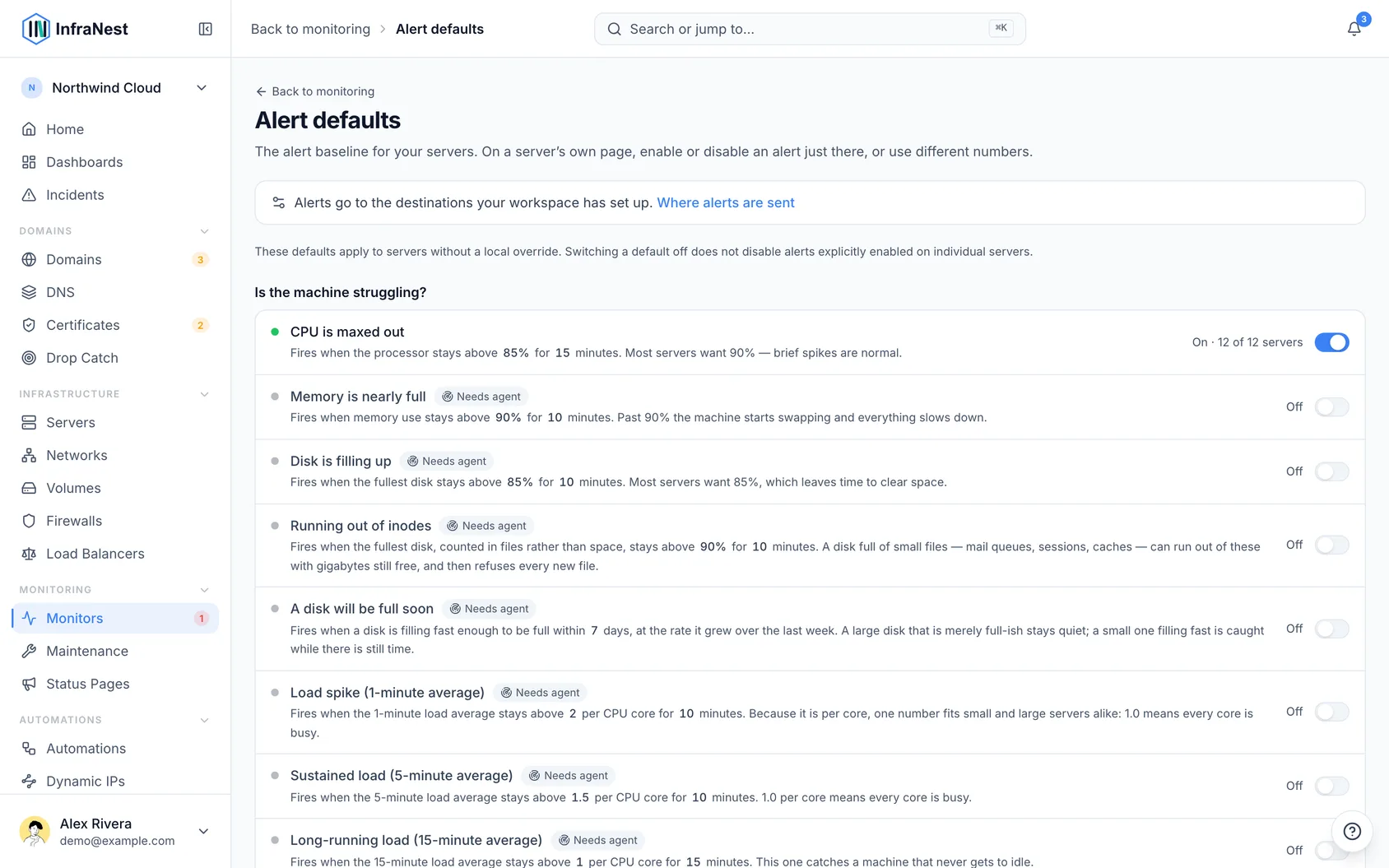
#Turn something on
- Go to Monitoring, click ⋯ at the top right and choose Alert defaults.
- Find the alert you want and flick its switch. That's the whole step — it saves immediately, and every monitored server starts following it.
The list is grouped into four questions:
- Is the machine struggling? — CPU, memory, disk space and load average.
- Is anything broken? — a service that has failed, a service or container that keeps restarting, a process the server killed because it ran out of memory, and a server that has gone quiet.
- Is it up to date? — security updates left waiting, a restart the server needs to finish installing updates, and an Ubuntu Pro subscription that has stopped covering a server.
- Is traffic unusual? — network and disk throughput. Most people leave these off until they know what normal looks like for a particular server. They work on every server with the agent (version 0.14 or newer), and on servers whose provider reports traffic.
#Change a number
The numbers are part of the sentence under each alert's name. Click one, type a new value, and press Enter or click away. There is no save button and nothing to open.
Two numbers per alert:
- The threshold — how high the reading has to go.
- The minutes — how long it has to stay there before anyone is told.
That second number matters more than it looks. A very short duration turns every brief spike into an alert, and alerts nobody can act on are the ones people start ignoring. Ten minutes is a sensible starting point for most things.
TipIf your plan stores readings less often than your chosen window, InfraNest won't let you set a window too short to judge — the rule would simply never fire.
CPU, memory and I/O pressure measure something load cannot: how much of each minute programs spent waiting — for a processor, for memory to be freed, or for the disk. Memory pressure is often the first sign of a server about to run out, before anything is killed; I/O pressure shows a slow disk before anything else does. These are new, so their starting numbers are rough — adjust them once you've seen what's normal for your servers. They need agent version 0.14 or newer and a reasonably recent Linux kernel.
Load is set per CPU core. Load counts the work waiting for a processor, so the same figure means something different on a small and a large server: 2 is a two-core server fully busy, and an eight-core one a quarter busy. A limit of 1.0 per core means "every core busy," whatever the server, so one setting fits your whole fleet. InfraNest uses the core count the agent reports, or the one from your provider's plan, and the alert tells you both: "limit 8 (1 per core × 8 cores)." If neither is known, the server is treated as having one core.
The server has gone quiet has a minimum of its own, for the opposite reason. The agent checks in on your plan's schedule, so between two perfectly normal check-ins a healthy server can be silent for a few minutes. The shortest you can set is five minutes, or three missed check-ins on a plan that reports less often. If a limit was set shorter before, or your plan changed since, the alert waits for that minimum anyway and the page shows the number it's actually using.
#A disk that runs out of files rather than space
Running out of inodes watches something the disk-space alert can't see. Every file on a disk uses one inode, and most disks have a fixed number of them. A disk full of small files — mail queues, PHP sessions, cache directories — can use them all up with gigabytes still free, and from then on it refuses every new file while the disk-space figure says everything is fine. This alert fires when the fullest disk, counted in files, stays above 90%. The server's Disk card shows the figure under a disk once it's half used.
Some filesystems, such as btrfs, have no fixed number of inodes and never run out this way; on those the alert stays quiet. It needs agent version 0.13 or newer.
#A disk that will be full soon
A disk will be full soon answers the question the disk-space percentage only stands in for: not "how full is it" but "when will it be full." InfraNest looks at how fast each disk grew over the last week — the same forecast the server's Disk card shows — and tells you once when one is on course to be full within the number of days you chose (a week, to begin with). A large disk that sits at 88% for months stays quiet; a small one filling a few percent a day is caught while there's still time to act. When the disk stops filling, or slows well past your limit, you're told that too.
It needs the agent, which keeps the per-disk history the forecast is drawn from.
#Updates and restarts
The two alerts under Is it up to date? work a little differently from the rest, because what they watch is allowed to take a while.
- Security updates are waiting is measured in hours: "more than 0, for 24 hours" to begin with, and it clears as soon as the server is patched. On a server that installs updates by itself, some are held back on purpose for a few days, so there you're told only once updates have waited a week. That usually means the automatic updates themselves have stopped.
- A reboot is pending is measured in days. You're told once, when a server has been waiting for a restart longer than the number of days you chose — a week, to begin with. A restart within that time, such as the automatic nightly one many Ubuntu servers do, sends nothing at all. The server's page shows a pending restart from the moment it appears. If the server restarts itself after updates, you're told the morning after it should have restarted and did not. The server's page shows how it's set up, under Automatic updates. Until it restarts, programs that were already running keep using the old version, including any security fix that was just installed.
Security updates are waiting relies on information only Debian and Ubuntu keep about themselves, so on other systems it stays quiet. A reboot is pending works on every Linux server with an up-to-date agent: Debian, Ubuntu and SUSE say so themselves, and on the others (Red Hat, Rocky, Alma, Fedora) InfraNest notices a newer kernel has been installed but isn't running yet. The server's page says which it was. Windows servers report it too, from Windows Update and Windows' own component servicing, and so do their automatic services for A watched service has failed — a service that stopped with an error counts, one that stopped on purpose doesn't. Arch is the exception: it removes the running kernel's files when it updates, so there's nothing left to compare against and the alert stays quiet.
#When a RAID array loses a disk
Dedicated servers usually keep their data on two disks at once (software RAID 1), so that one can fail without anything being lost. When one does, the server keeps working on the other — which is exactly why nobody notices, until the second disk fails too and the data goes with it. A RAID array has lost a disk tells you when an array has been running on fewer disks than it was built for for a quarter of an hour, and again when it's whole. If a replacement disk is already being filled, the message says how far along it is. The server's System card lists each array under RAID.
Servers without software RAID — most cloud servers — have nothing to report, and the alert stays quiet. It needs agent version 0.14 or newer.
#When a server's clock stops keeping time
The clock stopped syncing tells you when a server whose clock was being kept in sync has not been for half an hour. A clock that drifts quietly breaks two-factor codes, certificate checks, scheduled jobs and the timestamps in every log, long before it's far enough out for anyone to notice. The server's System card shows the clock's state under Clock.
Some servers never report their clock as synchronised and are fine — the hosting platform keeps the time right itself. This alert only speaks for a server it has seen synchronised, so those stay quiet. It needs agent version 0.14 or newer.
#When Ubuntu Pro stops covering a server
Ubuntu Pro has lapsed tells you when a server that was attached to Ubuntu Pro no longer is, because somebody detached it or the subscription ran out. Livepatch and the extra security updates (ESM) stop at that moment, and the server itself doesn't say so anywhere.
You're told once the server has been without Ubuntu Pro for the number of minutes you chose (an hour, to begin with), so detaching and reattaching it straight away doesn't set it off. When the server is covered again, you get an all-clear.
Servers that never had Ubuntu Pro are left alone. The server's System card shows the same thing: whether the server is attached, and whether Livepatch and ESM are on. This needs agent version 0.11.0 or newer.
#When a server runs out of memory
The server ran out of memory tells you when a server ran so low on memory that it had to stop a program to keep going. The memory graph can't show this: stopping the program is what freed the memory, so the next reading looks healthy. This alert is the only place it shows up.
You're told once, even if several programs are stopped in a row. When nothing more has been stopped for the number of minutes you chose (an hour, to begin with), you get an all-clear. The email tells you the command to run on the server to see which program it was.
The server's System card also shows how many programs have been stopped this way since the server last started, and when the last one was. It needs agent version 0.10.0 or newer.
#When a service keeps restarting
A service keeps restarting tells you when one service on a server keeps crashing and being started again. The server brings it straight back each time, so whenever you look it says "running" — but it keeps falling over, and whatever it was doing is cut off every time.
It starts at 3 restarts within 15 minutes: one restart is a hiccup the server dealt with, three in a quarter of an hour is a pattern. Both numbers are in the sentence and you can change them. Only restarts the server did by itself count — restarting a service yourself, or a deploy that does it, never sets this off.
You're told once, with the name of the service and how many times it restarted. When nothing has restarted for the length of the window, you get an all-clear. A service you've chosen to ignore on a server does not set this off either.
#When a container keeps restarting
A container keeps restarting is the same alert for Docker and Podman containers. A container that keeps crashing is started again each time, so it always shows as up — this tells you when one restarts 3 times within 15 minutes, to begin with. You can change both numbers.
The alert names the container by its short ID, not by its name. To see the name, run a container-list command on the server. The agent never connects to Docker itself, because that would give it full control of your server, so it can't read names.
You're told once, and you get an all-clear when no container has restarted for the length of the window. Containers can't be ignored one by one yet; to stop this alert on one server, switch it off for that server. It needs the newest version of the agent, and servers that run Docker with its older "cgroupfs" setting don't report containers at all.
#What each alert is actually watching
Every switched-on alert shows how many servers it applies to — "On · 12 of 14 servers" — and each one has a sentence saying exactly when it fires.
Alerts marked Needs agent watch something no cloud provider reports. You can switch them on for the workspace, but they only ever fire on servers where the agent is installed. On a server without it, the alert says so on the row and offers to install it there and then.
#Changing one server
Open the server from Monitoring → Servers and go to its Alerts & rules tab. You get the same list, showing what that machine is actually doing: Normal, Firing, or off. A server that needs a restart shows Waiting instead of Firing — nothing is wrong with it, it just has something left to do.
- Alerts that come from the workspace are marked Org default.
- Change a number there and it becomes Changed here — only that server is affected.
- Reset puts it back on the workspace's number.
- Switching one off on that page switches it off for that server only. Switching the default off switches it off everywhere.
NoteAn alert your workspace hasn't switched on at all cannot be switched on for one server by itself — the row says so and links back here.
#Turning something off
Flick the switch back. Nothing is deleted: any per-server numbers people have set are kept, and they take effect again if you switch the alert back on later.
Was this article helpful?
Thanks for your feedback!
Thanks, this goes straight to the docs team.